
Import/Export of test results to SPSS
SPSS is a statistical package that allows for the creation of detailed regression analysis, analysis of variance, or correlation within a collected data set. Therefore, it is an advanced computer program used for a detailed analysis of a given survey's results.
Data export to SPSS format:
Allows you to download the collected results to your computer's hard drive in a format supported by the SPSS program. Thanks to this, we have the possibility of their very advanced and convenient examination, and at the same time drawing more conclusions about the tested sample.
How to transfer data to SPSS?
After collecting data, go to the Results tab, and then Completions.
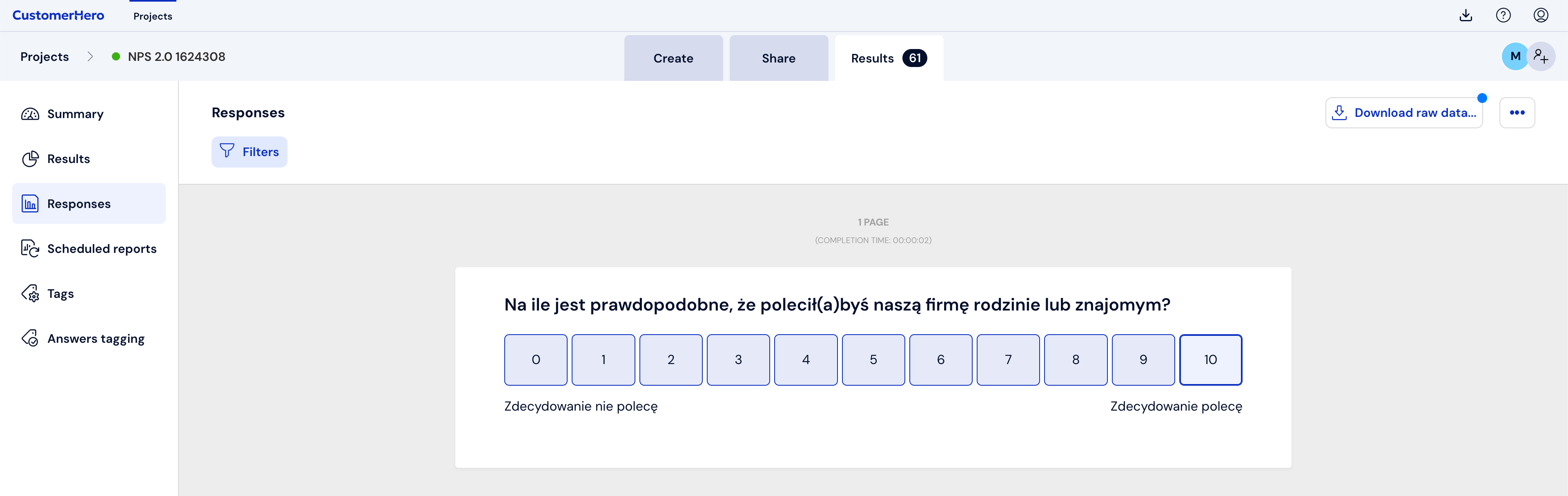
Click Download raw data, and then select SPSS from the list of available formats – this will convert the results to the desired format.
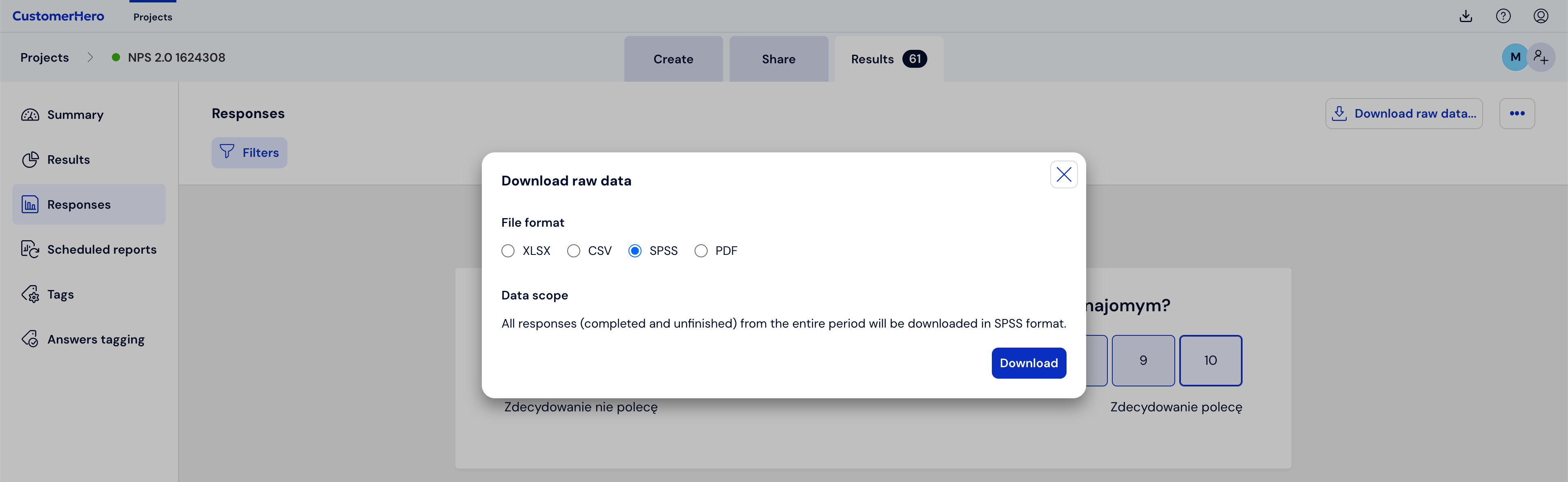
Confirm the action by selecting Download.
How to correctly open an SPSS file
An extremely important element that is responsible for the correct reading of the SPSS file on our computer is providing the absolute path to the location, thanks to which SPSS knows where to look for the database file.
By default, Webankieta.pl does not substitute any path to the file, only its name (1). In the comments of the *.sps file we show what an example path should look like. (1)

If we do not guide our computer on the right path – in this case, the absolute path to the data file – SPSS will not generate a SAV file. In the image below you can see the file name preceded by the absolute path to the file. In this case, it is to the Desktop of the user Piotrek on the Mac OS X operating system.

An example path for the user Adam on the Windows operating system will be as follows:
4. If you have done the previous step according to the instructions, you should similarly do it in the same way at the end of your file. Here we indicate the location where the resulting *.SAV file will be saved (3)
For Mac OS X:

For Windows:
5. At this moment, you can start processing the files by the SPSS program by clicking in the program menu Run and then All (4). Note, in the English version these commands are respectively: Run and All.

6. After the compilation of the *.SAV file is finished, it should appear in the same directory as the input files *.SPS and *.DAT. SAV file
----------------------------------------------------------------------------------
There is also the possibility to import a file with raw data in XLSX and CSV format to a program that supports the SPSS format.
To download the raw data, use this instruction - LINK
Once the raw data is on your drive, open a program to handle the SPSS format.
The screenshots below apply to the PSPP tool.
1. Go to the File tab -> Import Data.
2. In a new window, select the raw data file to import and click Next.
3. In the next steps, configure the data import according to your preferences.