
Export of the results
Using the possibility of exporting results, we can save data from the obtained survey results on the hard drive of our computer. Export also allows for the analysis of this data using external tools, e.g., Excel, Tableau, PowerBI.
Results
These are data obtained from all respondents, collected in one file. They present the percentage distribution of answers in the surveyed sample.
How to export results?
After the first respondents have completed your survey, click on the Results tab, and then click on Results.
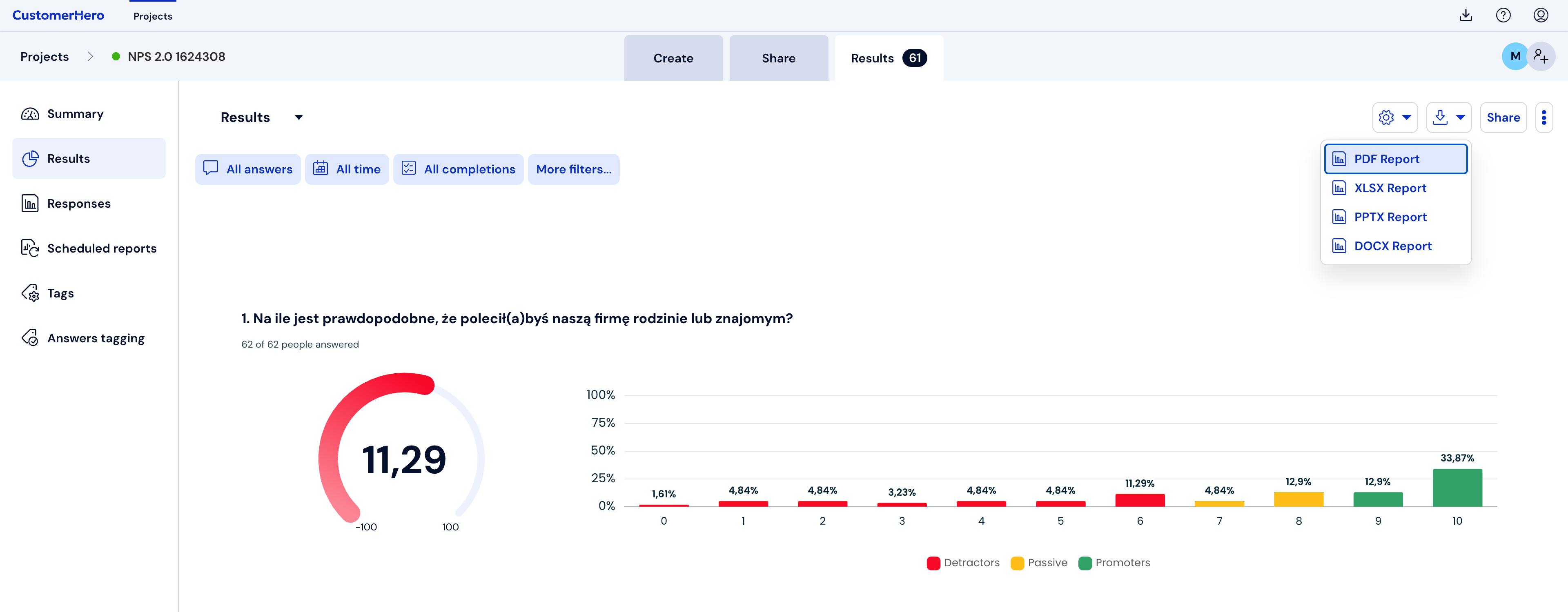
When the results load, click the download button, and then choose the report format. Confirming the appropriate form field will start exporting the file, which will be available to download in the Download Center.
How to export a specific respondent's completion?
Go to the Results tab, and then click on Completions.
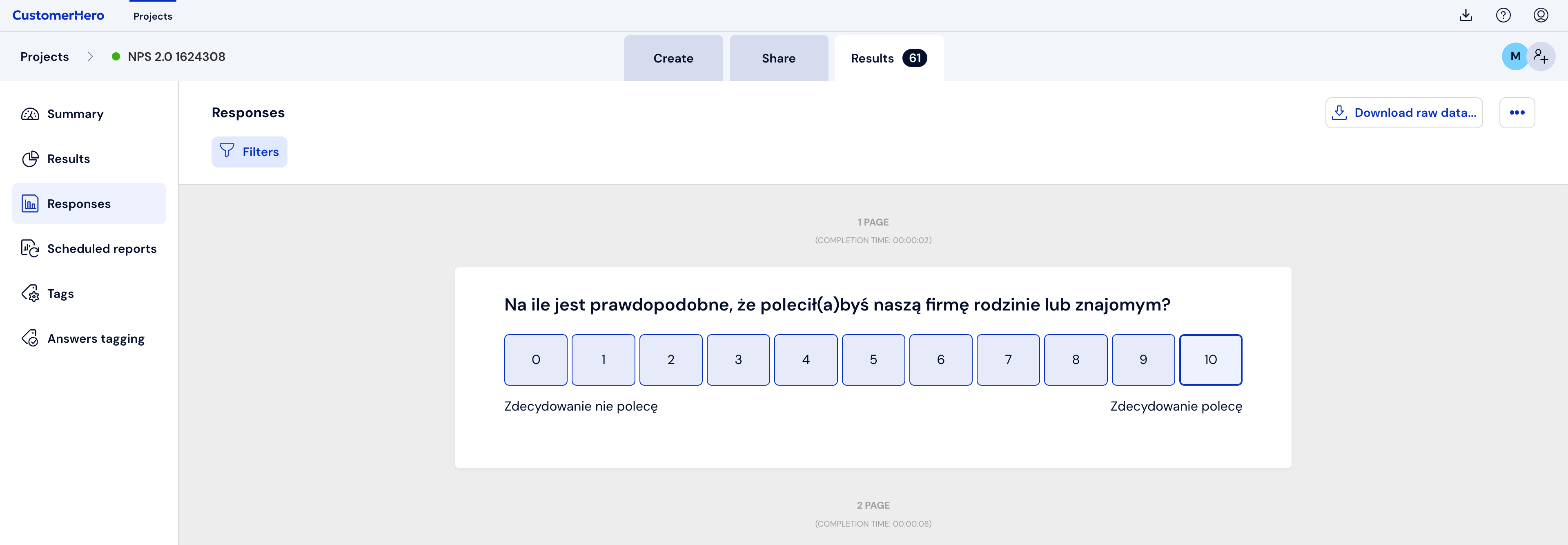
Select the sheet you are interested in by clicking Previous/Next, or searching in the drop-down list or selecting the appropriate completion number (the numbers correspond to the order of survey completions).
In the next step, click Export (the file will be downloaded in PDF format). Confirming the appropriate form field will generate the file, which you will be able to download in the Download Center.

Raw data
These are data collected in the survey, entered into a statistical package or other computer program, where they are cleaned, supplemented and statistically analyzed. These are all responses obtained from each of the respondents to the questions contained in the entire questionnaire.
It is most convenient to view and analyze raw data in a spreadsheet. These are Microsoft Excel, Numbers or Open Office Calc.
To make it easier to analyze results collected in the form of raw data, we have prepared some information. The first concerns what columns are in the raw data. They are:
1.Basic information about the completion and the respondent:
No.
ID.
Start date
End date
Total completion time
Actual completion time
Completion time of page X
Points scored (test only)
Maximum number of points to score (test only)
Percentage score (test only)
External identifier (only when there are completions with external_key)
Token (only when the individual link for each respondent is enabled and respondent identification is enabled)
User token / E-mail (only when the individual link for each respondent is enabled and respondent identification is enabled) – column depends on the method of generating tokens
Respondent attributes (fields – Attributes)
Verification code (only when post-completion verification is enabled).
2. Questions with answers (and follow-ups/custom answers).
3. Weights, areas and feedback (test only):
list of areas
Feedback
weight score of all questions.
Completion information (only when the individual link for each respondent is disabled):
IP address
Referring page (Referer)
Browser
Operating system
Completed – PC/mobile
It is also worth reading the information about the data types located in the columns:
number (integers only),
date – in Y-m-d format,
datetime – in Y-m-d H:i:s format,
string – text format – i.e., all data that has a format other than the above.
SPSS
SPSS is a statistical package that allows for the creation of detailed regression analysis, analysis of variance or correlation within a collected data set. Therefore, it is an advanced computer program used for detailed analysis of the results of a given survey.
What is worth remembering?
The available file formats depend on your plan.
Survey results can be downloaded in XLSX, PDF, DOCX, PPTX formats (for reports), or XLSX, CSV and PDF (in the case of exporting a single completion's results) or XLSX, CSV, SPSS, PDF in the case of raw data.
Exporting survey results enables, among others, their subsequent analysis using complex statistical packages.