
Multilingual Surveys
In our panel, you can create one survey in many different languages.
Thanks to this, respondents will be able to choose the language in which they want to complete the survey at the beginning of the questionnaire.
How to add a language?
To add another language to the survey, go to the Creation tab and select Survey languages.
Click the plus icon or Add translation.
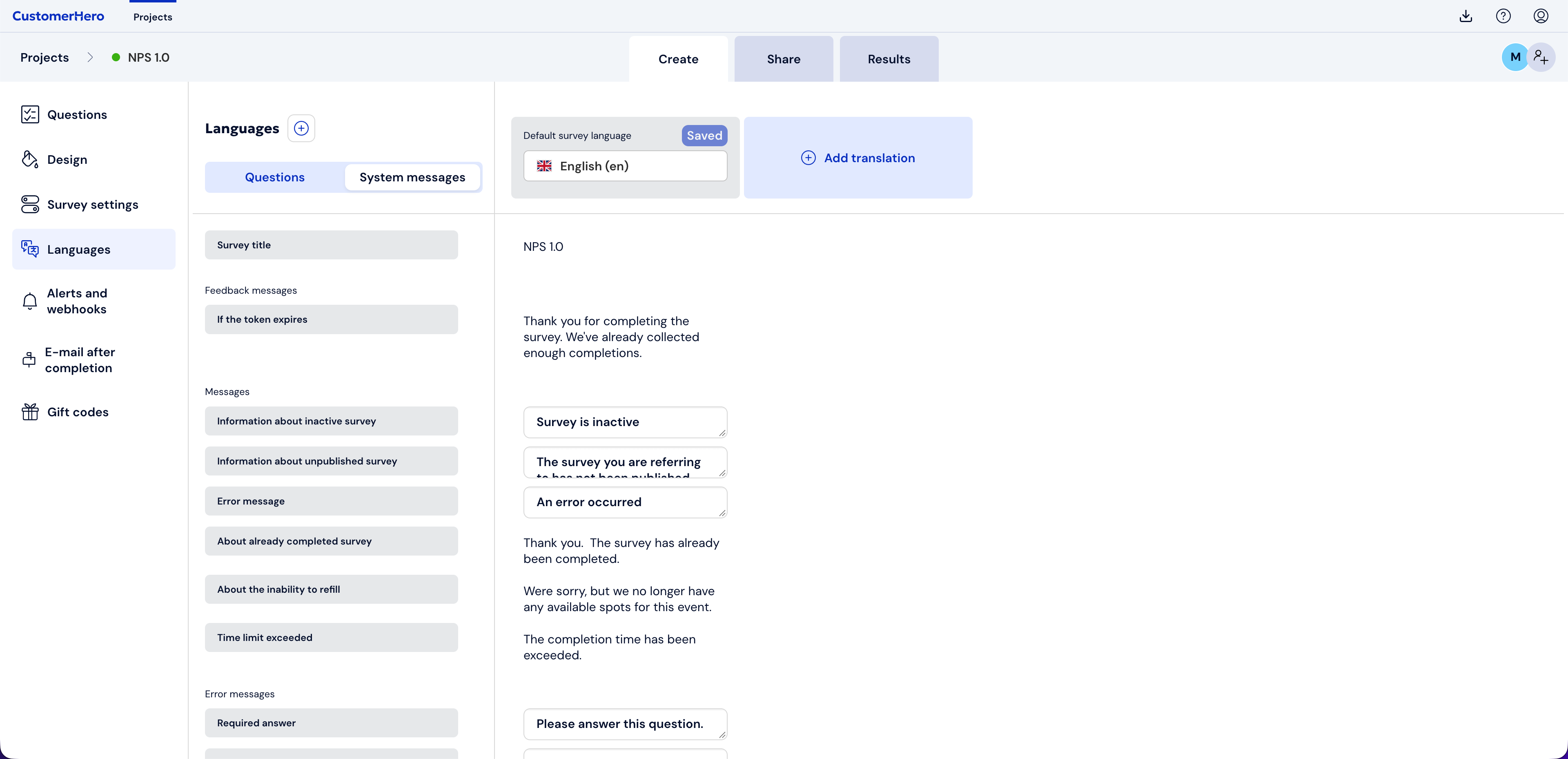
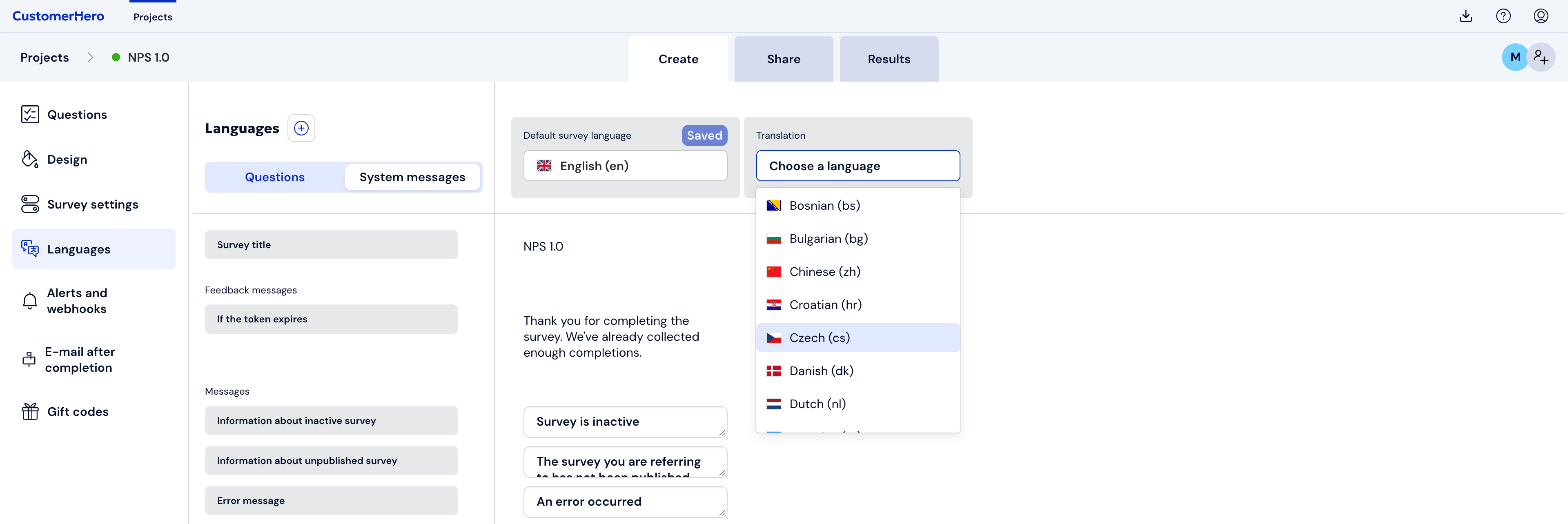
A new column with a drop-down list will appear, from which you can select the language you are interested in.
After selecting the language, fields for entering the translated content of questions and answers will appear in the Questions tab. By going to the Messages tab, you can also change the content of system messages, hints, or other information displayed to the respondent.
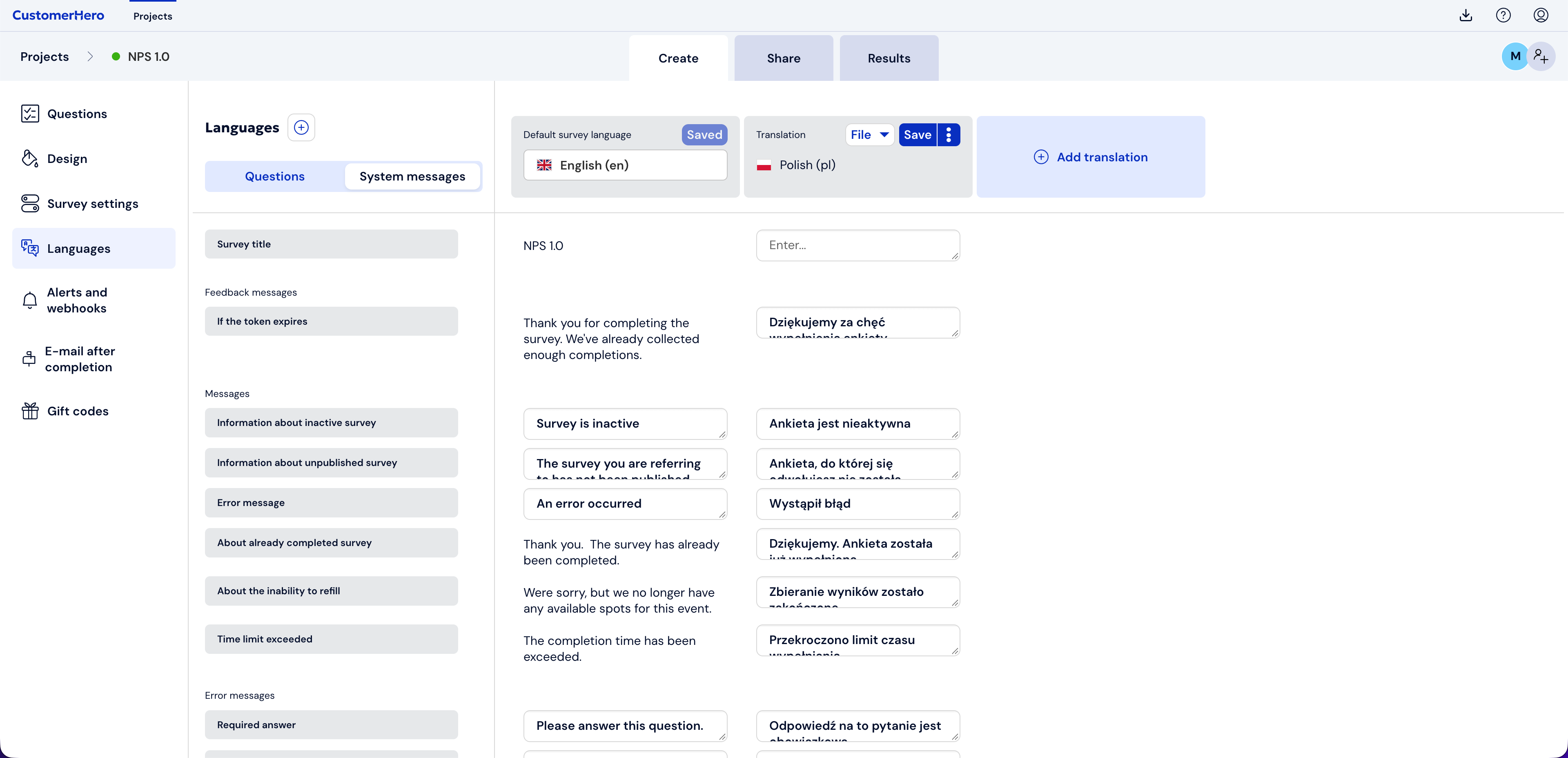
To save the added language, click Save.
You can add any number of languages. To do this, click the plus icon again or Add translation.
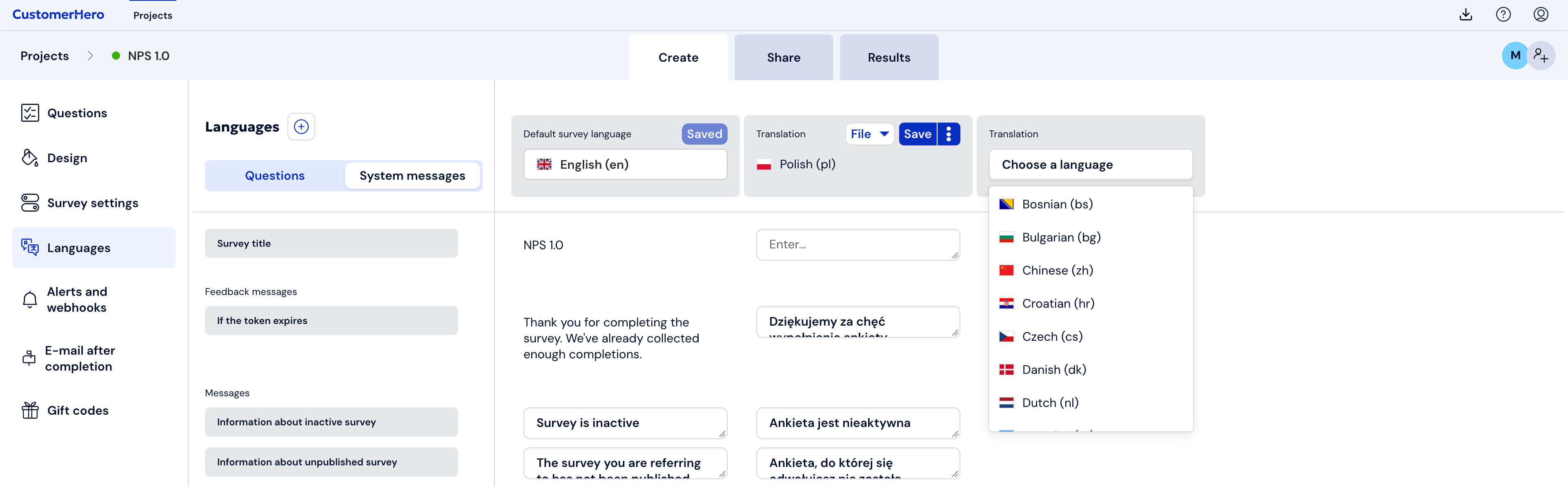
How to add a language translation file?
After adding a language to the survey, click the File button. Here you can download a file in xlsx format in which you will prepare the translation of your survey. Click Download file for translation...

In the file, you will find columns corresponding to the content in your survey, i.e., content from the Questions and Messages tabs.
The file also contains instructions that will help you fill it out properly.
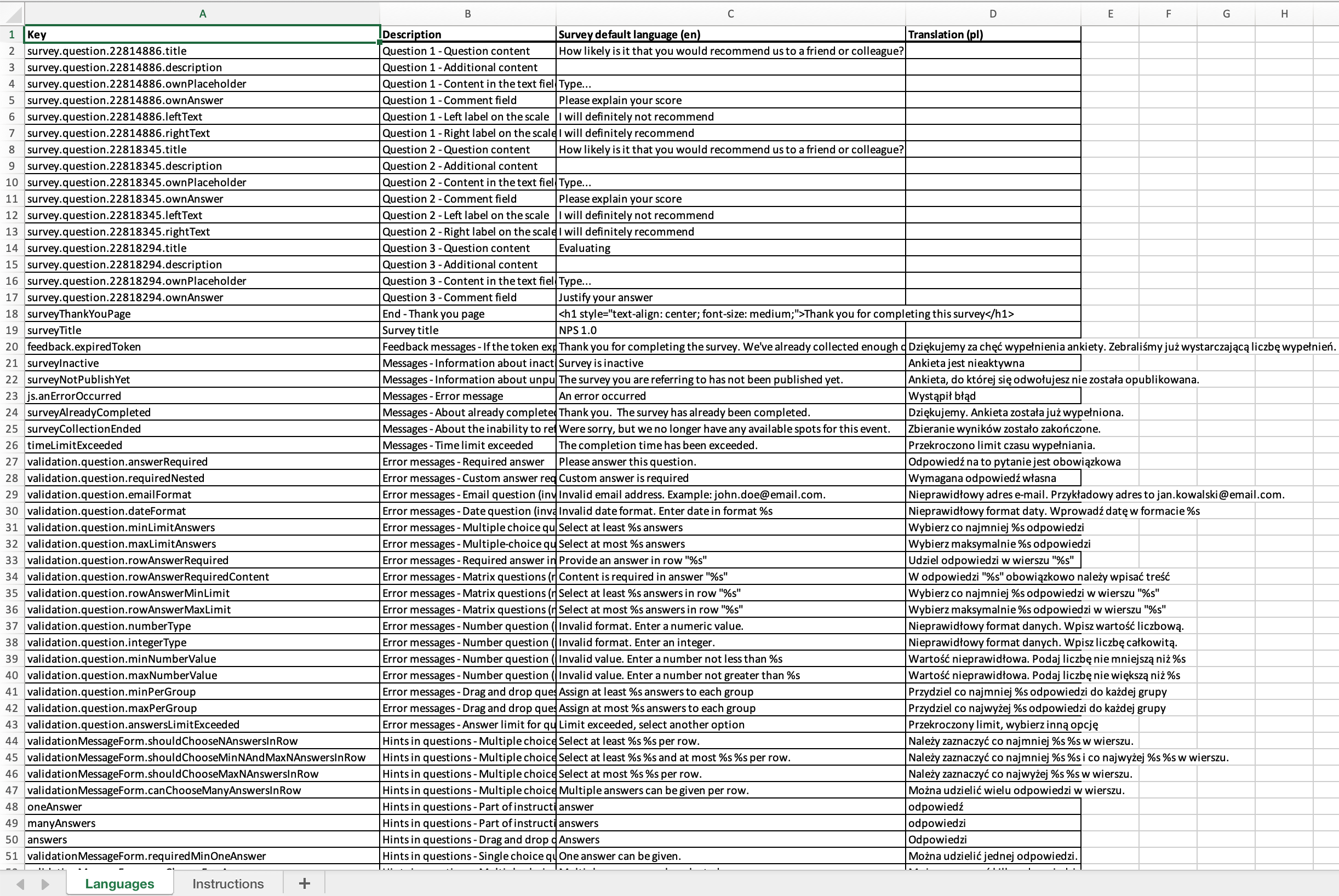
After filling out the file, click Upload translation file... to add the prepared survey content in another language. Then click Save to keep the introduced changes.
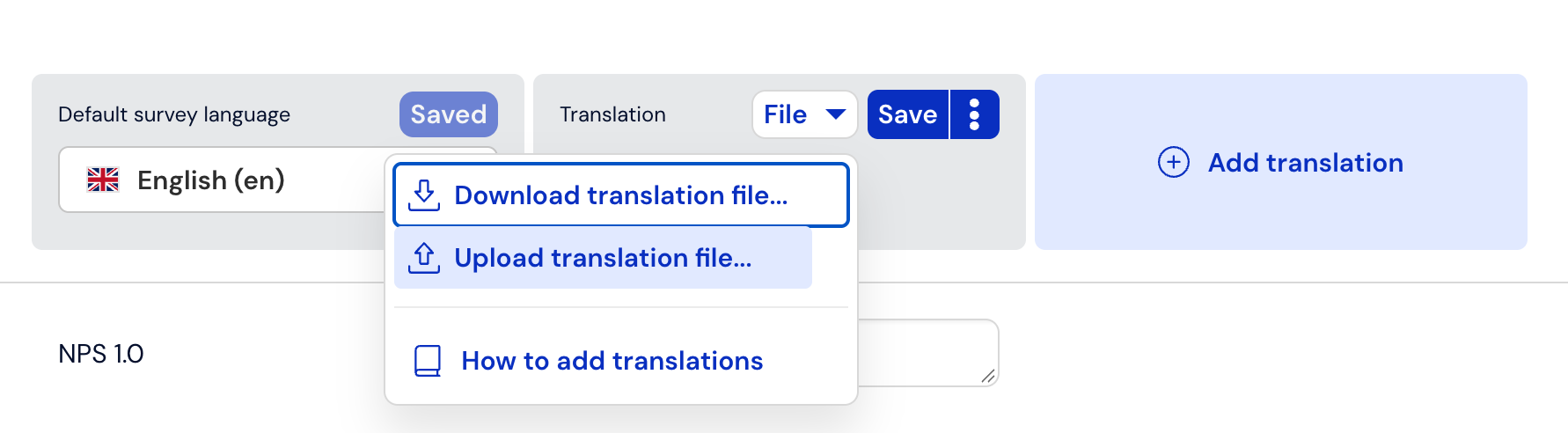
Each language has a separate translation file.
Important: Remember that introducing changes to the survey after downloading the file will require downloading a new translation file. Make sure the survey is complete before you start editing this file.
How does it work?
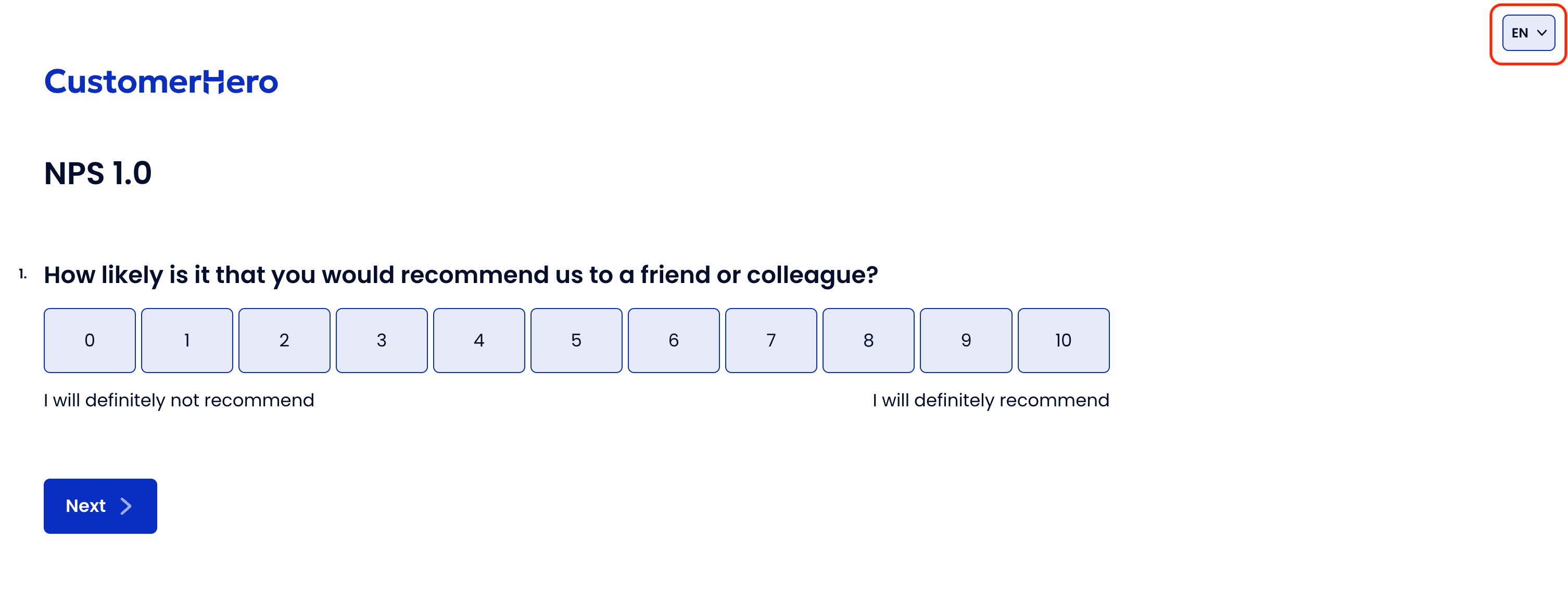
After opening the survey link in the browser window, the respondent can choose a language from the list located in the upper right corner.
By default, the survey is displayed in the browser's language.
You can also send respondents a link to the survey with the appropriate language already selected.
To do this, simply add the ?lang=country code parameter to the survey link.
The link will look like this:
https://www.customerhero.com/survey/111111/ankieta-satysfakcji.html?lang=en
List of language codes
Below you will find a list of all language codes available in our panel.
Language | lang attribute value |
Bosnian | bs |
Bulgarian | bg |
Chinese | zh |
Croatian | hr |
Czech | cs |
Danish | dk |
Estonian | et |
Finnish | fi |
French | fr |
Greek | gr |
Georgian | ka |
Spanish | es |
Indonesian | id |
Korean | ko |
Lithuanian | lt |
Latvian | lv |
Dutch | nl |
German | de |
Norwegian | no |
Portuguese | pt |
Russian | ru |
Romanian | ro |
Serbian | sr |
Slovak | sk |
Slovenian | si |
Swedish | se |
Taiwanese | tw |
Ukrainian | ua |
Hungarian | hu |
Italian | it |
Analysis and comparison of multiple languages
Survey results in all added languages are available in the Results tab. Each language has an assigned attribute - Language.
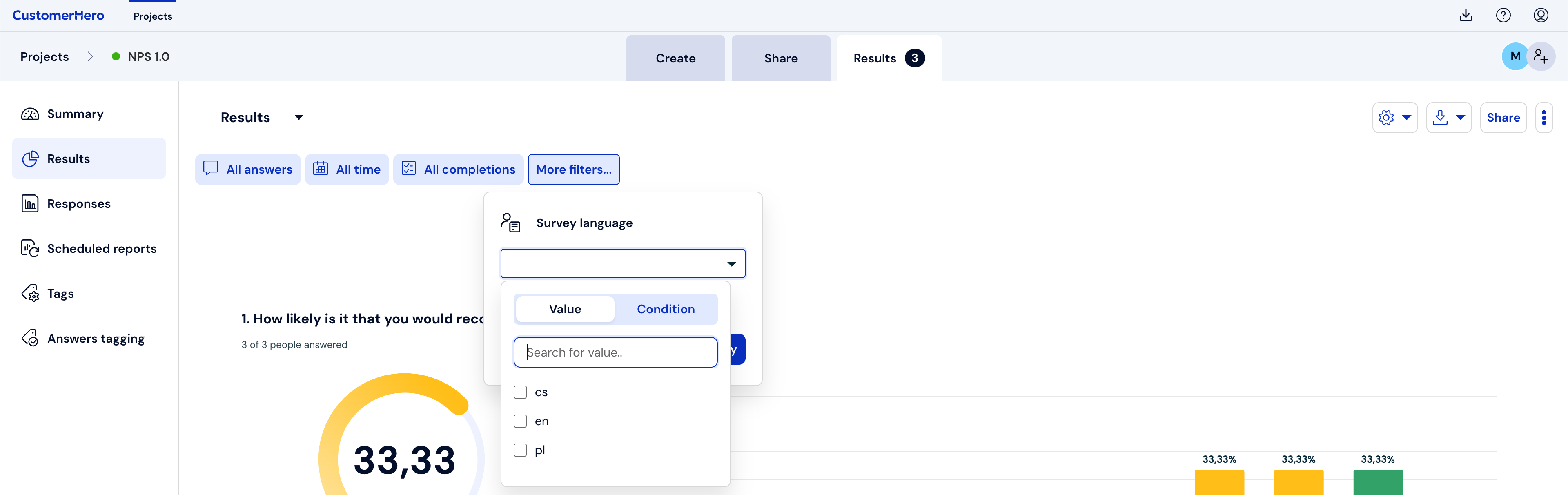
To filter respondents' answers depending on the language they chose, use filters.
Click More filters and select the Survey language attribute.
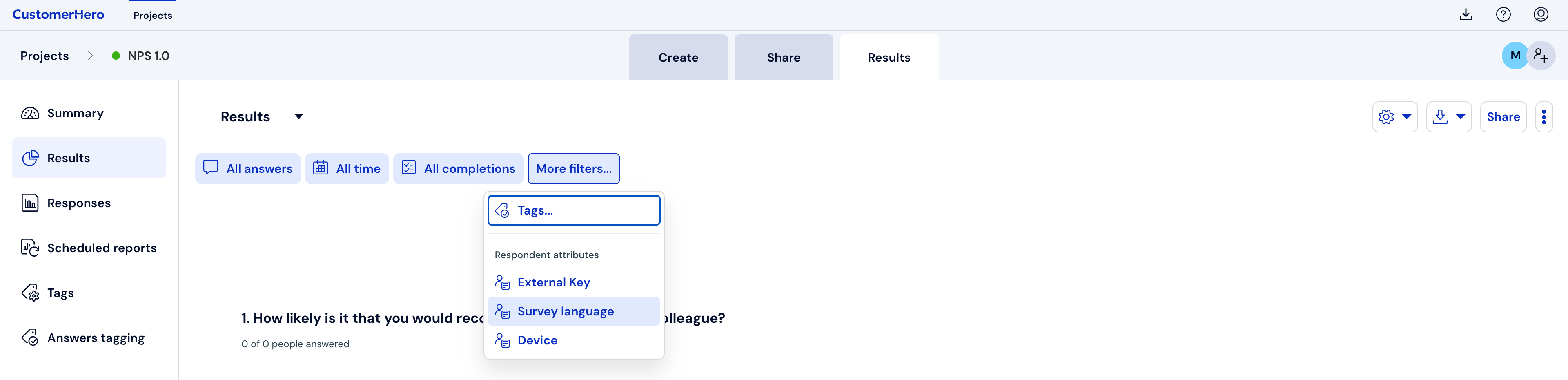
Select the language for which you want to analyze completions. Click Apply.
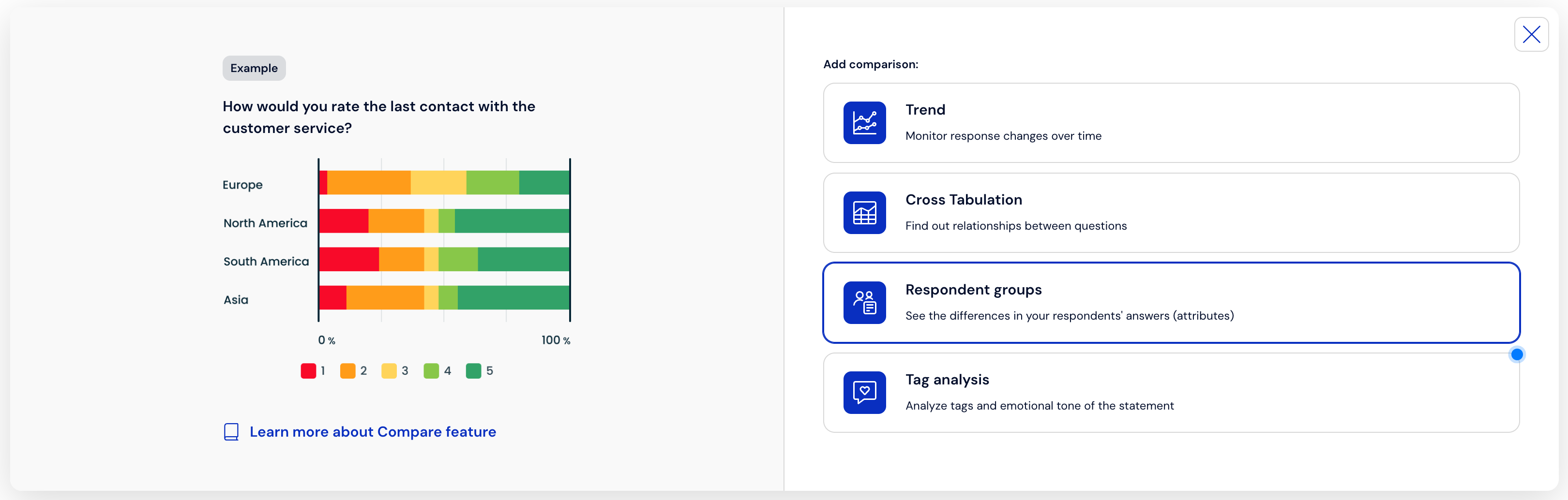
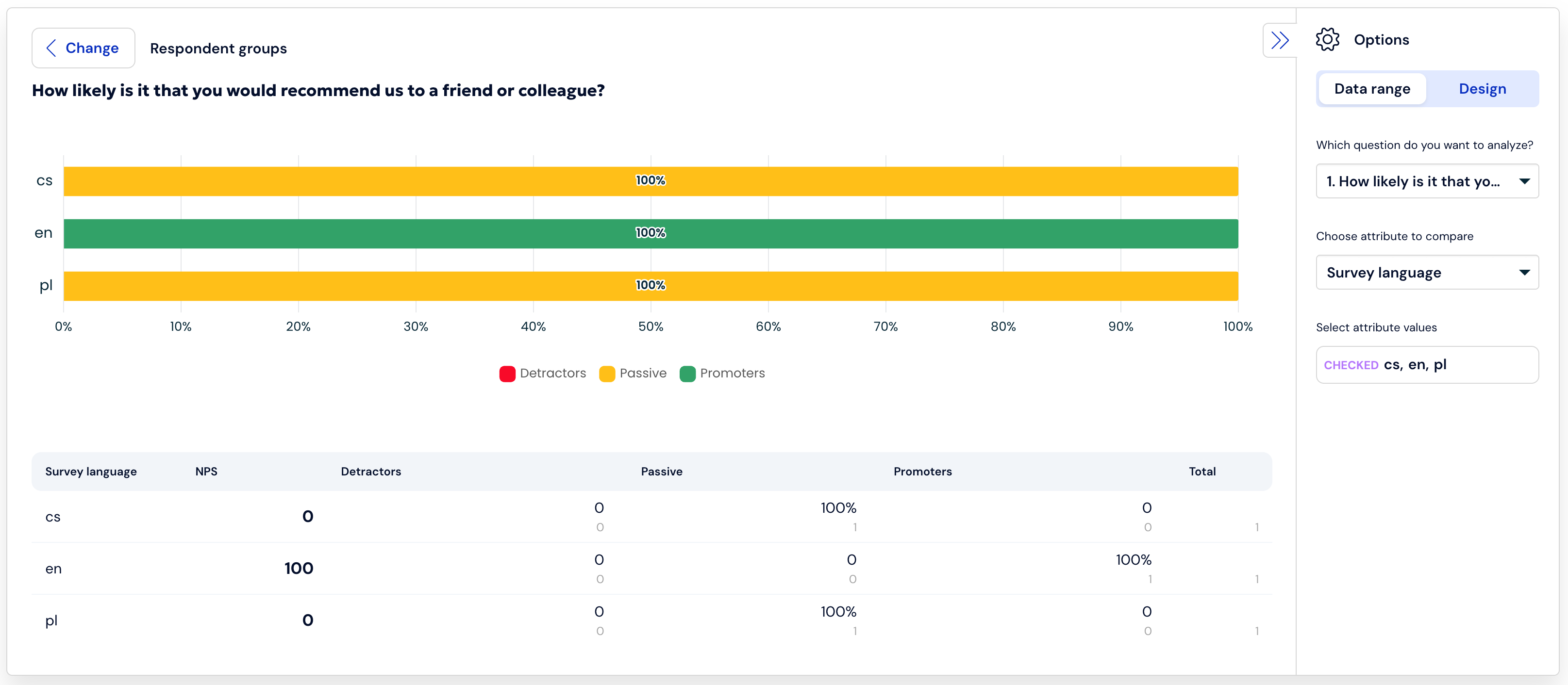
If you want to compare how respondents answered depending on the language they selected, use the comparison of respondent groups, where you can quickly compare results based on the Survey language attribute.
Click Add comparison.

Select Respondent groups.
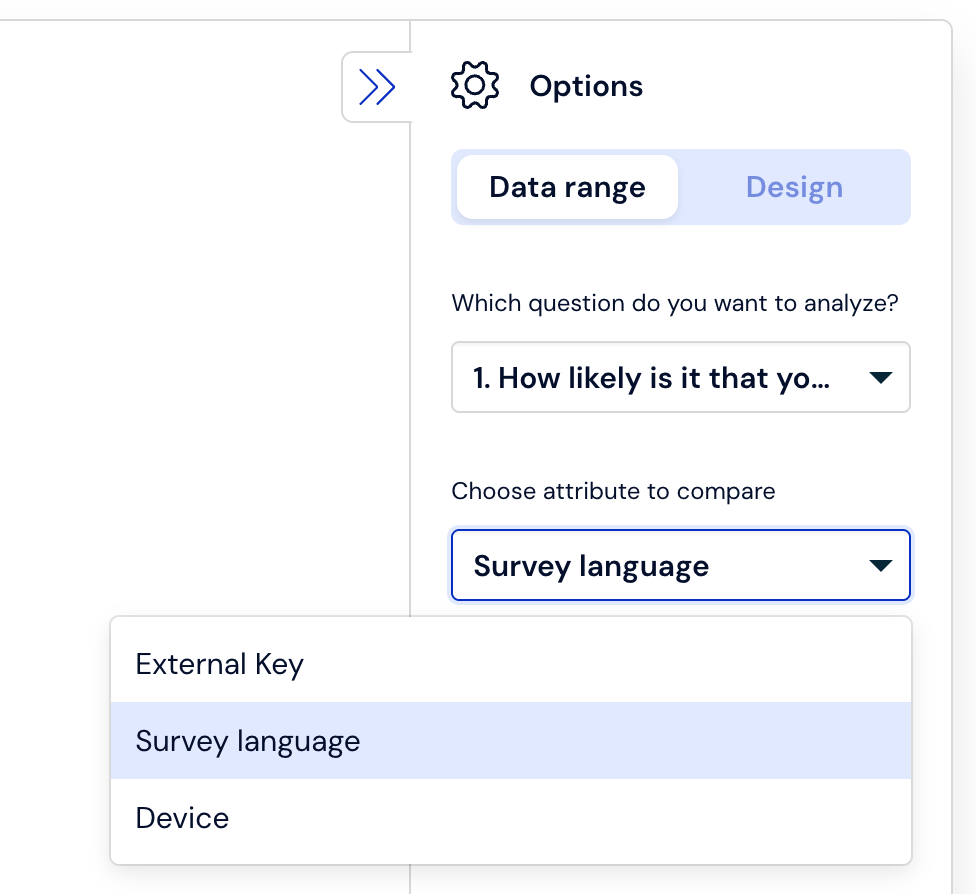
From the list, select which question you want to analyze. Then select the attribute to compare - Survey language.
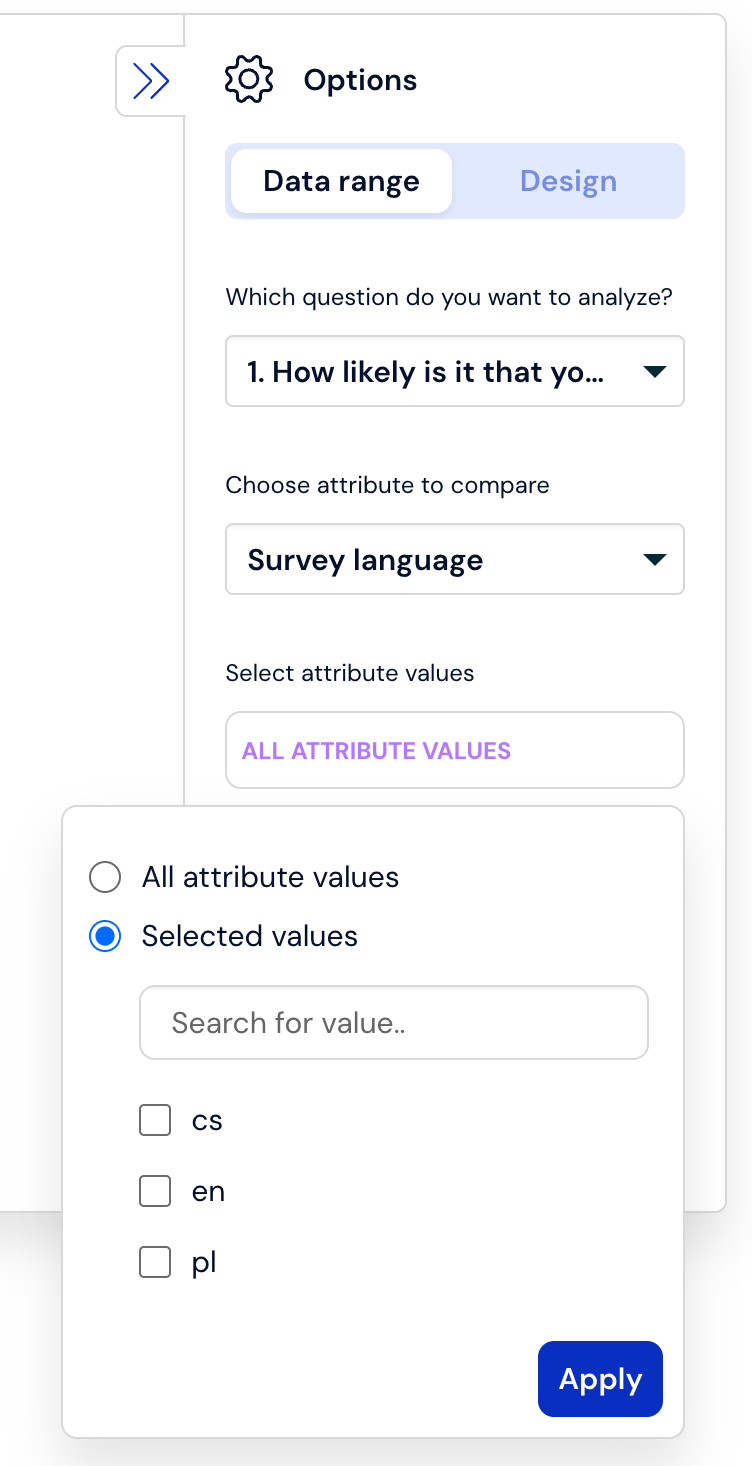
In the next step, choose which languages you want to compare. There is a field available for searching attribute values, you can also click on the appropriate checkbox or select all languages by clicking Select all.
After making your selection, click Apply.
Charts will appear where you can compare respondents' answers for each selected language. Next to each chart and in the table, there is information about the language.
Results with applied filters and added comparisons can be saved as a new report.

The Survey language attribute is also visible in the Completions tab, for each of the completions where a survey language was selected. Completions that were collected before adding languages to the survey do not contain this attribute.

```