
Character limit in open-ended questions
Full control over answers: character limits in open-ended questions
In online research, precision is crucial. Sometimes we need a short, specific phrase from the respondent, and other times we count on a comprehensive story or detailed feedback. To make it easier to collect exactly the data you need, we have introduced expanded possibilities for setting character limits in open-ended questions.
Thanks to this feature, you will not only control the volume of data, but also make the process of filling out the survey easier for the respondents themselves.
How does it work?
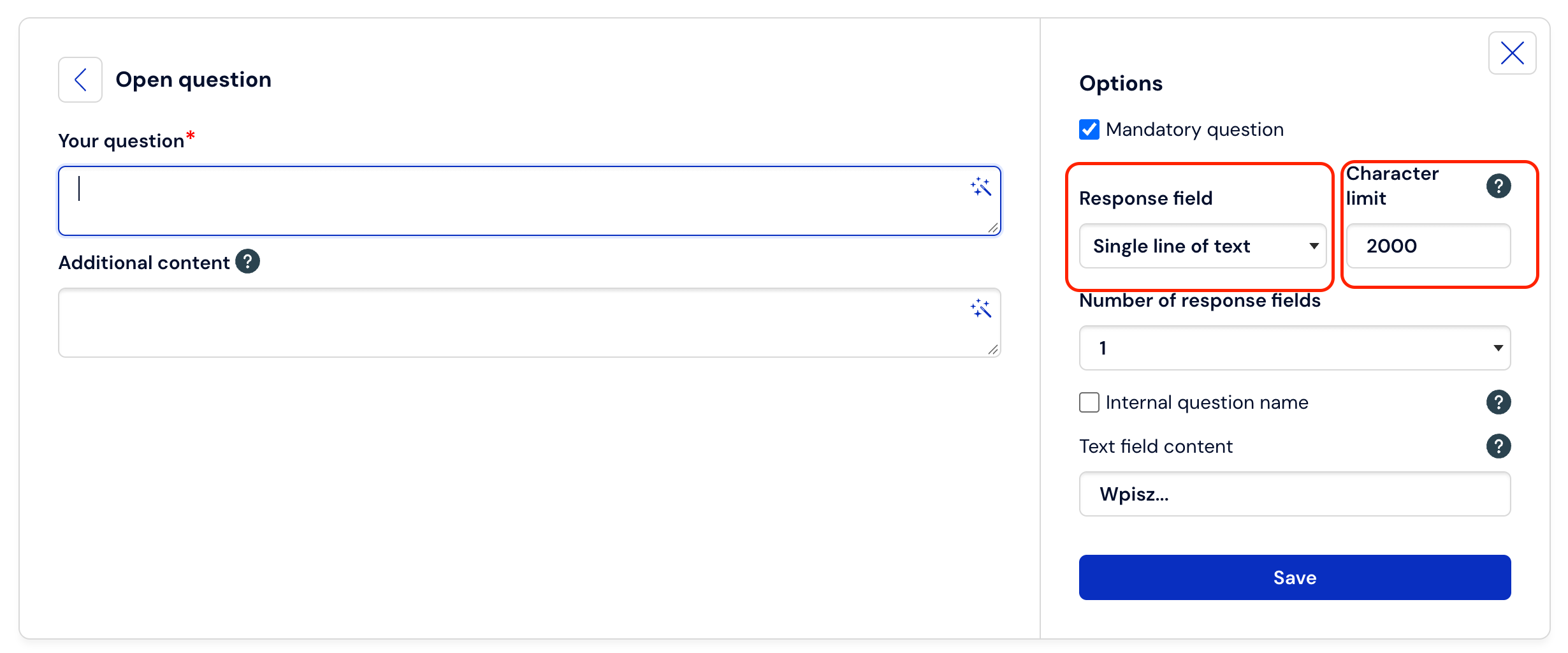
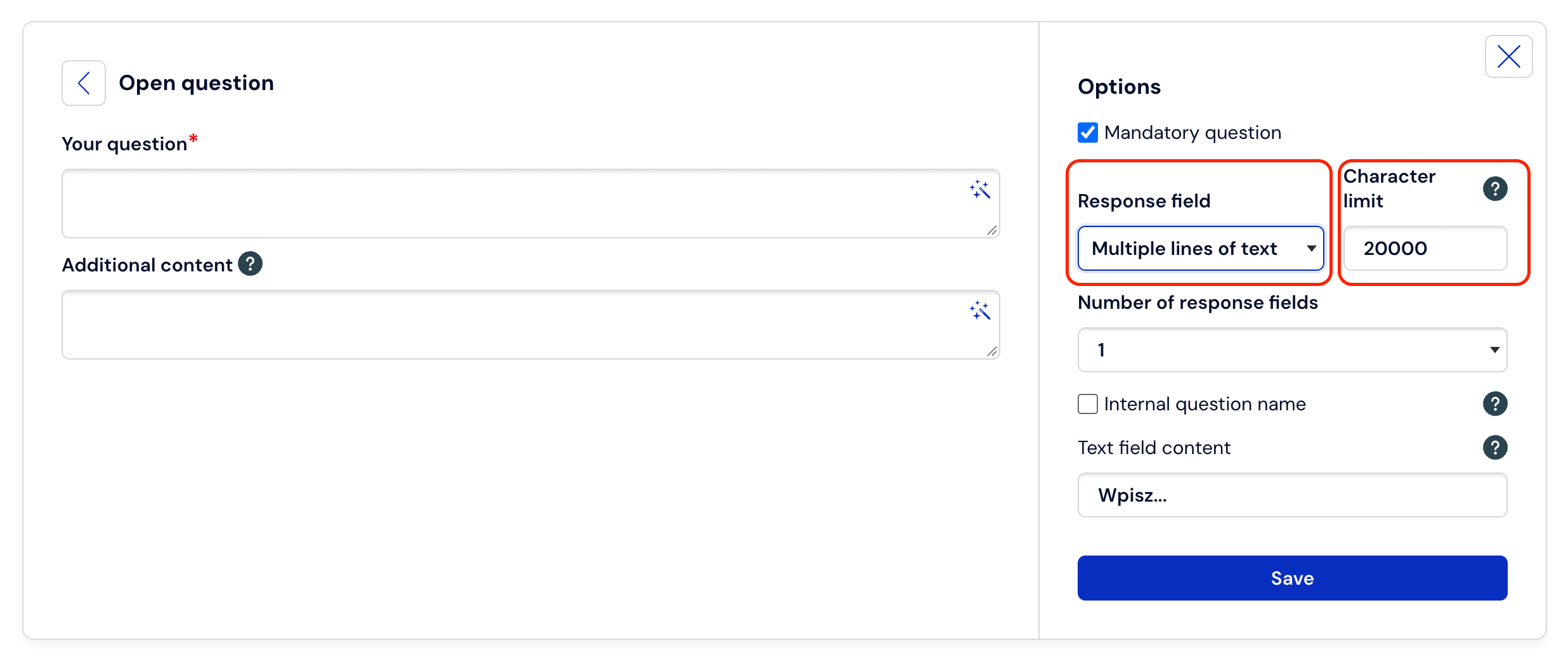
While creating or editing an Open-ended question, in the options panel on the right side you will find the "Answer field" section. The choice of the field type now determines the maximum character limit you can impose:
1. Single line of text (short answers)
Perfect for collecting names, surnames, e-mail addresses, or short phrases.
Maximum limit: You can set any value up to 2,000 characters.
Application: When you care about brevity and want to avoid respondents sending entire paragraphs in fields that should be short.
2. Multiple lines of text (longer answers)
Designed for extensive opinions, problem descriptions, or respondent stories.
Maximum limit: You can allow the respondent to provide an answer up to 20,000 characters long.
Application: In NPS type surveys (question about the reason for the rating) or employee satisfaction surveys, where freedom of speech is a priority.
Dynamic counter – support for the respondent
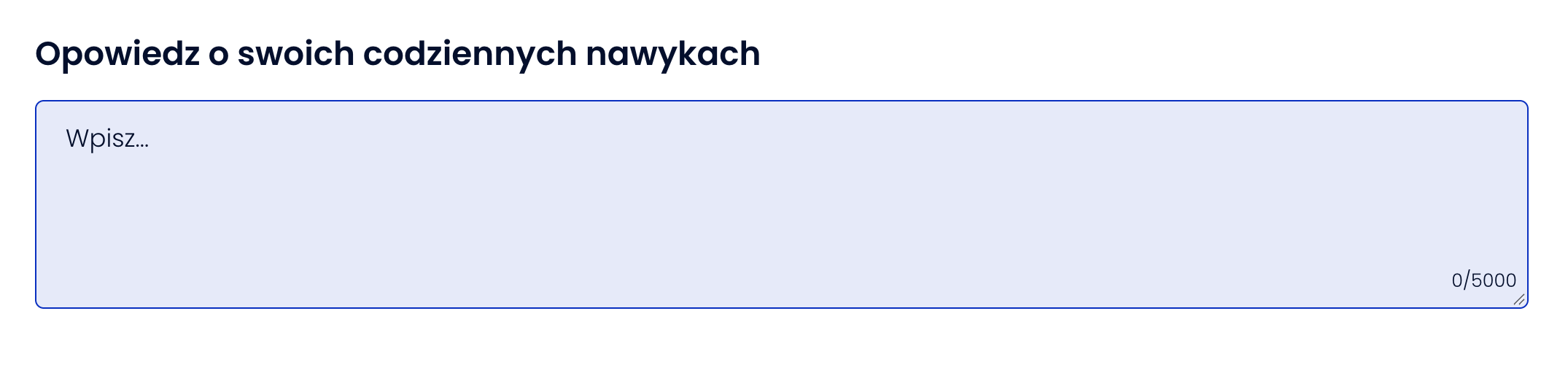
From the perspective of the person filling out the survey, the new feature is primarily clear information. In the lower right corner of the answer field, a dynamic character counter appears (e.g., 0/5000).
Why is this important? The respondent sees in real-time how much space is left. Thanks to this, they can better plan their answer and will not be surprised by a sudden text block when trying to submit the survey.
How to set a limit in 3 steps?
Add an Open-ended question to the survey.
In the Options section (right side of the screen), select the field type from the drop-down list: Single line of text or Multiple lines of text.
In the Character limit field, enter the desired value (keeping in mind the limits of 2,000 or 20,000 characters respectively) and click Save.
Do you want to see how it looks in practice?
Log in to your account at Webankieta.pl and test the new settings in your latest project.