
Folder
In order to meet your needs and suggestions, we have added a new feature – folders. Thanks to this, you will be able to easily group your surveys, tests, and widgets in a convenient way.
What changes if we already have surveys?
If you are already our client and have projects on your account, they will be available in the following folders: Surveys, Tests, Widgets, and Shared:
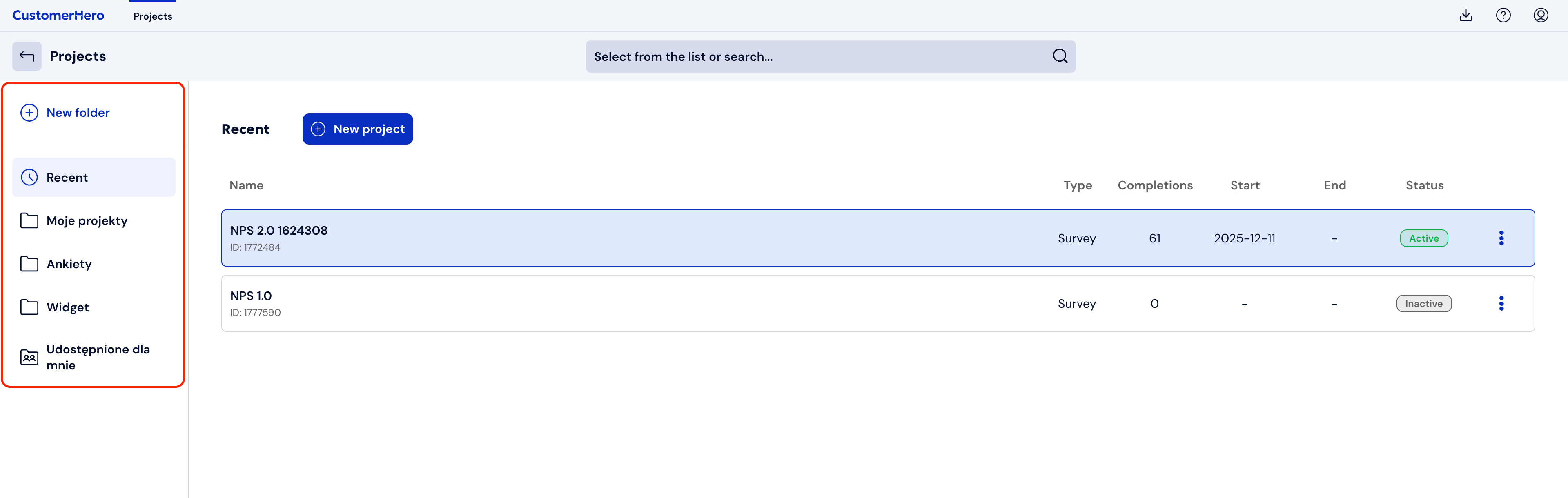
You will also have the ability to add new folders.
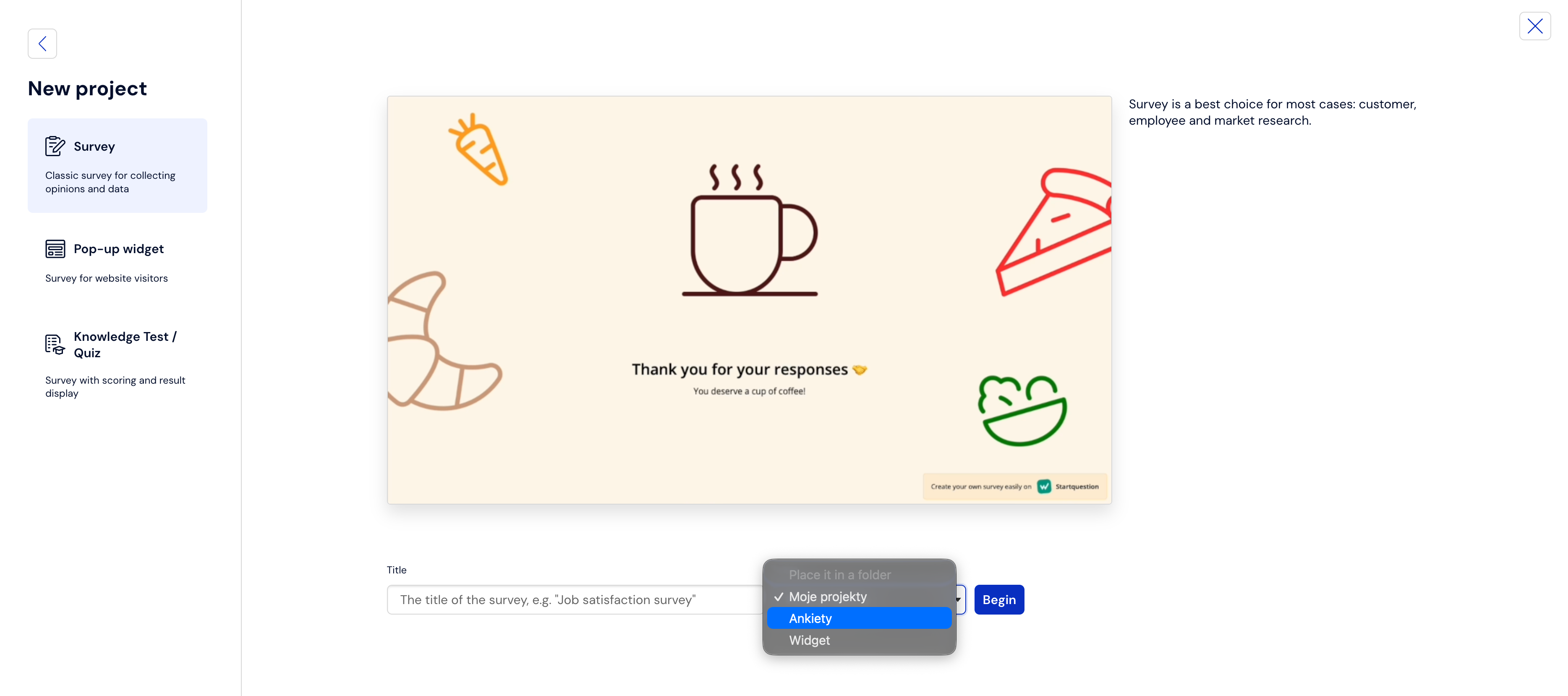
Importantly, you will be able to place new projects in the folder of your choice:
Another important thing that changes is the functioning of the Archive – it loses its previous functions and becomes a folder that can be deleted. Alerts for surveys located in the archive will be deactivated, and recurring reports based on surveys from the archive will have their status changed to "do not send if the survey is finished".
I am a new client. How do folders work on my account?
As a new client, you have one folder: My projects. By default, all the projects you create will appear in it.
You can add your own folders and group your projects according to your needs.
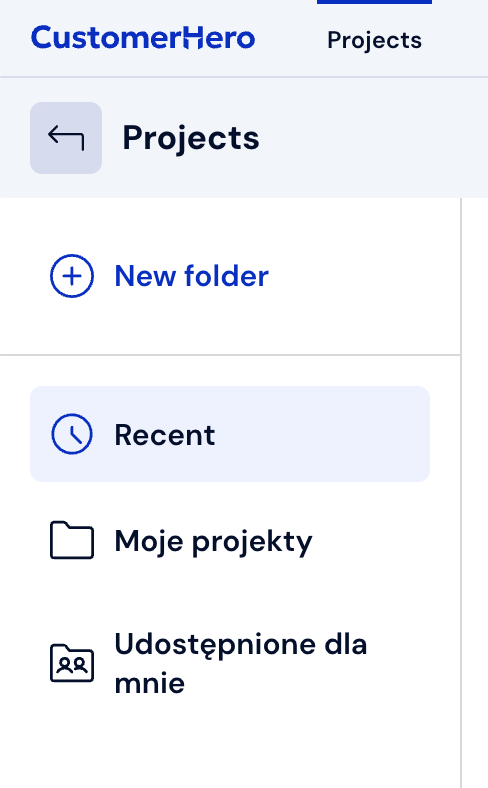
Shared with me folder
This folder contains surveys that have been shared with you by another CustomerHero user in your package. You cannot delete this folder or move the surveys located in it. This folder is always visible in the panel, even if you do not have shared surveys on your account.
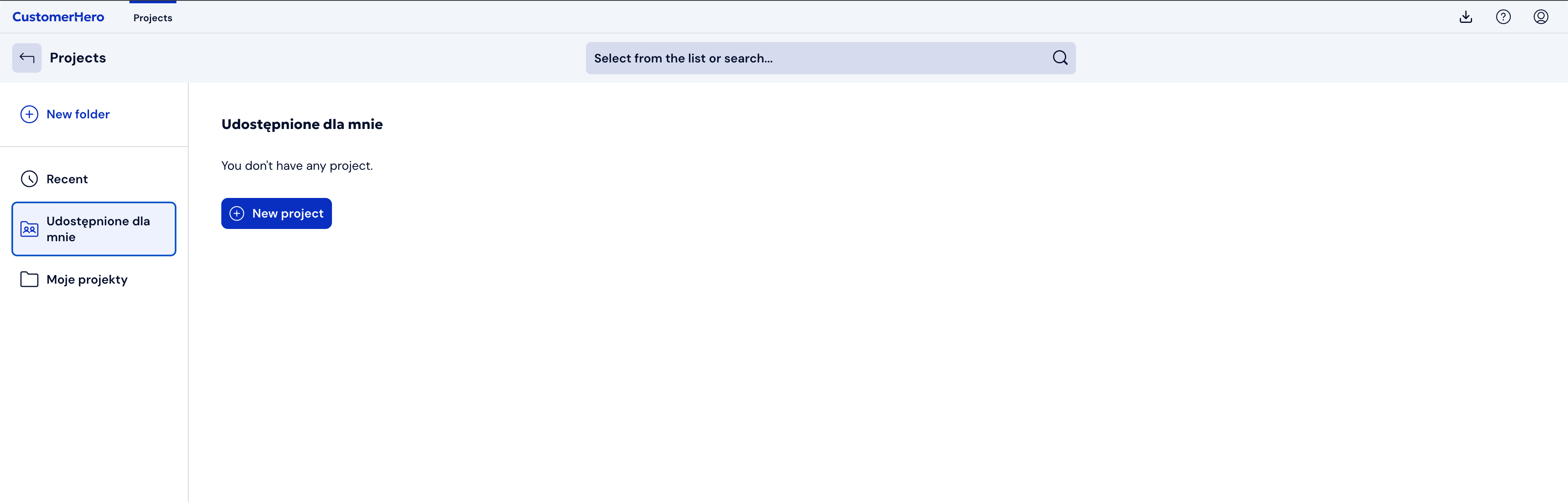
Deleting folders
REMEMBER! When deleting a folder, you also delete all surveys located in it along with their results. If you want to keep these projects and collected completions, you must move them to another folder of your choice before deleting the folder.
If you want to delete a folder, click the options menu (three horizontal dots) next to the project name:
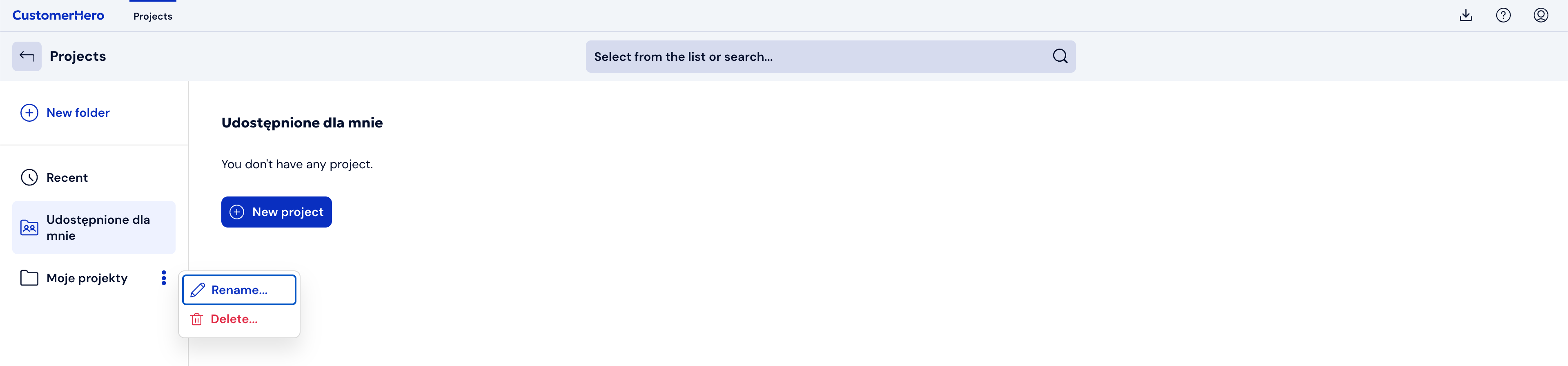
And select Delete…; - A window will appear asking you to enter the project name - this is a safeguard against accidental deletion of the folder:
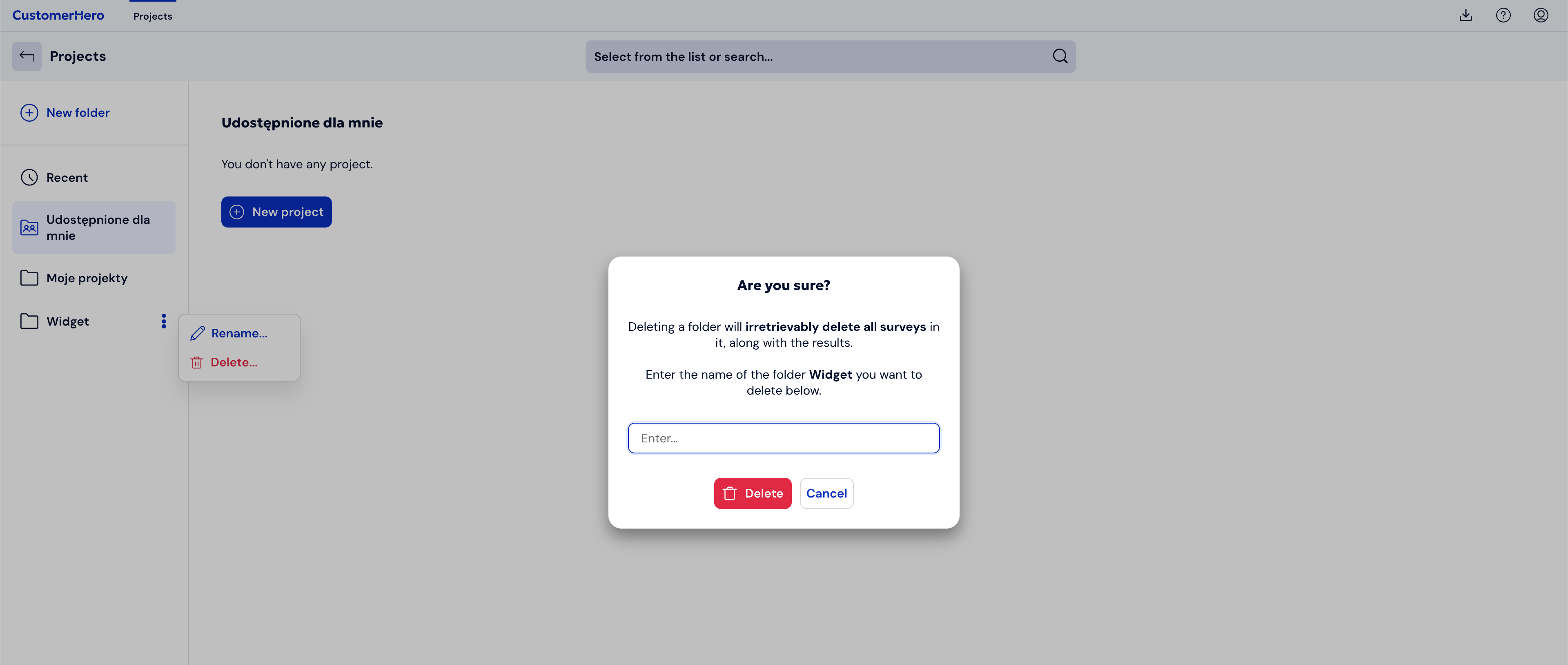
Deleting a folder results in the deletion of all surveys contained within it along with their results, which is why deleting a folder requires additional confirmation.
It is important that you cannot delete all folders on your account – there must always be at least one folder left.
Sorting folders
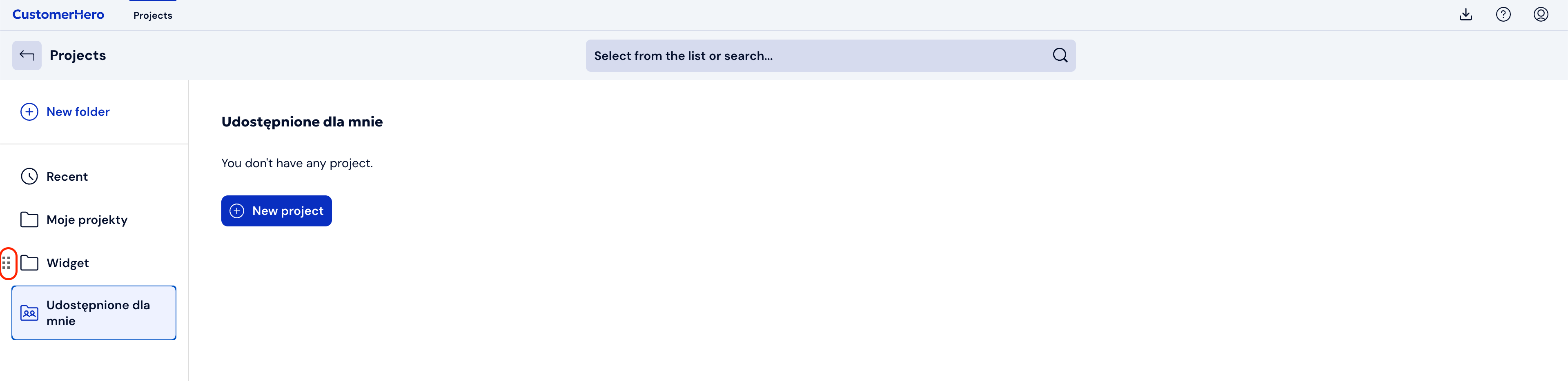
Folders can be freely sorted using drag and drop on the left side:
The order in which they appear is reflected in the drop-down list from which you can select a project:
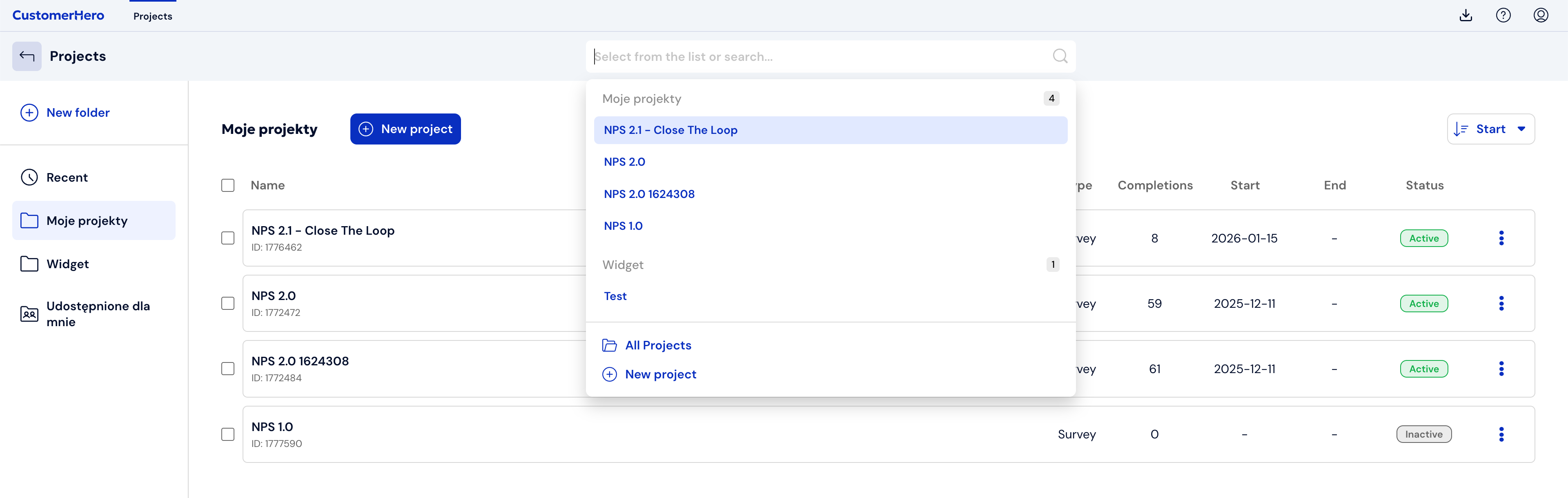
If you do not have projects in a folder, it is omitted in the drop-down list.
Changing the folder name
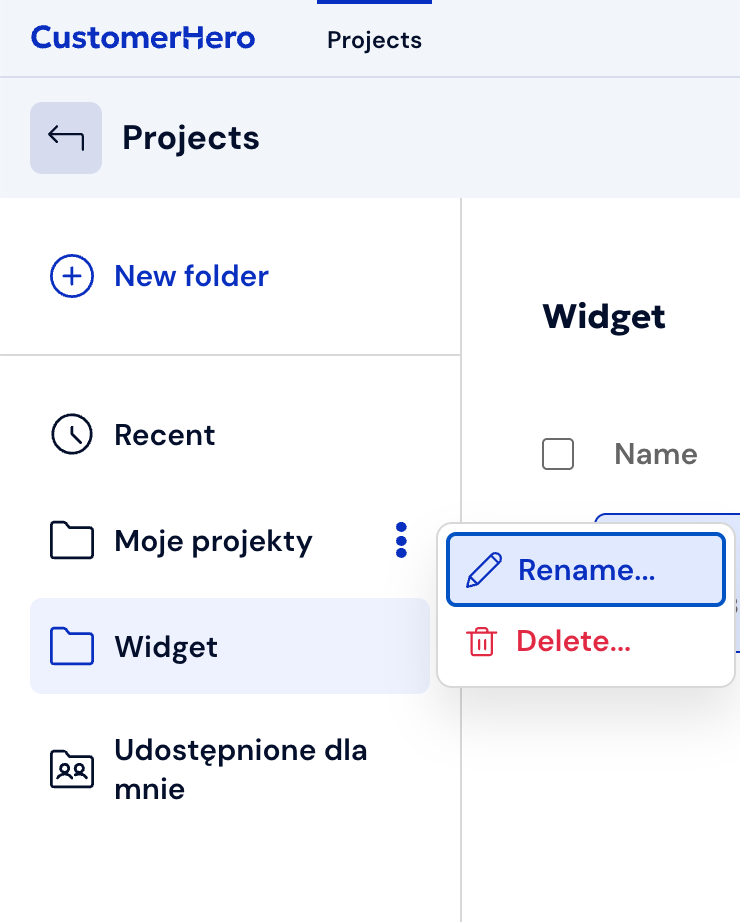
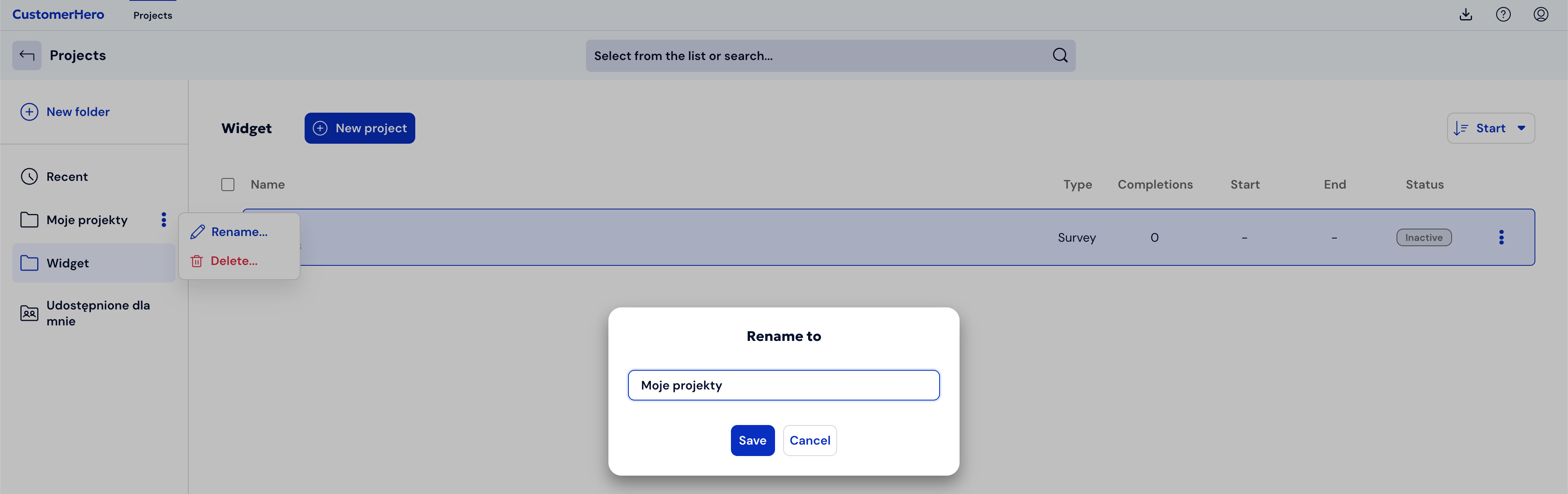
To change the folder name, click the three horizontal dots and select the "Rename" option:
A window with a text field will appear, in which you can change the folder name:
Moving surveys between folders
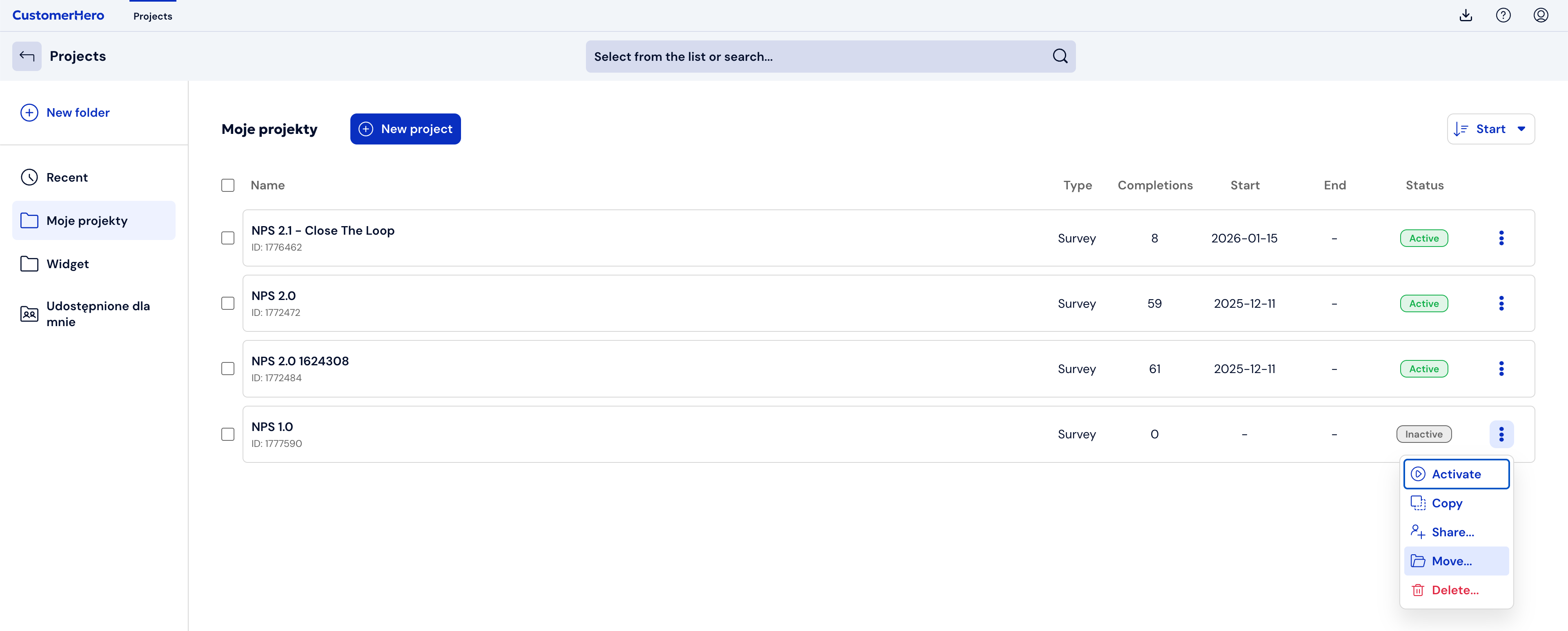
If you want to move a survey to another folder, click on the folder icon located to the right of the survey name:
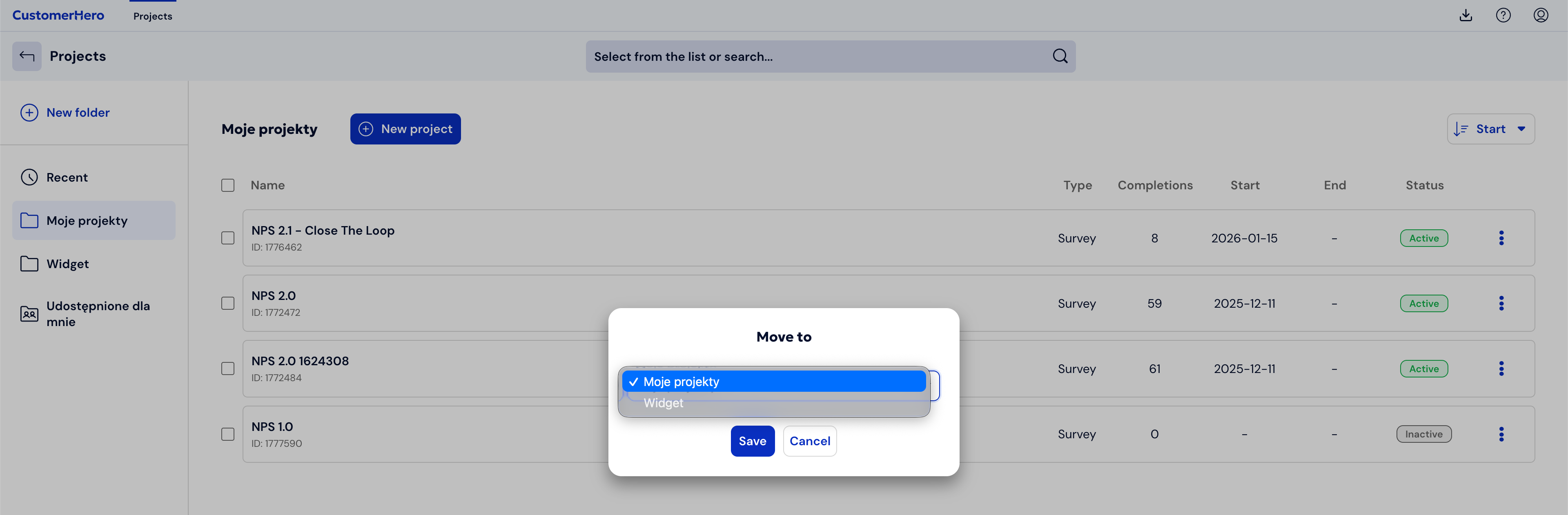
A window with a drop-down list will then appear. The list contains all folders, excluding the one in which the survey is located:
If you want to move several surveys, check the checkbox next to the selected surveys. In case you want to move all surveys from a folder, check the checkbox next to "Name", located above the survey titles on the left side.
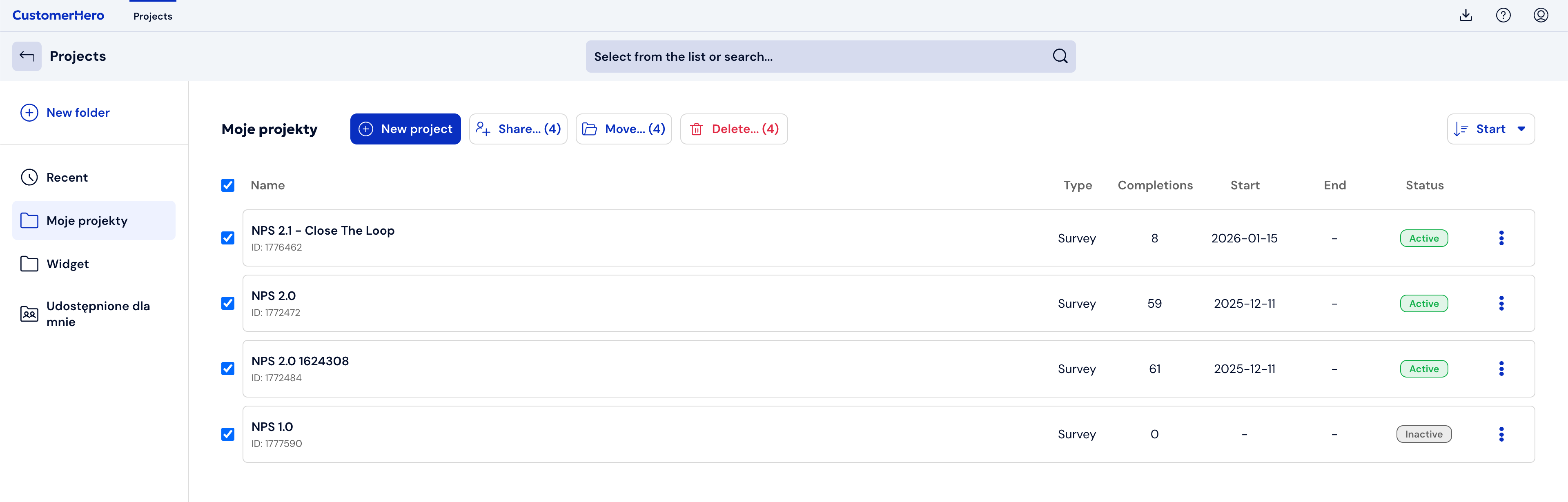
Next, click "Move selected" located next to the folder name. A window with a drop-down list will appear - the further steps are the same as when moving a single survey.