
Questions addition
This is the most important part during the creation of a survey. The platform allows adding any number of questions – and in various formats. It is worth remembering that the more questions there are, the more information you will obtain from the respondents. However, you must be careful – too many questions is also not desirable, especially in online research. Also, you cannot ignore the necessity to match the question format to its content.
How to add a question to a survey?
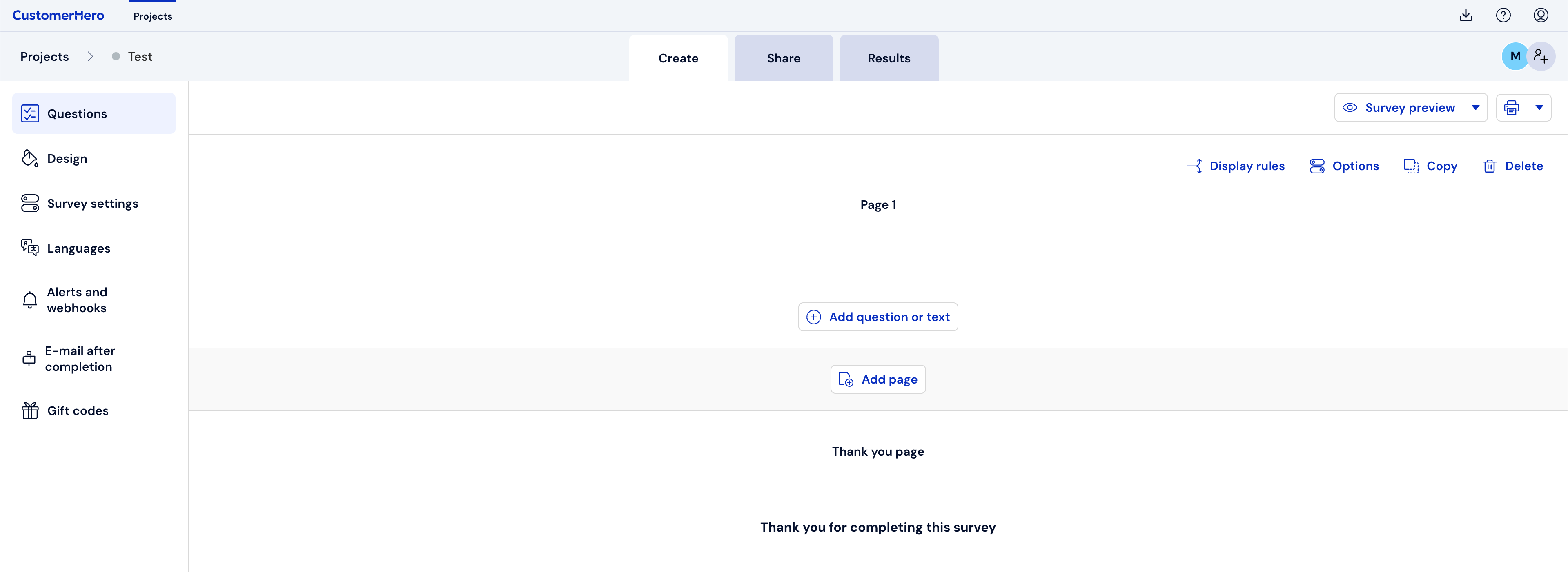
Click the "Creation" tab, and then "Add a question or text".
From the list of available questions, select the type you are interested in, choose a question from the available templates, or copy one of your own questions.
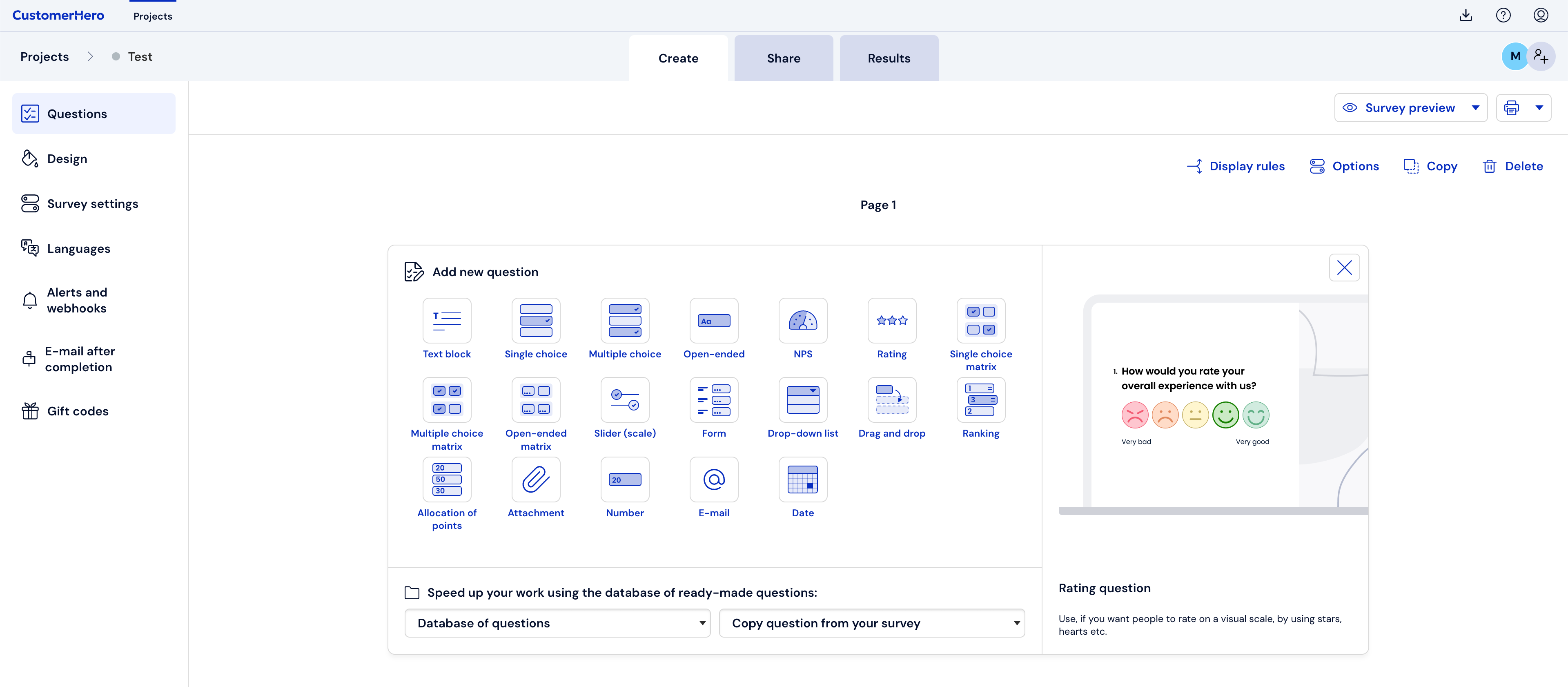
What types of questions are available?
Text – generally used to introduce general or detailed instructions for respondents, introducing them to the researched issue.
Closed single-choice question – the respondent has the option to choose 1 answer from those the author included in the question, e.g., State your gender: male, female.
Closed multiple-choice question – the respondent can choose several answers from the available options, e.g., Which of the given brands are you familiar with?
Single-choice matrix question – the respondent, in a given row (relating to a single issue), has the option to choose one term that in their opinion is most accurate, e.g., Do you like summer – Definitely yes, Rather yes, Hard to say, Rather no, Definitely no.
Multiple-choice matrix question – the surveyed person can select several answers in one row (which relate to a single issue), e.g., state your education – primary, vocational, secondary, higher; state your mother's education; state your father's education.
Open-ended matrix question – allows the respondent to enter any answer in each matrix cell, e.g., if in the columns we ask questions about types of expenses (food, clothing, entertainment, etc.), and in the rows quarters or months, the respondent can enter the level of their expenses for specific categories in specific periods.
NPS question – a question using the Net Promoter Score methodology, which is a survey of satisfaction with a product, service, or process. It consists of asking a question about the willingness to recommend the company to family or friends and answering on a scale of 0-10. Based on the frequency of answers, the NPS index, the number of detractors, promoters, and passives are calculated.
Open-ended question – allows for a free statement on a given topic, e.g., What kind of changes do you think should be introduced in the company?
Ranking question – the respondent is asked to set the hierarchy/order of answers by changing the position and number of the answer, e.g., Arrange the given events chronologically.
Drag and drop question – allows asking the respondent to assign text answers or images to appropriate groups in a more interactive and engaging way.
Point allocation question – a question in which the respondent's task is to distribute a number of points specified by us among all available answers.
Drop-down list question – the respondent chooses one of the given possibilities – e.g., Month of birth. The question is de facto a single-choice question.
Form-type question – this is a question consisting of several statements, in which the respondent is asked, for example, to provide personal data – first name, last name, profession, etc.
Slider question – allows responding to the content of the question on a scale specified by us, e.g., How many cigarettes a day do you smoke – from "not at all" to "a lot".
Number question – the surveyed person can only enter a number in the answer (it is not possible to enter letters), e.g., How many years have you been working in our company?
E-mail question – in this type of question, the respondent is asked to provide an e-mail address. The field has an automatically set validation for the correct e-mail address format.
Date question – the respondent's task is to enter a specific date (select it using the calendar), e.g., their date of birth.
Rating question – the respondent answers the given question by rating – giving an appropriate number of stars, e.g., How do you rate our Customer Service?
Adding an attachment – allows attaching a file to the survey (in formats such as doc, xls, pdf, jpg, XML and *ades, i.e., XAdES, PAdES, CAdES), which is especially useful when we create a form and ask, for example, to add a CV, photo, or another document.
After selecting the question format, fill in the required fields, marked with a red asterisk.
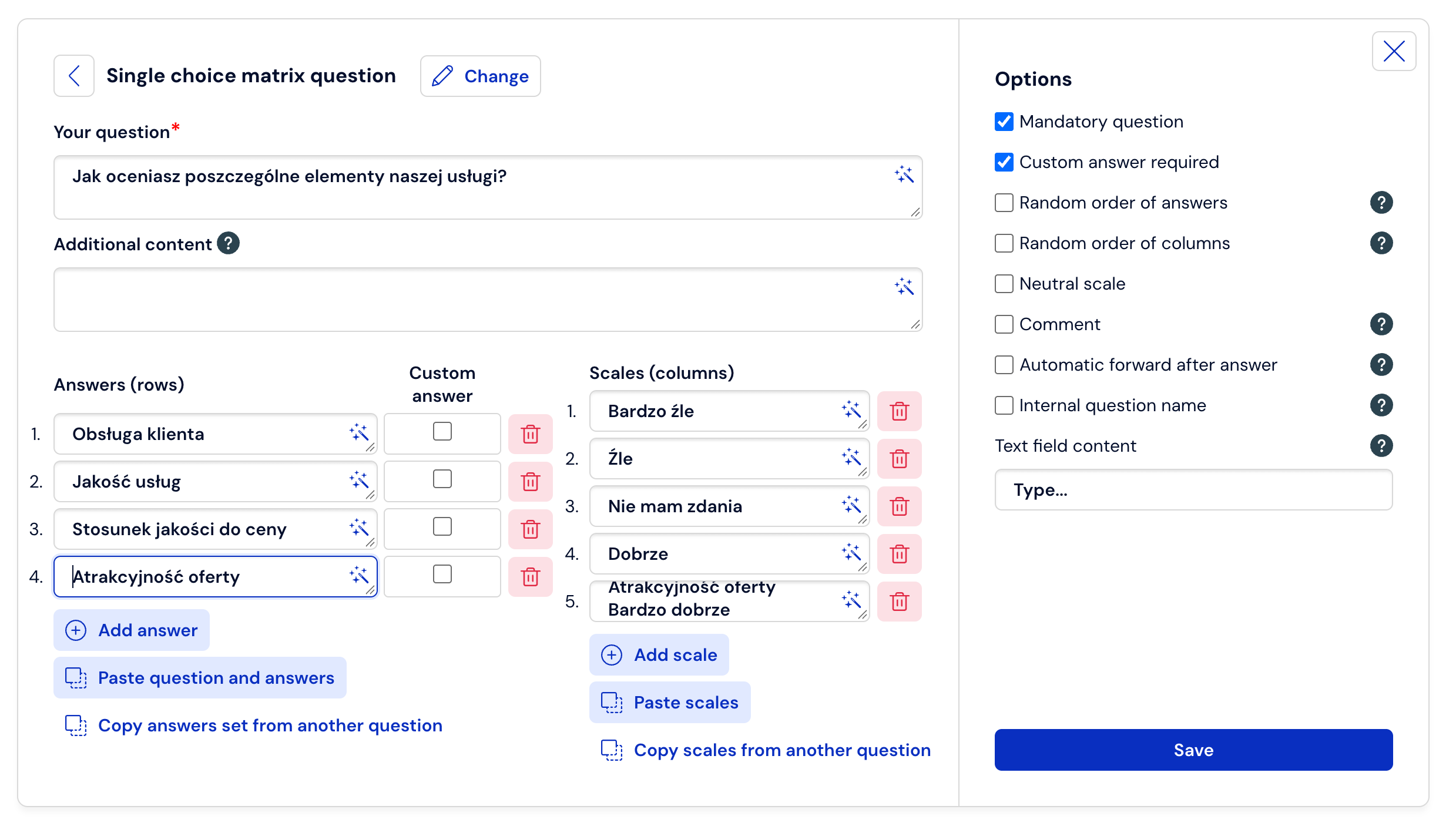
In the "Options" form field, various types of settings related to the presentation and logic of the question are available, such as the ability to rotate answers, mark whether the question is mandatory, etc. You can find more information about individual options by hovering your mouse over the tooltip next to a given function.
Enter all answers one by one, or if you have an external survey file (e.g., a Word document), you can paste all answers at once by selecting the "Paste answers from another source" button.
If you have an answer that requires the respondent to enter their own text, e.g., "Other (please specify)", check the "Custom answer" box next to a specific answer).
If you want to set the logic of moving to another page after selecting a specific answer, check the "Redirect after selecting an answer" checkbox in Additional options, and then select the page number from the drop-down list next to the given answer. Remember to first add the pages to which you want to redirect the respondent, and that a question with a set redirect should be placed on a separate page or as the last one on the page (this option is available for the single-choice question type).
Save the changes by clicking SAVE
What is worth remembering?
We can add questions at any time during the survey, as well as additional answers to questions.
Once a question has been added, its type cannot be changed. If you want to change the type, delete the question and add a new one.
When creating a new question, you can copy the answers and ranges used in other questions in your surveys using the link „Copy answers from another question” or „Copy ranges from another question”
Instead of creating a question from scratch, you can copy a question from your surveys or from publicly available question templates.
If you delete a question in which answers have already been collected, the completions will be automatically deleted along with the question. The situation is similar in the case of deleting individual answers.