
Copying a page or question in the survey
This option allows you to duplicate a selected question or page of our survey, streamlining the questionnaire creation process (there is no need to enter the same data again). This is useful if we use redirects, or simply want to reuse already created questions by making minor modifications to them.
How to copy a question or an entire page?
To copy an entire survey page:
Click on the Creation tab in the menu at the top of the screen.
Find the page of the sheet you want to copy, and then click Copy.
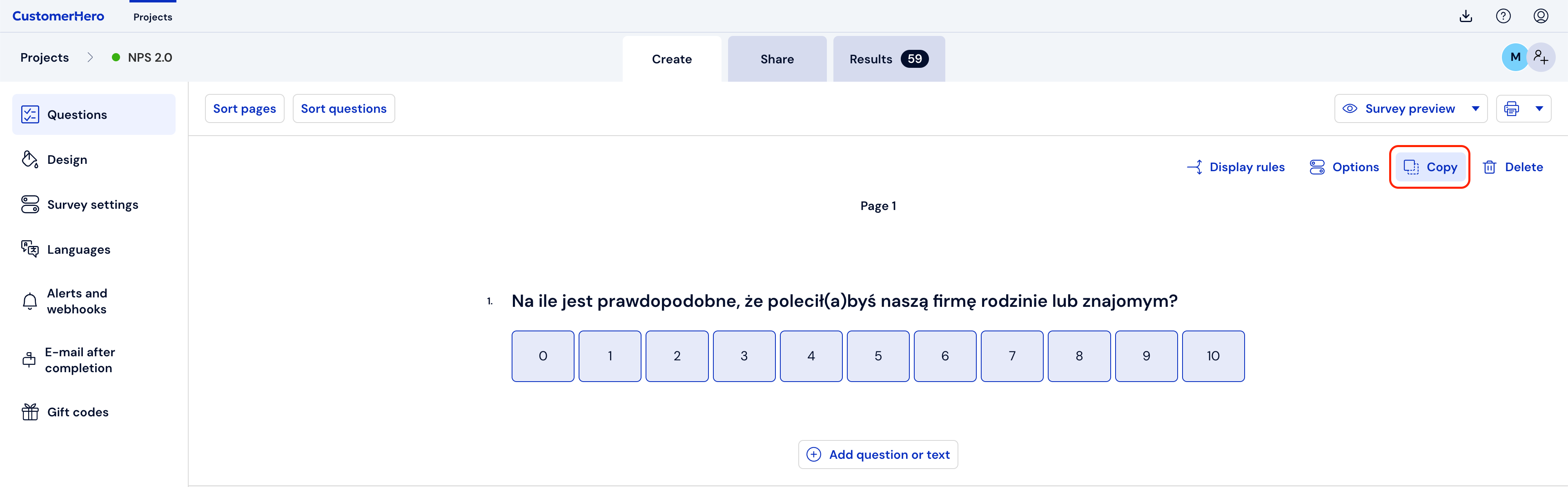
The copied page will appear at the end of the sheet.
You can change the location of the copied page at any time (See how).
If you want to delete the copied page, click Delete (on the right side, next to Copy).
To copy a specific question:
Click Creation just like when copying pages.
Hover your cursor over the question you are interested in – this will expand the form field for the question.
Click Copy.
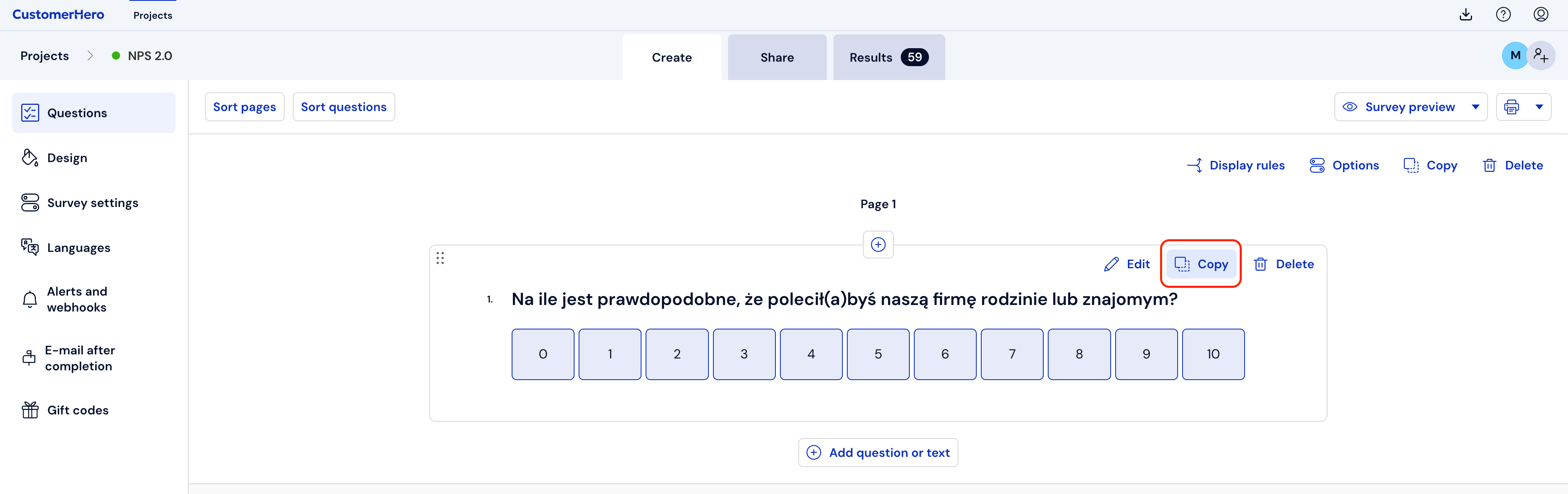
The new, copied question will appear right below the copied question.
After copying, you can move the question to the appropriate place (See how).
To delete a copied question, hover your cursor over it, and then click Delete.
What is worth remembering?
Our platform allows you to copy any question and any page of the created questionnaire.
At any time, it is possible to change the order of any of the pages or questions (See how).