
How to change the background of the survey?
Does a white background color seem boring to you and you would like to put your own graphic there?
In the Creation --> Appearance tab, click on (+) New, or if you already have a created style, select the style edit button.
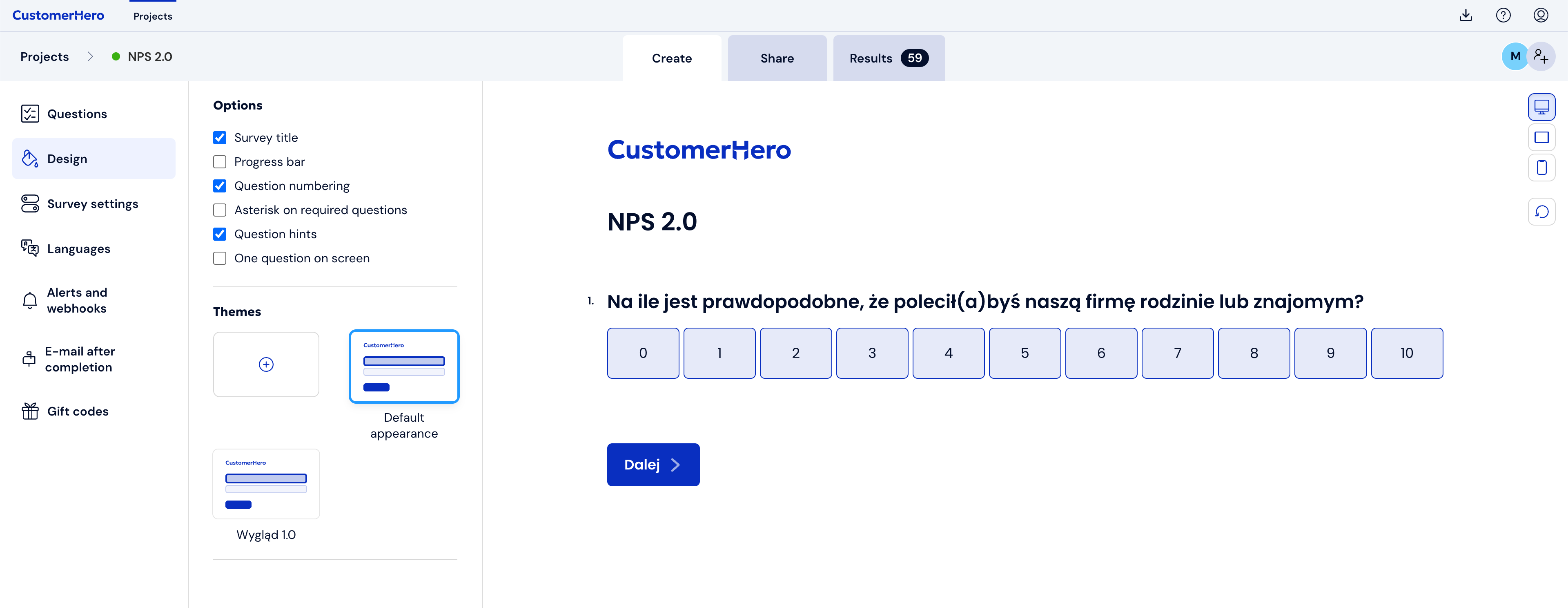
After entering the style editing mode, decide whether you want to upload an image background or set a solid color.
You can set an image background by clicking the icon next to the phrase "Background image":
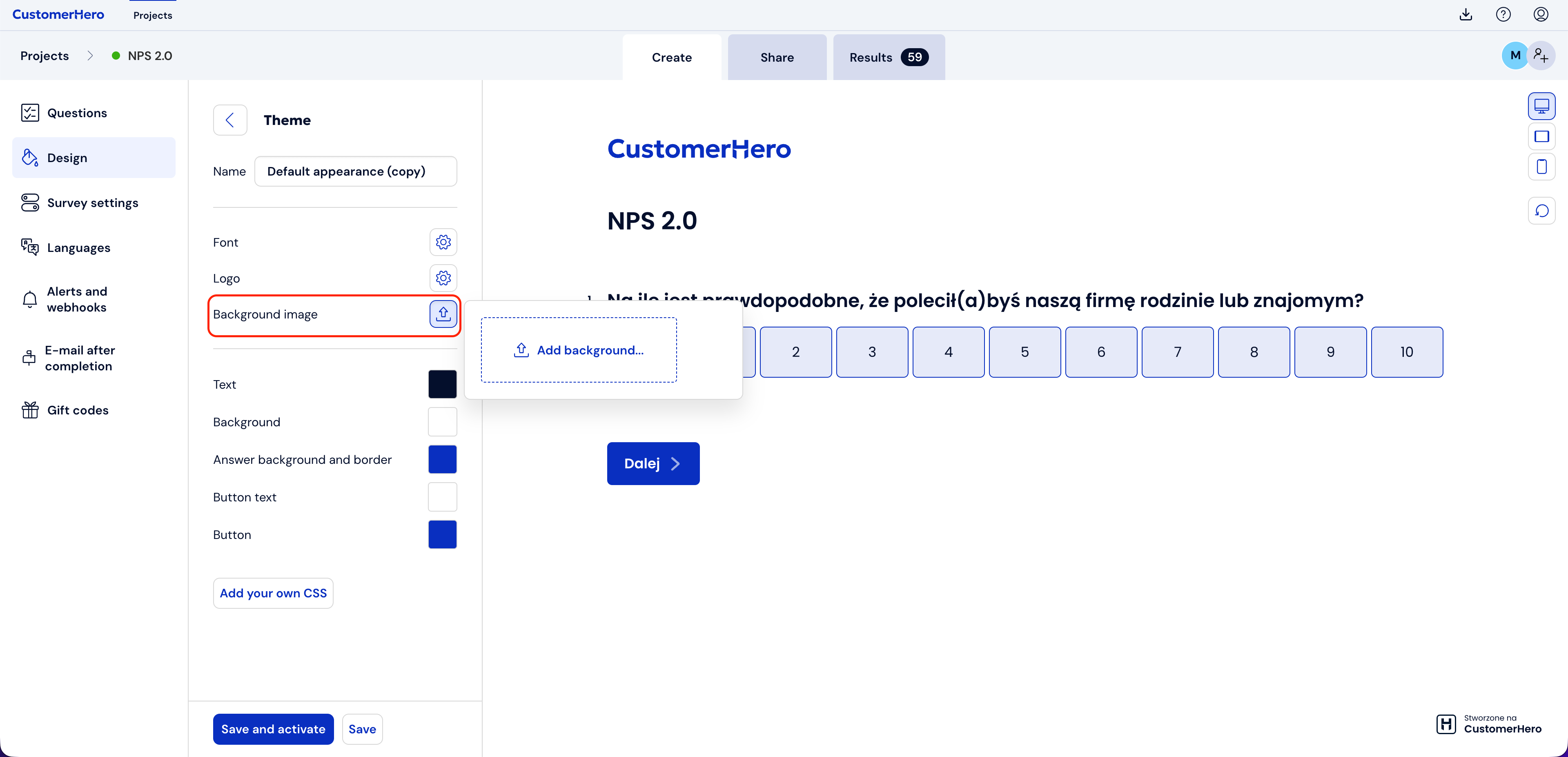
Just click the "Add background" button and upload your own background. Remember that the file cannot be larger than 3MB.
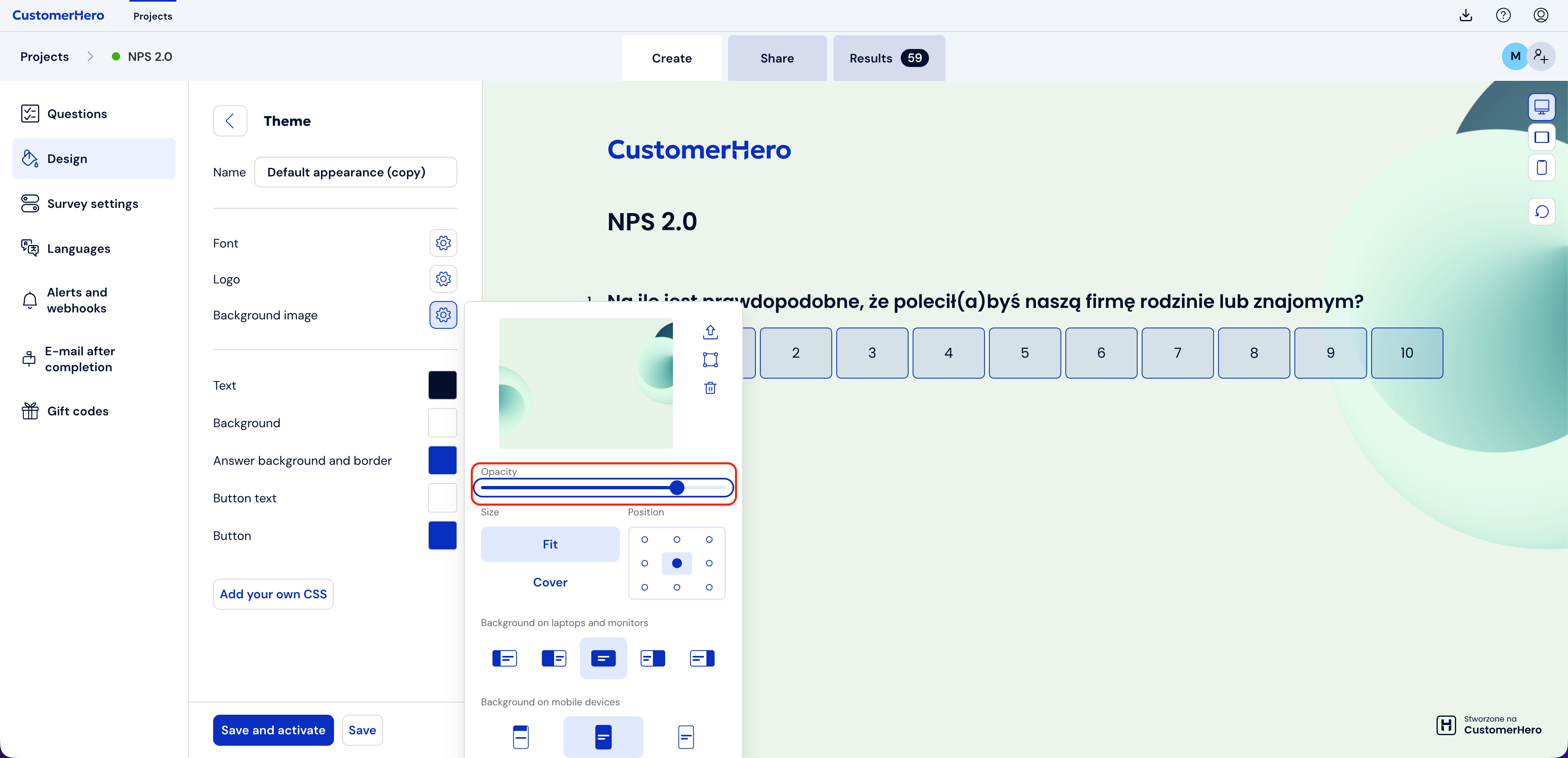
After uploading your own background image, you can fully customize its appearance and how it is displayed:
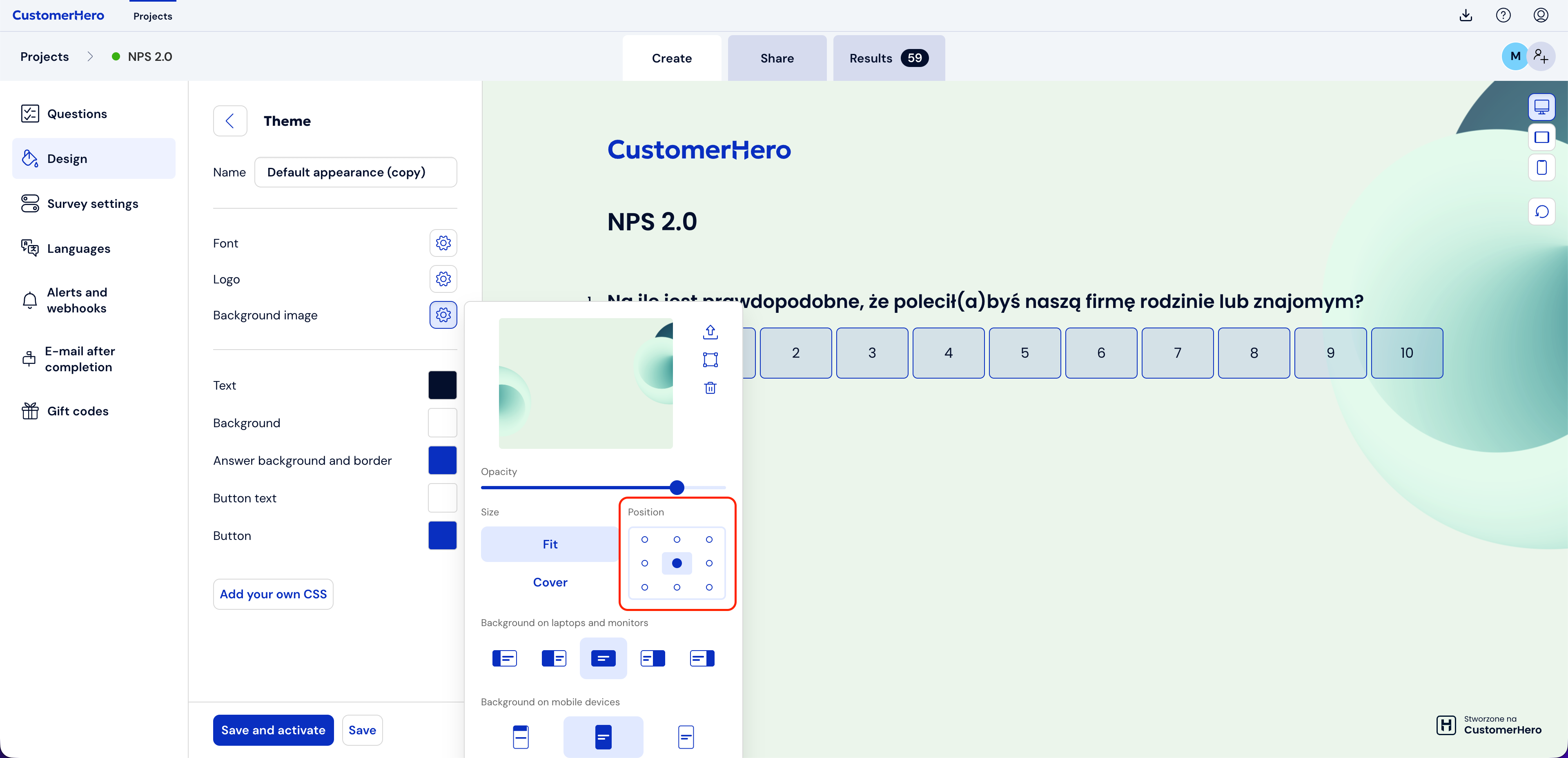
Transparency – use the slider to set the background transparency level:
Size – choose one of the options:
Fill – the image will be stretched to fill the entire space,
Fit – the image will keep its proportions and will be adjusted to the available space.
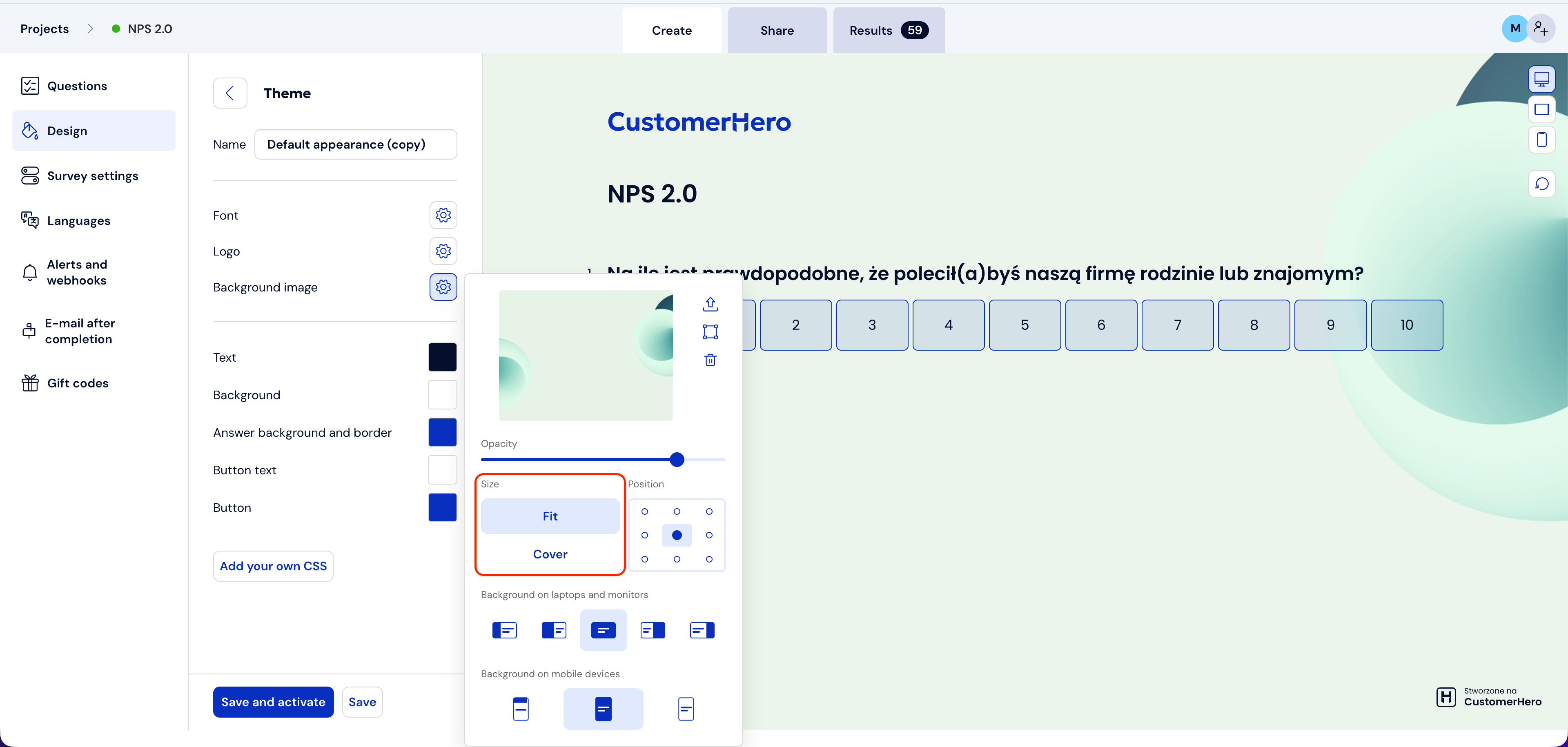
Position – decide where the image's reference point should be (e.g., centered, aligned to the left, to the top, etc.).
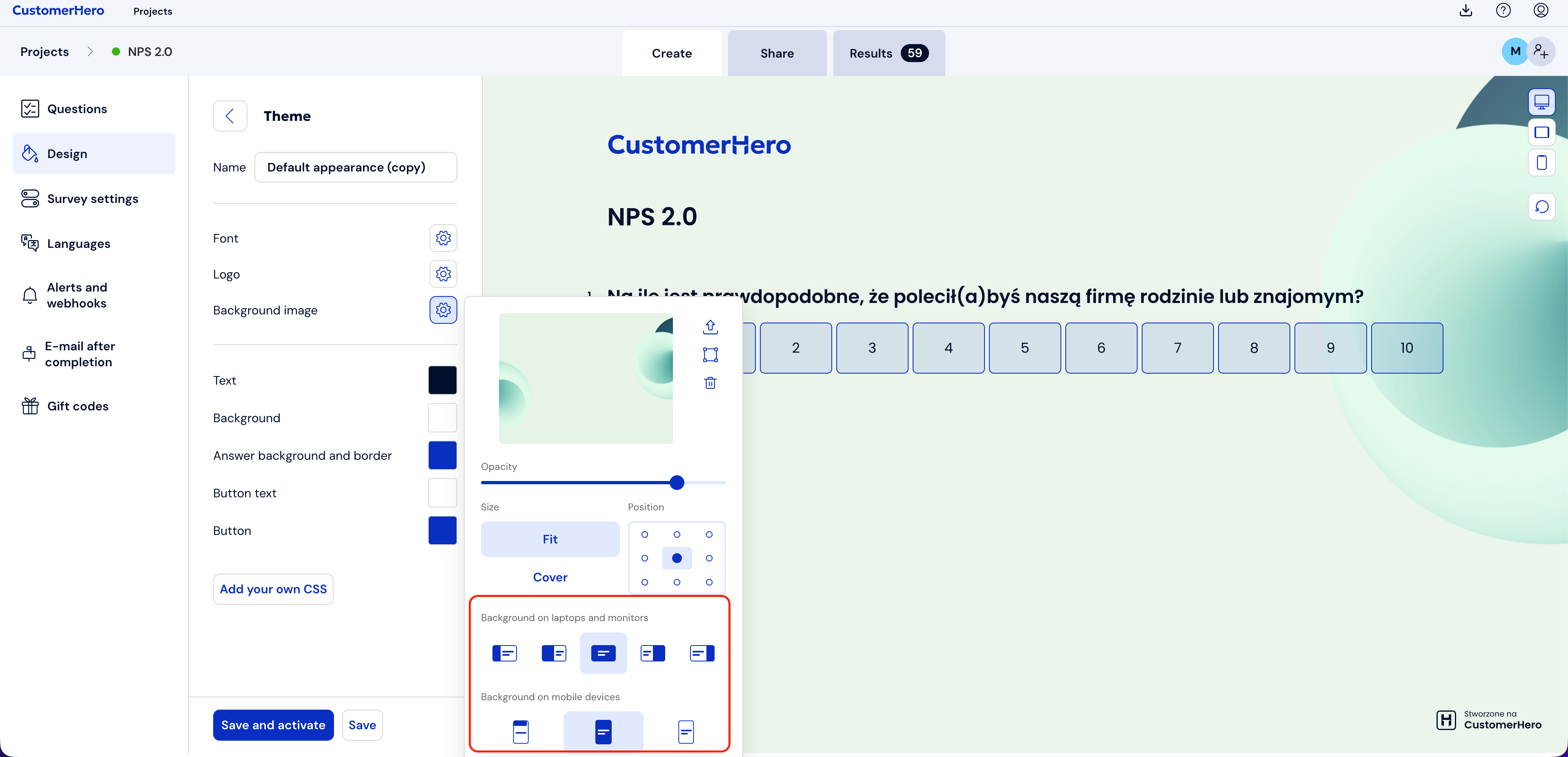
Display on different devices – separately set the background appearance:
on laptops and monitors (e.g., 33% or 50% of the screen width with the choice of sides: right/left; or full screen width),
on mobile devices (e.g., an image in the header, full screen, or the option to disable the image display).
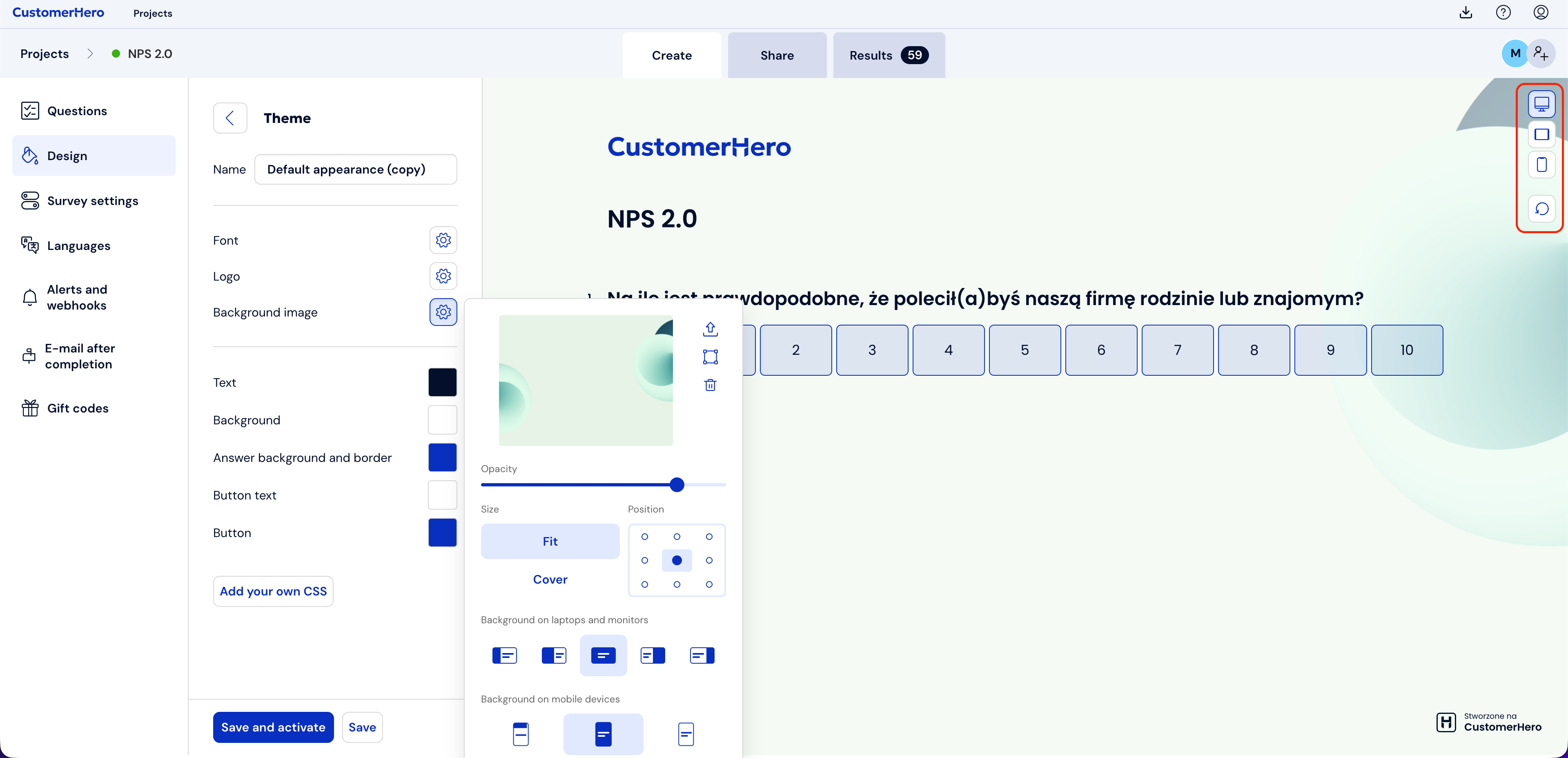
Important: To check how the selected style looks on different devices, use the Preview function – thanks to it, you will see how the questionnaire background image will be displayed on a computer, tablet, and phone:
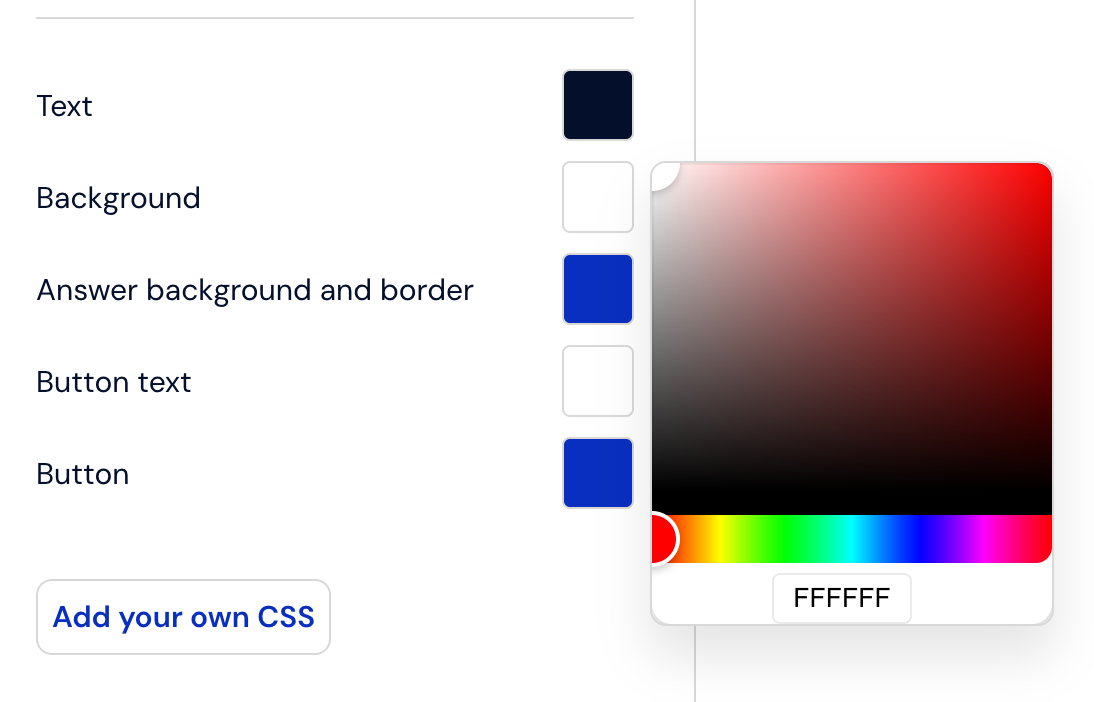
You can set a solid color background by clicking on the field next to the phrase "Background" and selecting a color from the palette:
Save the changes and you're done :)