
What elements of the questionnaire and thank you screen can be changed
Remember that each of your surveys can differ from the previous one not only in questions, but also in appearance or the thank you message for completing it. The survey editor allows you to change both the appearance of the survey itself or how questions are displayed, but also change the thank you screen displayed after completing the survey.
To find out how to change the survey logo or skin, go to the article "Custom questionnaire logo and colors". You will learn how to change the order of questions in the questionnaire from the article "Changing the order of questions or pages in the survey".
The thank you screen for completing the survey can be changed in many ways. The basic way is to change the thank you text or add pictures or links. You will find more about basic thank you changes in the article "Thank you text for completing the survey". However, the thank you screen can take other forms, such as a webpage, video, or audio. After completing the survey, it is also possible to redirect to another survey.
How to change the thank you screen for completion?
After finishing adding survey questions, select Creation again, and then go to the Thank you page section and click Edit in the upper right corner.
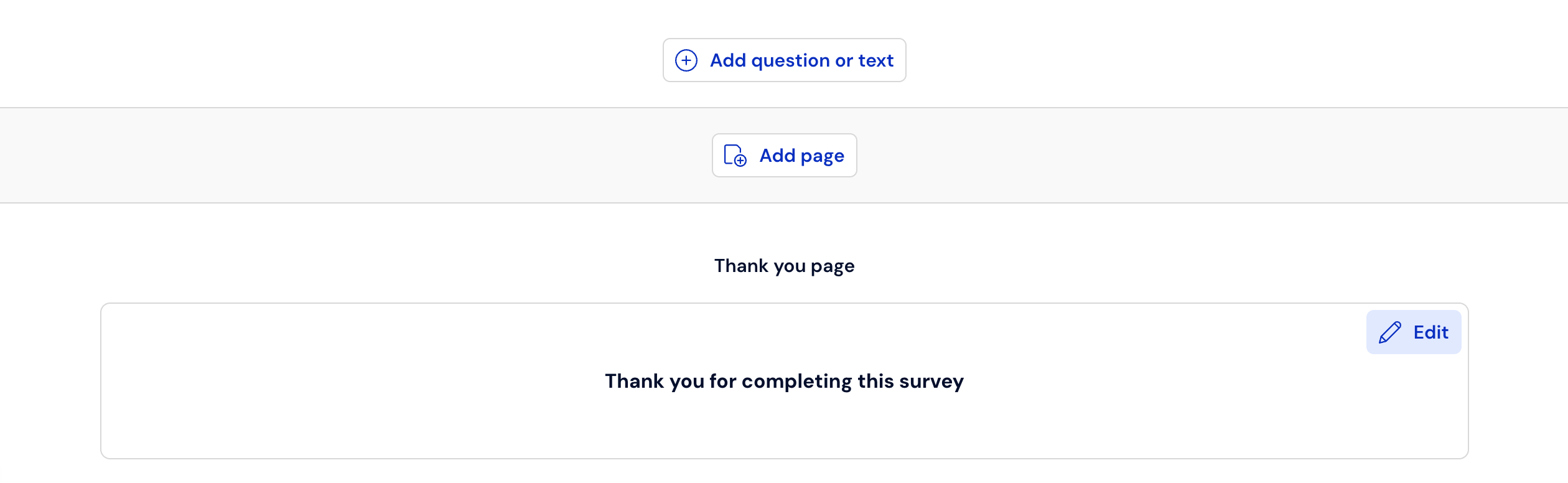
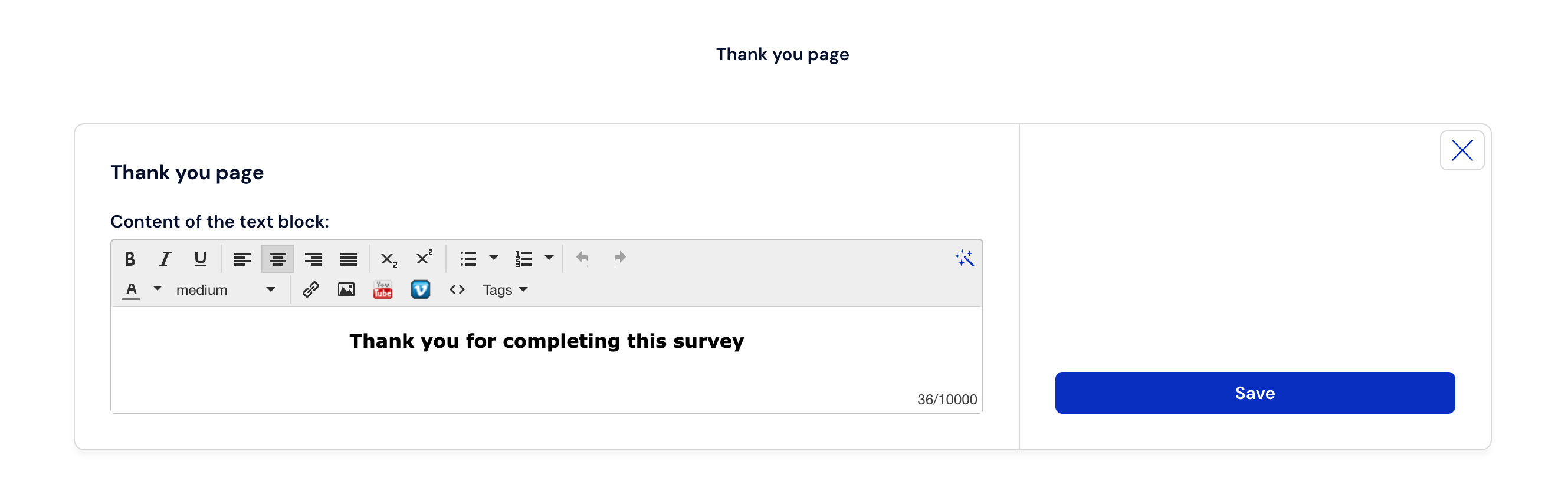
You can edit the content of the thank you text block by clicking on the magic wand (located in the upper right corner of the screen)
After clicking, an advanced content editor will appear, thanks to which it is possible to create diverse thank you pages. It allows you to insert various types of images, videos from YouTube or Vimeo.
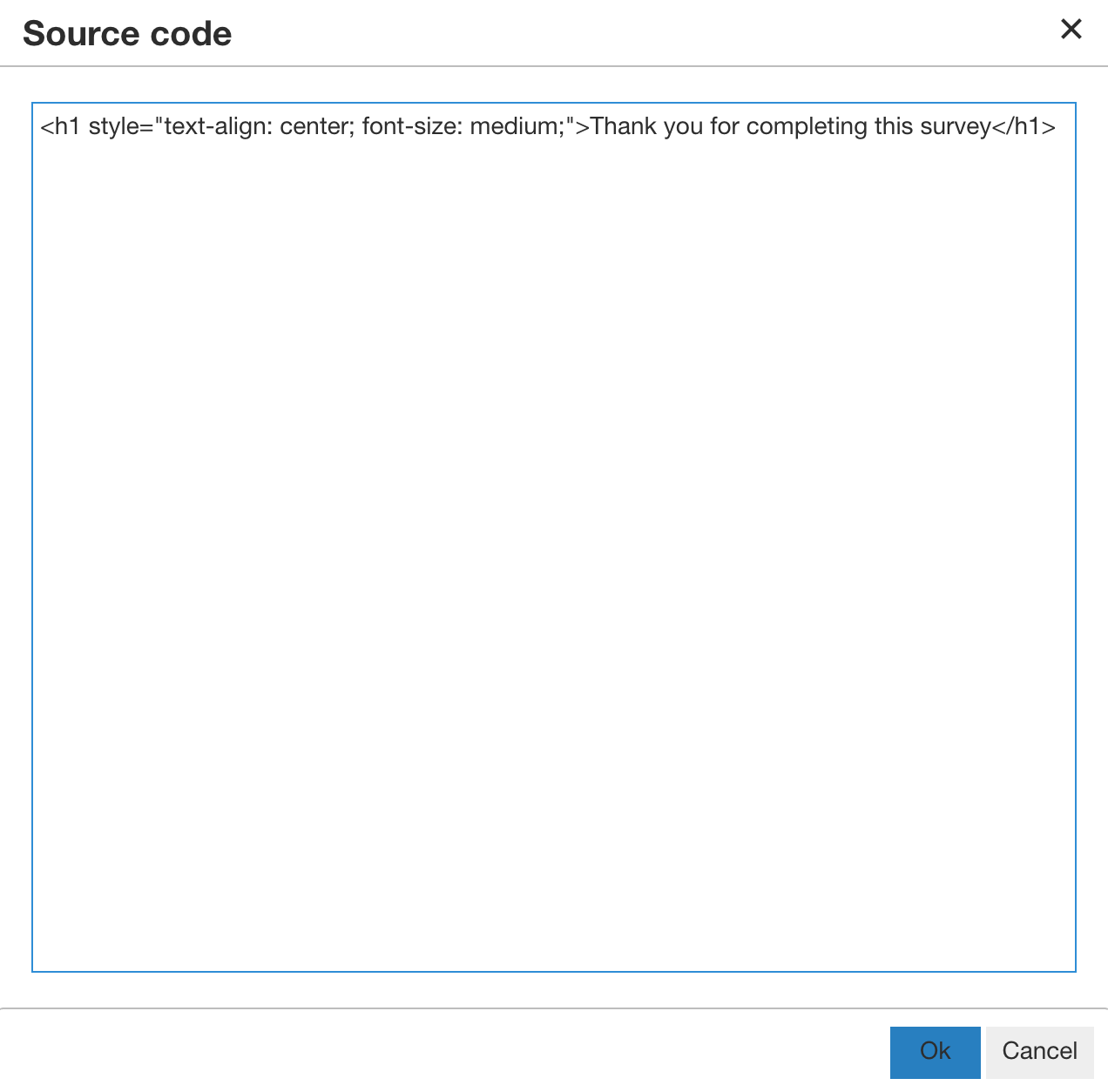
Besides inserting media from other services, it is also possible to paste any HTML code, which allows embedding diverse thank you pages.
What is worth remembering?
The thank you screen can be edited at any time during the survey, as well as after its completion