
An email to the respondent after completing the survey
If you want to send the respondent an email after completing the survey, you can easily create one. In the main menu, select the "Creation" button and then "Email after completion". Such a message can be a thank you or a confirmation of completion. However, you can also include elements such as a reward for completing the survey (like a discount code or a link to an e-book), the obtained test result and its interpretation, or the answers the respondent gave in the questionnaire (e.g., if you are conducting registration for an event).
Important: Please note that the function of messages confirming completion is available only when the questionnaire includes a question about an email address or if the survey has access set in the form of an individual link for each respondent and you send invitations using the "Send to email" option.
In the first case, the message is sent to the provided address as an answer to the question. In the second case, the message is sent to the same email address to which the survey invitation was sent.
How to configure the survey completion confirmation message?
After you finish adding survey questions, select "Email after completion" in the "Creation" tab.
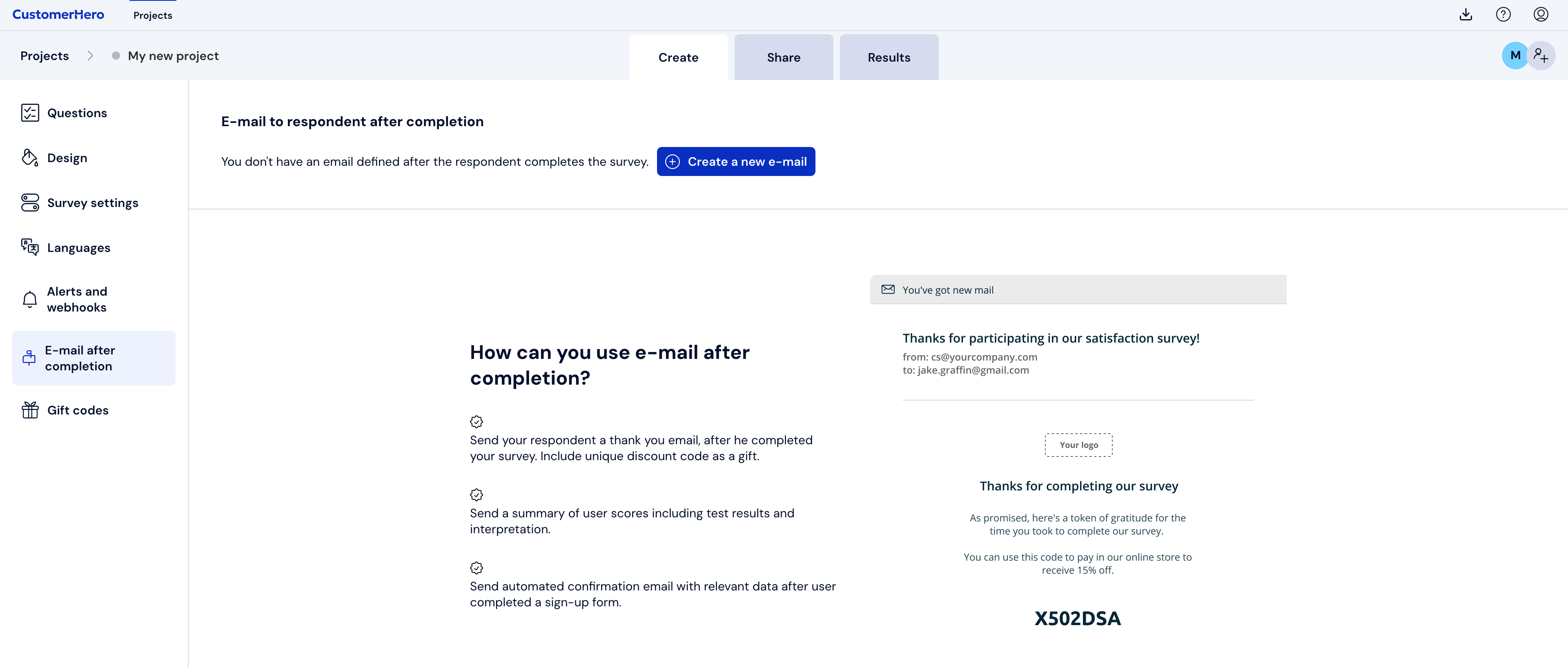
Next, select the "Create a new email" button.
In the displayed "Completion confirmation to email" section, configure the following message parameters:
Status
This option defines whether messages are sent after completion. For messages to be sent, they must have the "Active" status. The default status is "Inactive".

Email address source
Thanks to this option, you can decide where the respondent's address, to which the survey completion message will be sent, is retrieved from. If your survey contains a question about an email address, you can use the "question about email in the questionnaire content" option. If the survey access is set based on an individual link for each respondent, you can use the "The same email to which the survey invitation was sent" option. Important: if your questionnaire does not meet one of the above conditions, you will see only one option.

From
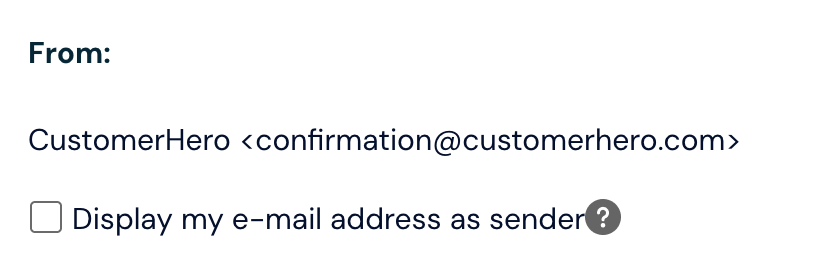
The "From" option allows you to define what email address will appear as the sender of the configured message. The default sender is the Webankieta.pl service. If you use the "Display my address as the sender" function, your email address to which the account is registered will appear in the From field, e.g., "jan.kowalski@mycompany.com via Webankieta.pl". If you have integrated your mail server with our service, these confirmations will be sent from your email address.
Subject
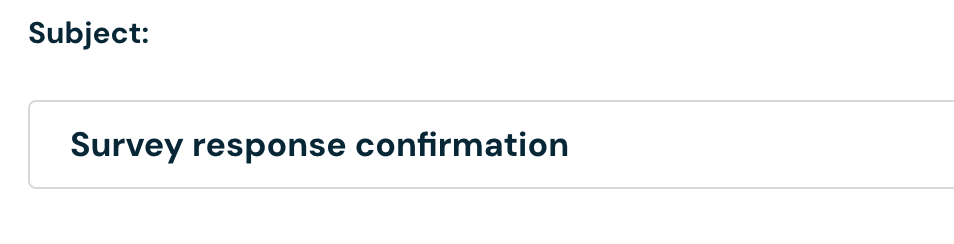
The "Subject" field allows you to enter the subject of the message. The default subject is: "Survey completion confirmation".
Message content
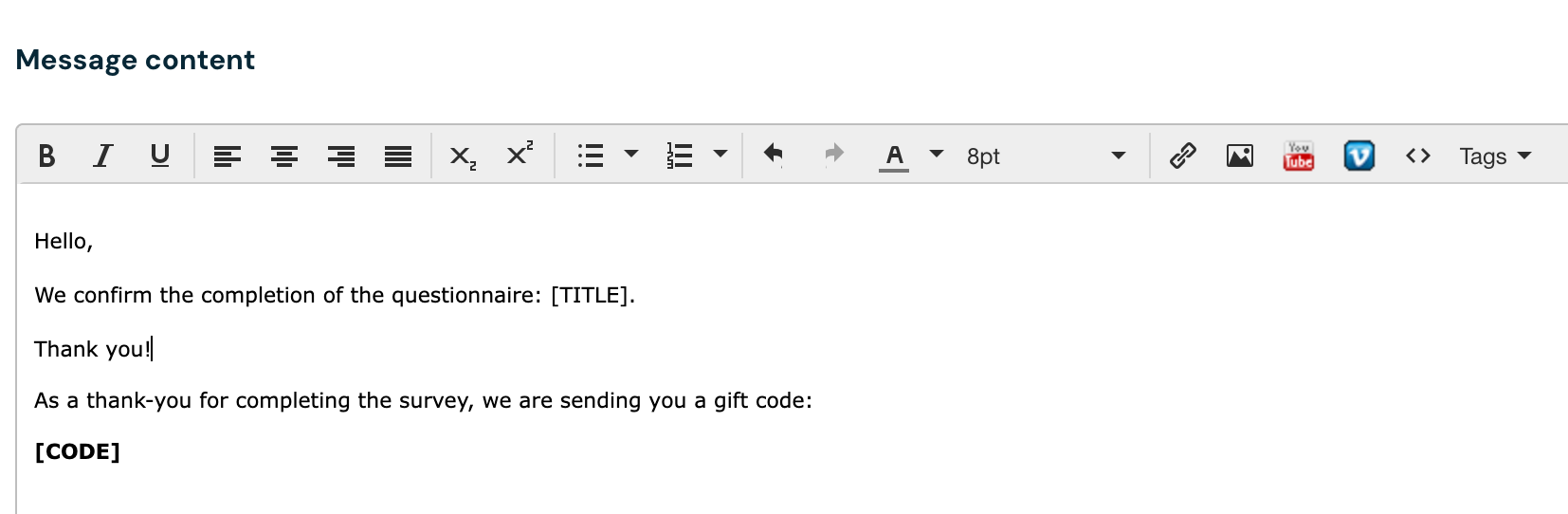
In this field, you can enter the content of the message that will be sent to respondents after completing the survey. You can easily edit this content using the WYSIWYG editor. Additionally, in the message content, you can use personalization, thanks to which you can personalize the sent messages by dynamically inserting content such as:
- Answers given in the survey
- Respondent data pulled from respondent attributes (in the case of sending with a token)
- Test result
- Feedback
- Verification code
- Email
- Survey title
- Discount code
You can find more about dynamic content in the article Dynamic content and macros.
Preview
At the end of the message configuration screen, there is a message preview window. Thanks to it, you can see what your final message will look like. Thanks to the "Use message template" option, the message will contain our service's logo and footer, but of course, you can insert any message code.
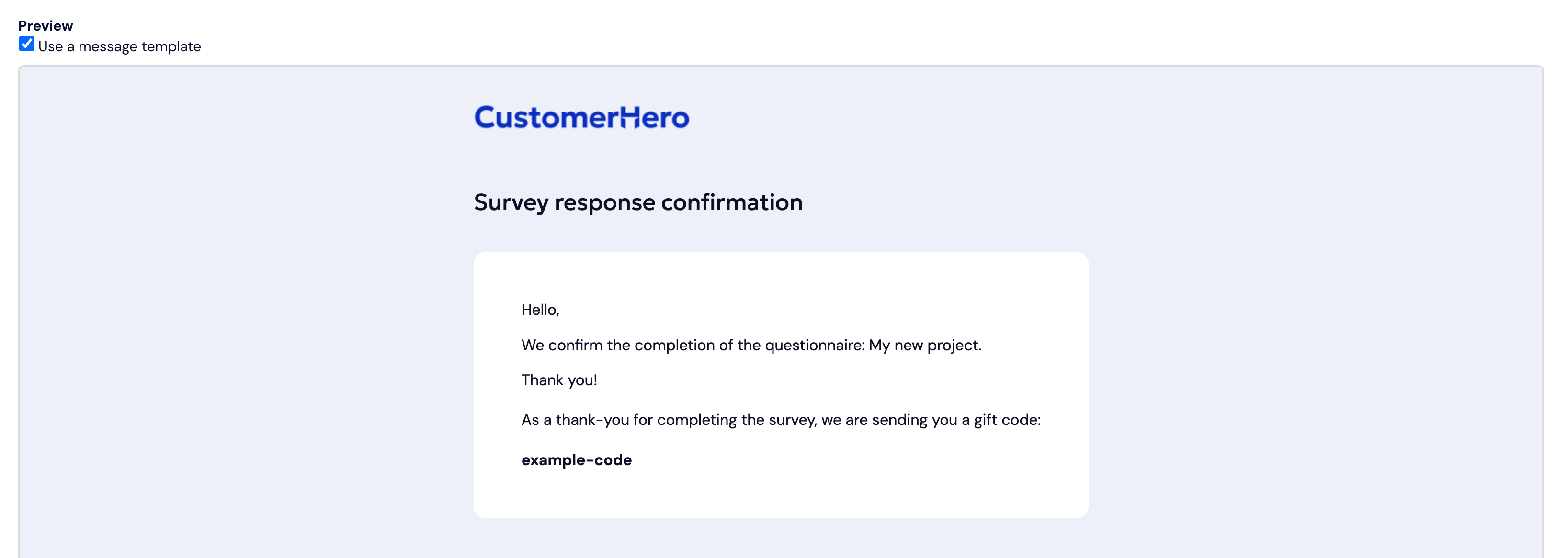
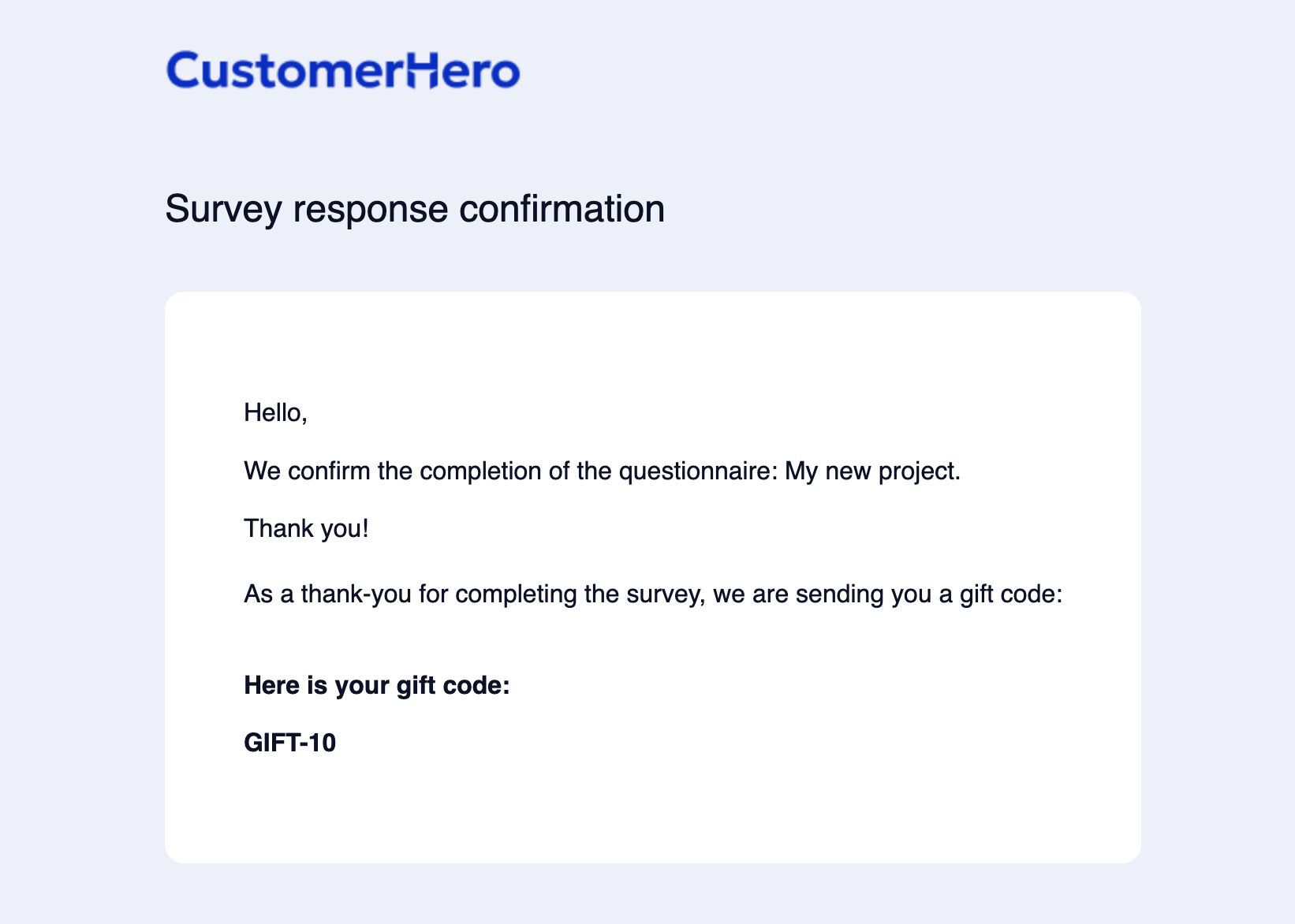
Finally, the survey completion confirmation message configured above, which is sent to the respondent's address, looks like this:
What is worth remembering?
Only the answers are dynamically inserted into the message content, not the question content. If you want to show the given answers in the email, enter the question content "statically" and add a macro for the answer content next to it (just like in the example above).
Placeholders (answer identifiers) are displayed in the message preview, which will be replaced with the actual answers in the email sent to the respondent. To test the message content with real data, we recommend completing a test survey beforehand – then, after sending the email to yourself, you will be able to see what the respondent's answers actually look like.