
The conditional display of pages
Very often in surveys, we want to display pages or questions only to selected respondents. For example, we ask the respondent which car brands they know. We display a list of 10 brands, but the respondent selects only 7. Then, if we want to ask follow-up questions, it makes no sense to ask about the 3 brands the respondent does not know, and we should only ask questions about the 7 brands they know.
Another example is an internal survey within an organization, where we ask employees to evaluate cooperation with other departments. If someone does not cooperate with the legal department, we should not ask them a block of questions evaluating the legal department. In our platform, such logic is implemented using Page display rules, which allows you to define the conditions under which a specific page should be displayed. These conditions can be applied based on:
Selecting or not selecting specific answers on previous pages in the survey.
Attributes describing the respondents invited to the survey.
The external_key parameter, which was attached to the survey link clicked by the respondent.
Conditions can be combined with each other using the logical operators AND and OR, giving us a lot of possibilities to create a dynamic, intelligent questionnaire.
How to define page display rules based on previously provided answers?
First, we create a survey questionnaire – keeping in mind that the questions that are ultimately intended to refer to the answer previously provided by the respondent must be on separate pages.
For our example, it will be a multiple-choice question about how our respondent spends their free time. An example of such a question is below
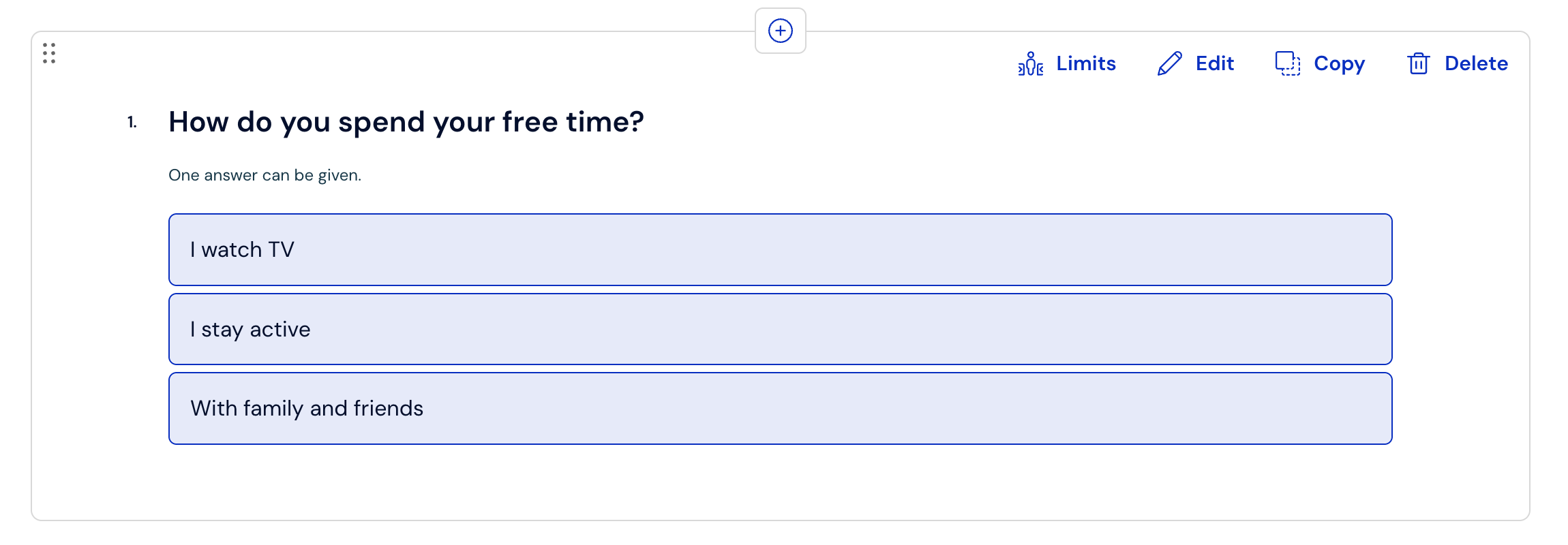
Next, we add three follow-up questions, each referring to the provided answer. These questions, which is very important, must each be placed on a separate page. Examples of questions:
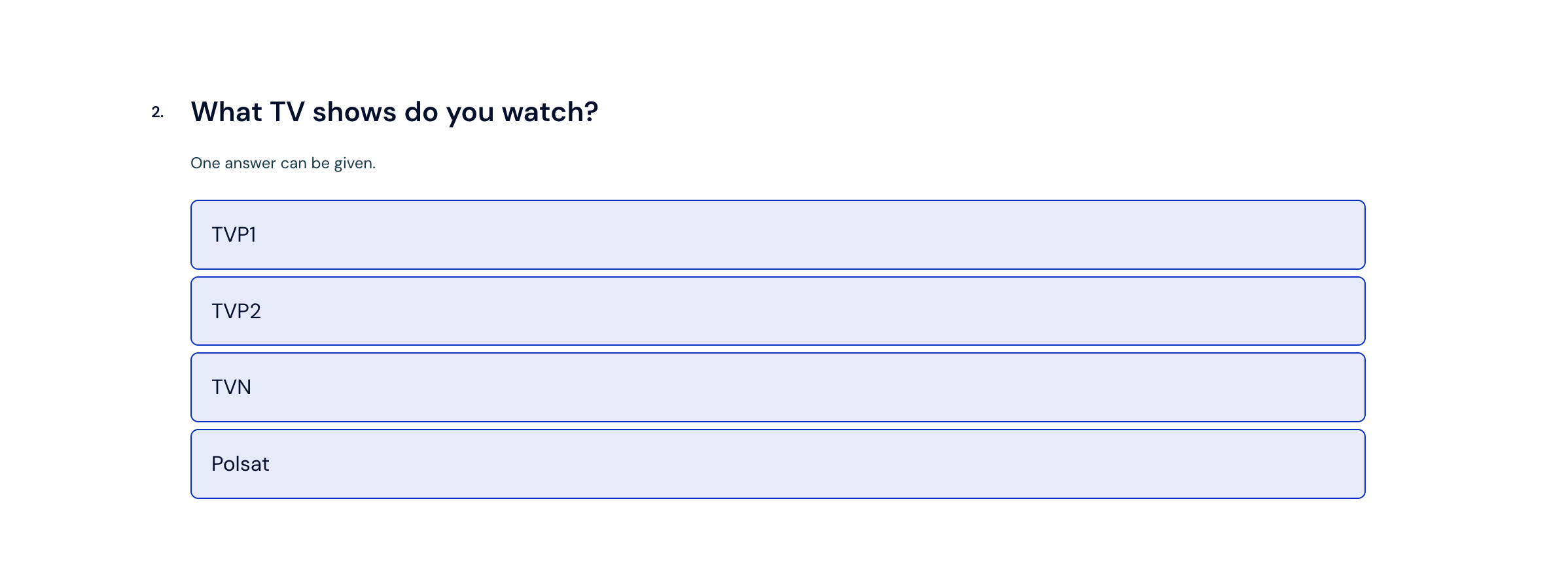
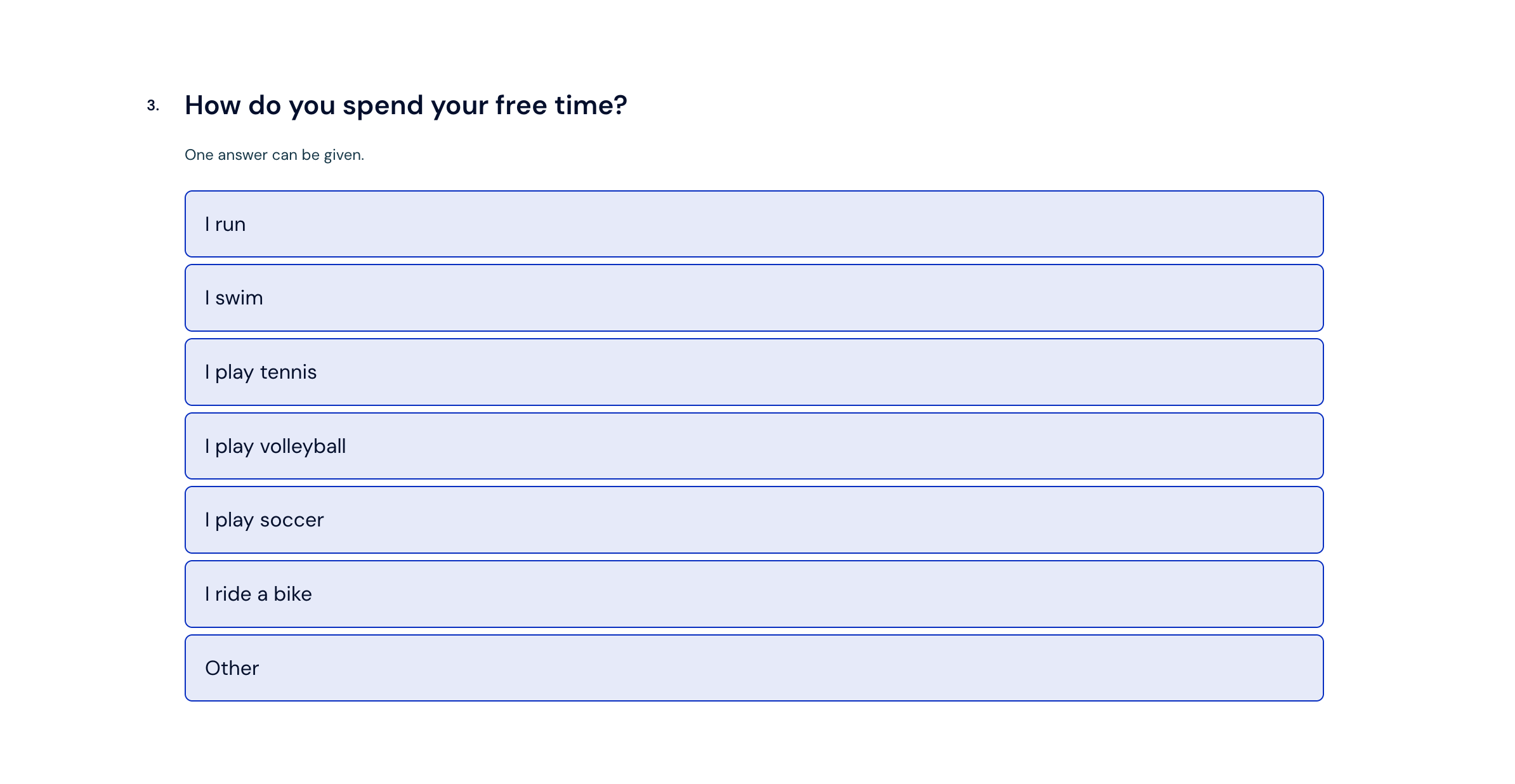
Once we have prepared the questionnaire, appropriately divided into pages, we can proceed to define the page display rule.
On each page with a follow-up question, next to the page number, there is a "Page display rules" icon – click it.
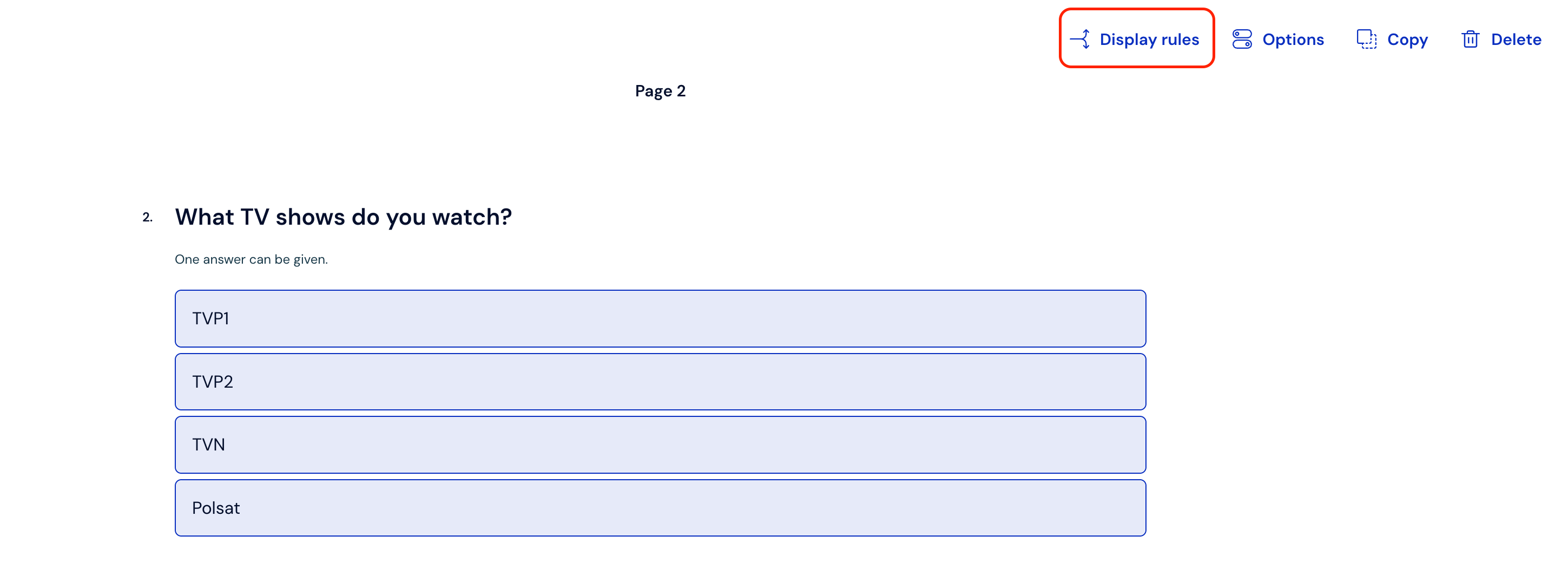
The "Display page only if" menu will expand, where you will configure the appropriate conditions
First, use the drop-down list to select the base question to which the selected page should refer – in our case, the base question will be the question "How do you spend your free time" (2)
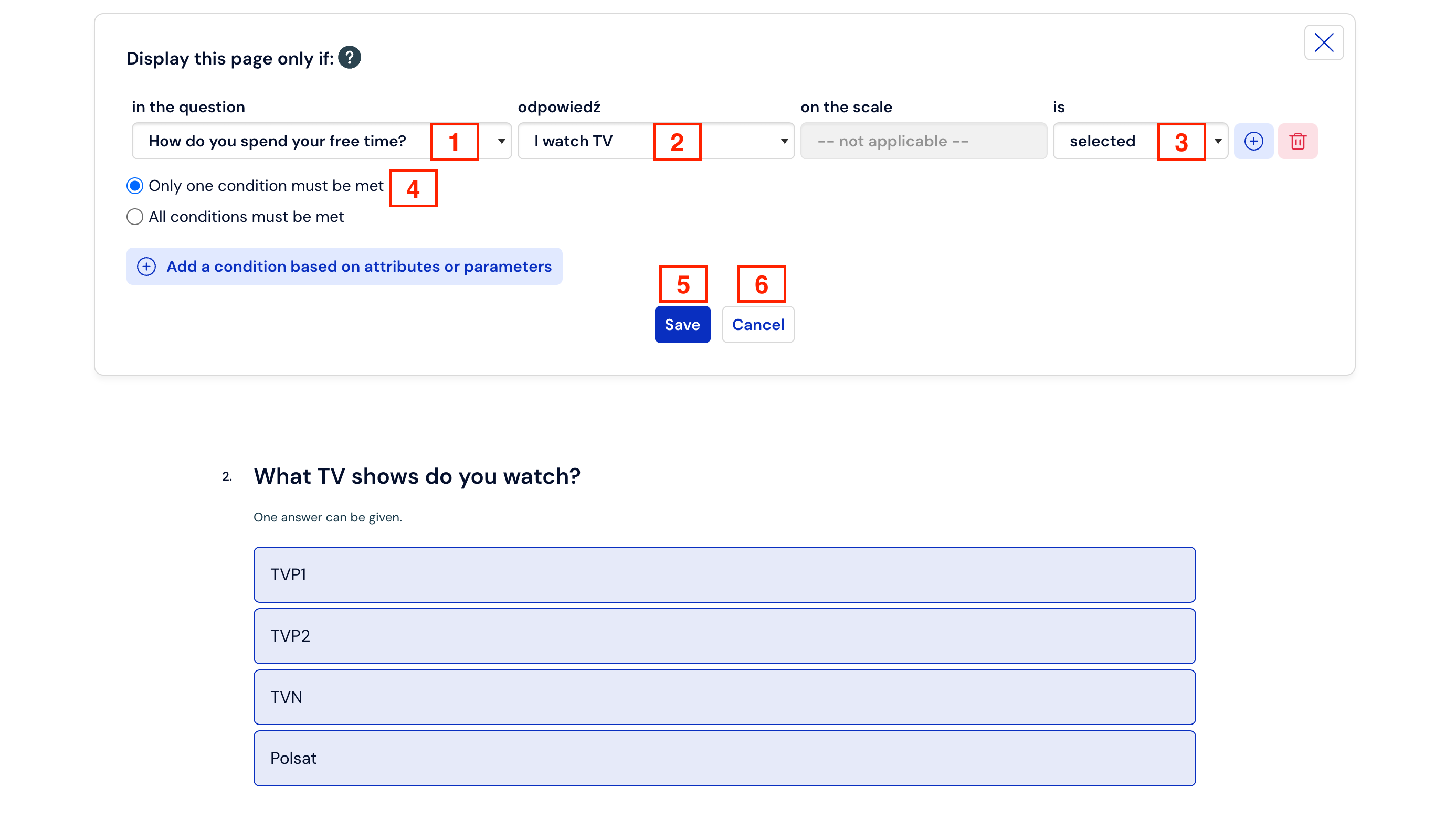
Next, also using the drop-down list, select the answer that refers to the answer provided in the base question – in our case, it will be the answer "I watch TV" (2) because the question referring to the previously provided answer is "What programs do you watch on TV?"
From the very last drop-down list, select whether this page should be displayed after selecting the previously provided answer or, on the contrary, when this answer is not selected (3) – in our case, the choice concerns the selected answer.
If you want to add another condition, click the green plus icon.
When at least two conditions have been added, select whether the rule is to be applied when at least one of the above conditions is met, or if all conditions must be met (4). This is useful when we plan to display a page when someone selects, for example, "Probably not" and "Definitely not"
Save the configuration so that the changes you made are remembered (5) or cancel (6)
Follow the same procedure on the remaining pages to configure the display conditions for pages with questions about the details of active free time spending and the details of spending time with family.
How to define a page display rule based on respondent attributes?
First, create the entire survey questionnaire, keeping in mind that the questions that are to be displayed only to selected respondents must be on separate pages.
Next, import the list of respondents described by attributes
On the page that is to be displayed only to selected respondents, click "Page display rules" and click "Add condition based on attributes/parameters".
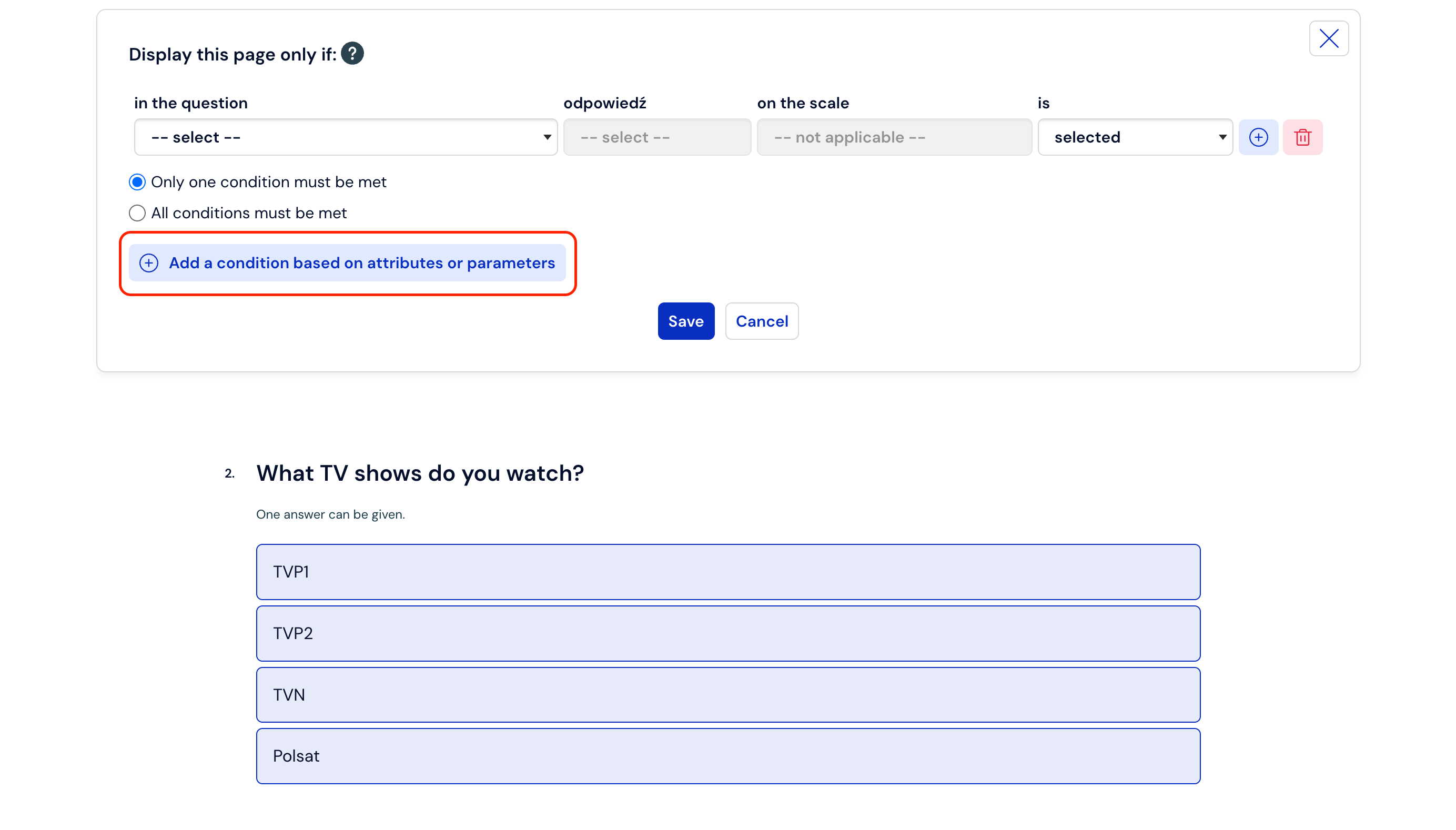
From the first drop-down list, select the desired attribute, and from the next two, what condition must be met for the rule to work (e.g., the Department attribute must equal Sales, or Subordinate must not be empty).
Just like with rules based on previous answers, these conditions can also be combined into combinations using the logical operators AND and OR.
How to define a page display rule based on the external key parameter?
When is such a solution useful? For example, when the link to our customer satisfaction survey is placed on the company's Facebook profile. Then we know that the respondent came to us from Facebook (e.g., using the link www.supersurvey.com?external_key=facebook), so we don't need to ask them if they know our profile.
First, create the entire survey questionnaire, keeping in mind that the questions that are to be displayed only to selected respondents must be on separate pages.
On the page that is to be displayed only to selected respondents, click "Page display rules", and then "Add condition based on attributes/parameters".
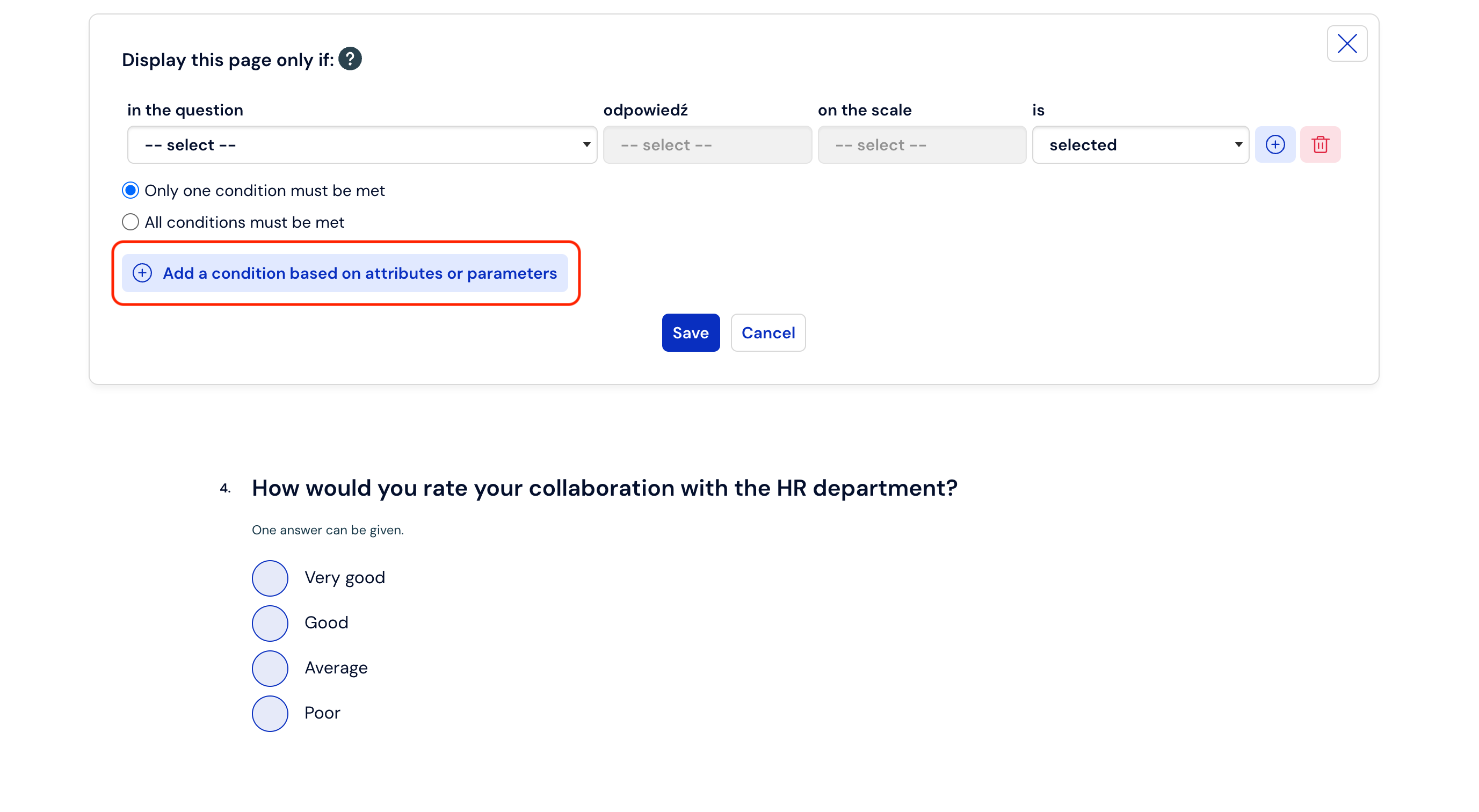
From the first drop-down list, select the external_key parameter, and from the next two, what condition must be met for the rule to work (e.g., external_key cannot equal facebook on the page with the question of whether they know our profile).
Just like in other based rules, these conditions can also be combined into combinations using the logical operators AND and OR.
What is worth remembering.
You can place more than one question on a rule-based page, and all of them will be displayed according to the defined conditions (the so-called follow-up question block).
In the case of a rule based on answers, it can be configured only based on questions that are placed on the previous pages of the survey.
You can add several conditions, which will be joined by the AND operator (all conditions must be met) or OR (it is enough for one condition to be met).