
The dynamic content and macros
When you create the content of a survey questionnaire, an invitation to complete a survey, or an email sent to the respondent after completion, you often need to insert personalized information or information dependent on the answers provided.
To enable the insertion of this type of information, you should use the Dynamic content (macros) feature. The principle of operation is very similar to the mail merge option known, for example, from Word-type programs, where in addition to the text that is identical for everyone, we can insert different content for each recipient drawn from an external source.
In the article below, you will find a list of available macros along with information on which area they are available in and how to use them. Some macros are available only when creating a survey invitation, some only in the questionnaire content, some on the thank you page and in the email sent after completion, and some in all these areas.
A full list of supported macros and the places where they are available: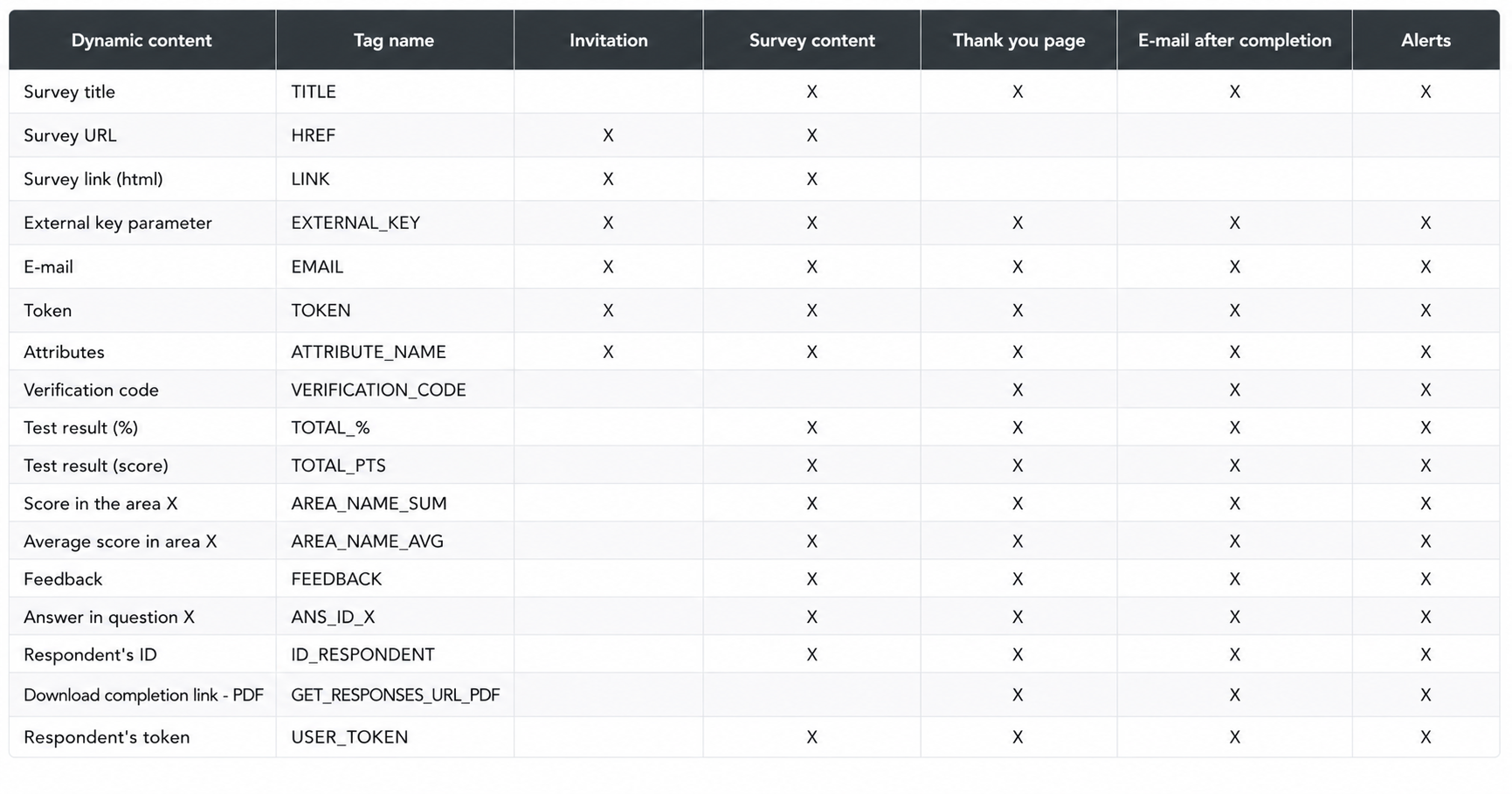
How to insert dynamic content?
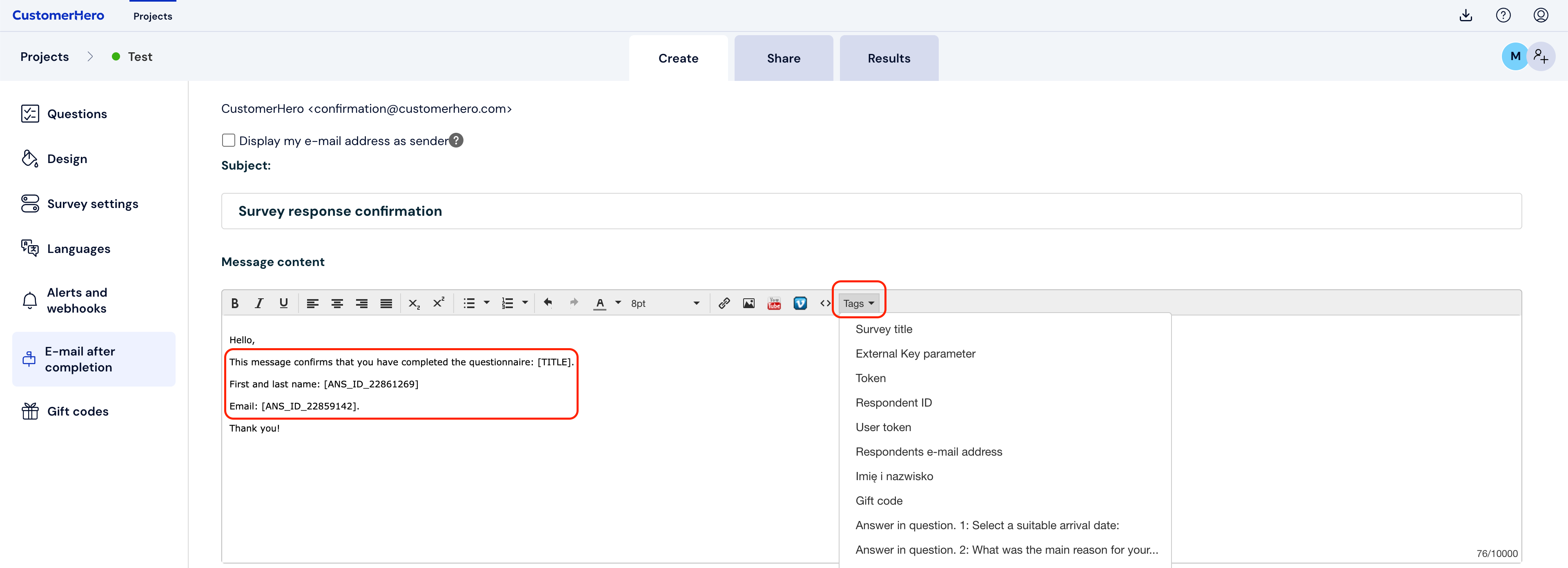
Inserting macros and dynamic content is very simple. There are two options. The first is to use the advanced content editor and select the correct element from the "Dynamic content" drop-down menu.
The second is to type the macro name in the format shown in the table above and the examples below, directly into the content, e.g., [ANS_ID_12345] or [ANS_ID_12345.2]. This is especially useful in places that do not have the possibility of advanced content editing, such as the question content. To check how a given macro works in practice, we recommend testing it with a test completion or by sending test emails.
Below is a list of all macros along with examples of use.
Answer given in a question
[ANS_ID_12545], [ANS_ID_32645], [ANS_ID_32232], [ANS_ID_12345.1], [ANS_ID_56984.2] etc.
Thanks to this macro, you can insert the content of an answer given on a previous survey page into the question content, or insert the answers the respondent gave in the recently completed survey into the message content. This is especially useful when you want to make the questionnaire dynamic without duplicating questions. Only the selected answer or text entered by the respondent will appear in the content – the question content will not be inserted automatically, so remember to insert it into the template yourself. Currently, the macro only works for the following types of questions: single-choice, multiple-choice, form, drop-down list, open-ended, form, question about email, date, and number.
In a form type question and in an open-ended question allowing you to enter more than 1 answer, we can use a macro to select a specific answer using the format [ANS_ID_42345.2] where 42345 is the unique question ID, and 2 is the second entered answer or the second position in the form.
Macros should be inserted using the "dynamic content" drop-down list in the advanced editor.
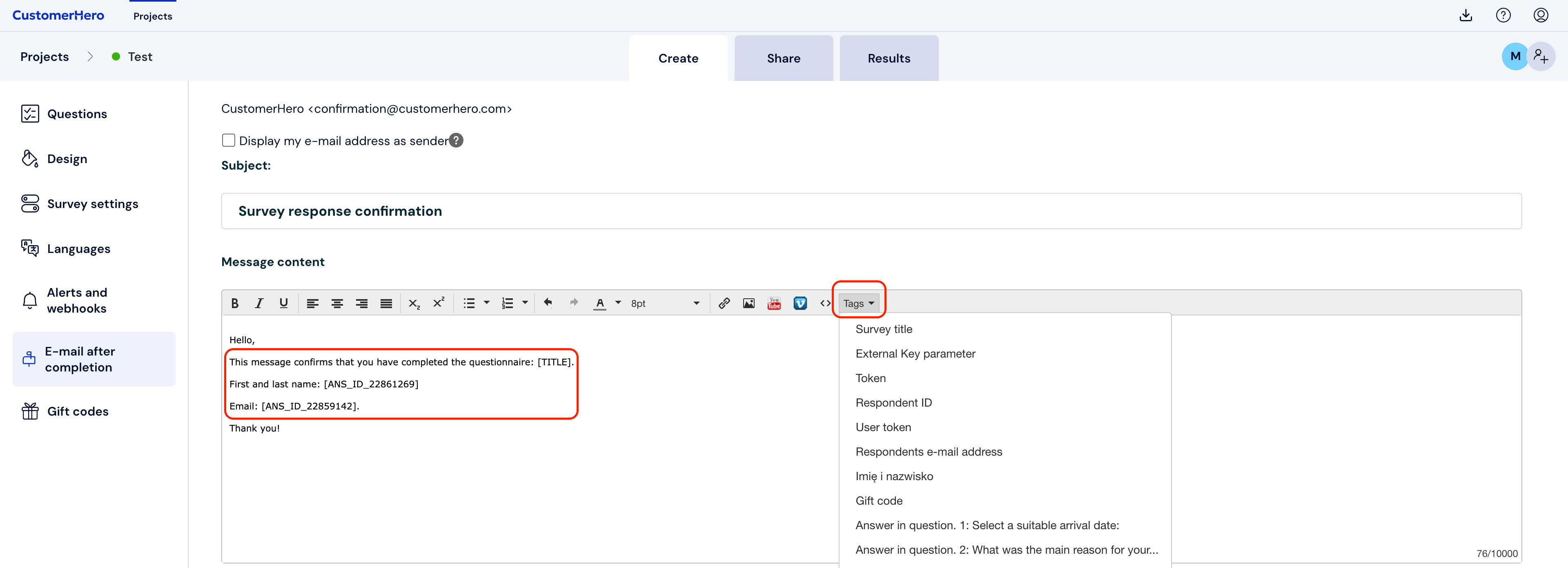
Example 1:
Thank you for expressing your willingness to participate in the conference "Online survey platforms and saving trees".
Your details:
[ANS_ID_00001] //Question 1 is a Form type question//
Special requirements:
[ANS_ID_12354] //Question 3 is an open-ended question//
Interest in the thematic block:
[ANS_ID_45658] //Question 4 is a drop-down list choice question//
Effect:
Thank you for expressing your willingness to participate in the conference "Online survey platforms and saving trees".
Your details:
First name – Marcin
Last name – Lato
e-mail – marcin.lato@email.pl
Special requirements:
Please provide a vegan meal.
Interest in the thematic block:
Examples of applications in the medical industry
Example 2:
In question no. 3, you answered that you most like to spend your time [ANS_ID_525848]. What activities do you do there?
Effect:
In question no. 3, you answered that you most like to spend your time by the sea. What activities do you do there?
Percentage and numerical result obtained in the test
[TOTAL_PTS] , [TOTAL_%]
If your survey is a knowledge test or an assessment, you can display or send the obtained result to the respondent in the summary, both numerically and as a percentage. You can also present the partial result while filling out the questionnaire.
Example:
Your result is: [TOTAL_PTS] points. In percentage terms, this gives [TOTAL_%]. Congratulations.
Effect:
Your result is: 50 points. In percentage terms, this gives 41.67%. Congratulations.
Feedback and interpretation of the obtained result
[FEEDBACK]
If your survey is a knowledge test or an assessment and you have configured the display of feedback based on the obtained point score, you can display or send the respondent their result in the summary. If there are several areas and several pieces of feedback in the study, they will be displayed one below the other.
Example:
Your result is: [TOTAL_PTS] points.
[FEEDBACK]
Effect:
Your result is: 50 points.
You need to work on relations with employees.
The execution of delegated tasks is going very well for you.
We recommend developing knowledge in your field by participating in training courses.
Respondent attributes
[ATTRIBUTE_NAME] e.g., [FIRST_NAME], [LAST_NAME], [COMPANY]
Thanks to this macro, you can use imported attributes in the content of the questionnaire, invitation, or in the post-completion email, and thus personalize the message for each respondent.
For this macro to work properly, the following conditions must be met:
contact attributes must be entered in the appropriate tab
contacts must be imported along with the above information
imported contacts must be added as survey respondents in the "send to email" tab.
Example:
Hello [FIRST_NAME],
You have been working at [COMPANY] for [WORK_EXPERIENCE]. Please rate the time spent in this organization.
Effect:
Hello Rafał,
You have been working at IBM for over 2 years. Please rate the time spent in this organization.
Survey title
[TITLE]
The macro allows you to insert the title of the survey that has just been completed into the content.
Example:
Thank you for completing the survey "[TITLE]". The results will be sent to your account within 14 days of the end of the study.
Effect:
Thank you for completing the survey "Risk factors among people working in glassworks". The results will be sent to your account within 14 days of the end of the study.
Verification code after completing the survey
[VERIFICATION_CODE]
Thanks to this macro, a verification code confirming the completion of the survey, generated for a given respondent, will be inserted into the content of the post-completion email or on the thank you page.
Example:
Thank you for completing the survey. Your verification code to present to the seller is: [VERIFICATION_CODE]
Effect:
Thank you for completing the survey. Your verification code to present to the seller is: DX4J21
Tracking parameter external key
[EXTERNAL_KEY]
This macro allows you to insert the external key used to refer to a given survey. This is useful, for example, when redirecting a respondent to another survey while keeping the provided key (e.g., redirecting to a survey in a different language version).
Example:
In order to complete this survey in English, please go to: https://www.customerhero.com/survey/169456/holiday-survey.html?external_key=[EXTERNAL_KEY].
Effect:
In order to complete this survey in English, please go to: https://www.customerhero.com/survey/169456/holiday-survey.html?external_key=fckgwrhqq.
Respondent's email address
[EMAIL]
This macro displays the email address of the respondent completing the survey. It can be used only for surveys with access set to an individual link for each respondent and when sending invitations from the CustomerHero system.
Example:
You are taking the survey as [EMAIL].
If this is not you, please stop filling it out.
Effect:
You are taking the survey as monika@example.com.
If this is not you, please stop filling it out.
Respondent ID
[ID_RESPONDENT]
This macro displays the system ID of the respondent completing the survey. You can use the respondent ID in Webhook alerts to update respondent data.
Survey URL address
[HREF]
This macro presents the URL address of the survey to which you are creating an invitation. If you are creating a survey with access via an individual link for each respondent, this address will also contain a token.
Example:
Hello, I invite you to fill out the survey. You can find it at <a href=[HREF]>this</a> address.
Effect:
Hello, I invite you to fill out the survey. You can find it at this address.
Survey link
[LINK]
This macro has a similar application to the macro above, except that it presents the survey address in HTML format. This is useful when the invitation you are creating is also created in HTML (e.g., a mailing). The format of such a link is <a href=”[HREF]”>[HREF]</a>.
Example: |
Survey access token
[TOKEN]
Thanks to this macro, you can insert a token intended for the respondent to log into a survey with access set to an individual link into the content of the invitation.
Example:
Hello, I invite you to complete the survey. You can find it at https://www.customerhero.com/survey/159877/ocena-systemu-motywacyjnego.html.
To fill it out, you must use the token: [TOKEN].
Effect:
Hello, I invite you to complete the survey. You can find it at https://www.customerhero.com/survey/159877/ocena-systemu-motywacyjnego.html.
To fill it out, you must use the token: d2c2e3.
Please note that for a survey with access via an individual link for each respondent, the macros [LINK] and [HREF] + [TOKEN] can be used interchangeably. In the first case, the address immediately contains the token and the system recognizes it automatically. In the second case, a form will appear in which the token must be entered manually.
Sum and average of points from a specific area
[AREA_NAME_SUM], [AREA_NAME_AVG]
This macro allows you to display the sum of points obtained in the test in a specific area that we identified when setting up feedback for the respondent. Instead of AREA_NAME, you should insert the name of your area, e.g., [MANAGERIAL_SKILLS_SUM] or [CREATIVITY_AVG], if the areas "Managerial skills" and "Creativity" were defined.
Example:
Thank you for completing the self-assessment questionnaire.
In the managerial aptitude test, you received [MANAGERIAL_SKILLS_SUM] out of 100 possible points.
In the assessment of stress management skills, you received [STRESS_SUM] out of 100 possible points.
In the test on knowledge of our organization's processes, you scored an average of [KNOWLEDGE_AVG] points.
Effect:
Thank you for completing the self-assessment questionnaire.
In the managerial aptitude test, you received 74 out of 100 possible points.
In the assessment of stress management skills, you received 22 out of 100 possible points.
In the test on knowledge of our organization's processes, you scored an average of 3 points.
Link to download the completed sheet
[GET_RESPONSES_URL_PDF]
This macro allows adding a link to the PDF sheet with the survey completed by the respondent to the thank you page or the post-completion email. This is useful when we want the respondent to archive their completion for themselves. The link will be active as long as this respondent's sheet is in the system. The link can be changed into a button or hidden under a nicer name using HTML editing in the editor.
Example:
Thank you for entering the competition.
You can download your answers using the link below:
[GET_RESPONSES_URL_PDF]
Effect:
Thank you for entering the competition.
You can download your answers using the link below:
https://app.customerhero.com/download/1755324/123456/6474ec805926bc1cbb6300361980a78b
Token along with survey ID
[TOKEN@SURVEY_ID]
Thanks to this macro, you can display the token by which the respondent will gain access to the survey with the given ID. A necessary condition is that a respondent with the same email address must be present in both the source survey and the target survey. This is useful when respondent identification is necessary, but we want to give them the opportunity, for example, to change the language version of the survey.
Example:
In order to complete this survey in English, please go to: https://www.customerhero.com/survey/169456/t/[TOKEN@169456]/holiday-survey.html
Effect:
In order to complete this survey in English, please go to: https://www.customerhero.com/survey/169456/t/4g6s8k/holiday-survey.html
What is worth remembering?
To find out how to create token-secured surveys, go to the article: Printing individual links (tokens) to the survey.
Macros of the ANS_ID_* type do not work in widgets. In the case of a widget, you should therefore use working macros, which are an older implementation of macros, i.e., [ANS_*nr*], where nr is the number of the selected question.
More information on using answers to questions in the content of questions can be found in the article: Answer to a question in the content of subsequent questions.
You can learn how to present respondent data in invitations and questionnaires addressed to them from the article: Respondent data in the questionnaire content and survey completion invitation.