
Time limit to complete the survey
If you want the survey or test to be completed within a specific time, or if each page of the survey or test should have an assigned time limit for its completion, it is worth using the Completion time limit function. It allows you to set a time limit for both a range of pages and the entire survey. Additionally, it is possible to set this limit to be calculated for each survey page separately or applied to the entire previously selected range of pages.
This function is particularly useful in the case of knowledge tests, e.g., in competitions, e-learning courses, schools or universities, because it allows for a top-down determination of how much time a given respondent can spend on a single question/page or the entire test.
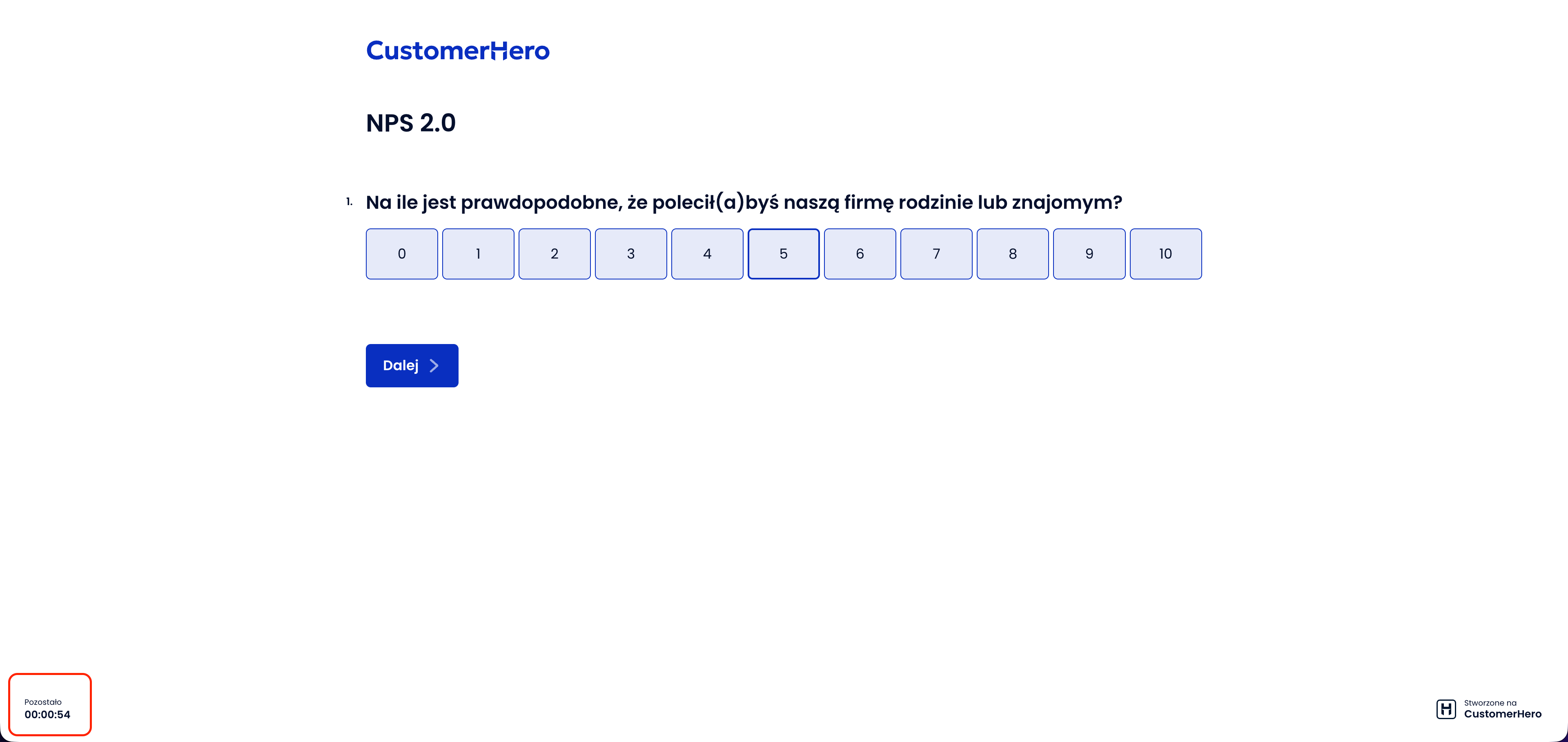
In the event that there are several questions on a page and the completion time limit runs out, the answers already provided are saved and the next page will be appropriately displayed (if a time limit per page is set) or the survey will be concluded (if a time limit per entire questionnaire is set).
How to set a time limit for the entire questionnaire?
After you finish adding survey questions, select Survey settings in the Creation tab.
Scroll down to the section: Completion time limit and check the option Set completion time limit.
Next, from the Time limit range select the option For the entire questionnaire, and then decide whether the limit should be calculated for each questionnaire page separately or if the limit is for all pages combined. Finally, provide the time limit in seconds, e.g., 3600 seconds is 1 hour.
In the case of a limit set for the entire range of pages, it is possible to formulate a message that will be displayed to the respondent after the time specified by the limit has elapsed.Finally, scroll down to the bottom of the page and save the survey settings.
How to set a limit for a selected range of pages?
If your questionnaire consists of over a dozen pages, but test questions are only on some of them (on the rest there is, e.g., an introduction or a conclusion), then the completion time limit should be applied only to the pages with test questions, and not to the entire questionnaire.
After you finish adding survey questions, select Survey settings in the Settings tab.
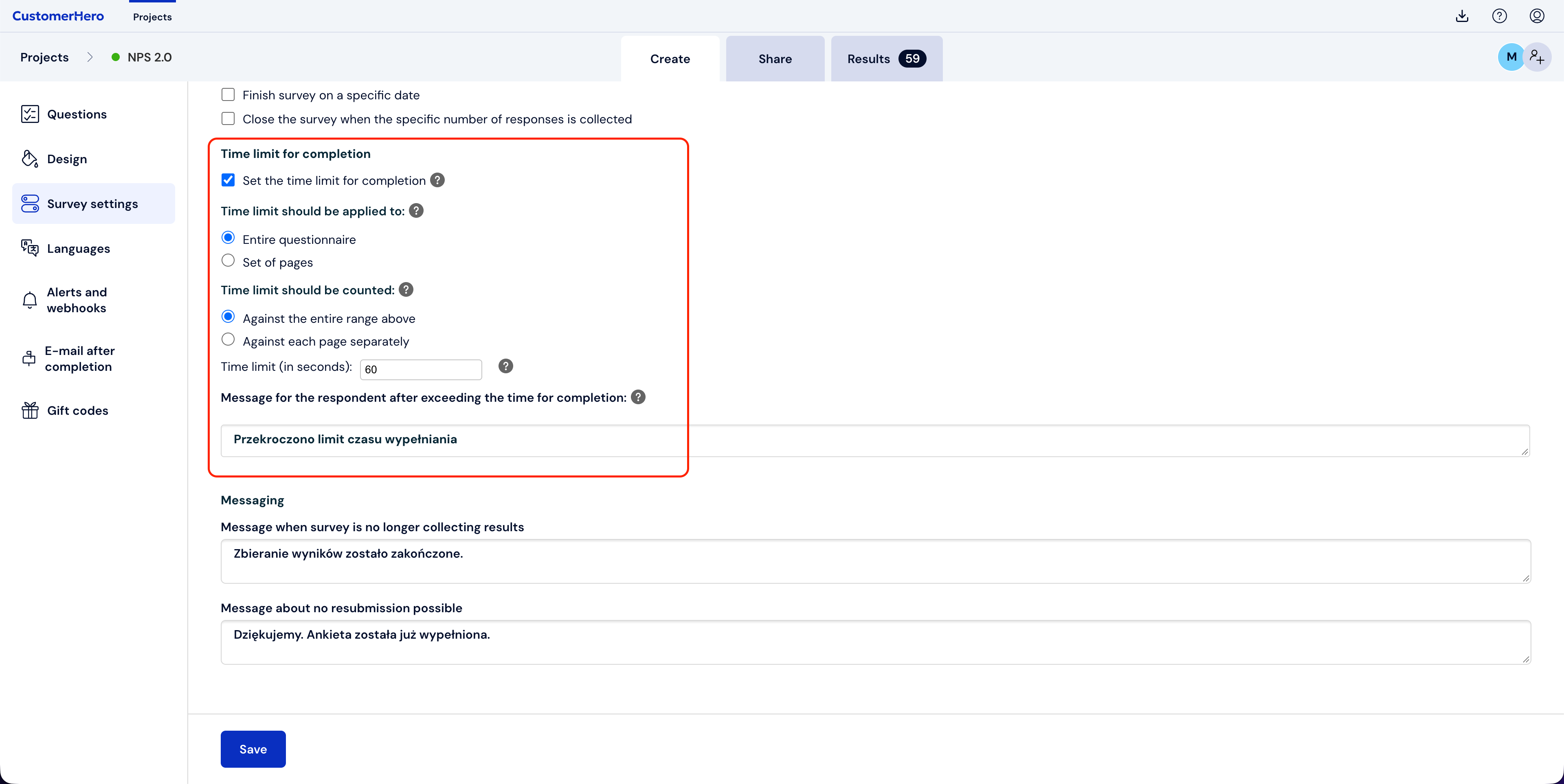
In the section: Completion time limit, check the option Set completion time limit.
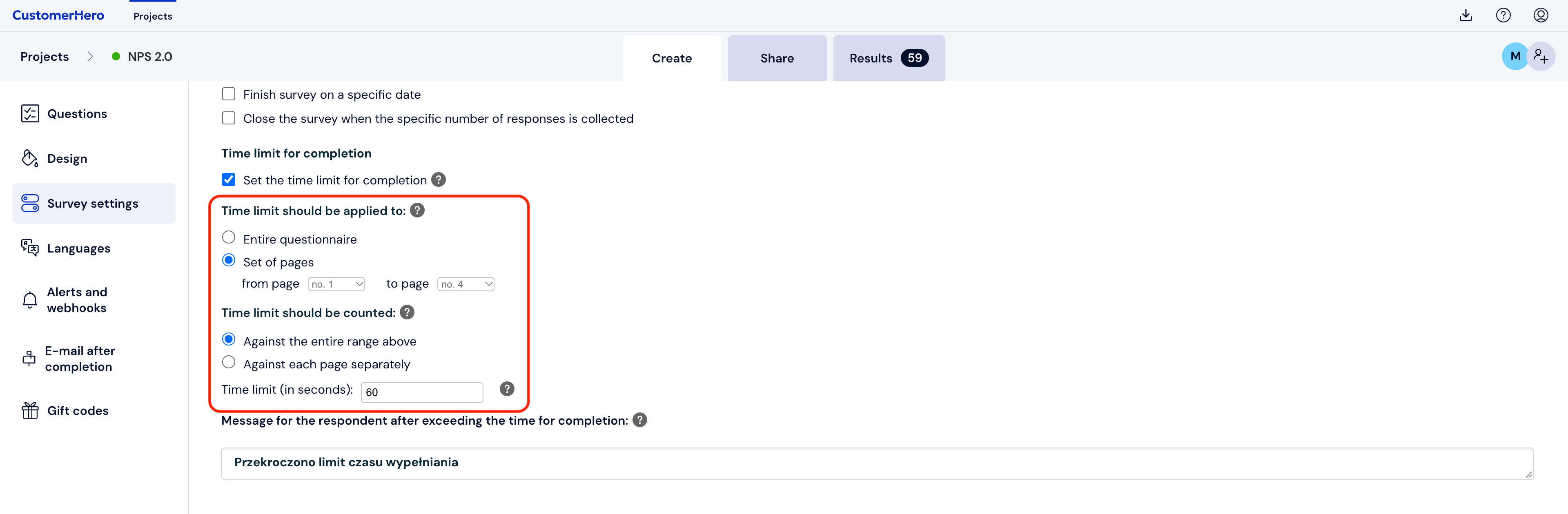
Next, select the option For a selected range of pages, and then from the drop-down lists select the range of pages to which the limit should be applied. In the event that the limit is to be calculated for each page separately, in the section: Time limit settings, select the option Calculated for each page separately. Thanks to this, each page from the selected range will have its own time limit. Finally, provide the desired time limit in seconds, e.g., 3600 seconds is 1 hour.
To save the changes, scroll down to the bottom of the page and click: Save.
What is worth remembering?
Remember to set the time limit appropriately for the number and complexity of the questions. In the case of open-ended questions, respondents may need more time to formulate an answer than in the case of questions with a provided list of answers. It is worth testing such a test before fully launching it, to check if the limits are not too restrictive.