
Sending of the invitations to the survey
This feature allows you to send an invitation to participate in a survey to your own base of respondents (e.g., people working in our company or contractors), i.e., people whose e-mail addresses we have. Sending invitations from the Webankieta.pl tool makes it possible to later monitor whether individual respondents read the message, clicked on the survey link, or even completed the questionnaire.
How to send a survey to my list of respondents?
Click Collect, and then Email sending.
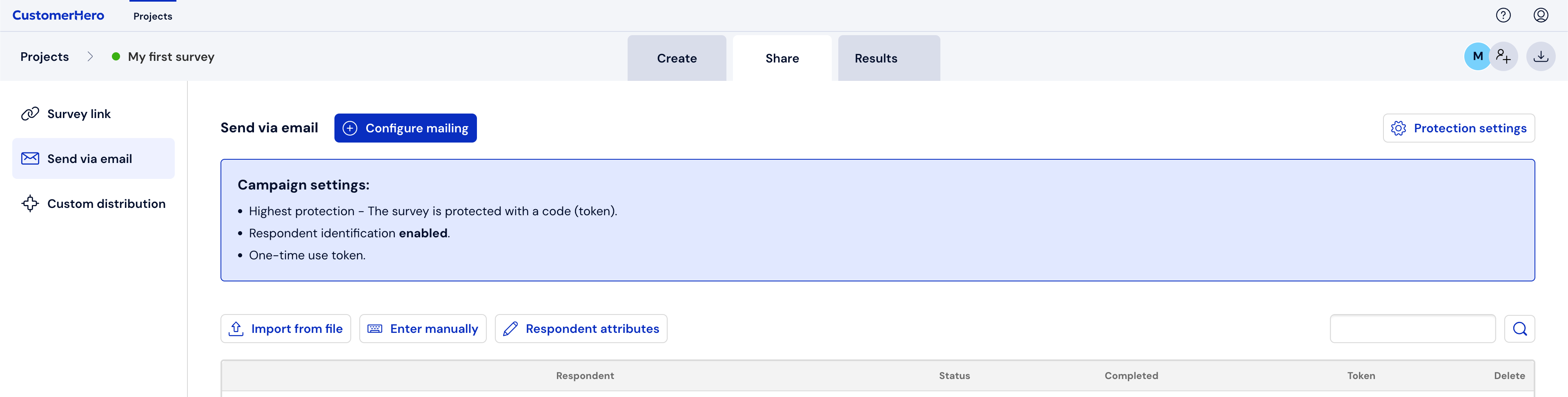
You can add respondents for sending in 2 ways:
By importing your own list from a file saved on your computer's drive
By manually entering individual addresses.
Sending to an imported list
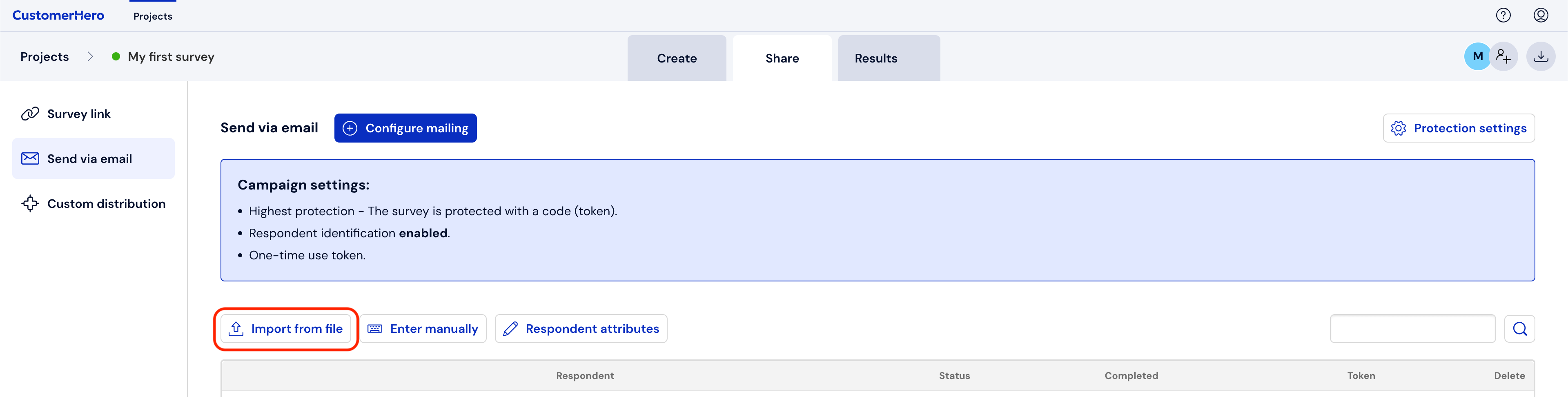
Click Import from file.
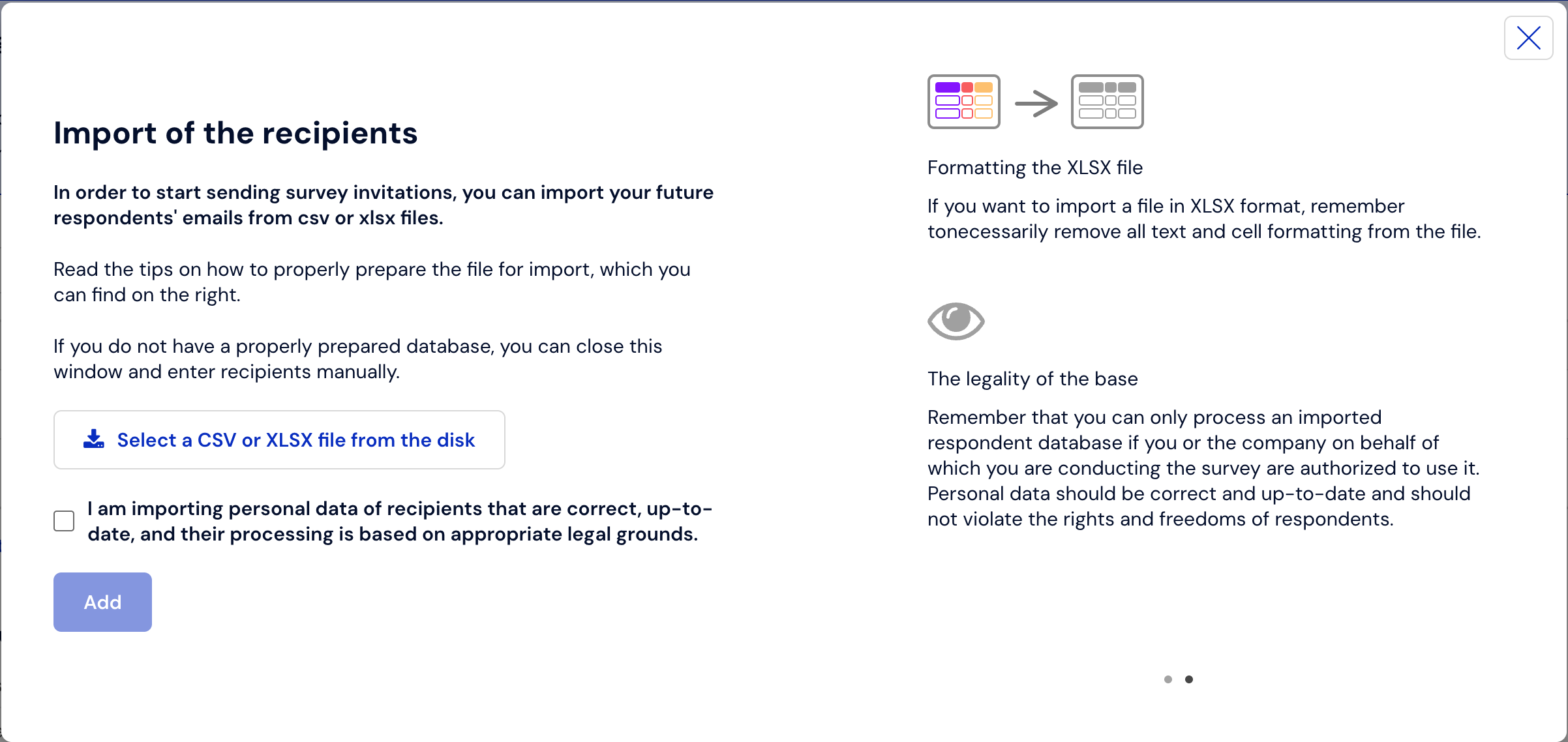
then "Choose CSV or XLSX file from drive".
NOTE!
For the list to be imported correctly, it is recommended that it be saved in .csv or .xlsx format. In the first row, you should include the header „E-mail”, moreover, the e-mail addresses of each respondent should be placed in a separate row – according to the provided pattern.
Remember that in addition to e-mail addresses, the file can also contain any attributes defining data about the respondent. You can place each of the attributes in a separate column of the imported file. These attributes, and the data assigned to them, will be automatically added to the contact list.
Click "Add" to confirm the list.
If this step has been completed, you can proceed to step 2, where you will learn how to send invitations to the imported list.
If the import of the file with the respondent base fails, the most likely cause is hidden formatting in the file. Files containing any formatting can prevent data from loading correctly. What to do in this situation? - Copy the entire contents of the problematic file and paste it into a new, empty, unformatted file. Then save it and try to run the import again.
Sending after manually entering contacts
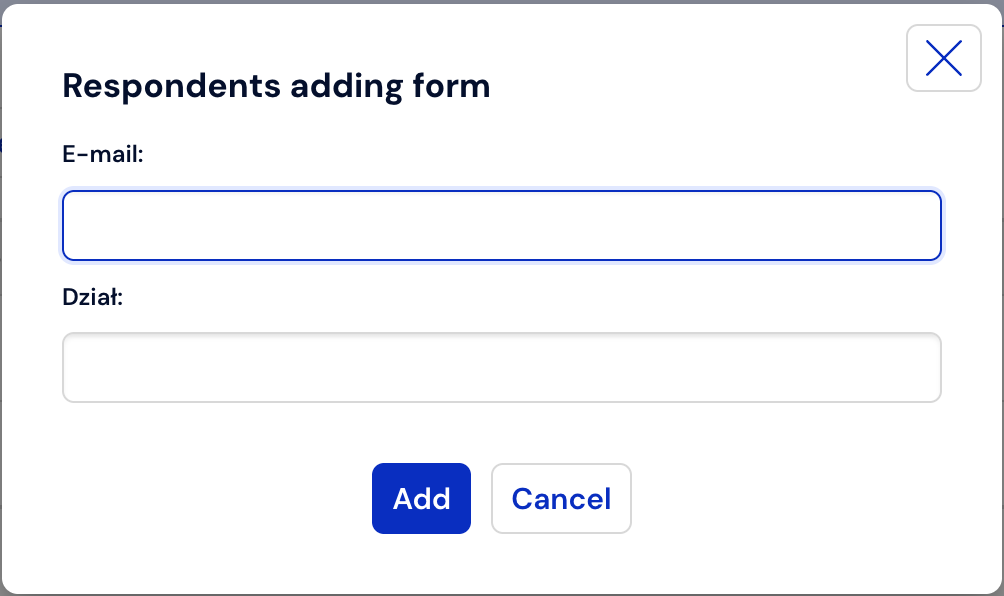
Click the "Enter manually" button,
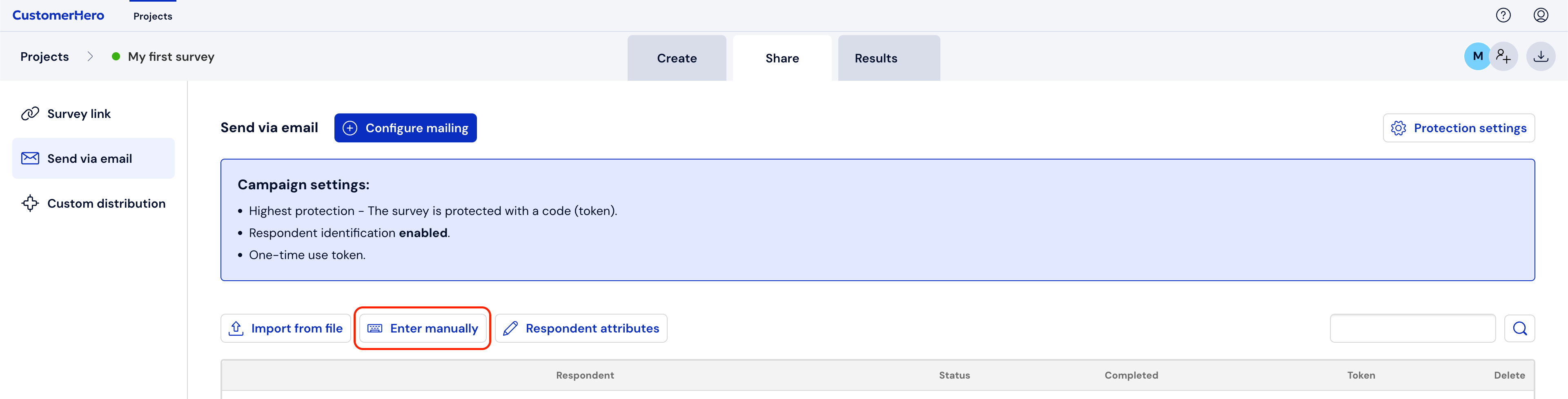
Next, place the e-mail address in the form field and confirm it by selecting "Add".
Continue sending – Step 2:
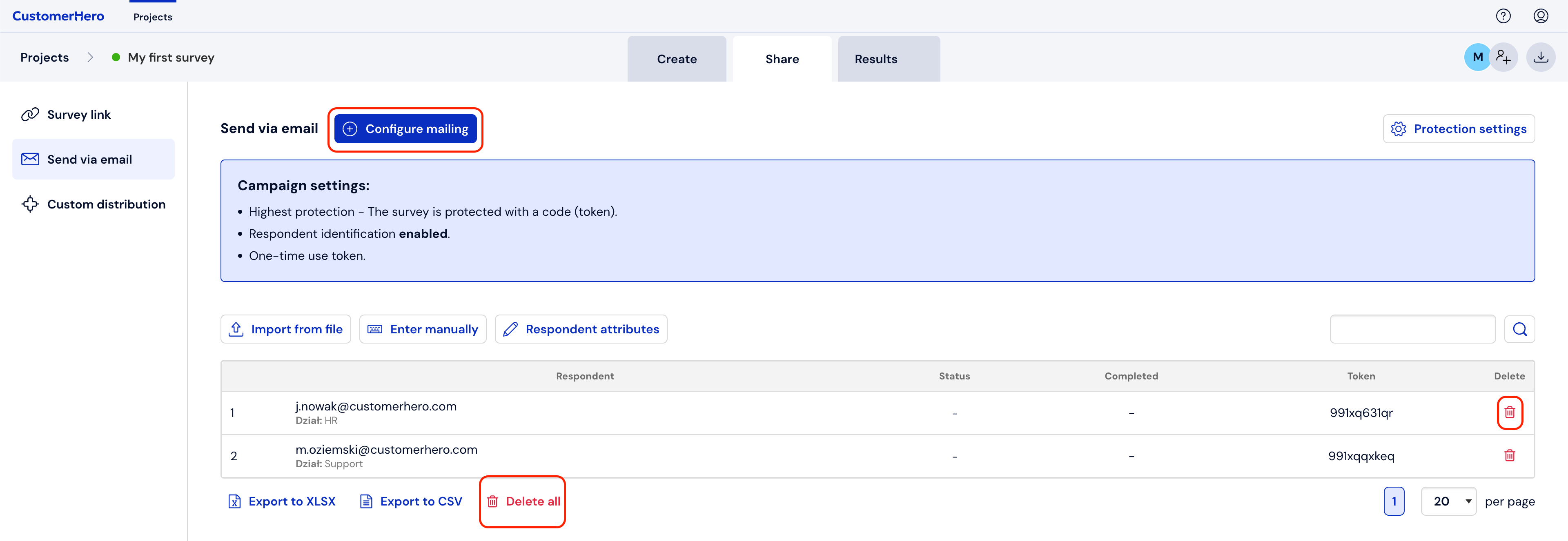
If an address was added incorrectly or you want to delete a respondent, click the trash can next to it.
To delete the entire list, click "Delete all".
You can save the ready list on your computer drive in XLSX format "Export to XLSX" or in CSV "Export to CSV".
Click the „Configure sending” button located at the top of the page to proceed to creating the invitation content.
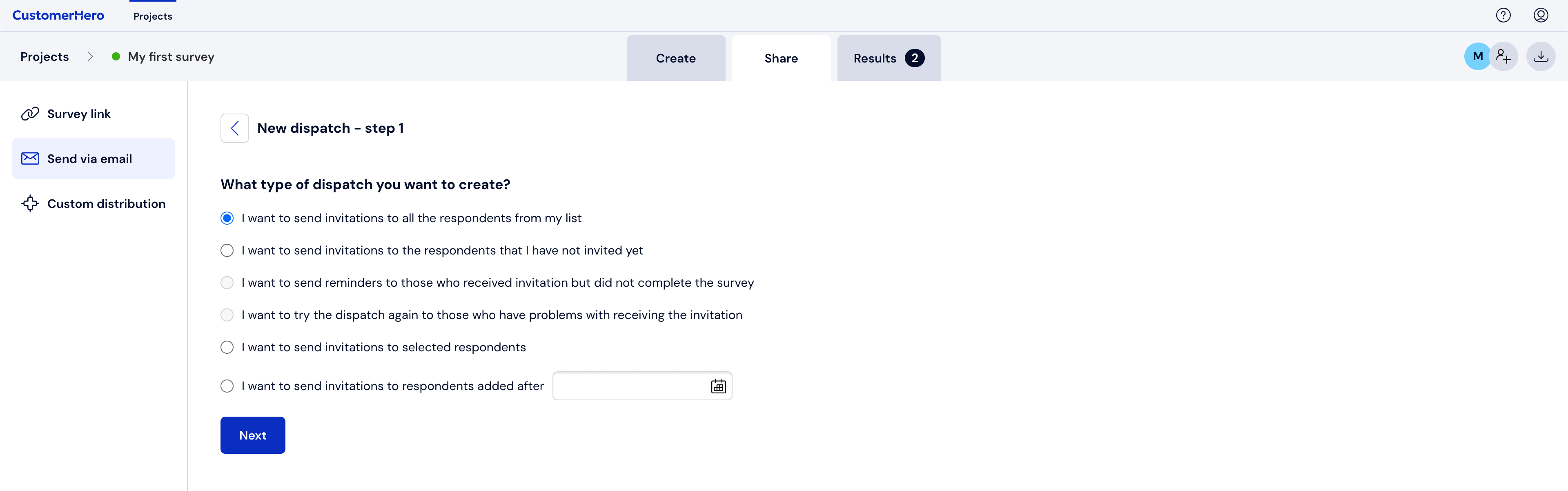
Select the type of sending in the form field and click "Next", or "Back" to return to the previous menu.
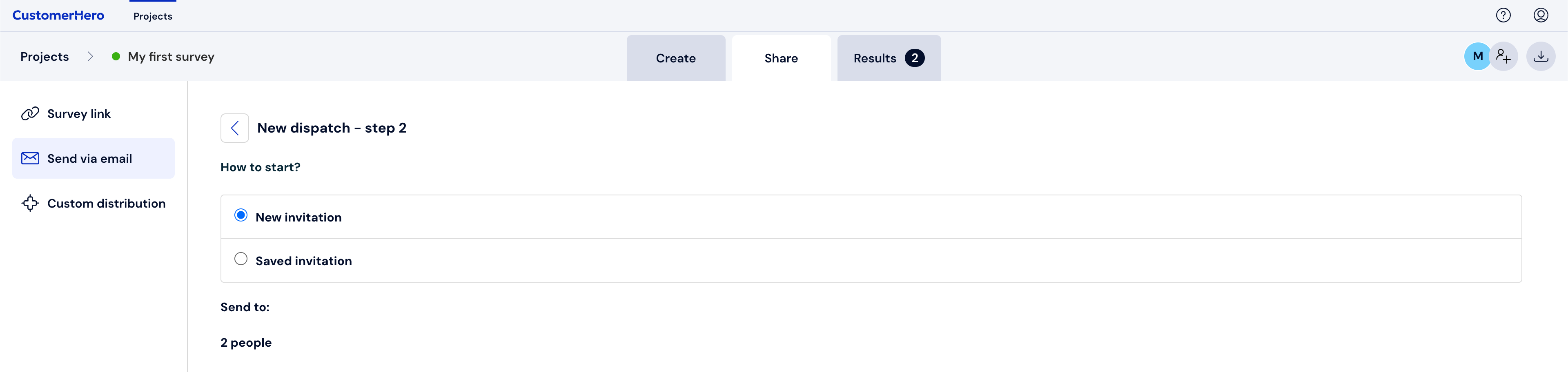
In the last step, you will be able to define the content of the invitation. First, you can create new invitations or select existing ones.
In the next field, you can define the Sender of your message:
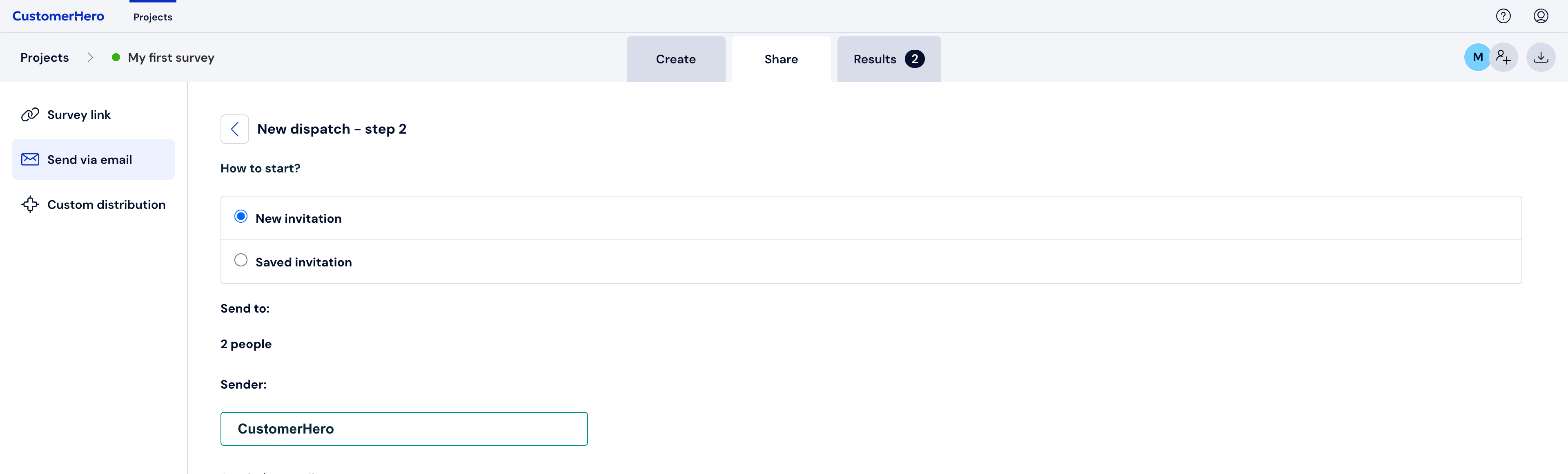
By default, the e-mail address invitation@customerhero.com will appear in the "Sender e-mail" field. This address can be changed by setting up your own mail server for sending (this functionality is available in the Team and Enterprise plans).
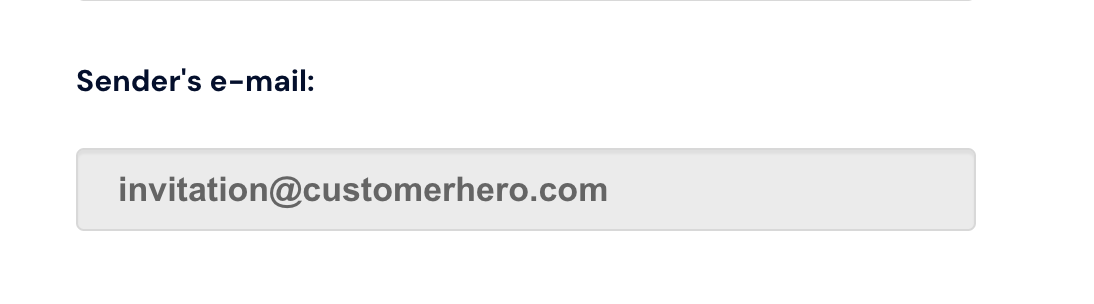
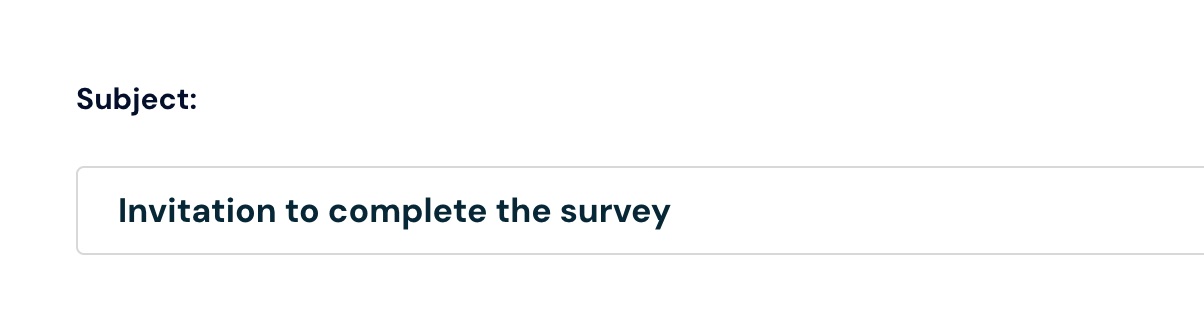
In the next field, you can set the subject of your invitation:
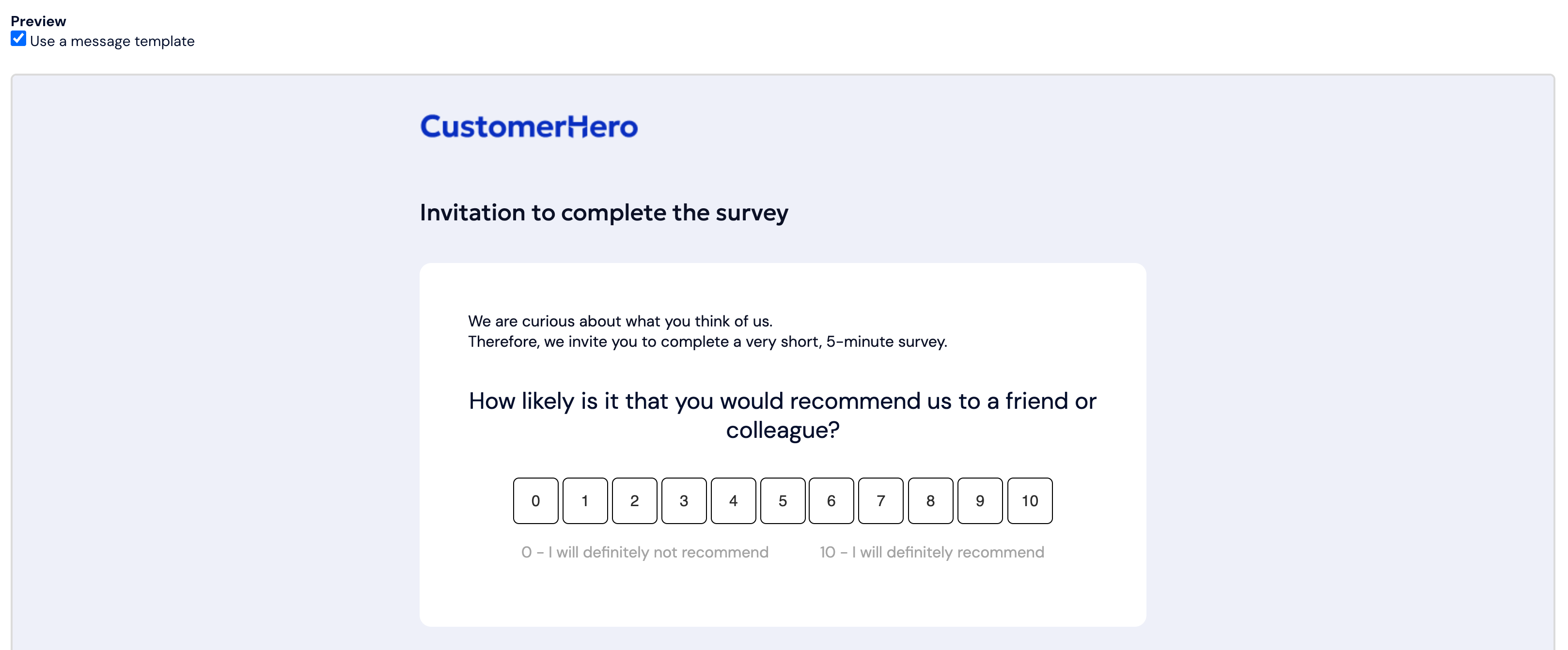
If the first question in your survey is a single-choice question or an NPS question, you can choose the invitation form "First survey question in the invitation content". Thanks to this, the content of the first question along with the answers will be automatically added to the invitation content, and the respondent will be able to proceed to complete the survey after choosing any answer.

Example:
If you choose the "Survey link in the invitation content" option, the respondent will go to the questionnaire by clicking the link:
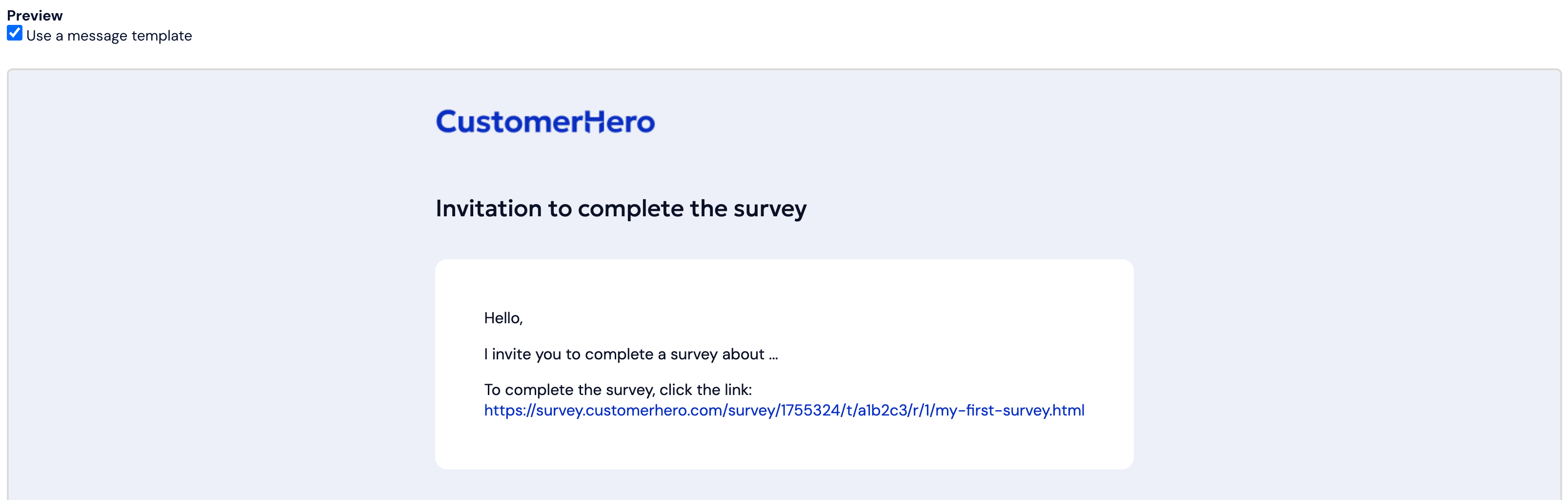
In the further stage of creating the invitation, you can freely change the content
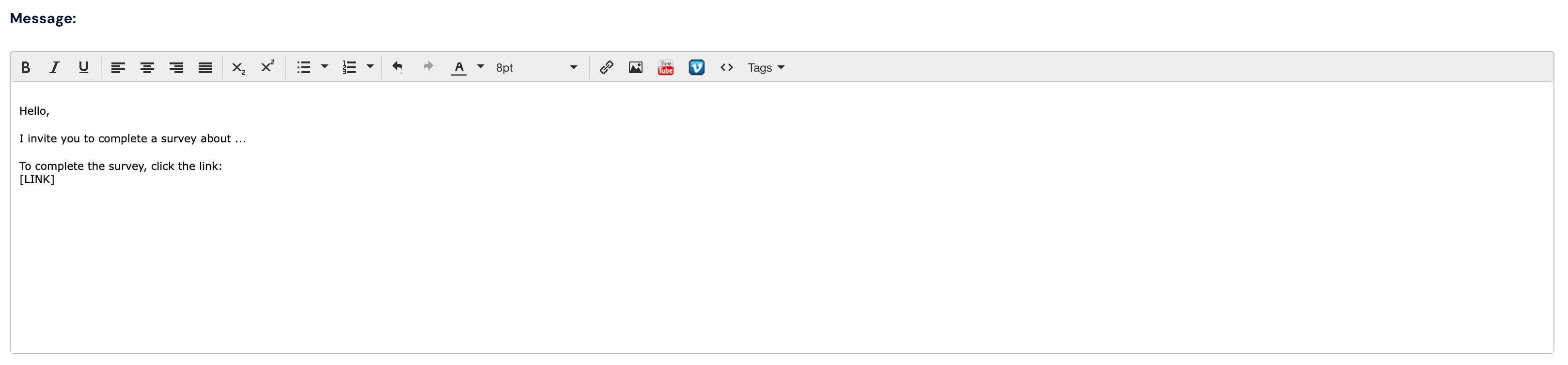
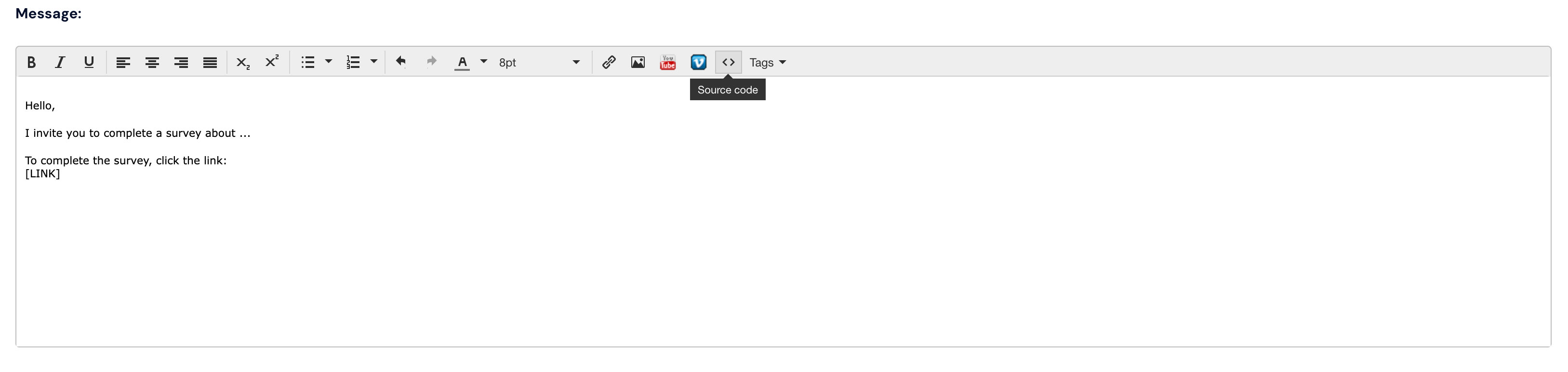
By clicking "Source code", you can insert any mailing template in HTML.
From the drop-down field, you can also insert dynamic content (such as individual information about the respondent), about which we write more in a separate article.
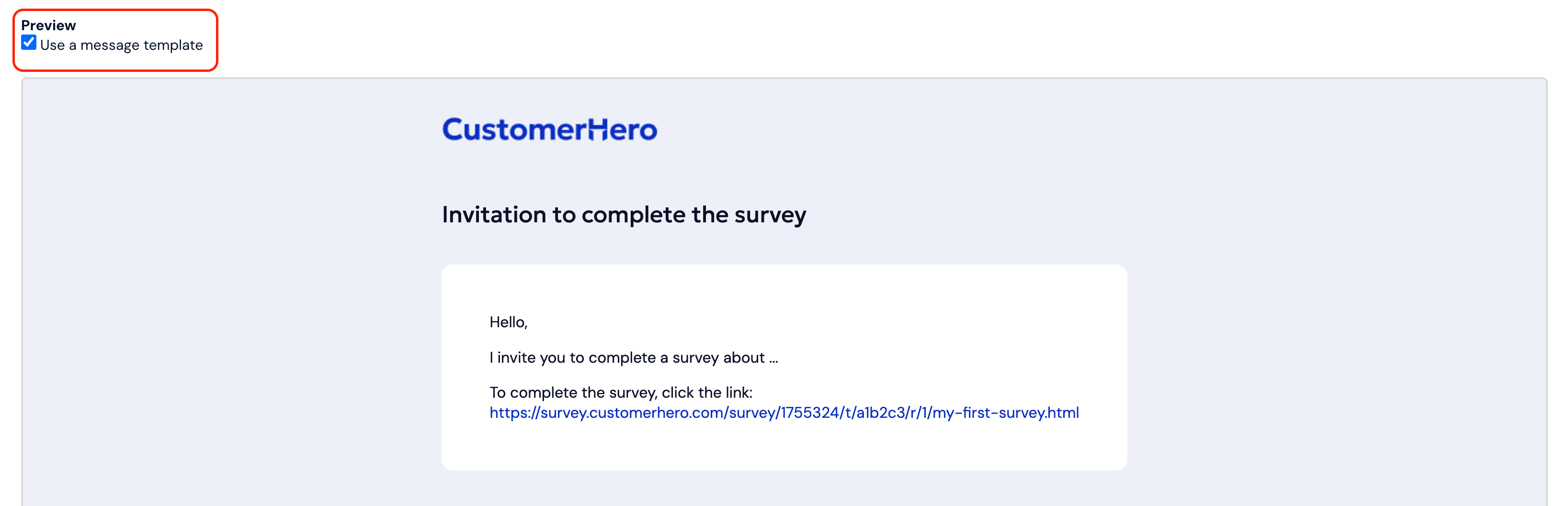
In the next step, you can preview what your invitation template will finally look like. In this step, you can also disable our message template and use your own HTML code.
In this step, you will define when you want to send the invitation.

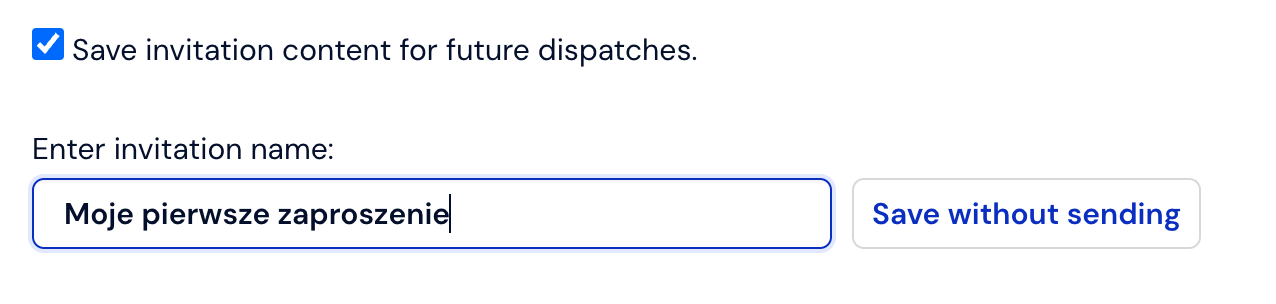
17. If your message template is ready, you can save it for future mailings and finally click "SEND".
Things to keep in mind
Monitoring the receipt of invitations and survey completions is illustrative. It can always happen that a respondent fills out a survey after copying the link into the browser. However, for the measurement to be effective, clicking the link is necessary.
Information about the mailing source will be attached to each message. Every respondent will have the right to unsubscribe from future mailings.
The ready list, downloaded to the computer drive, contains the respondent's e-mail, their token, and the link to the survey. It also includes information regarding the current status of survey completion by individual subjects.
If you have the option of individual links for each respondent set, links with tokens are valid for 90 days from the moment of sending. However, you can reduce this period in the Survey Settings in the „Limit link validity period” option.
If you schedule a future reminder sending to respondents who have not yet completed the survey, the mailing will be sent to those people who have not completed the survey at the time of sending.