
Settings
Survey settings allow you to set the basic parameters of a website survey.
Below we describe four consecutive sections of settings:
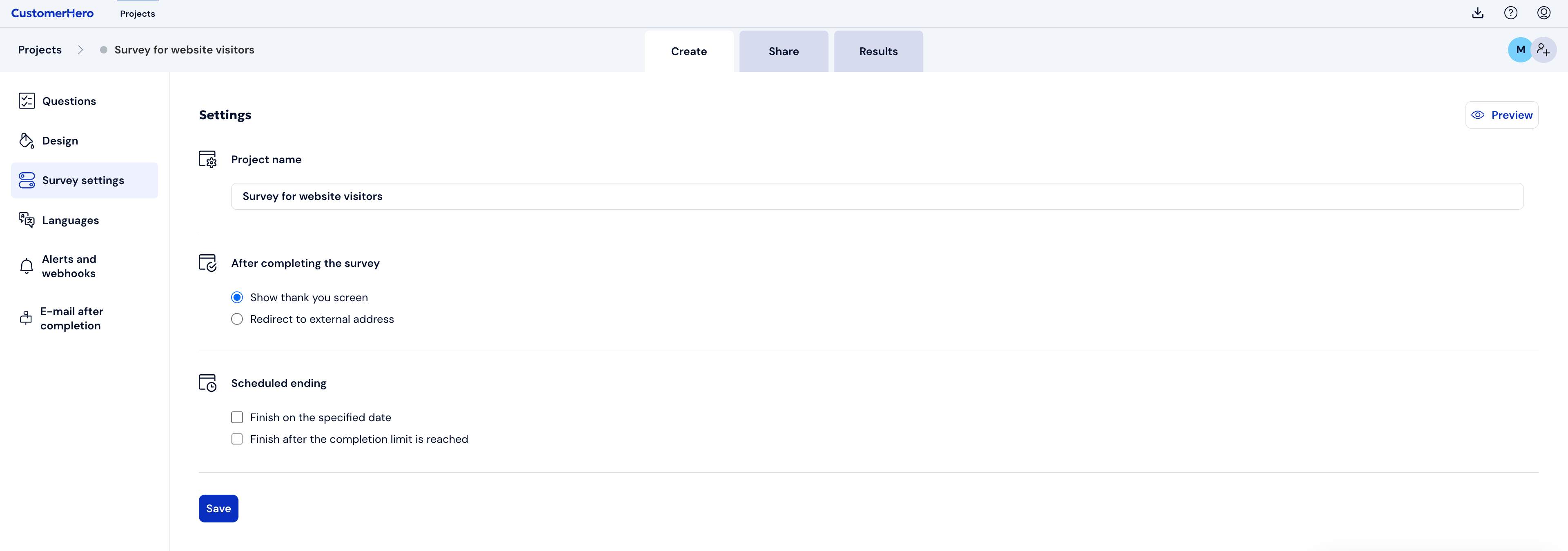
Project name

Here you can change the name of the project that appears in the management panel. This name will not appear anywhere within the survey on the website.
If you want to add a survey title, you must do it in the Appearance tab.
After completing the survey

In this section, you decide whether after completing the survey the respondent will see the standard thank you screen (this can be defined in the Creation tab), or whether we want to redirect the respondent to a website address.
HINT!: The website address can also be a link to another survey to which you would like to invite the respondent.
In this case, the website survey can only be a "warm-up" or an invitation to a larger study.
Automatic study completion
This section will allow you to define when the collection of results in your survey will automatically end. You can do this in two cases:
On a specified day at a specified time
After reaching a specific number of completions

Preview
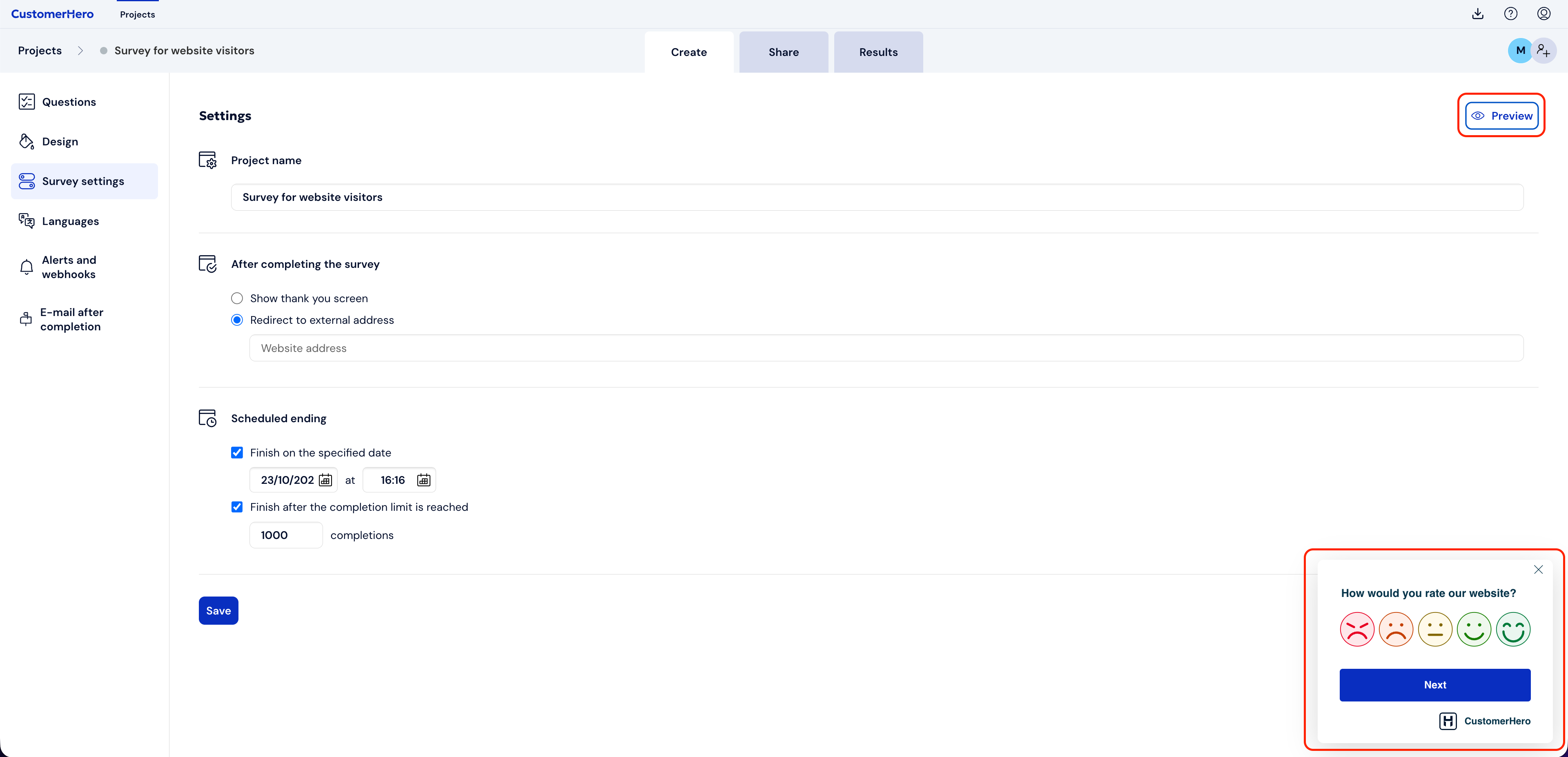
At any time, you can turn off (turn on) the preview of your survey on the website. The preview allows you to see "live" what changes appear in the survey as a result of making changes in the settings.
On this screen, only changes in the "After completing the survey" section affect how the survey pop-up preview behaves.
What's next?
You can find more settings in the Display rules, which we write about on the page: https://help.customerhero.com/pl/support/solutions/articles/206000086378-regu%C5%82y-wy%C5%9Bwietlania-ankiety-na-stronie