
Alert after completion the survey
Would you like to know how many people completed your survey and when? The Webankieta platform allows you to create various types of alerts that will be sent to a selected e-mail address after a survey is completed, forwarded as a webhook, or sent to a Slack channel. You will learn how to create alerts from this manual.
- How to create an alert after completion?
- How to create an alert after completion that meets a filter condition?
- How to change the title and content of an alert after completion?
- How to save an alert after completion?
- Alert as a webhook
- Alert to a Slack channel
How to create an alert after completion?
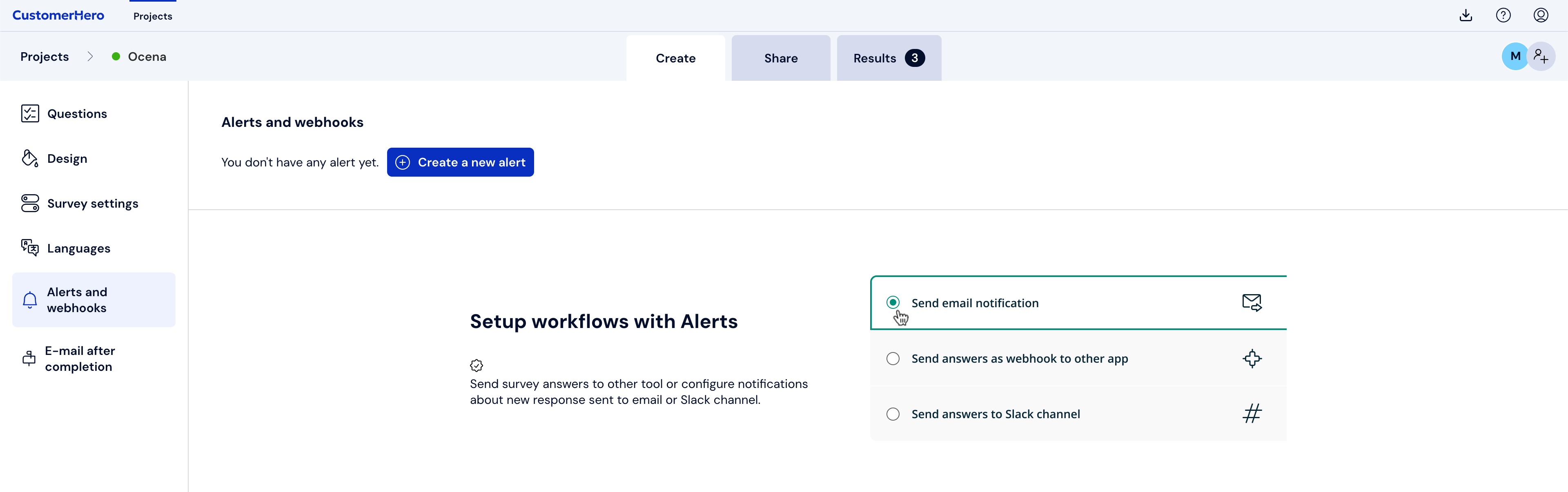
To create an alert, go to the Create tab, select Alerts and webhooks, and then click the Create a new alert button.
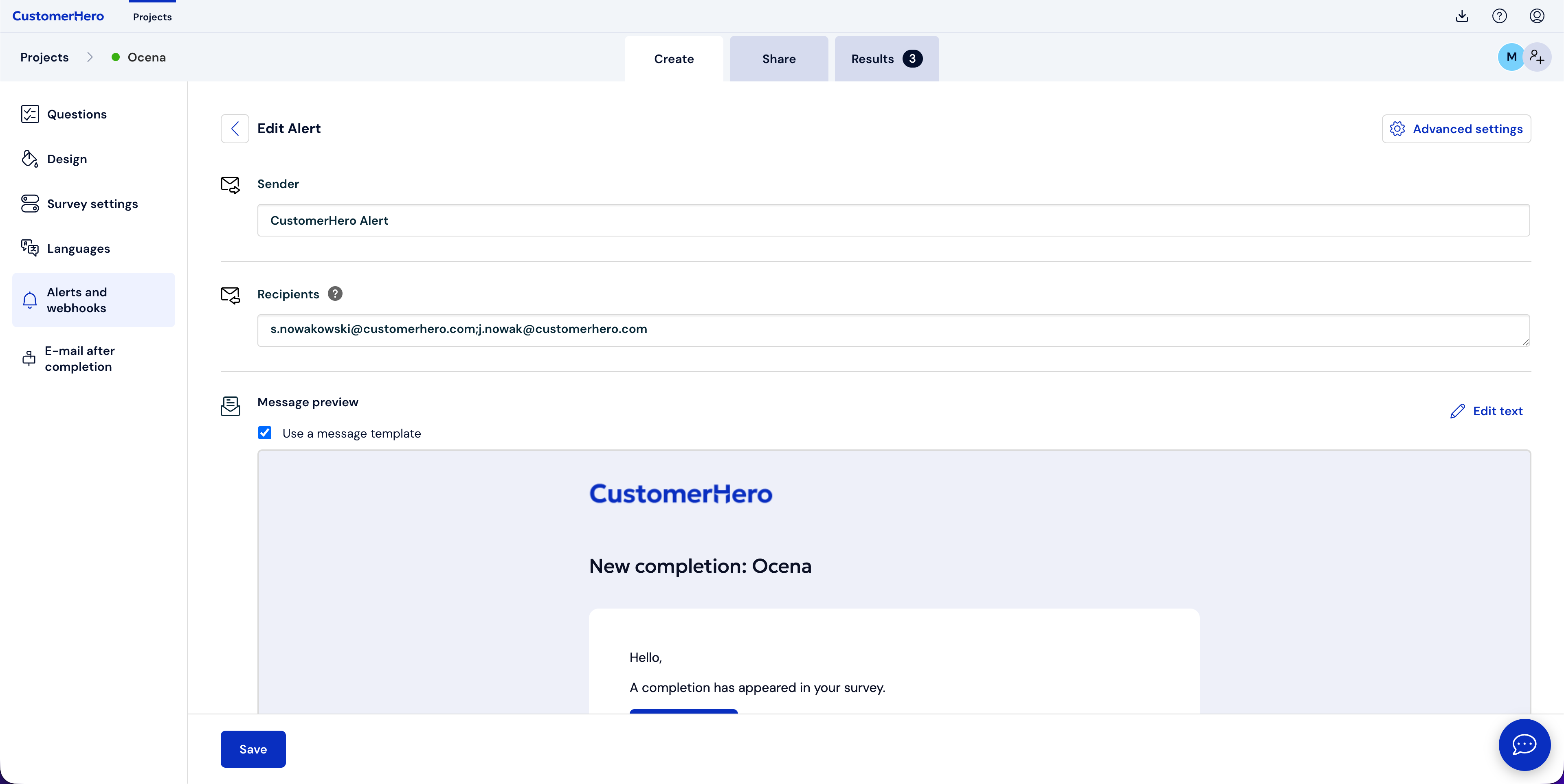
By default, the alert will be sent to the account owner, but you can change this by removing the addressee and adding another or multiple recipients. Remember to separate e-mail addresses with a comma or semicolon when adding more than one.
How to create an alert after completion that meets a filter condition?
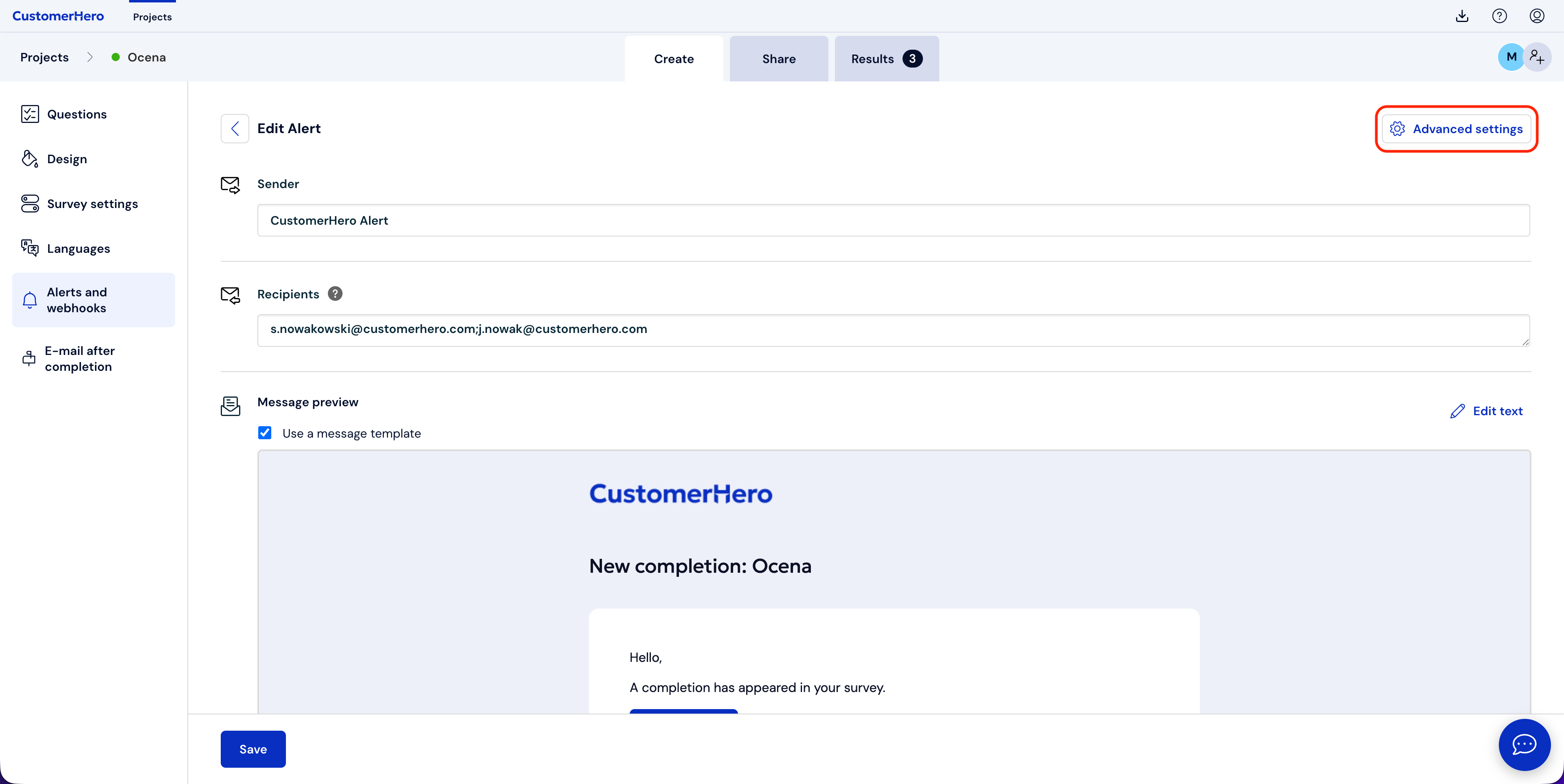
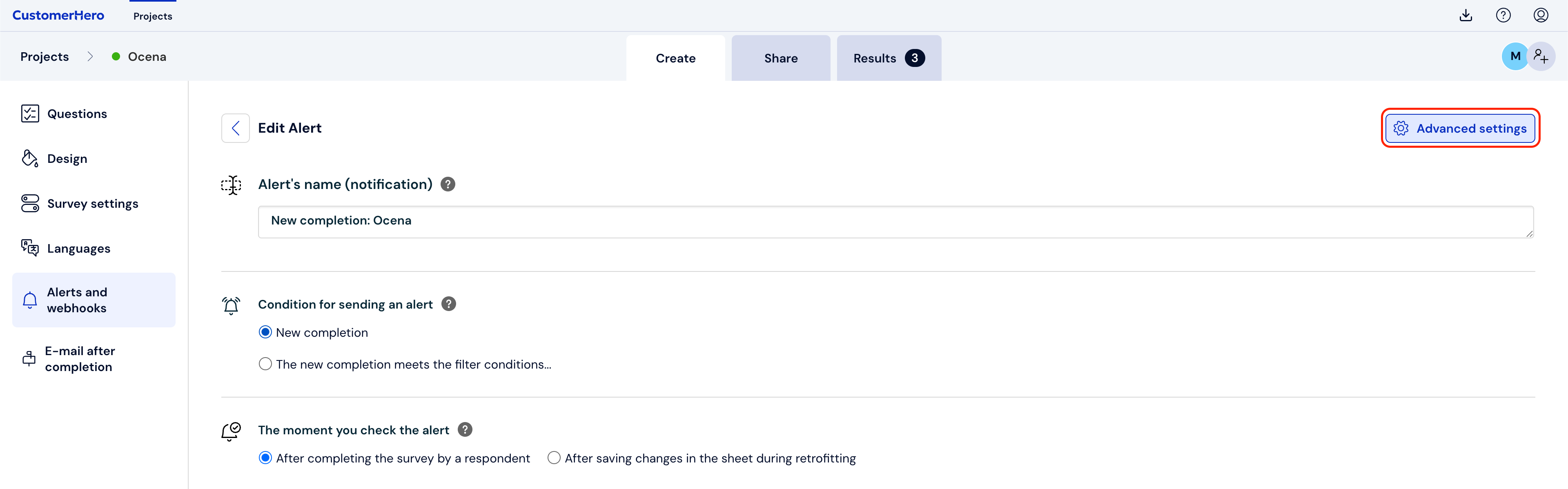
To set up an alert that meets specific criteria, go to Advanced settings in the top right corner:
In the next step, you need to set the appropriate condition. This could be, among others, a new completion
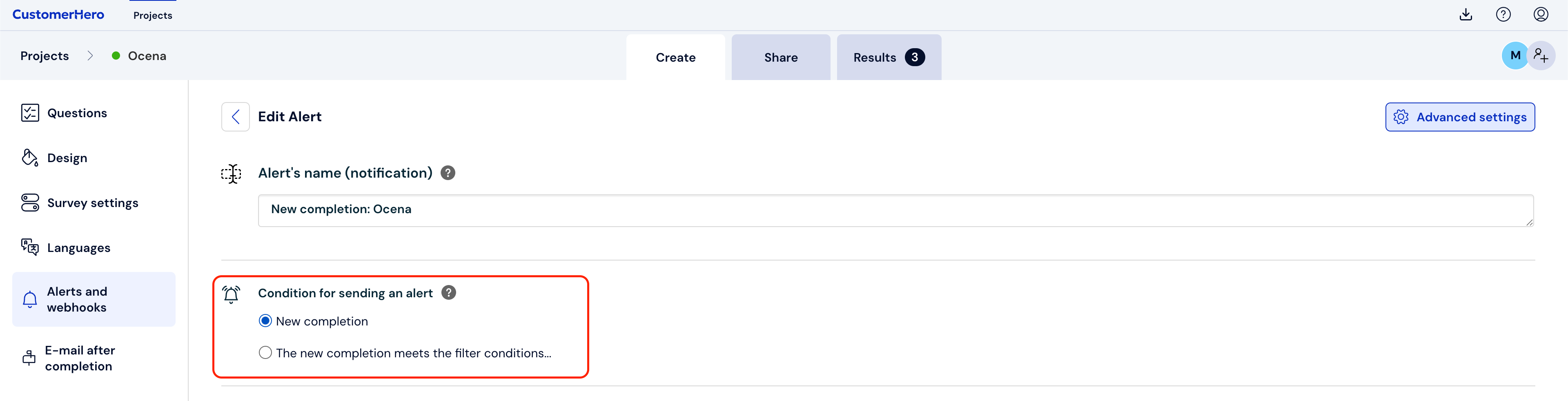
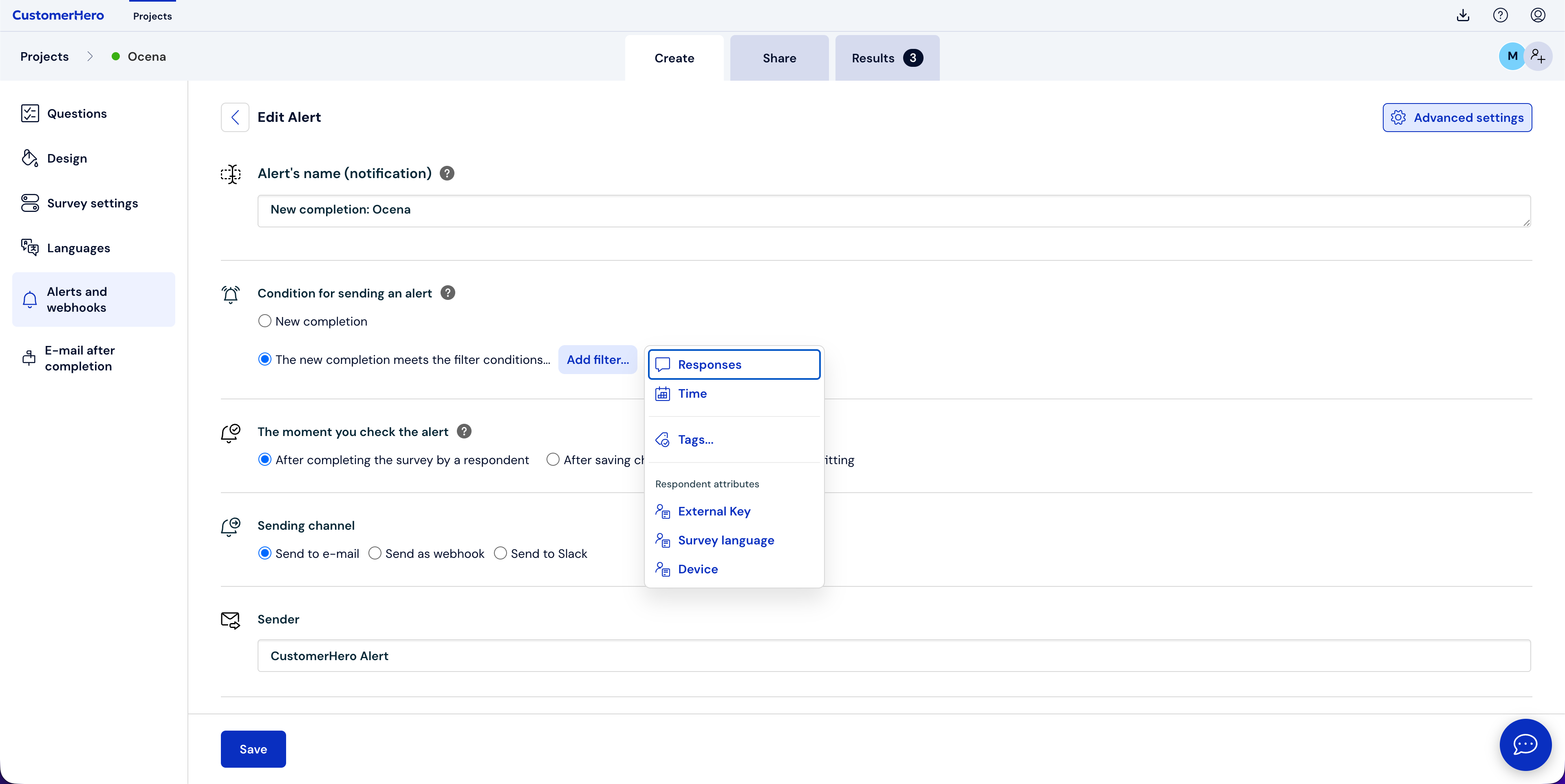
or a new completion that meets a specific filter. To add a filter, click Add filter...
You can filter the completions by a specific answer, completion time, added tags, or respondent attributes.
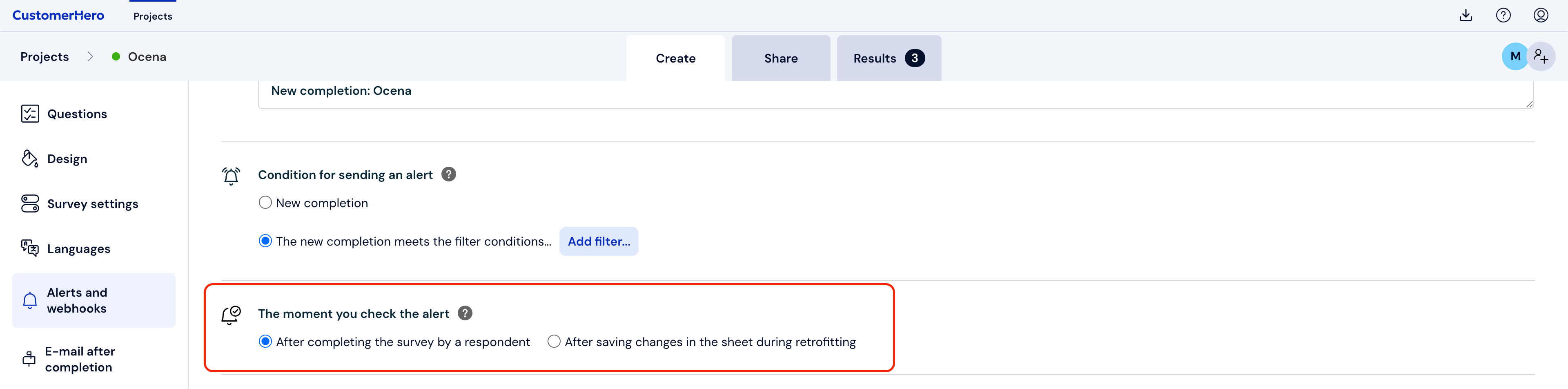
The next step is to determine when the system should verify a given completion and send an alert – after the survey is completed by the respondent or after the survey author saves changes made to a given sheet in the Completions tab.
How to change the title and content of an alert after completion?
After selecting advanced settings, you can change the title of the alert.
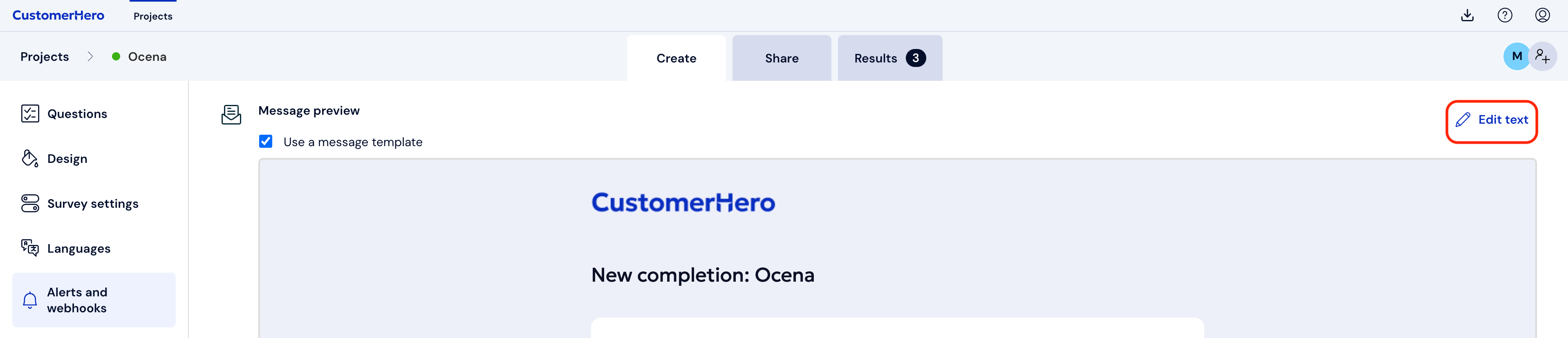
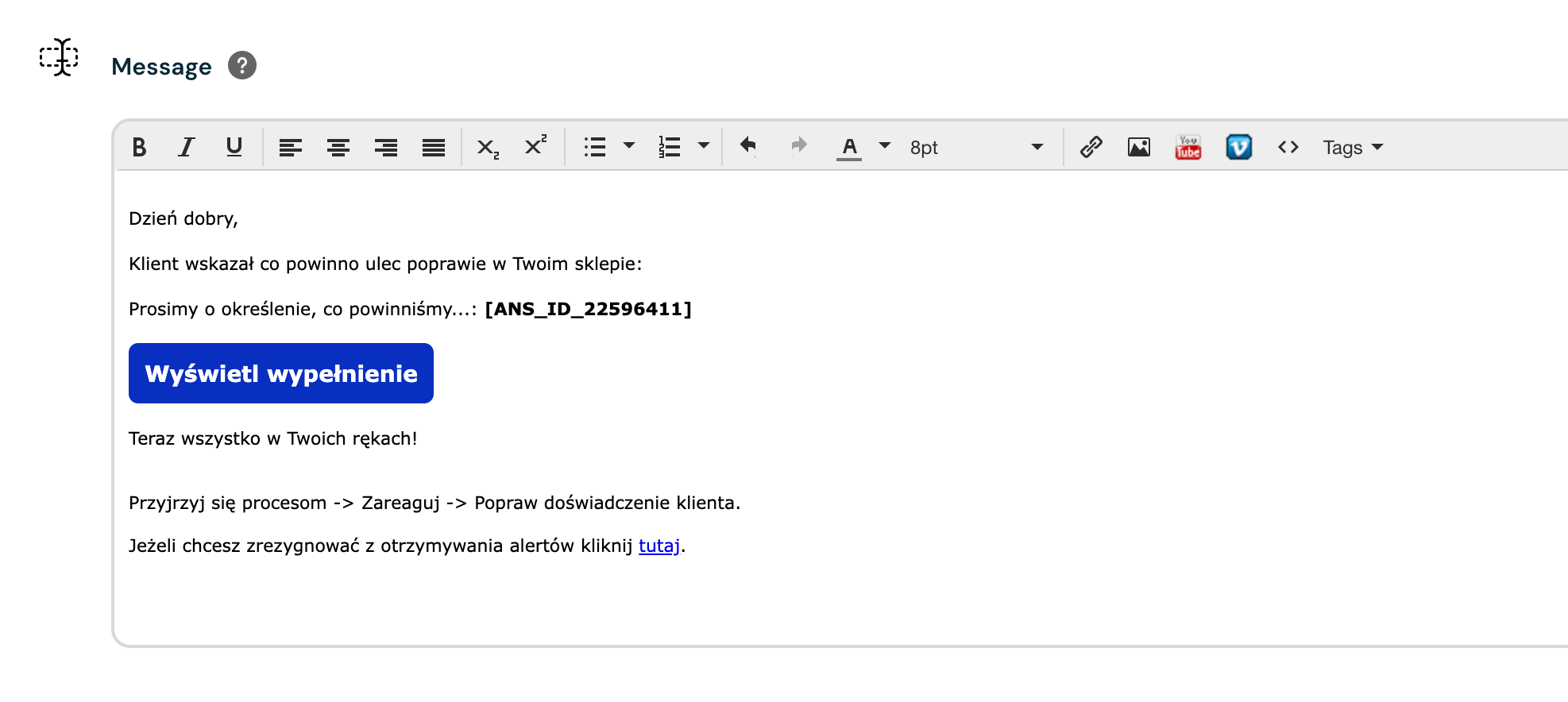
If the default alert template is not sufficient for you, you can also edit its content and enrich the notification with the answers respondents gave to specific questions. To do this, click Edit text.
How to save an alert after completion?
If you want to receive alerts about new completions, simply click Save at the very bottom.
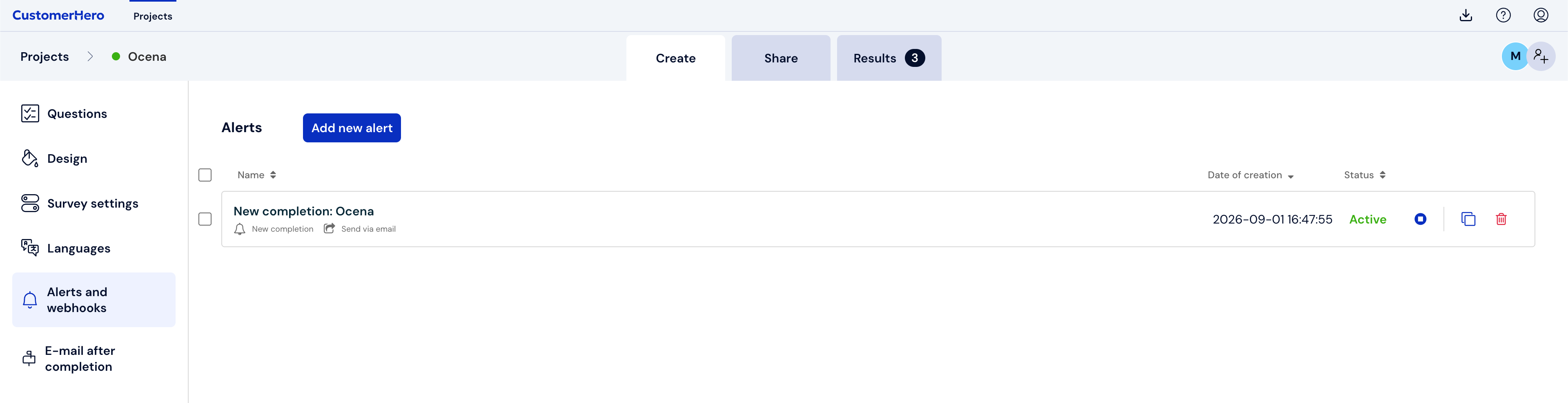
A correctly saved alert will appear on the alert list and will be active.
Alert as a webhook
If your application has a dedicated endpoint exposed, i.e., a URL address that can be called in a structured way, you can pass the alert via a webhook.
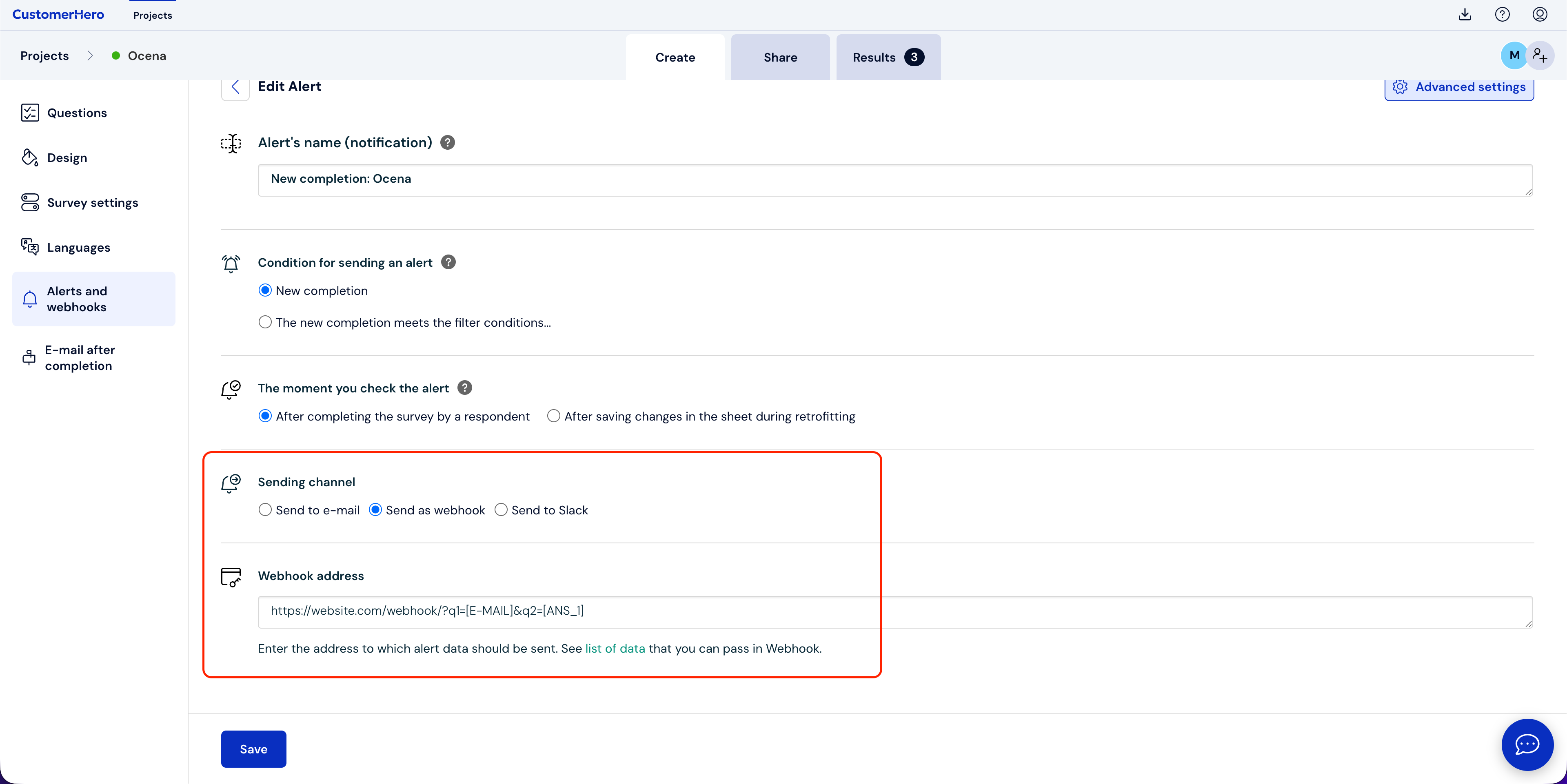
An example webhook passed to Webankieta.pl could look like this:
https://customerhero.com/webhook/q1=[E-MAIL]&q2=[ANS_1]&[TITLE]
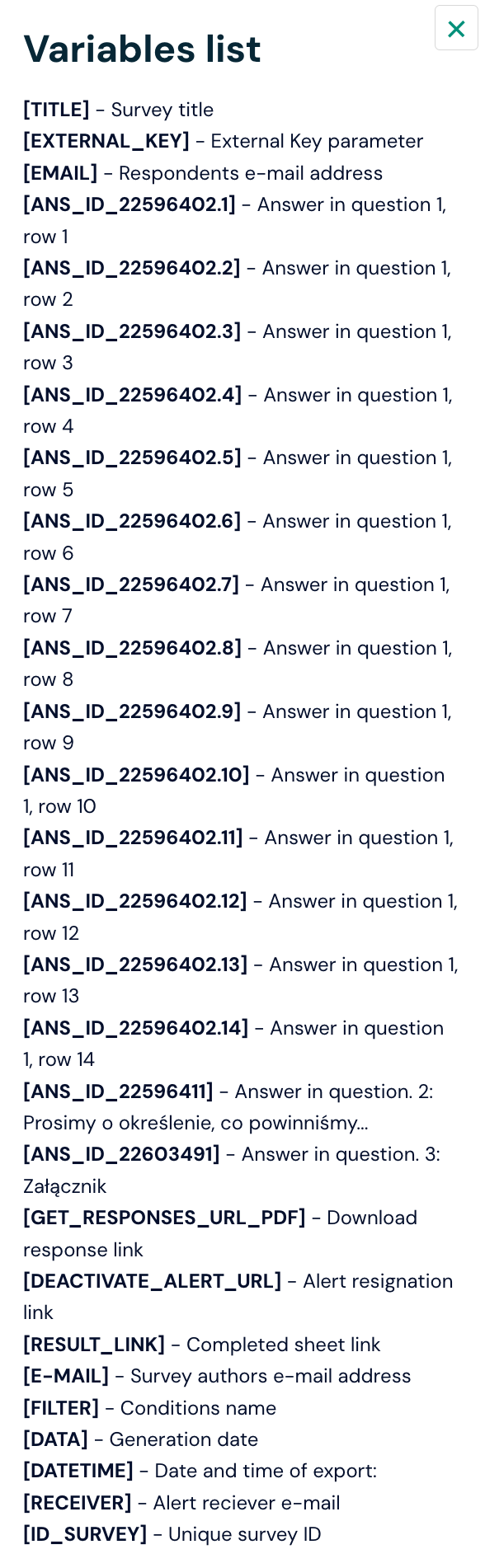
Below is a list of variables that can be passed via Webhook:
Alert to a Slack channel
You can also send an alert to the popular communicator, Slack.
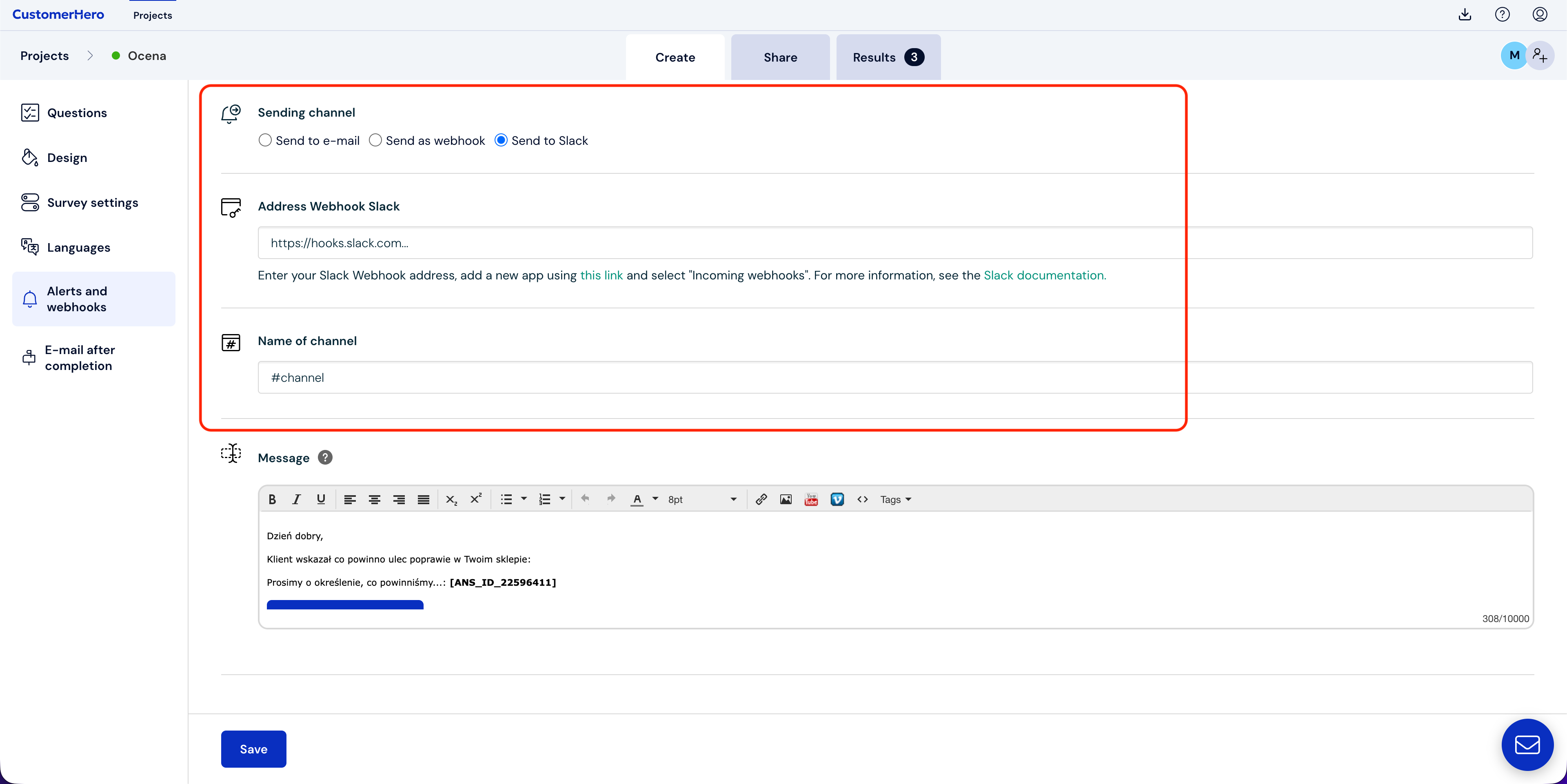
To send alerts to Slack, click on the link highlighted in the text:

Next, add an app name and choose the Workspace you are using:
After creating the app, select the incoming webhook integration option from the Incoming Webhooks tab.
After selecting the channel, click the Add Incoming Webhooks Integration option.
After adding this integration, you will receive a link to the webhook:
After entering this address into the Slack Webhook Address, adding a channel, and clicking the Save option, alerts will be sent to the specified Slack channel.