The colour scheme
In the Create -> Appearance -> Color scheme tab, you can customize the look of your Widget.
This lets you match the Widget to the color scheme of the website where it will be placed.
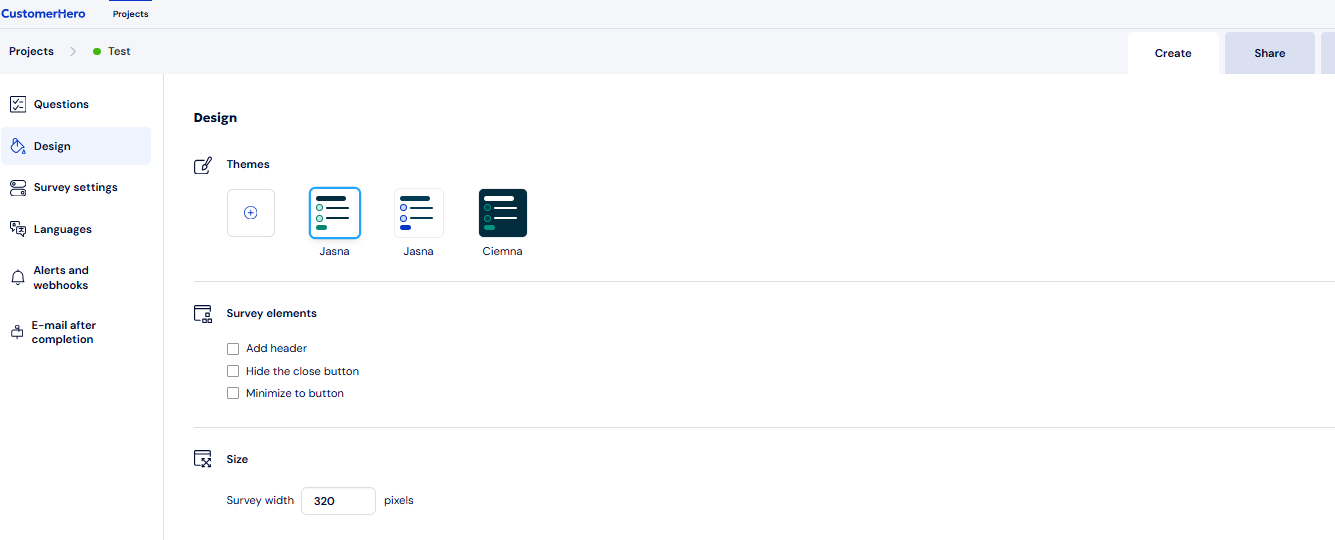
You can choose a light or dark color scheme. You can also match the skin to your company's brand book. Remember - if you set a Widget color scheme that contrasts with your website, your survey will be more noticeable.
Adding a new color scheme
When you go to skin customization, the following view opens:
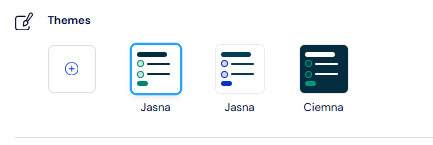
Click the green plus icon to start defining a new one.
When you go to skin customization, the following view opens:
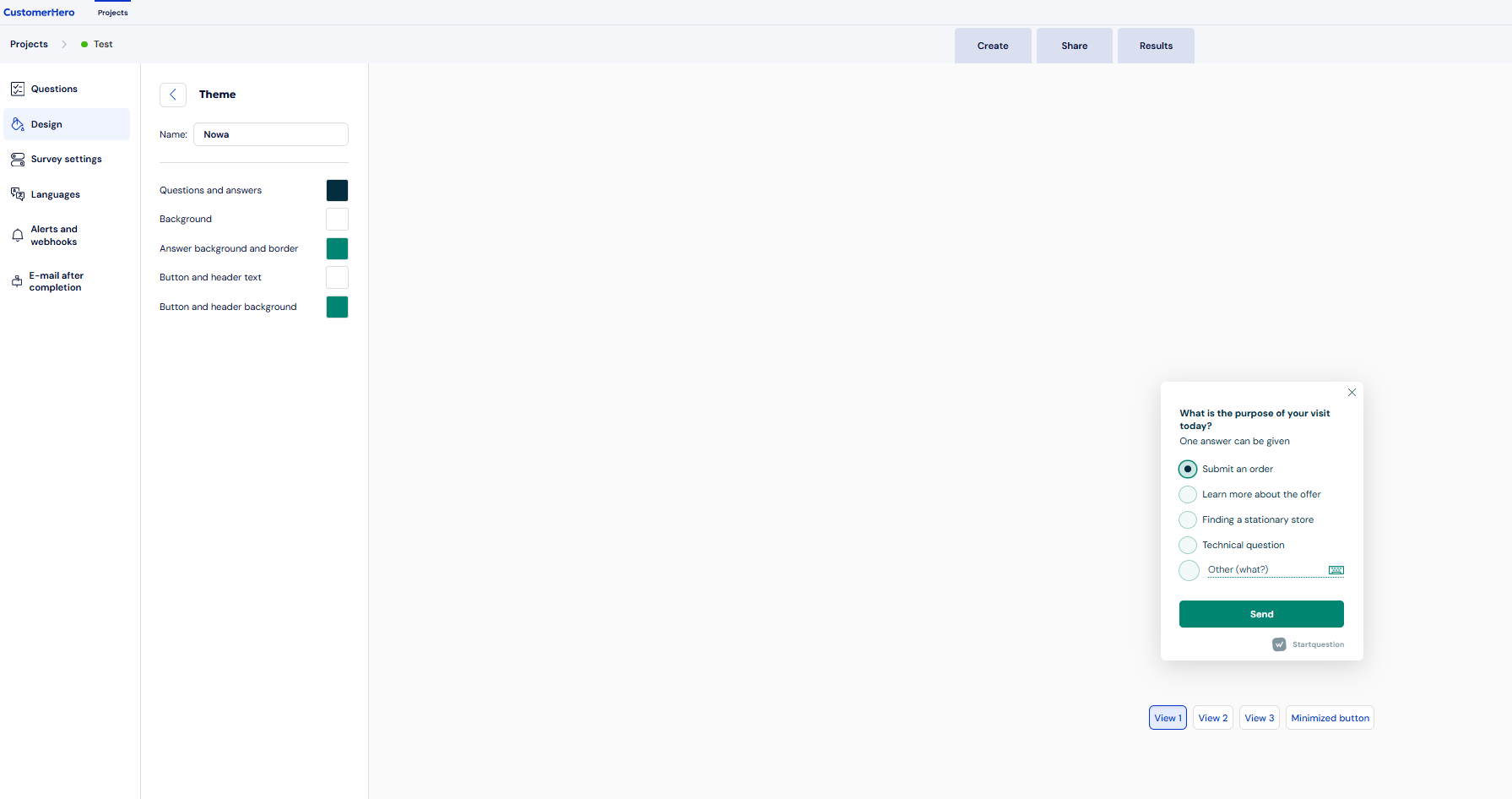
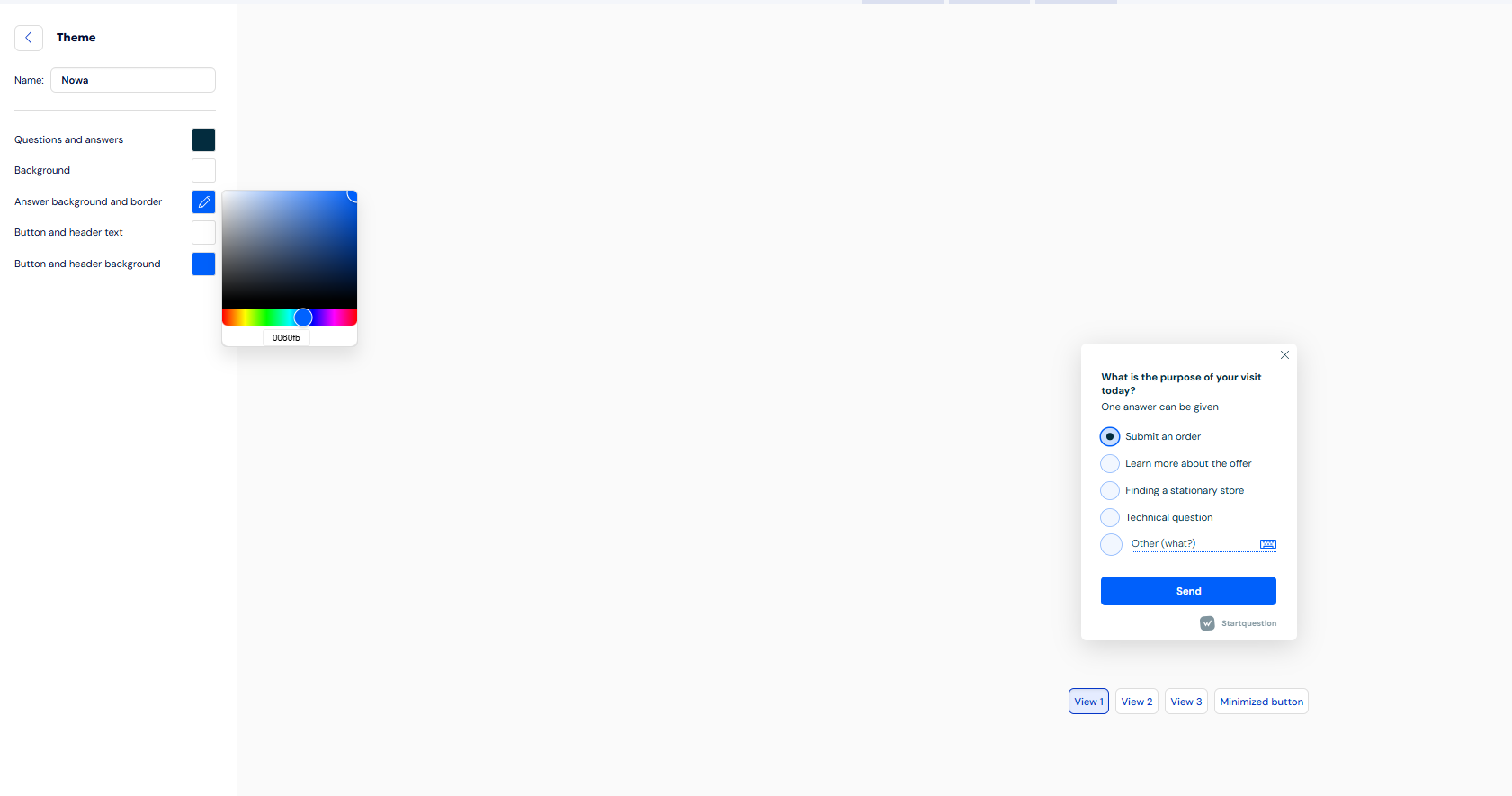
On the left is the menu for editing the appearance of selected elements. Click a color square to set the color code on the palette.
You can change the colors of the following elements:
Text
Background
Answer background and border
Button and header text
Button and header background
After choosing an element's color, you can preview the result on the widget shown on the right.
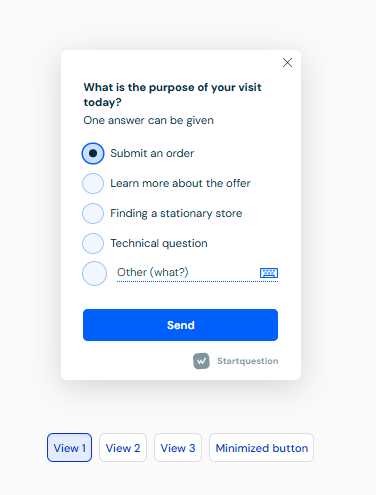
You can also preview the survey with different question types.
Preview 1: A question such as single choice:
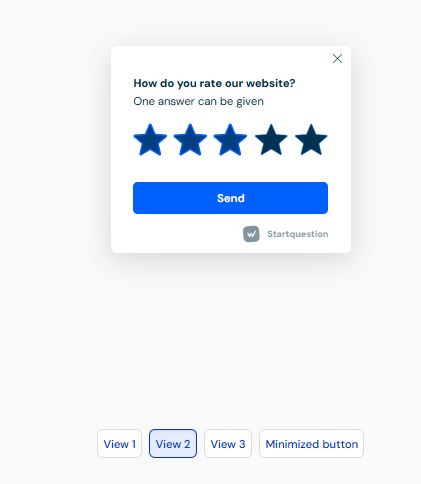
Preview 2: Rating question - here you can change the color of the selected answer.
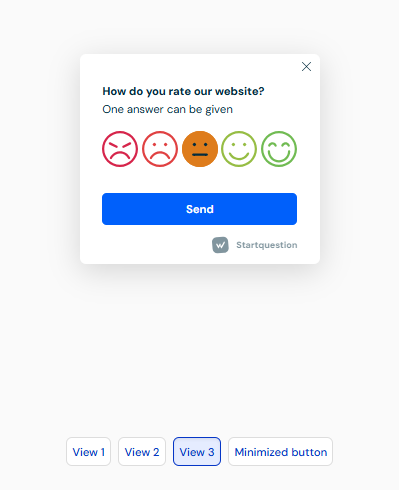
Preview 3: Rating question with the default color of the selected answer.
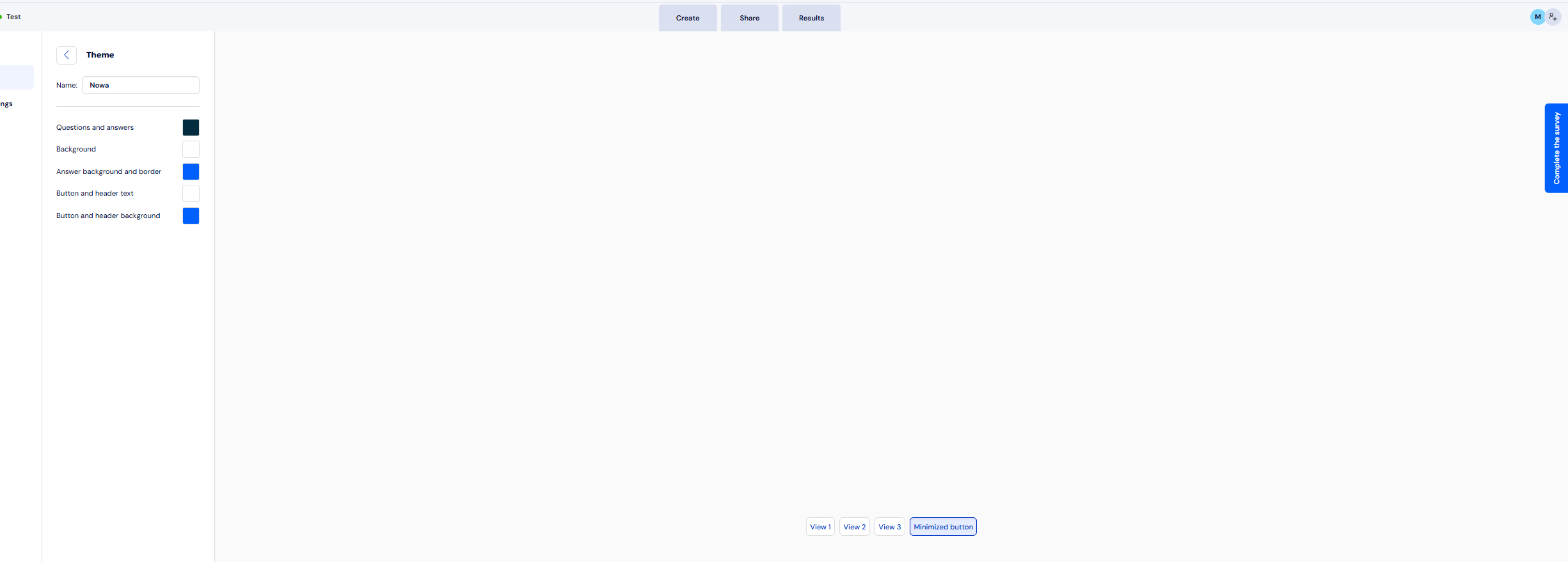
Preview 4: The minimized widget button.