
The passing of the page user attributes to the survey
We can pass additional user attributes to the survey code on the page, which will allow for:
Targeting based on these attributes
Enriching the completion data with information from attributes
Sample attributes include, for example, a user ID from your system (userID) or the segment to which you classify them.
How to use the submitted data in the Startquestion panel?
Passing attributes to the website code is only half the battle. Once the data reaches Startquestion, it opens up two key configuration options for you from the user panel:
1. Precise targeting (Who will see the survey?)
You don't need to display the survey to all visitors. Use the passed attributes to create display rules.
Example: If you pass the
account_typeattribute, you can set a rule in Startquestion: "Show the survey only whenaccount_typeequalsVIP".Benefit: Thanks to this, you send the right messages to the right group of respondents.
2. Automatic identification (What do we know about the respondent?)
Each completed survey will contain not only the answers to the questions, but also hidden data passed by your system.
Example: When a user completes the survey, under the Results tab next to their answers, you will see additional columns with the passed data, such as
userID,email, ororder_number.Benefit: You don't have to ask for contact details or order numbers in the survey – the system will fetch them automatically. You save the respondent's time and eliminate the risk of typos in email addresses.
Running the code
The code snippet below will pass the userID and segment attributes to all surveys that are placed on the page.
Startquestion.call({
    type: "setAttributes",
    attributes: {
        userID: "682103212",
        segment: "VIP"
    }
});
The code snippet presented above can be executed by:
including it in the source code of the selected website
adding it to the page using GTM (Google Tag Manager) or other tag managers
pasting the code into the browser console
Displaying surveys based on attributes
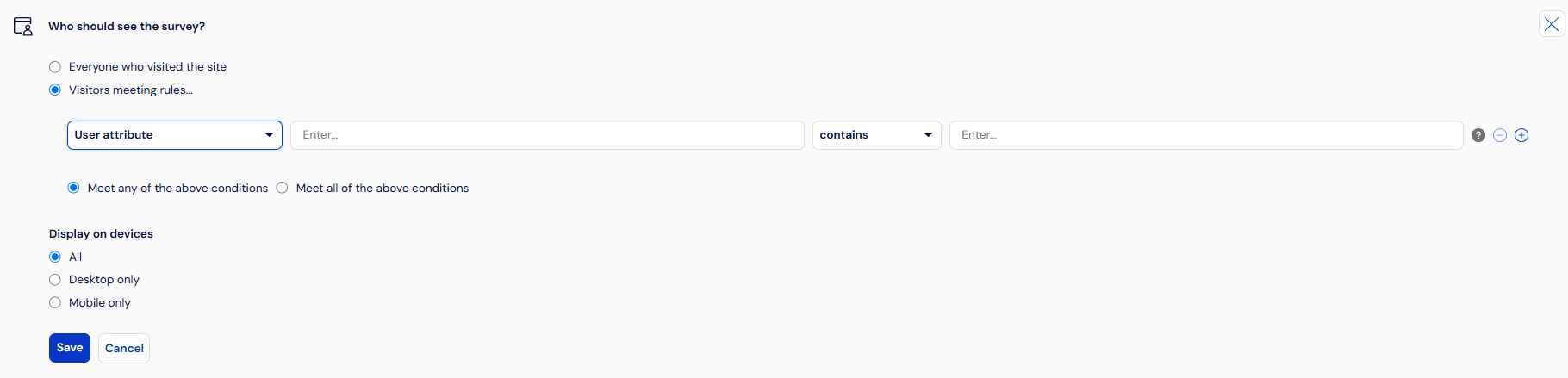
When defining survey display rules (“Collection” tab → Who to display to → Visitors meeting the rules), set the survey to be displayed only to users who meet specific criteria, e.g. only those whose attribute city = Warsaw
Things to keep in mind
If you place the code for passing attributes on your website, it should be pasted below the code that installs the survey (snippet)
You can run the attribute passing script multiple times to update them
Example: A user enters the page and we set the mail attribute in the survey to "" (empty). When the user signs up for the newsletter, we update the mail attribute with the value provided in the newsletter signup fieldLimit on the number of attributes: max 15. You can send 30, but only the first 15 will be saved to the database.
It is not possible to delete attributes once created. Please contact us if needed.
Attributes are saved only when transitioning from the first page to the second – in other words, after completing the first page. If attributes change or their values change during completion (e.g., transitioning from page 3 to page 4), these changes will be ignored.