Multilingual pop-up survey
You can create one website survey - a pop-up survey in multiple languages.
- How to add a language translation file?
- How does it work?
- List of language codes to use in the lang parameter
- Examples of implementing language change in the survey
- Analysis and comparison of multiple languages
To add another language to a website survey, go to the Create tab and select Survey languages.
Click the plus icon or Add translation.
A new column with a drop-down list will appear, from which you can select the language of your choice.
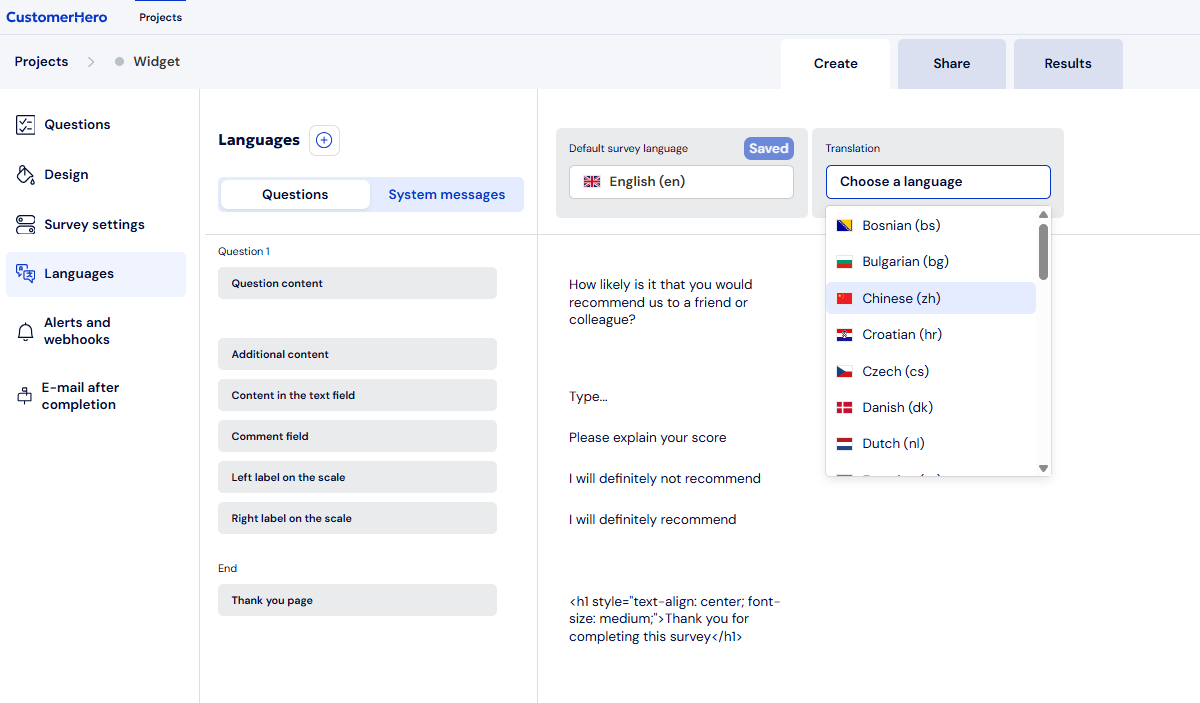
After selecting a language, fields for entering the translated content of questions and answers will appear in the Questions tab. By going to the Messages tab, you can also change the content of system messages, tooltips, or other information displayed to the respondent.
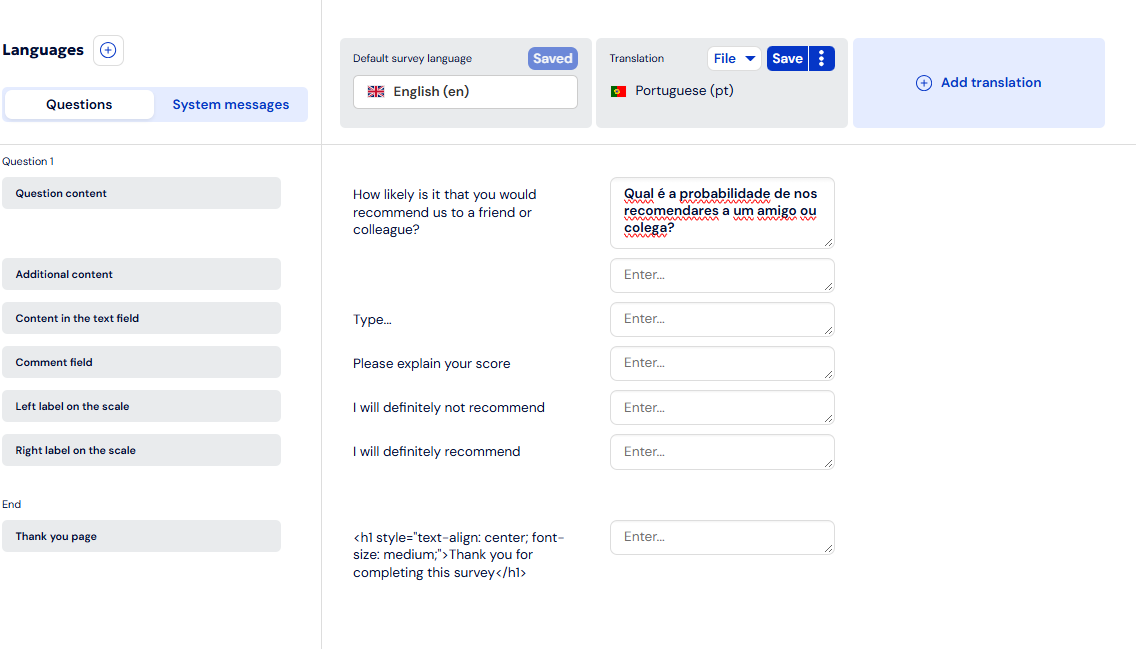
To save the added language, click Save.
You can add any number of languages. To do this, click the plus icon or Add translation again.

How to add a language translation file?
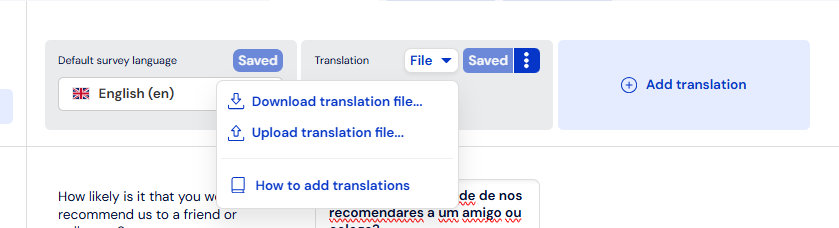
After adding a language to the survey, click the File button. Here you can download a file in xlsx format in which you will prepare the translation of your survey. Click Download file for translation...
In the file, you will find columns corresponding to the content in your survey, meaning the content from the Questions and Messages tabs.
The file also contains instructions that will help you fill it out properly.
After filling out the file, click Upload translation file... to add the prepared survey content in another language. Then click Save to keep the changes made.
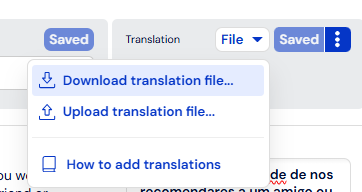
Each language has a separate translation file.
Important: Remember that making changes to the survey after downloading the file will require downloading a new translation file. Make sure the survey is complete before you start editing this file.
How does it work?
The survey detects the browser language, and if it finds the respondent's browser language among the translations you added, the survey will be displayed in that language.
If it doesn't find it, it will be displayed in the survey's source language (looking at the image above, it will be Polish).
You can display the survey to the respondent in any language you prefer, regardless of their browser language. For example: Your company operates in the UK and French markets. You want to make sure that users who visit the English version of the website will see the survey with the English translation, and the French version - the French one.
To do this, simply add the following script to your website where the survey code has already been placed. Importantly, the script specifying the language must be placed below the survey script.
<script> Startquestion.call({ type: 'setLang', lang: 'en', }); </script>The lang attribute determines the preferred language. Similarly, enter the attribute value for a different language.
List of language codes to use in the lang parameter
Below you will find a list of all language codes available in our panel.
Language | lang attribute value |
Bosnian | bs |
Bulgarian | bg |
Chinese | zh |
Croatian | hr |
Czech | cs |
Danish | dk |
Estonian | et |
Finnish | fi |
French | fr |
Greek | gr |
Georgian | ka |
Spanish | es |
Indonesian | id |
Korean | ko |
Lithuanian | lt |
Latvian | lv |
Dutch | nl |
German | de |
Norwegian | no |
Portuguese | pt |
Russian | ru |
Romanian | ro |
Serbian | sr |
Slovak | sk |
Slovenian | si |
Swedish | se |
Taiwanese | tw |
Ukrainian | ua |
Hungarian | hu |
Italian | it |
Examples of implementing language change in the survey
Our survey code detects the browser language by default. Apply the solutions below only if you want to override the default survey behavior.
The following examples are merely suggestions for implementing a language change in the survey. Before deploying to a production environment, we recommend thoroughly testing the code and consulting it with your company's technical team.
Selecting language on page load
If you want to manually set the language in the survey, you can trigger the language change immediately after the page loads:
window.addEventListener('load', function() { Startquestion.call({ type: 'setLang', lang: 'en' }); });
or by adding HTML code:
<script> Startquestion.call({ type: 'setLang', lang: 'en' }); </script>Changing language after clicking a button
The user can click a button on the page to change the survey language. In the code, you can set a function that calls the code below when the button is pressed:
document.getElementById('changeLangButton').addEventListener('click', function() { Startquestion.call({ type: 'setLang', lang: 'en' }); });Changing language based on selection from a dropdown list
If you have the option to select a language from a list on your website, e.g., the user can choose a language from a dropdown list in a form or main navigation, the following code will allow changing the widget language to the selected one:
document.getElementById('languageSelect').addEventListener('change', function(event) { const selectedLang = event.target.value; Startquestion.call({ type: 'setLang', lang: selectedLang }); });Automatic language change based on user location
You can also dynamically change the language based on the user's location or browser settings:
const userLang = navigator.language || navigator.userLanguage; Startquestion.call({ type: 'setLang', lang: userLang.includes('en') ? 'en' : 'pl' });Analysis and comparison of multiple languages
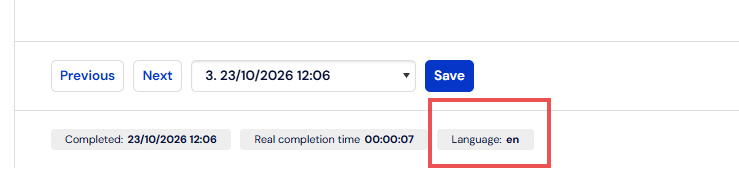
Responses in all added languages are available in the Results tab. Each language has an assigned attribute - Language.
To filter respondent answers depending on the displayed survey language, use filters.
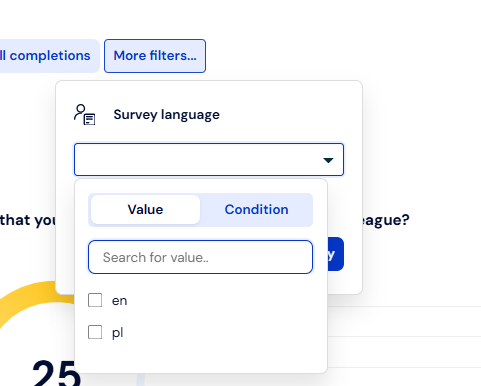
Click More filters and select the Survey language attribute.
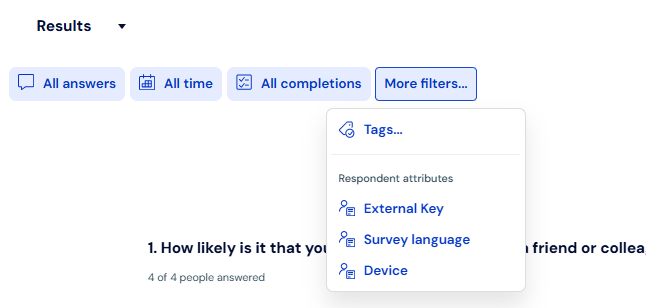
Select the language for which you want to analyze the responses. Click Apply.
If you want to compare how respondents answered depending on the displayed language, use the Respondent groups comparison, where you can quickly compare results based on the Survey language attribute.
Click Add comparison.

Select Respondent groups.
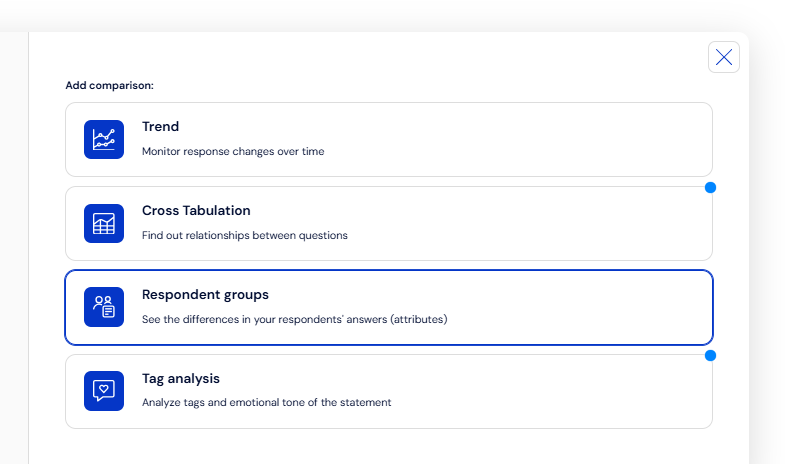
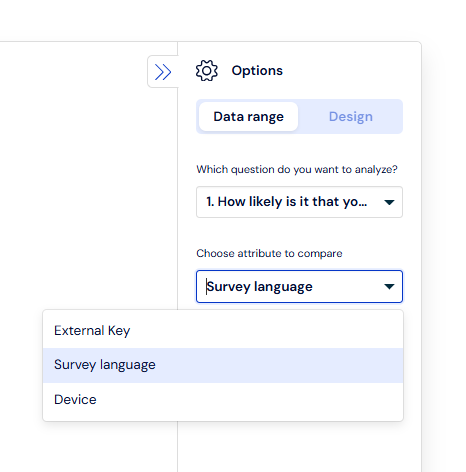
From the list, choose which question you want to analyze. Then select the attribute to compare - Survey language.
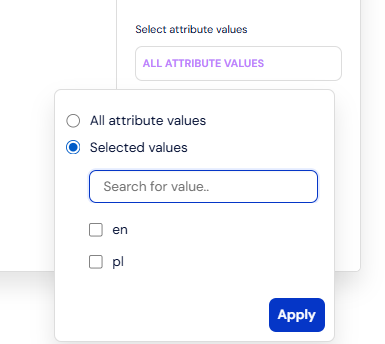
In the next step, select whether you want to compare All attribute values or just Selected values. In the case of selected values, check the box next to the appropriate language or search for its value in the list.
After making your choice, click Apply.
Charts will appear where you can compare respondent answers for each selected language. Next to each chart and in the table, there is information about the language.
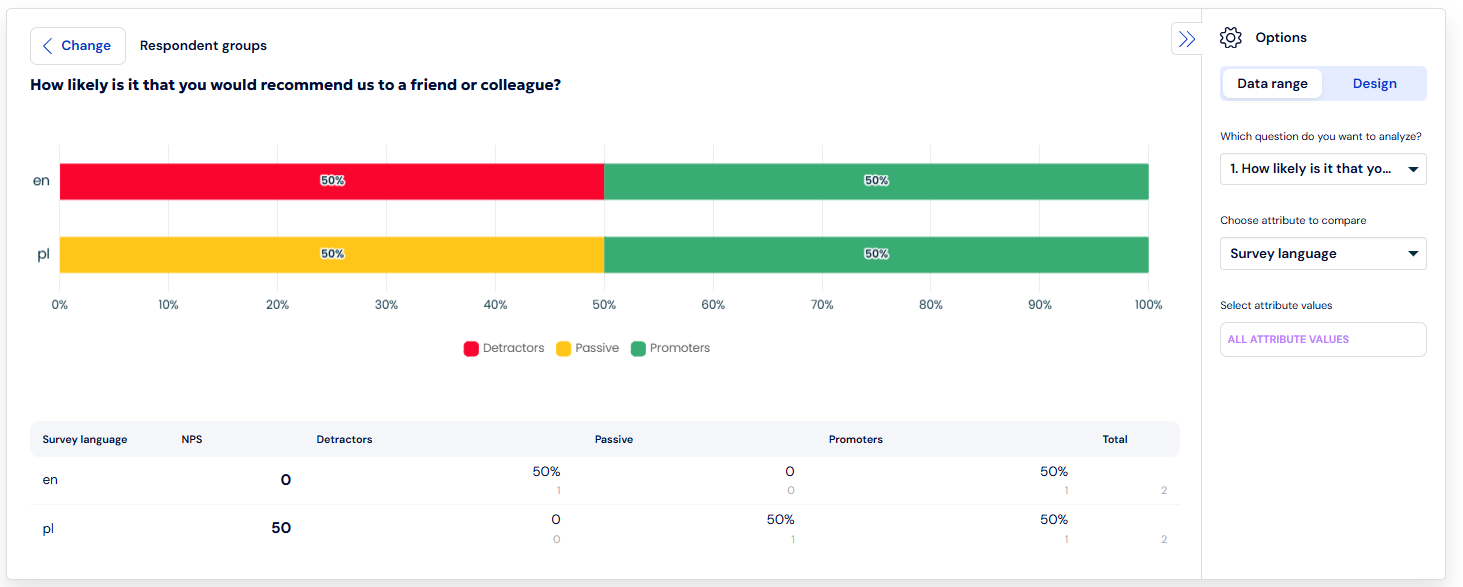
You can save the results with applied filters and added comparisons as a new report.

The Survey language attribute is also visible in the Responses tab. It is available for responses that were collected after adding languages to the website survey.