
Scheduled reports
Schedule reports are available in the Results -> Schedule reports tab. These types of reports allow you to create a scheduled delivery of your survey results. You can decide whether you want to send all the results collected so far or create a report only with the results that have appeared since the previous report was sent.
How to create a schedule report?
Go to the Results tab and then Schedule reports. If you don't have any reports yet, click the Create a schedule report button.
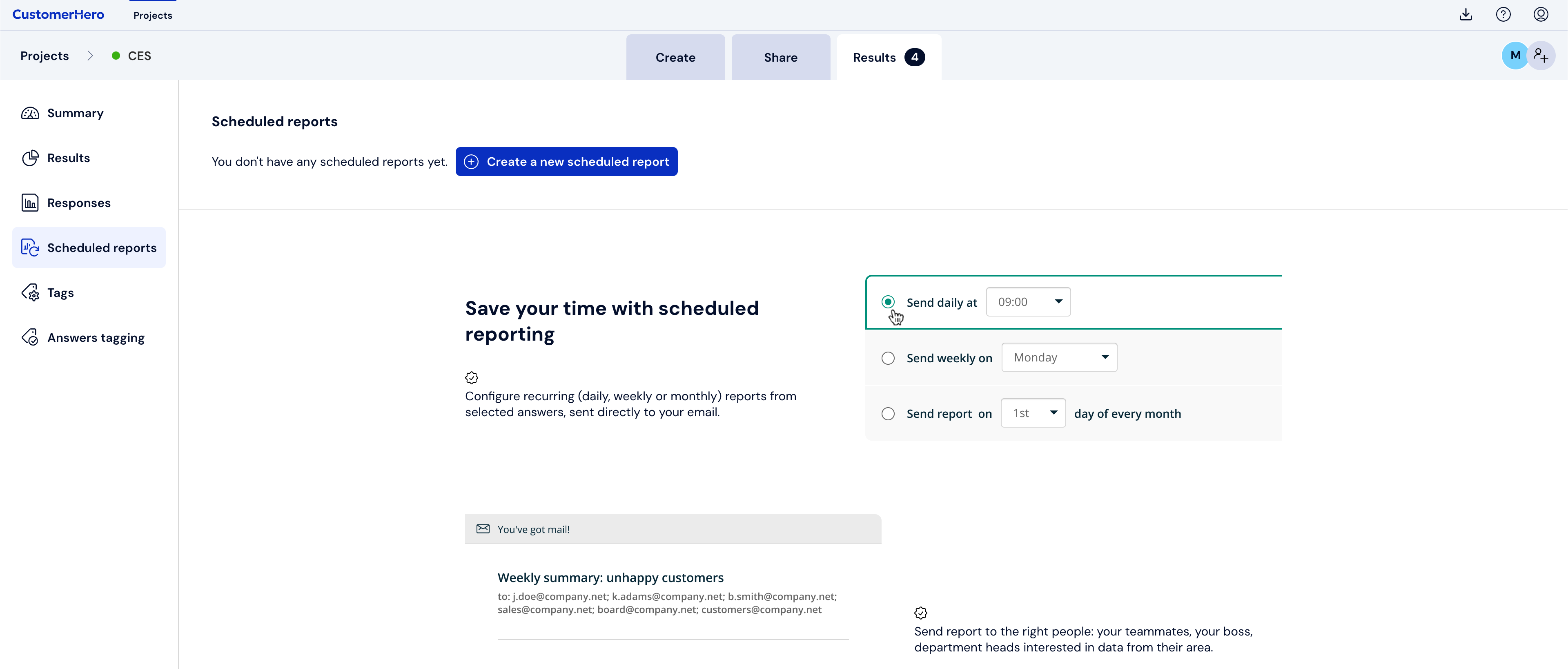
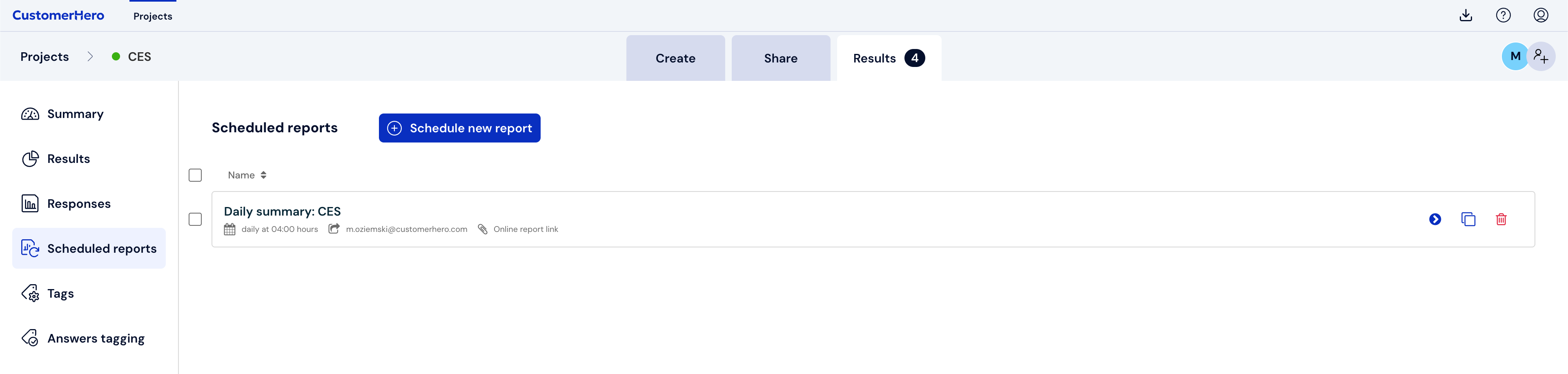
If you want to create another report, click Add a new schedule report located above the list of your reports.
Available formats of schedule reports
After clicking the "Create a schedule report" or "Add a new schedule report" button, a window will appear where you can choose the format of your report file that will be sent via e-mail. To check more formats, click Show other formats.
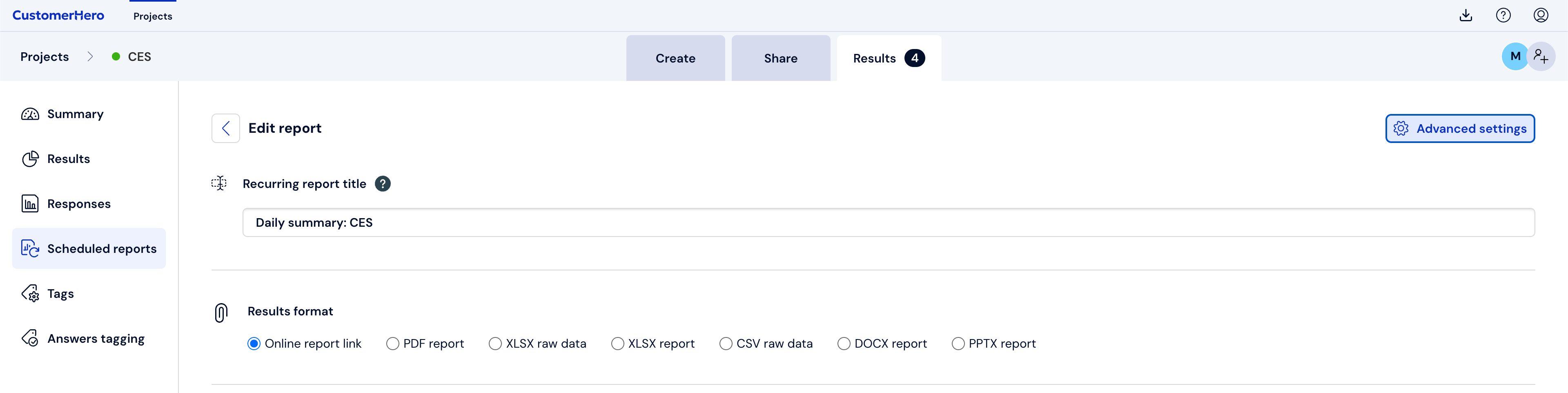
After expanding this option, you will see all the formats available to create a report. Available options include raw XLSX and CSV data, aggregated XLSX results, PDF, DOCX, and PPTX reports, as well as an online report - a link to the report.
Link to the online report allows you to send a schedule report without having to download it to your computer. This is an independent link from the one generated in the Results tab (Live Report).
Selecting the scope of results
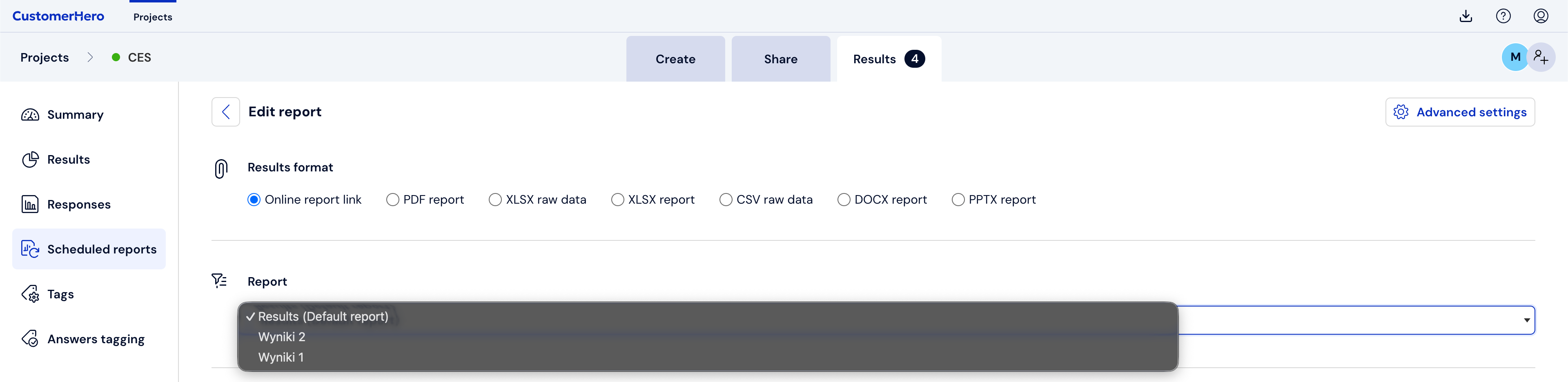
In the case of a link to a report, PDF, DOCX, PPTX report, and XLSX aggregated results, choose which report you want to send cyclically from the drop-down list. The list will display all the reports that have been created in the Results tab. The first report on the list is the default Results report.
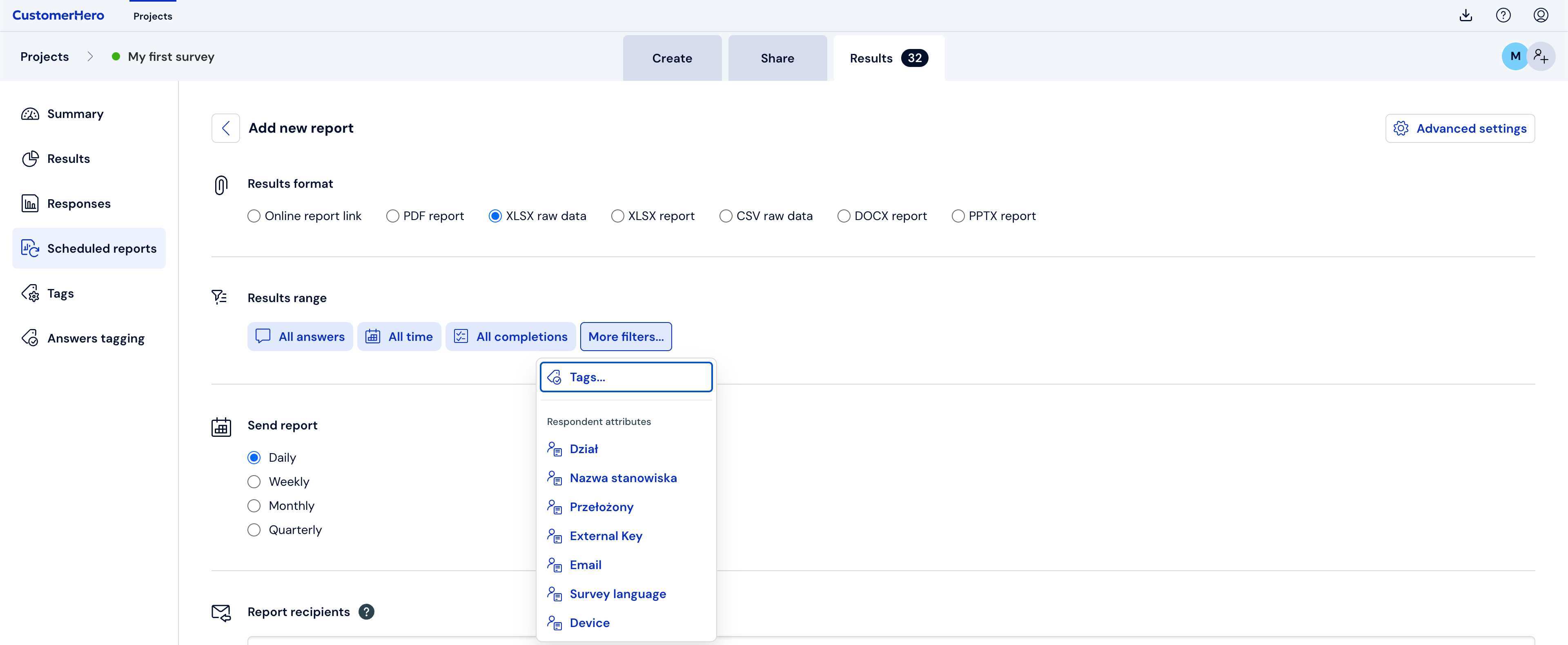
If you are creating a schedule report of raw XLSX/CSV data, select the scope of results using filters. You can filter data: by a specific answer, by completion time, or by completion stage or respondent attributes.
Selecting the delivery frequency
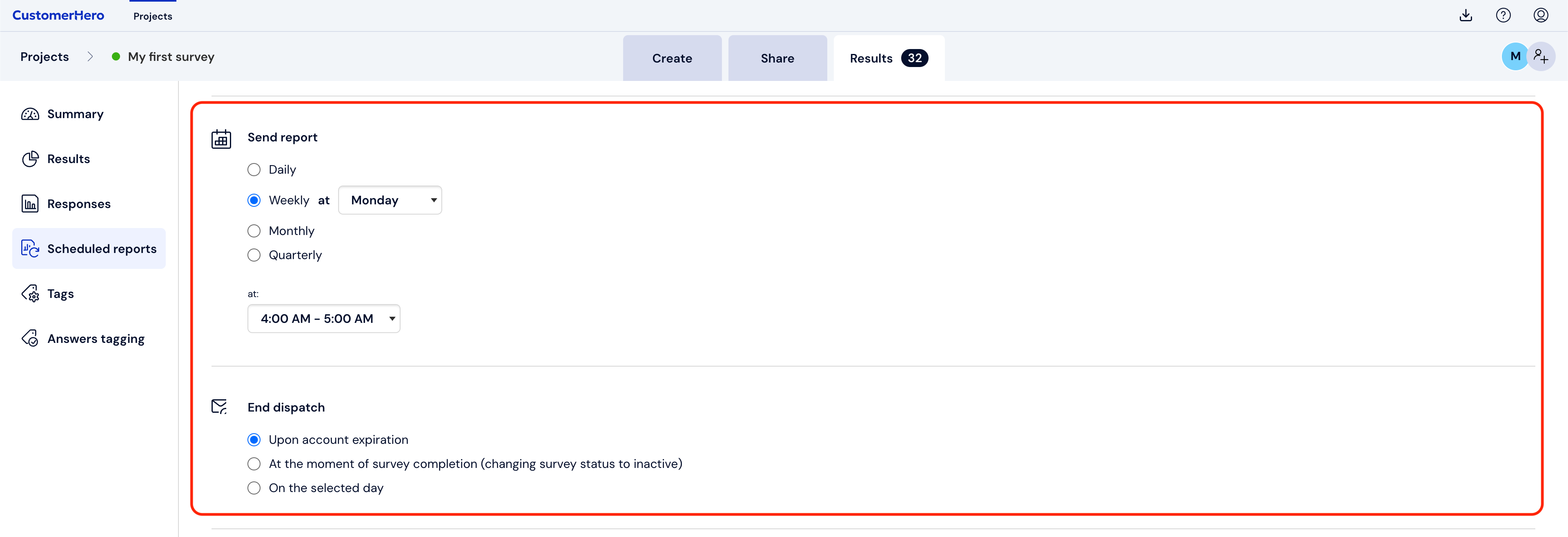
In the next step, you can set the frequency of sending the schedule report to the recipients.
To determine the delivery frequency, go to the Send report section. Here you have several options to choose from: you can receive the report daily, weekly, monthly, or quarterly. After selecting the Advanced settings, which are located in the upper right corner, you can specify the sending times and decide when to end it.
Selecting recipients
In the Report recipients field, enter as many e-mail addresses as you need. Separate each of them with a semicolon or a comma.

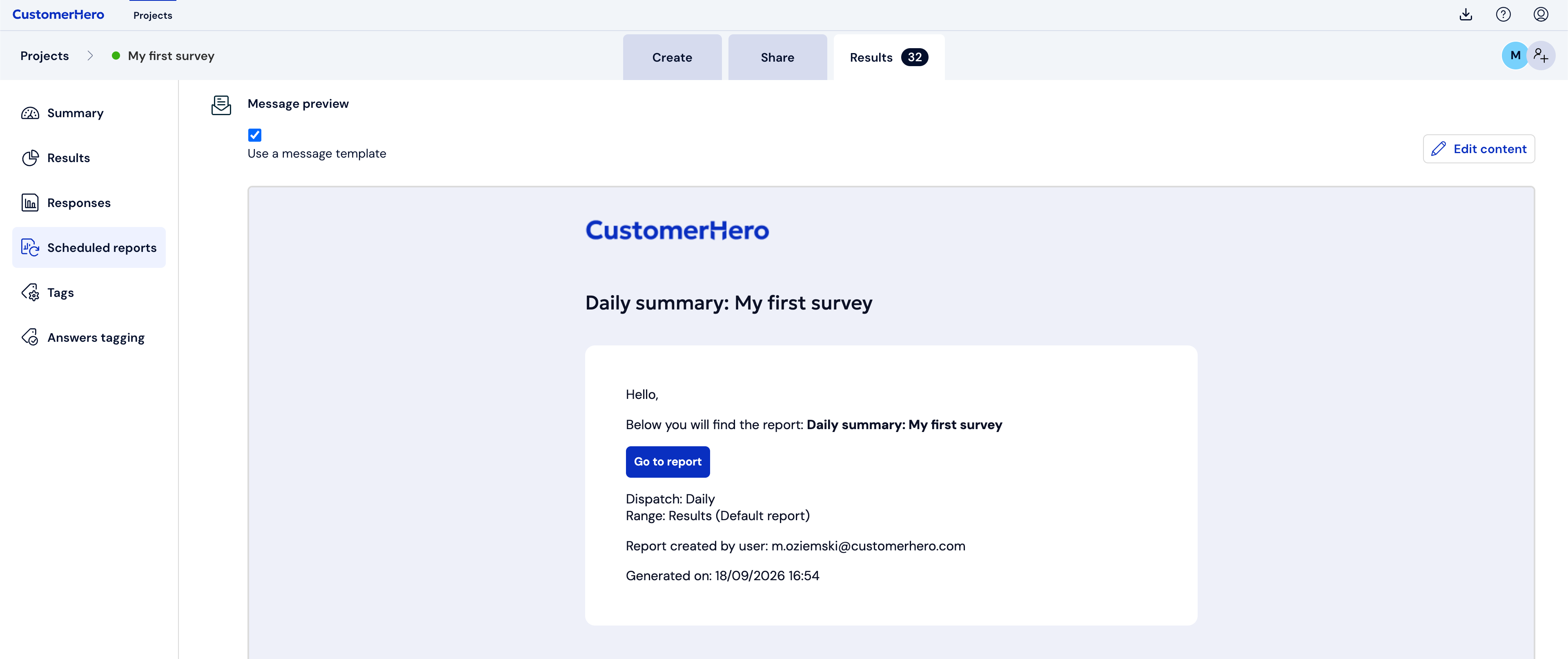
At the very end, in the Message preview, you can check what the message with the report will look like. You can also edit its content here.
How to change the title of a schedule report?
Click Advanced settings in the upper right corner. A field will appear to enter a new title.

How to save a schedule report?
You can save the report for later by clicking Save, or save and send it right away using the Save and send now button.
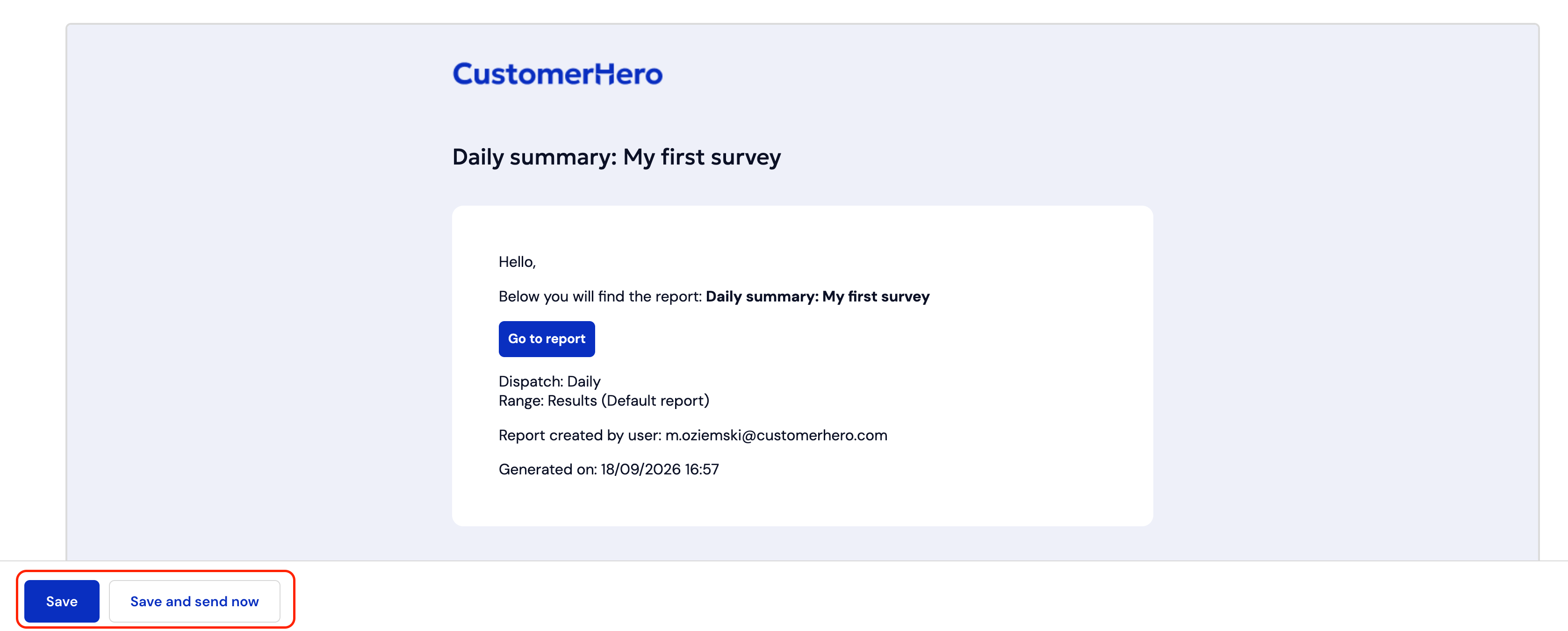
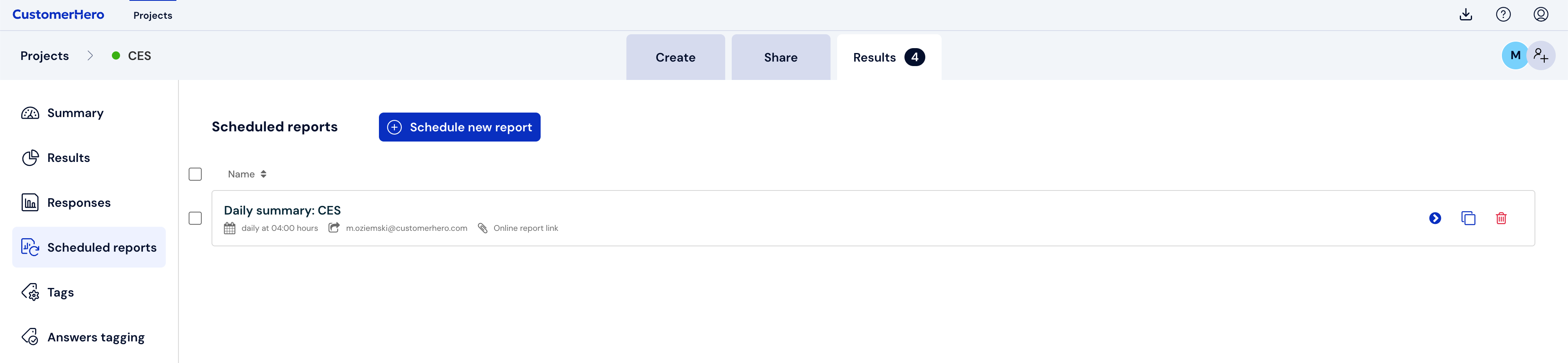
A report prepared and saved this way will appear on the list of schedule reports.
How to delete a schedule report?
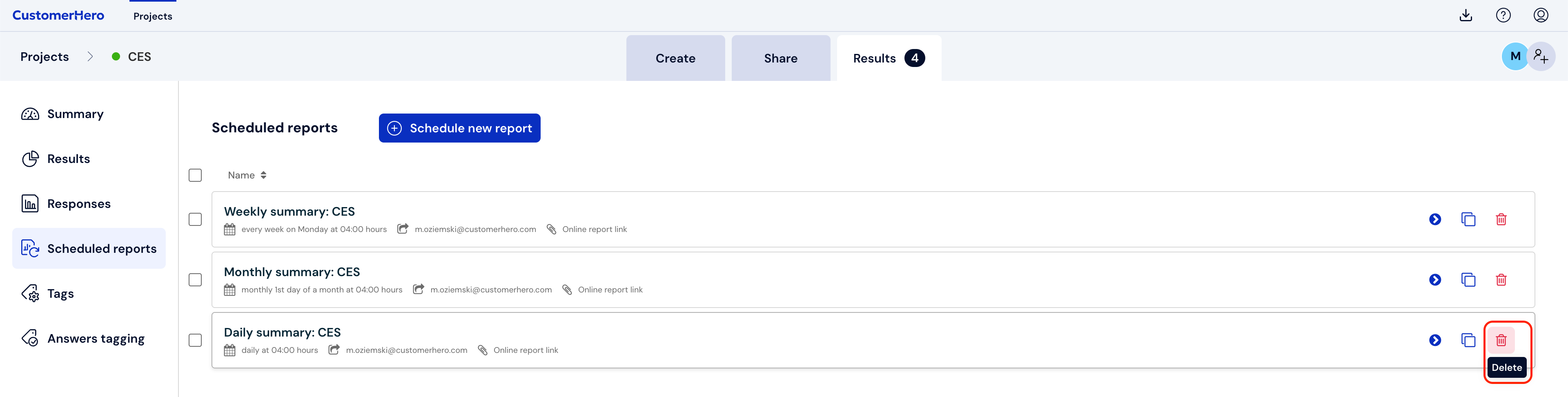
Select the report you want to delete from the list and click Delete located on the right side.
Important:
Schedule reports are available exclusively in the Team and Enterprise plans. To use this feature, please contact our consultant from the Sales Department.
If you want to receive completions meeting specific criteria, first create a report in Results where you will define the appropriate filters.