The display rules
For the popup survey to work correctly, it is enough to paste the code onto the page once. You can adjust all the rules according to which the survey is to appear on the website from the interface level. This allows for convenient and quick management of rules, thanks to which the survey is displayed where, to whom, and when you want.
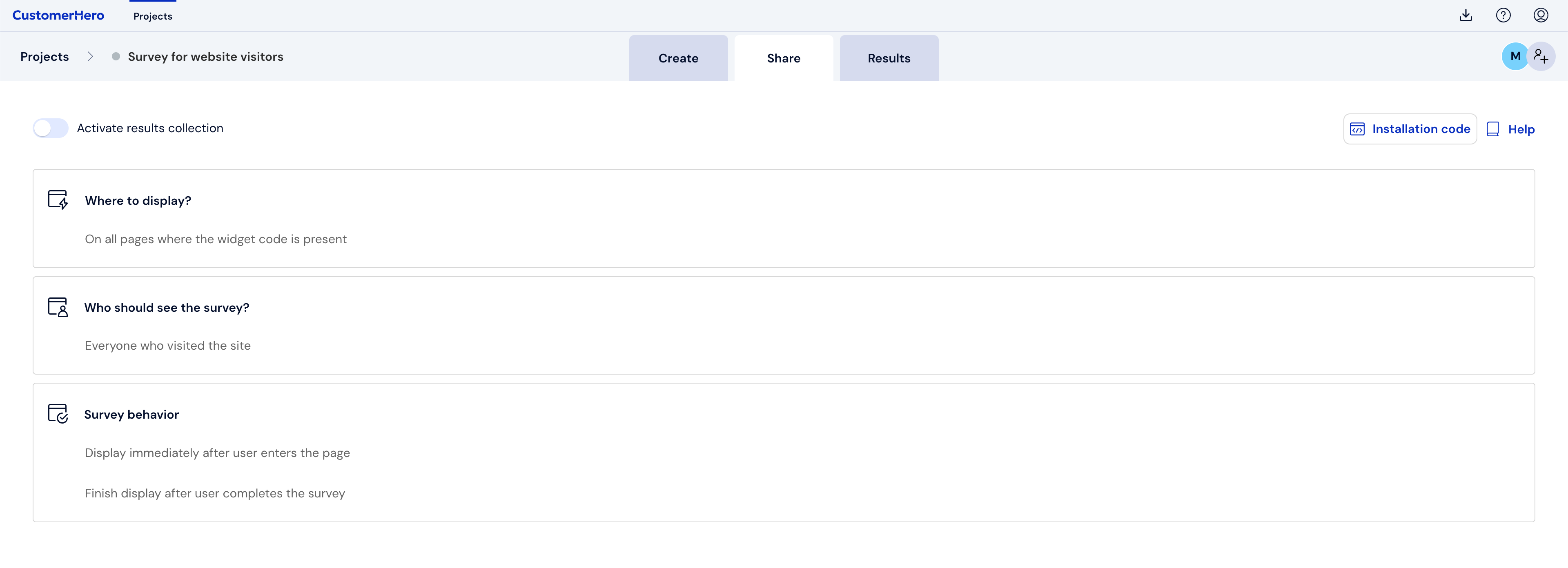
In the Collection tab, in 3 simple steps, you can define where, to whom, and how to display the survey on the website.
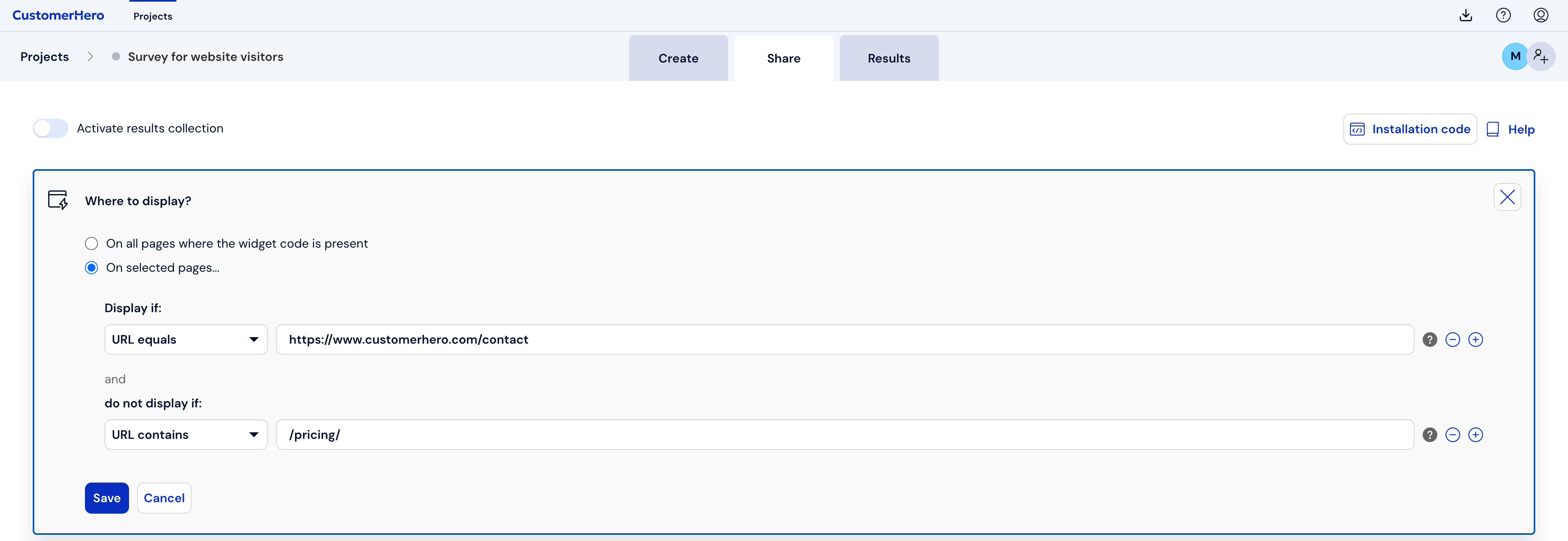
Where to display
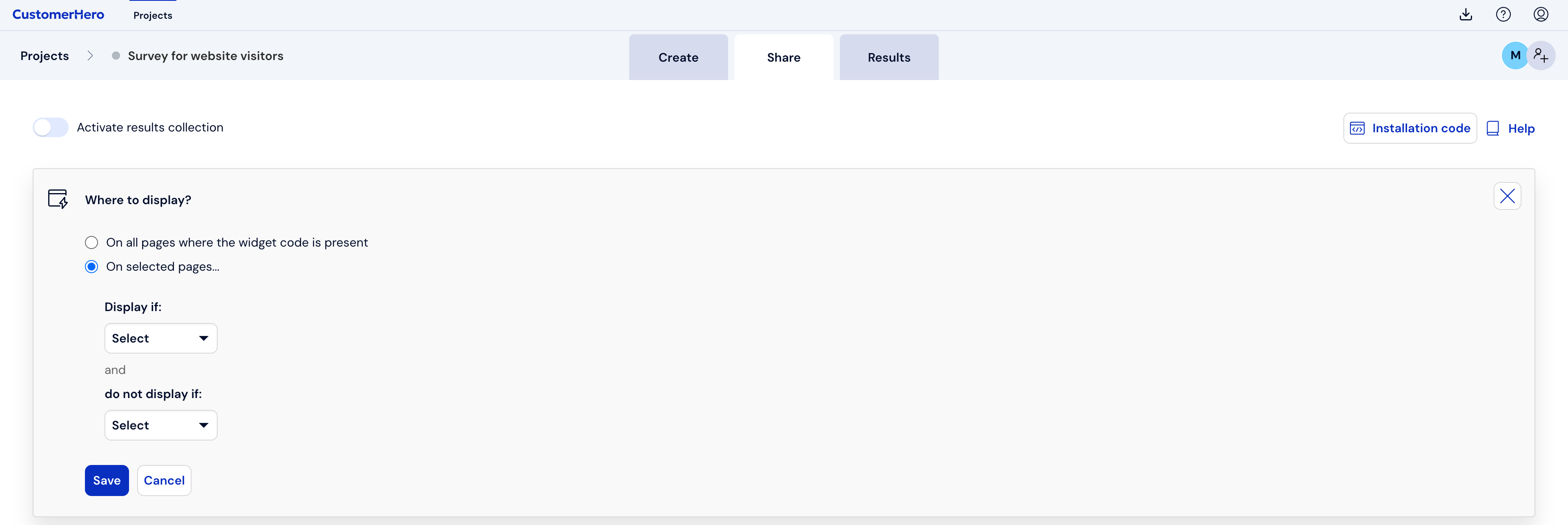
Here we have 2 options:
1. On all pages where the widget code is present
By selecting this option, the survey will appear wherever the survey code has been pasted.
2. On selected pages
This rule ensures that the survey will appear only if the URL of the viewed page contains the selected phrase or is equal to a given address.
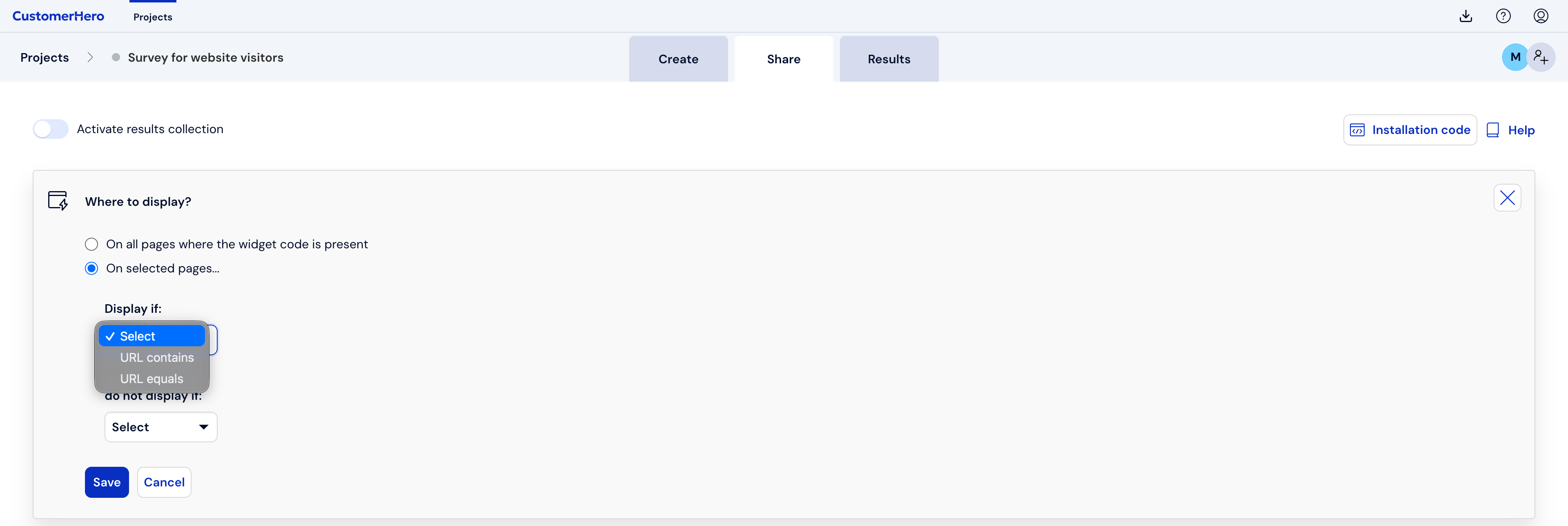
Additionally, we can define two different conditions related to the URL address:
display if - here you can enter the selected URL addresses where you want the survey to be displayed,
do not display if - here you can restrict on which pages the survey should not appear, e.g., the payment or order placement page.
Who should see the survey?
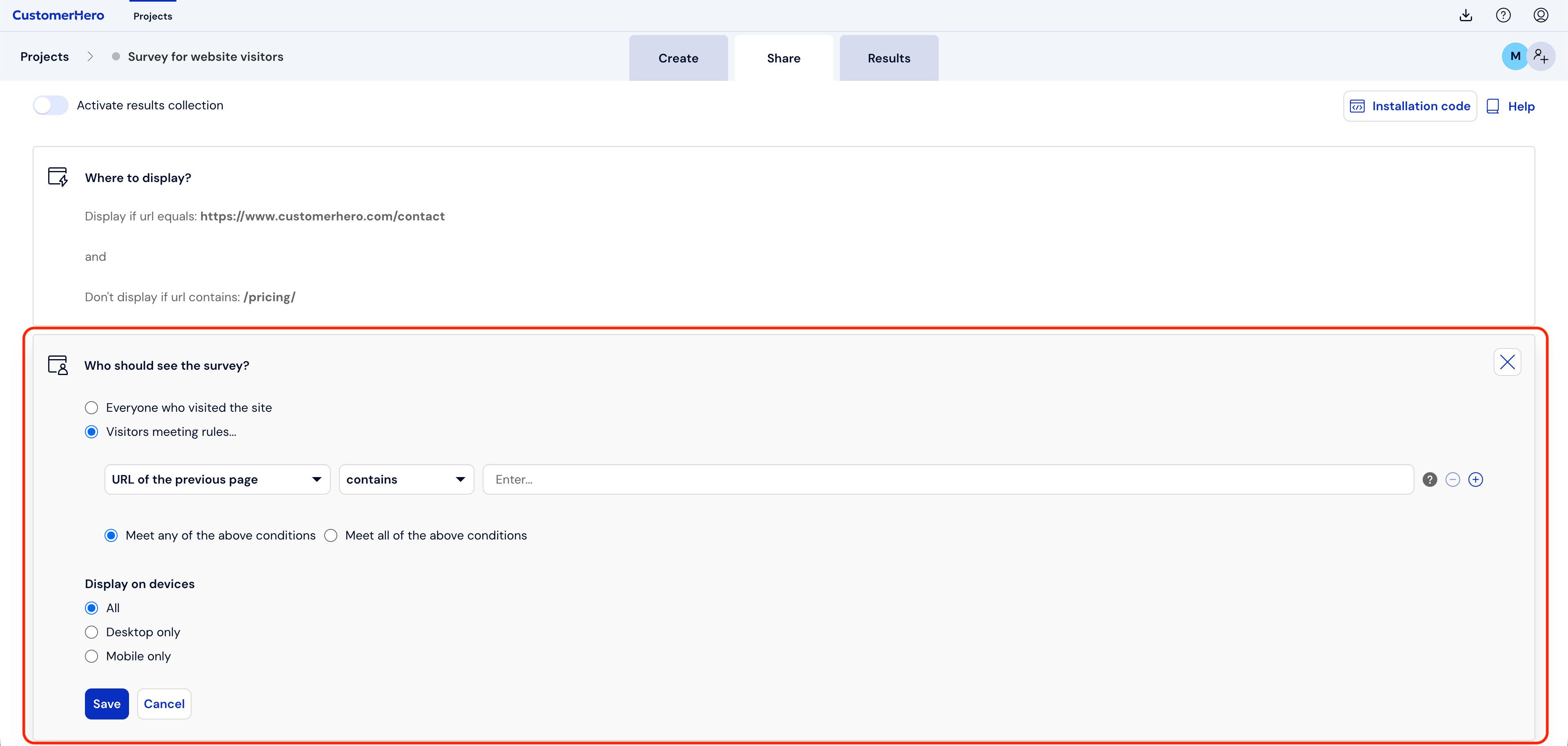
To all website visitors
By selecting this option, the survey will appear to all people who visit the given page.
To visitors meeting the rules
Here you can narrow down the target audience to whom the survey should be displayed.
Content of the cookie - display the survey by providing the name and value of a cookie, e.g., only to people who have given marketing consent or who have visited the pricing page.
User attribute - allows you to display the survey only to those users who have a specific attribute name and value. For example, if a "Plan" attribute has been defined with possible values Start, Business, and Team, you can display the survey only to Start Plan users.
URL of the previous page - allows you to display the survey only to those users who have previously visited a specific page.
Time on the entire site - specify after what time from entering the website (in seconds) the survey should be displayed to the respondent. The rule applies to the time spent on the entire website, and therefore also its subpages.
User visited - set the number of pages a user must visit during a single visit for the survey to be displayed on their screen.
JavaScript code will return TRUE - here you can insert a JavaScript code that returns a TRUE value and triggers the survey display. Here you also decide how often (in seconds) the code should be executed.
Display on devices
In this section, you have the option to choose on which devices the survey should appear.
All
Desktop only
Mobile only
Survey behavior
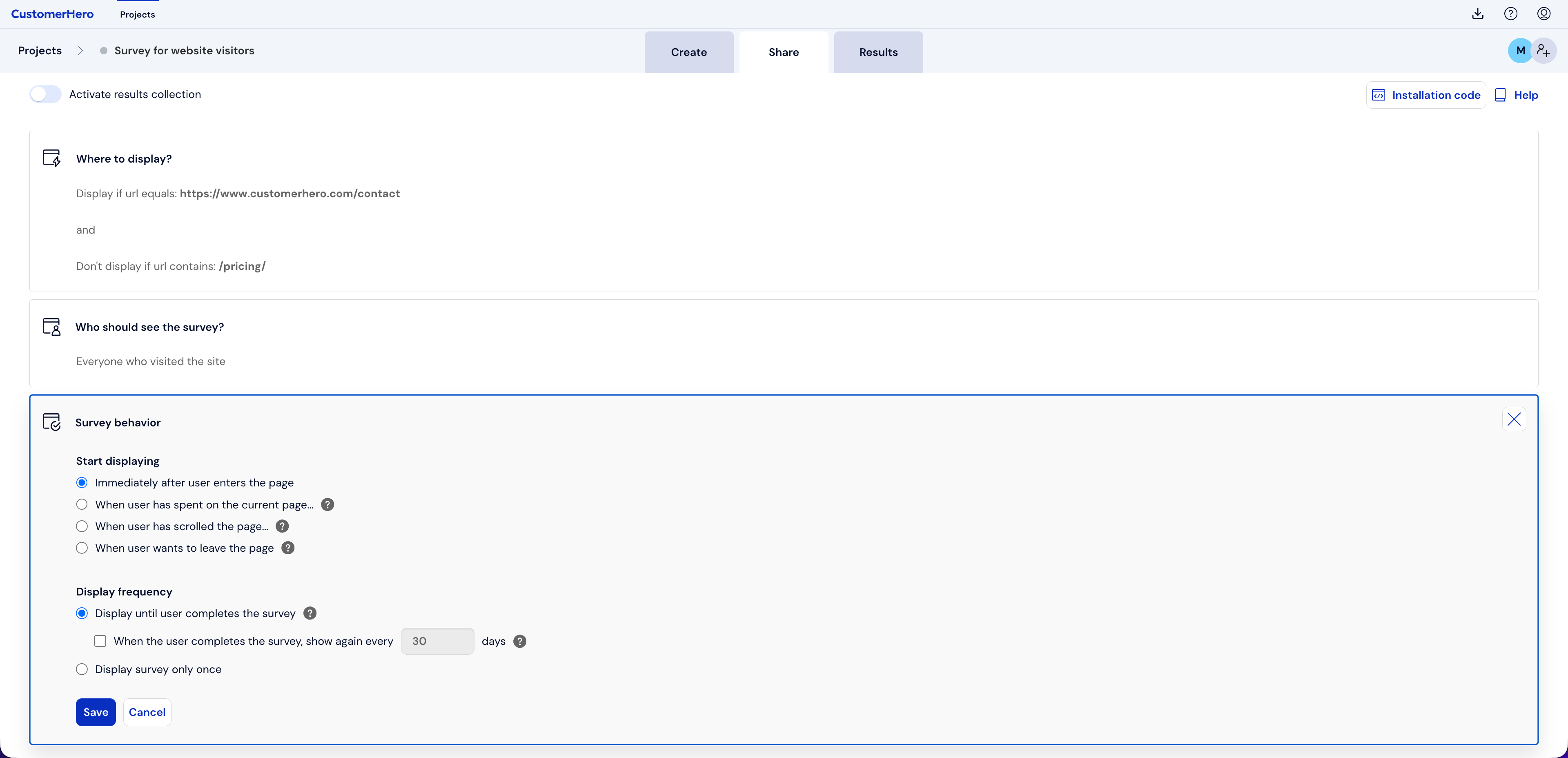
Start displaying
In this part of the settings, you can choose one of the following options:
Immediately after user enters the page
When user has spent on the current page... - Specify the time (in seconds) after which the survey should be displayed on the page. For example: After 10 seconds from entering the page.
When user has scrolled the page... - Specify the percentage or number of pixels that the page must be scrolled down for the survey to be displayed on the page. Example: 50% - the survey will be displayed halfway through scrolling the page.
When user wants to leave the page - Display the survey when the user wants to leave your page, i.e., moves the cursor outside the upper area of the visible page.
Display frequency
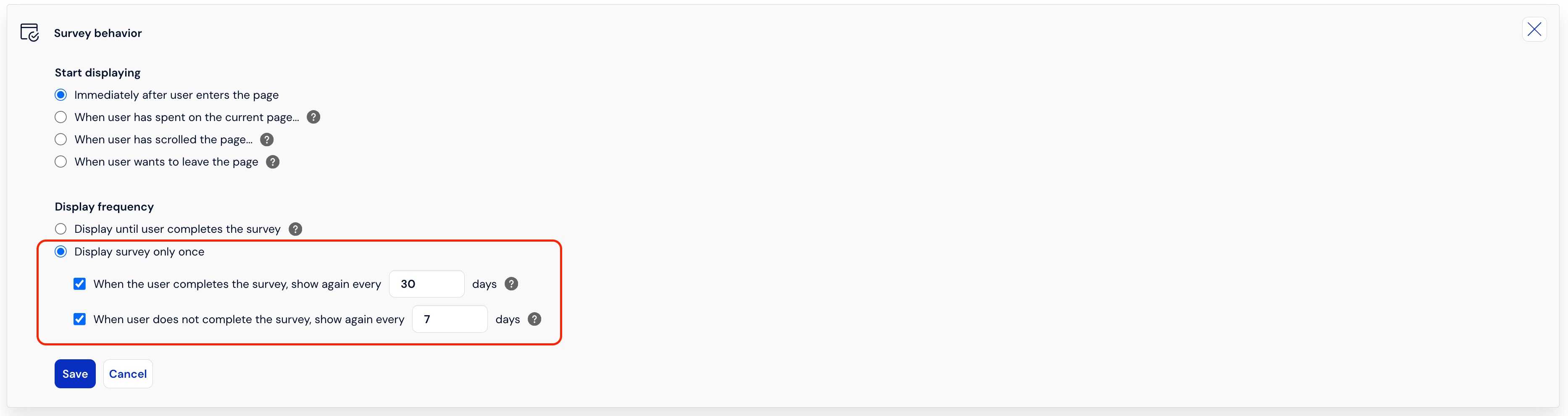
Display until user completes the survey - the survey will be displayed on your page until the user answers the questions.
Display the survey only once - the survey will be displayed only once, regardless of whether the user answers the questions or not.
Tip: you can display the survey on the page cyclically - every selected number of days. You can learn more about this feature in the article about Cyclical surveys on a website.