
The installation by the GTM - Google Tag Manager
To launch the widget using Google Tag Manager, copy the widget code available under Account -> Settings -> Website code, then select the option: "Install in Google Tag Manager"

Tag in Google Tag Manager
Insert the code in the appropriate place in GTM.

Next, configure the tag:

In the next step, select the tag type you need:

In this step, add the widget code you copied from the CustomerHero panel.
Paste the code and click Save.
Trigger in Google Tag Manager
Next, add the display triggers:

In the image below, a previously prepared "Page View" trigger has been selected. If you want the CustomerHero code to appear on every subpage, select the "All pages" trigger.

On the configuration summary screen, click Save:
Then click "Submit" to publish the draft changes to your website.

Testing the setup
Go back to the CustomerHero panel to test whether Google Tag Manager is serving the CustomerHero code correctly.
Click the green "verify installation" button.
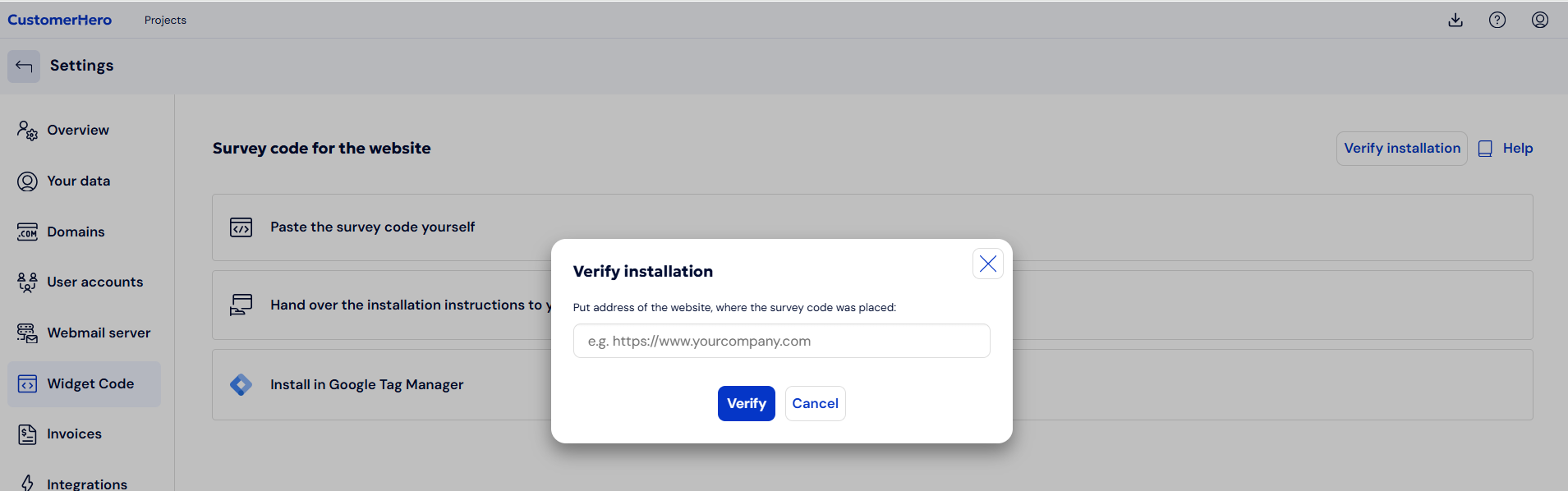
In the window that appears, enter the address of the website where the Google Tag Manager code is installed. Click Verify.
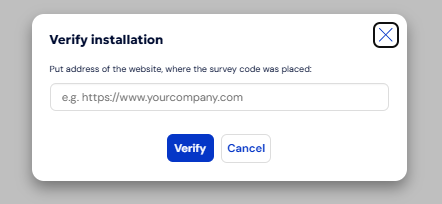
Then wait for a window like this to appear, and...
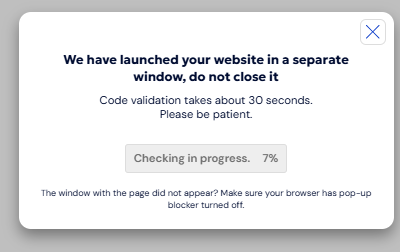
...an additional window in which your website should appear.
From now on, you can create widgets and define different display rules for them.
What if an error appears?
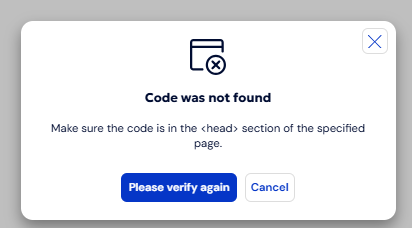
If an error like the one in the screenshot above appears, check that you have defined the display trigger correctly in Google Tag Manager and that the gtm.js script loads on your website.
Read more about this in the article:
https://help.customerhero.com/en/support/solutions/articles/206000086381