
The appearance
In the Design tab, you can make all changes to the appearance of your survey.
The screen is divided into 4 sections where you can decide on:
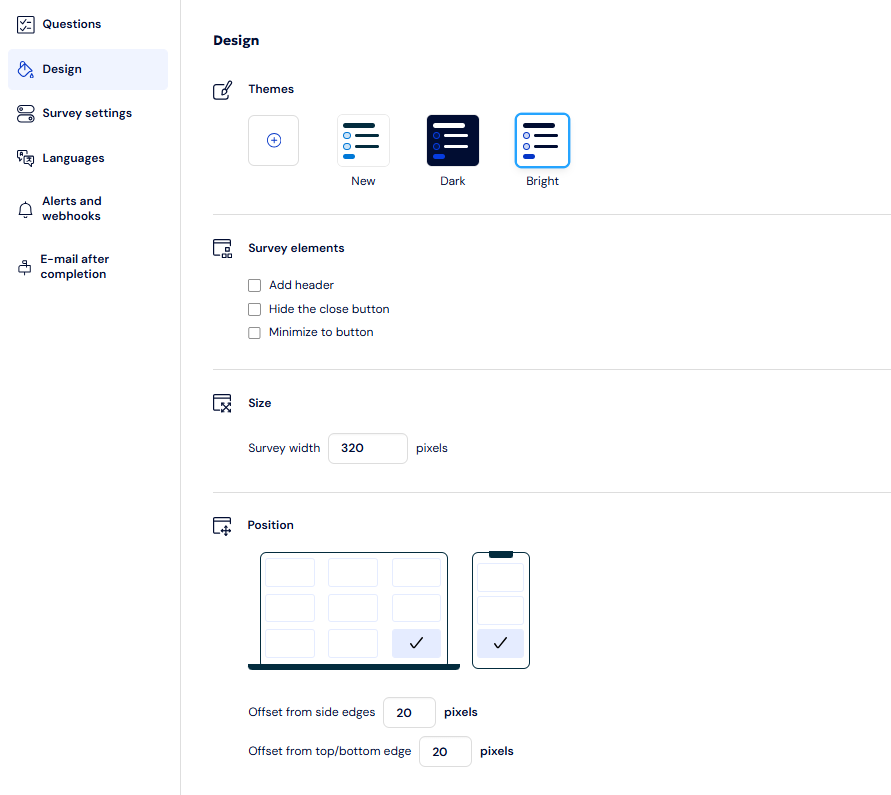
You can turn the preview of your survey on (or off) at any time.
The "live" preview shows how your settings affect the final look of the survey on your website.
Colors
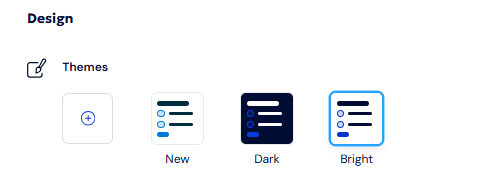
By default, you have two color sets available for your survey: Light and Dark. Clicking on the corresponding square selects the color scheme for your survey, which is confirmed by a blue outline.
When hovering over the square, a copy color scheme icon also appears so that you can create your own color scheme tailored to your website's branding.
If you want to create your color scheme from scratch, click on the plus icon.
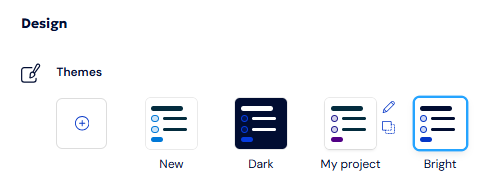
The image above shows an additional color scheme named "My project". Hovering over the square reveals a pencil icon (to edit the color scheme) and the copy icon mentioned earlier.
Survey elements
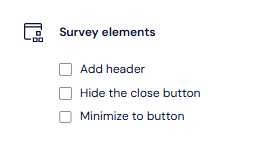
Additional header
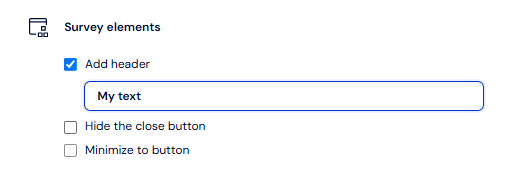
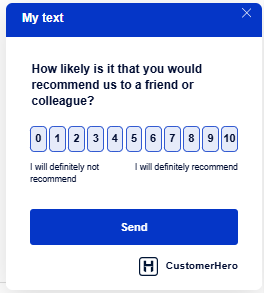
In this section, you can enable a survey header. After checking the Add header option, a bar will appear at the top of the questionnaire where you can enter the survey title (as in the example below, where the text “My text” is visible).
Using this feature is optional. If the questions in the survey are clear enough and do not require an additional title, it is worth skipping the header to maintain form clarity.
Hide close button
When this option is selected, the close icon (X) in the upper right corner will be hidden. This prevents your respondents from closing the survey without completing it.
The only way for the pop-up to disappear is to complete the survey from start to finish.
Minimize to button
Choosing this option will minimize the survey to a small button visible at the edge of the screen. As a result, it does not obscure page content – users can freely navigate the site without the survey dominating the view. The respondent can reopen the survey at any time until they complete it. You can also enter custom text on the minimized button to encourage respondents to take the survey.

Size
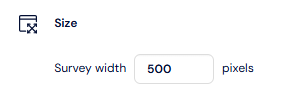
In this section, you can specify the width of the pop-up displaying the survey.
The more detailed your questions are, the more you should consider widening your pop-up. Just keep in mind not to cover the entire page.
The height of the pop-up automatically adjusts to the question on the current page. The survey uses the full width, and the height is determined accordingly.
Position on page
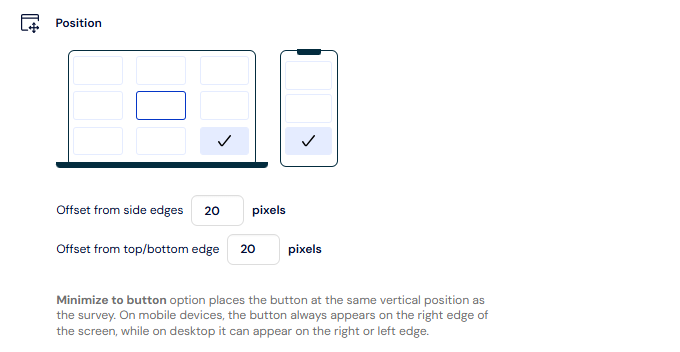
By default, the pop-up survey appears in the bottom right corner of the page. However, if you want to change its position, you can do so in this section.
In our example, if there is also a chat icon on the page, you can increase the margin from the edge so that the survey does not overlap the chat window. Alternatively, you can place the survey in a different location, such as the top right or bottom left corner of the page.
In desktop view, there are 9 possible positions for the survey on the screen. If you want the survey to be as visible as possible, you can center it on the screen (vertically and horizontally) and increase the window width – making it harder to miss.
In mobile view, you can choose from 3 positions for displaying the survey. We encourage testing different variants to find the optimal placement that increases completion rates.