
The printout of individual links (tokens) to the survey
In this article, we will explain how to print individual survey links without identifying the respondent. With this feature, you can invite respondents to complete the survey in ways other than email distribution, while still having full control over who will take your survey. You can print the links along with access codes (tokens) and hand them to respondents personally, or place them in a special jar so everyone can draw their own access code. This way, you will guarantee respondents a sense of anonymity in the survey.
How to print survey links without respondent identification?
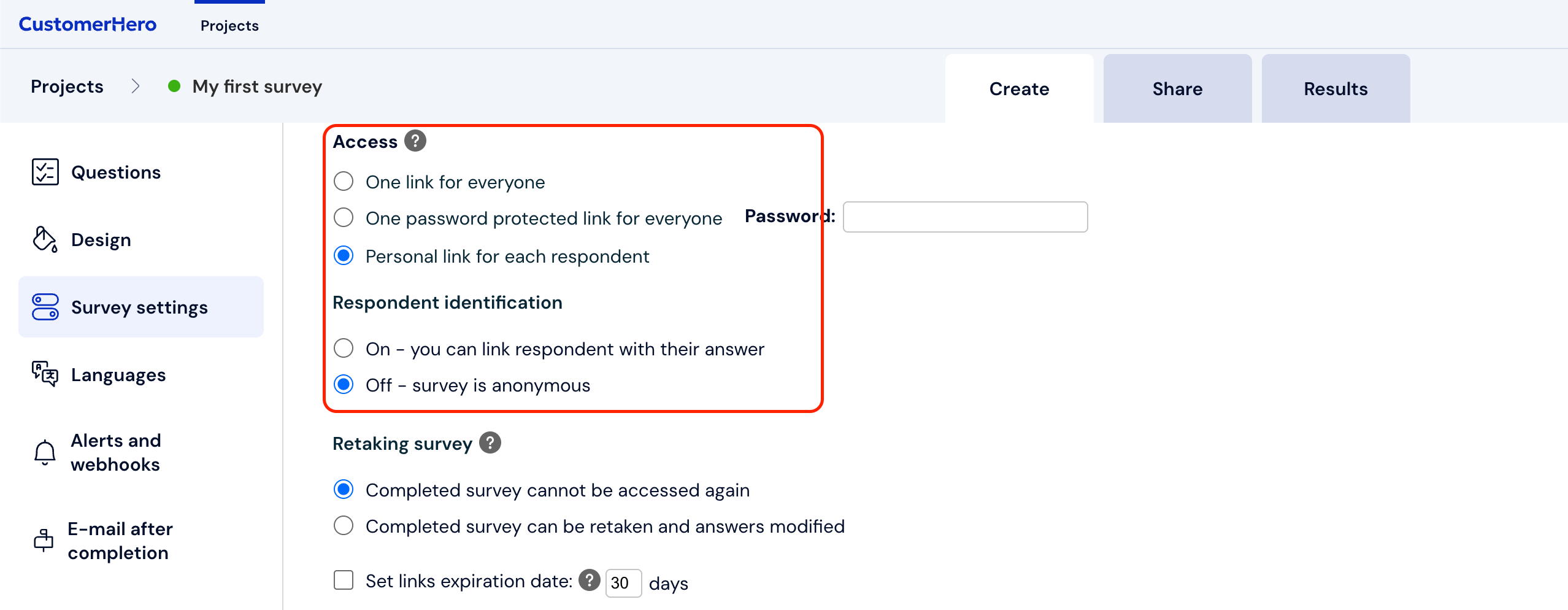
The first step is to set the appropriate survey security level. To do this, click Create, and then go to Survey Settings.
For offline token distribution to take place, you must enable the "Individual link for each respondent" option.
If you want the answers not to be linked to the respondent or plan to provide the links to respondents randomly (e.g., everyone draws a piece of paper with an access code), check the "Respondent identification – disabled" option. This will guarantee your respondents a sense of anonymity.
At the end of this step, you must select the option that allows for correcting a previously completed survey – "A previously completed survey can be edited".
In the next step, we move to custom distribution by clicking the Collect tab, and then Custom distribution.
Next, click "Generate tokens".
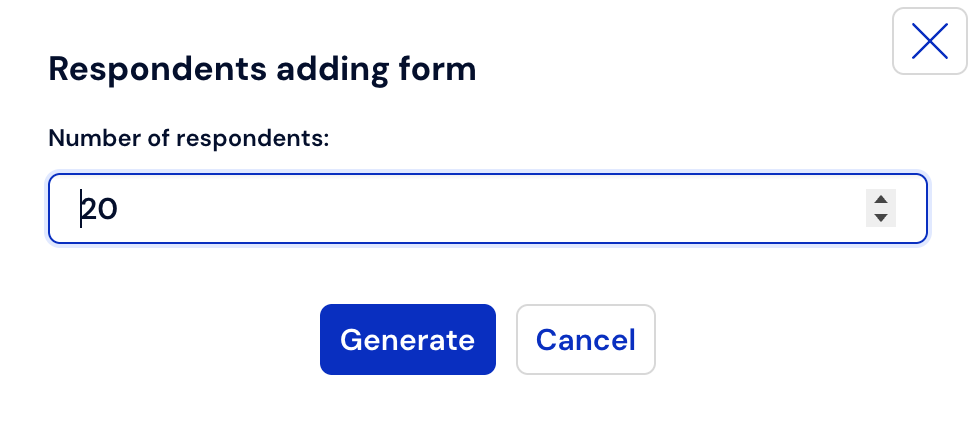
You will be redirected to a form where you can enter the expected number of respondents. For example, if 20 participants attended a training session, you will need 20 tokens. Click Generate.
You can export the ready list and save it to your computer's drive in XLSX or CSV format.

How to print survey links with tokens with respondent identification enabled?
Click Create, and then go to the Survey Settings tab.
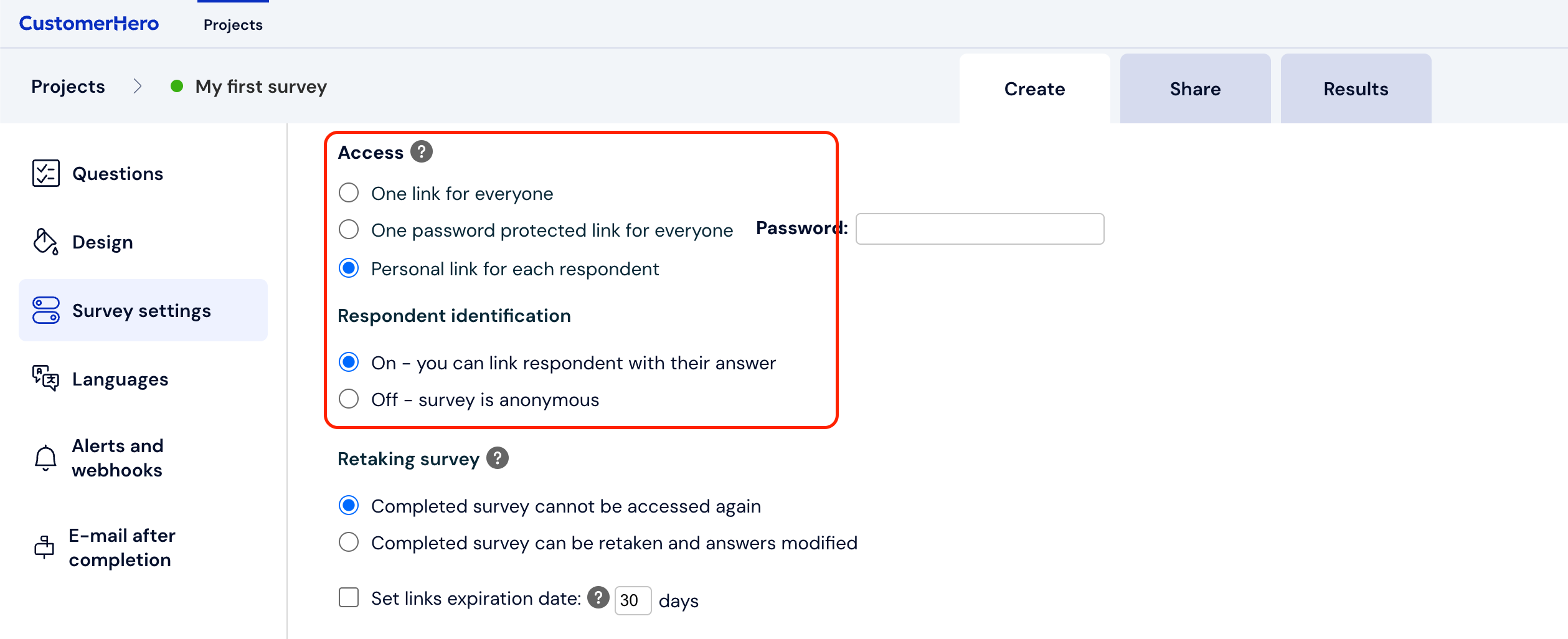
Next, go to the security settings to give the survey the appropriate configuration – for offline token distribution to take place, you must check the "Individual link for each respondent" option.
If you have a defined group of respondents – but you want to deliver the token to the respondent in a way other than sending an email, select the "Respondent identification – enabled" option. Remember - if you disable respondent identification, you will not have the option to import from a file.
If necessary, you can also select the option for single or multiple use of the link – this option is especially useful if the respondent wishes to correct their submission - "Link properties".
Once you have selected the correct settings for yourself, click save.
Next, you need to take care of the file import. To do this, go to the Collect tab, and then select Custom distribution. Check Import from file.
Import from file
Click Import from file. Pay attention to how your file should look so that its import into the system goes smoothly, then use the "Choose file" option to provide the location of the contact list on your computer's drive. Load the file by clicking "Add".
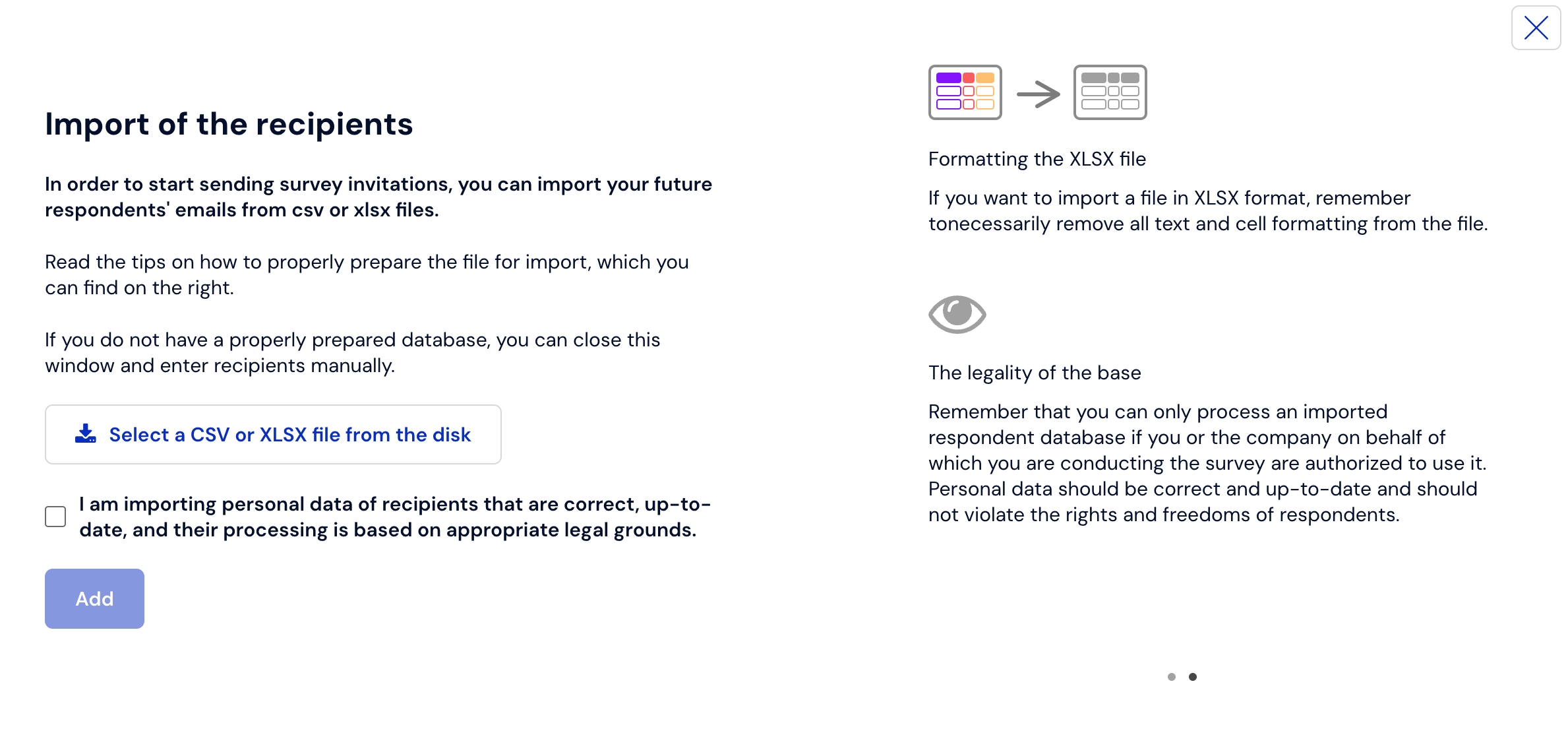
The file can contain not only respondents' email addresses but also data attributes. This way, you can automatically create a contact list containing other data besides just the email address.
You can also use this method to add a custom token for each respondent from the contact list, which will be used automatically instead of the system generating a token - simply create a Token column in the imported file and assign a correct (unique, alphanumeric, 6-character) code to each email address.
Things to keep in mind
Instead of providing the respondent with a survey link containing the token, you can also provide the standard survey link separately and the token separately. After entering the survey address, the respondent will be asked to enter their code to begin filling it out.
The finished list, downloaded to your computer's drive, contains the respondent's identifier, their token, and the survey link. It also includes information regarding the current status of survey completion by individual respondents.
Thanks to the multiple-use token (link), the respondent has the opportunity to change their answers in the survey even if they have already completed it once. Filling it out again will cause the old results to be overwritten with new answers.