First run
This article explains how to install the web survey code on your website and how to launch your first project. Installing the code once lets you manage your research later from the CustomerHero interface, without having to involve your IT department to launch a new project, change questions and settings, or stop collecting data.
How do I create a survey on my website?
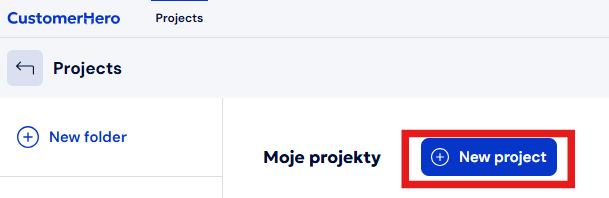
Go to the "Projects" tab, then click the "New project" button.
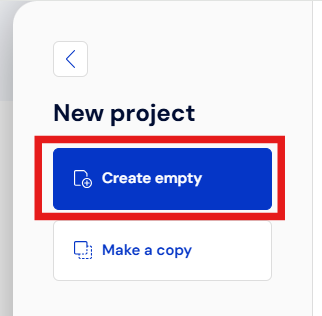
Select the "Create empty" option.
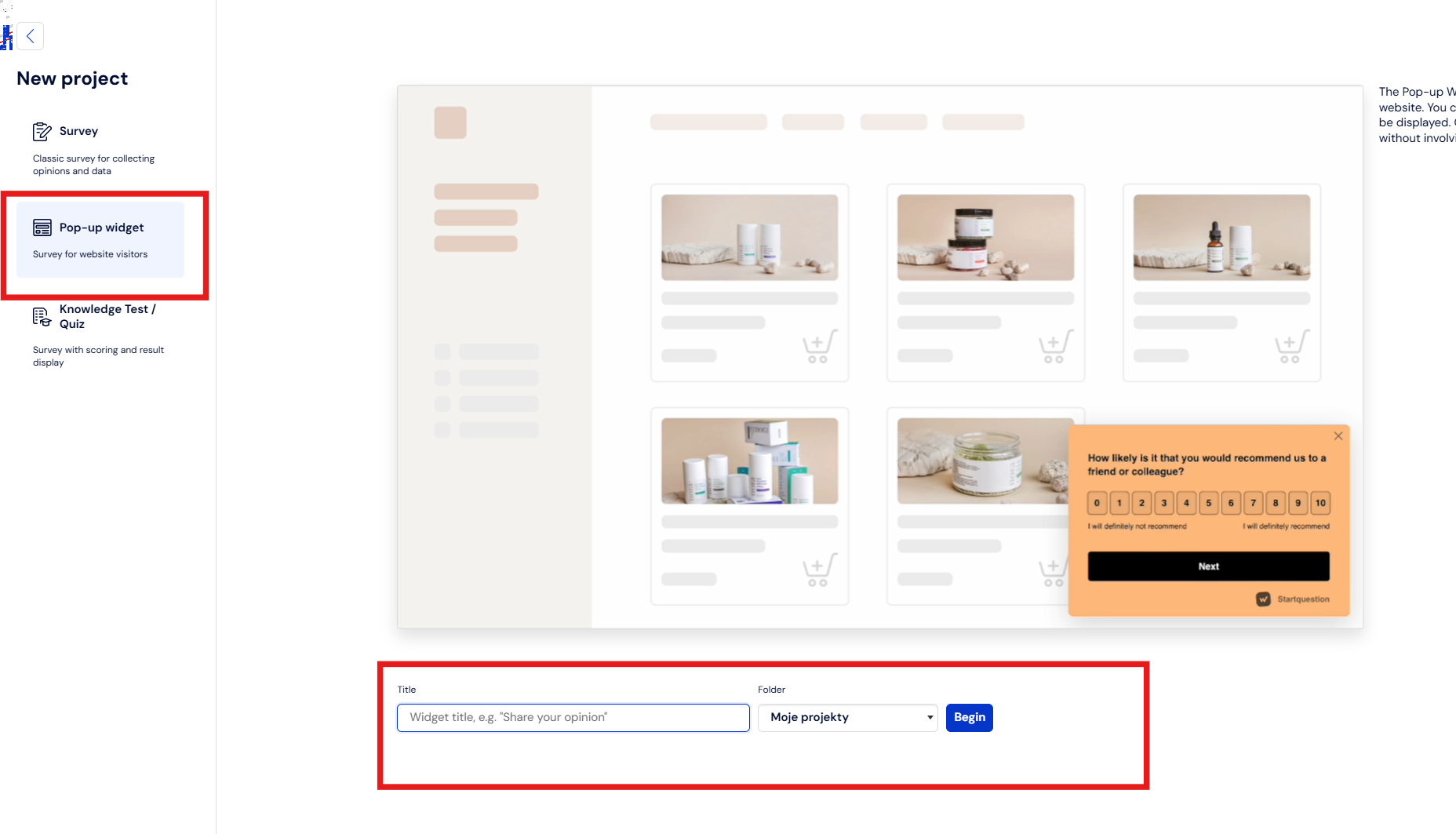
Next, select the "Pop-up Widget" option and enter your title - in this example, we will name the project "Customer satisfaction" - then click the "Beign" button.
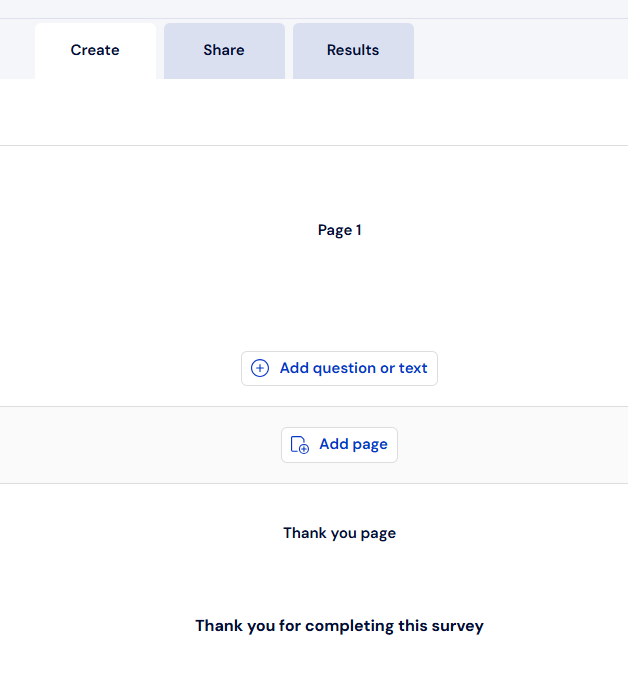
Once the project is created, you will see the survey builder - click the "Add question or text" button to add your first question:
After adding the questions, we have a sample website survey project ready:
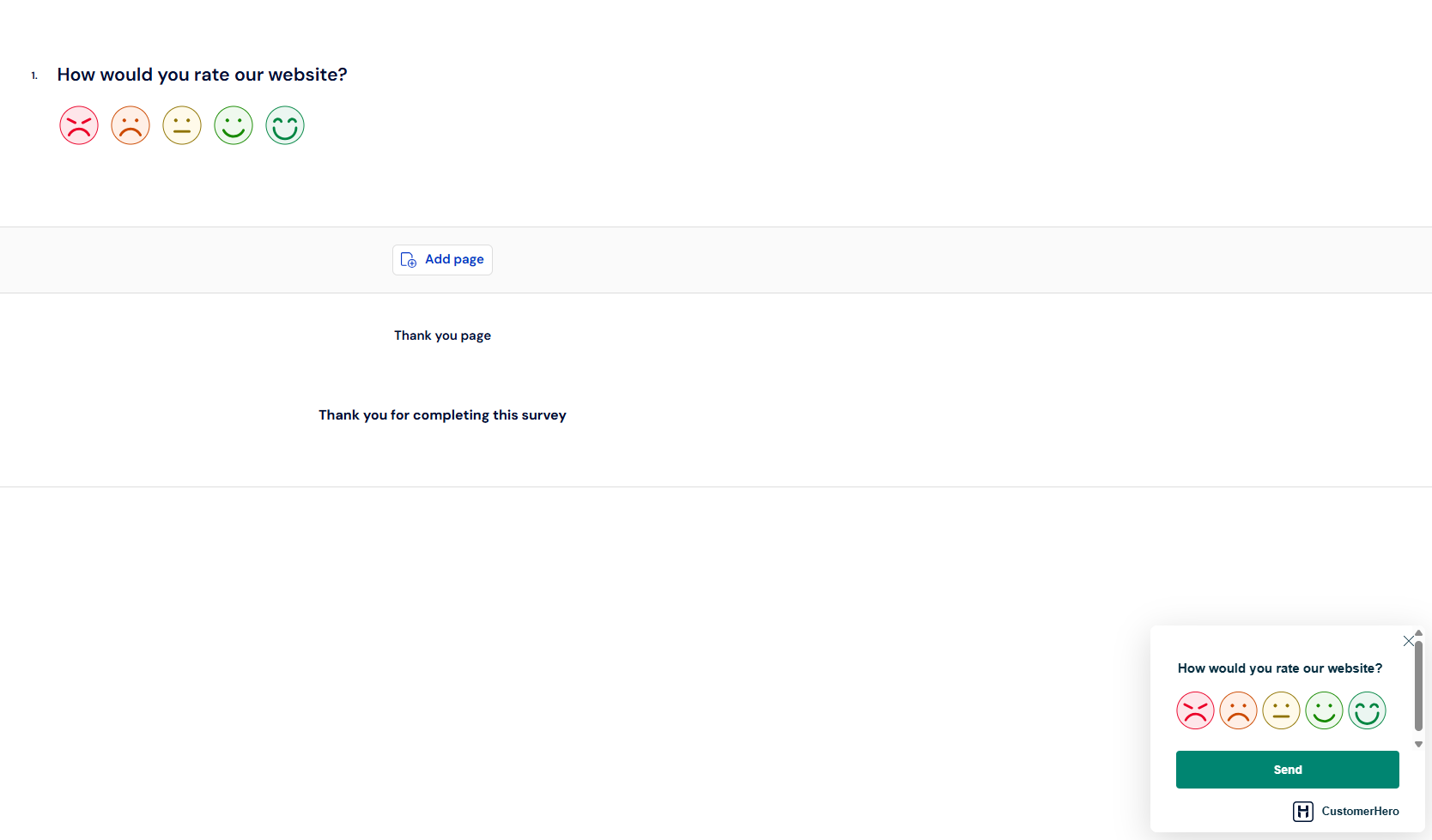
To activate the survey, you need to do two more things:
- paste the code on your website,
- turn on result collection and choose who the survey will be shown to.
Adding the code to your website
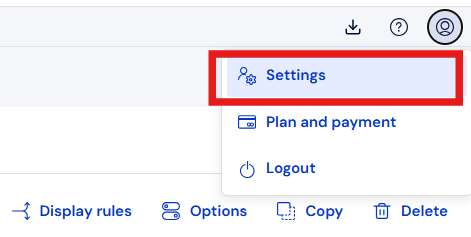
To install the widget on your website, go to the Collection tab, where a pop-up with the survey code will appear right away. You can also find the survey code in the Settings in the top right corner of the screen: Account -> Settings -> Widget code:
There you will find 3 options for installing the code on your website - installing it yourself, asking your IT department to install it using a ready-made message, and installing it via Google Tag Manager.
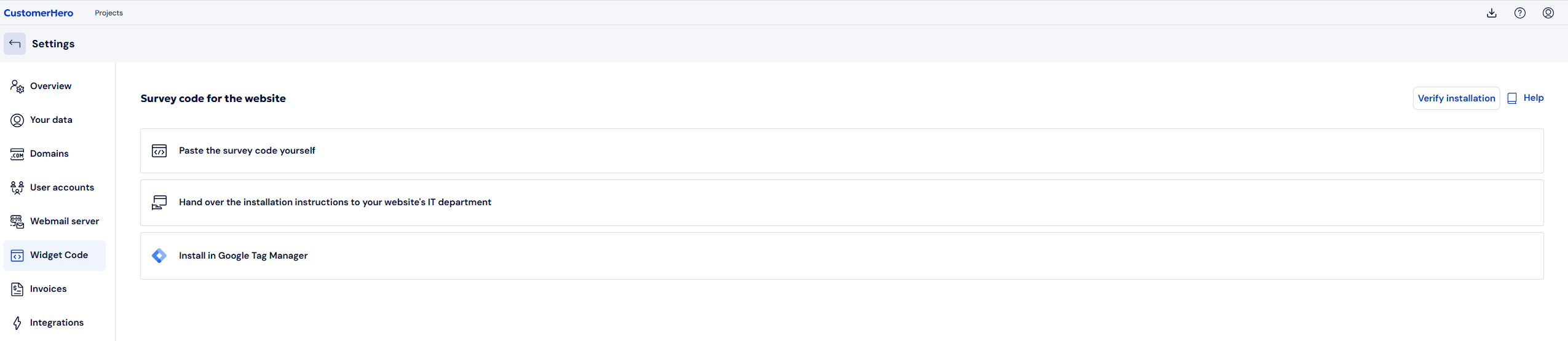
In this example, we will install the code by pasting it on the website ourselves.
Select the "Paste the survey code yourself" option and add the generated code to the <head> section of your website. Paste the code on every page where you want the survey to appear.

3. Check that the code works correctly.
Enter the address of the page where the code is pasted and click "Verify".
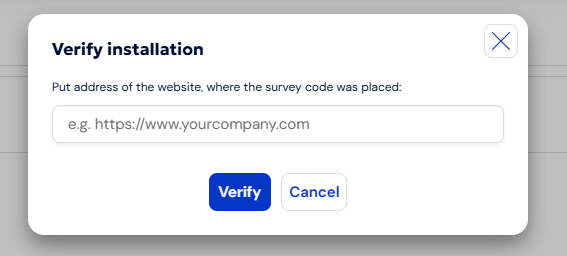
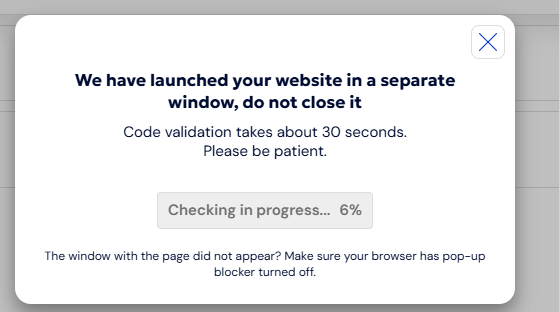
Your website will open in a separate window - do not close it until you see a message confirming that the code is working correctly.
If you run into problems, make sure the code has been pasted in the right place on the page. If problems persist, ask your IT department for help.
Activating result collection
Go to the Collection tab and switch on the "Collecting in progress" toggle.
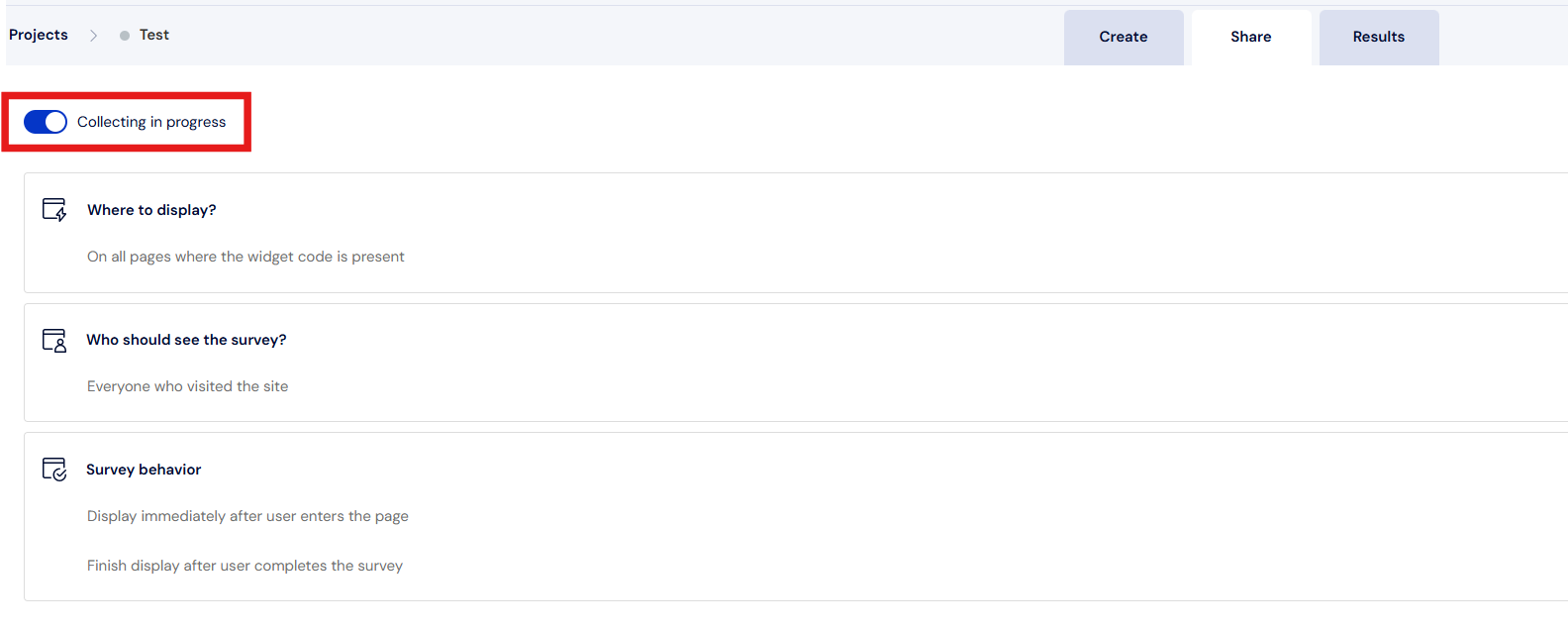
Next, define the rule for when the survey should be displayed. You can choose from the options shown in the image:
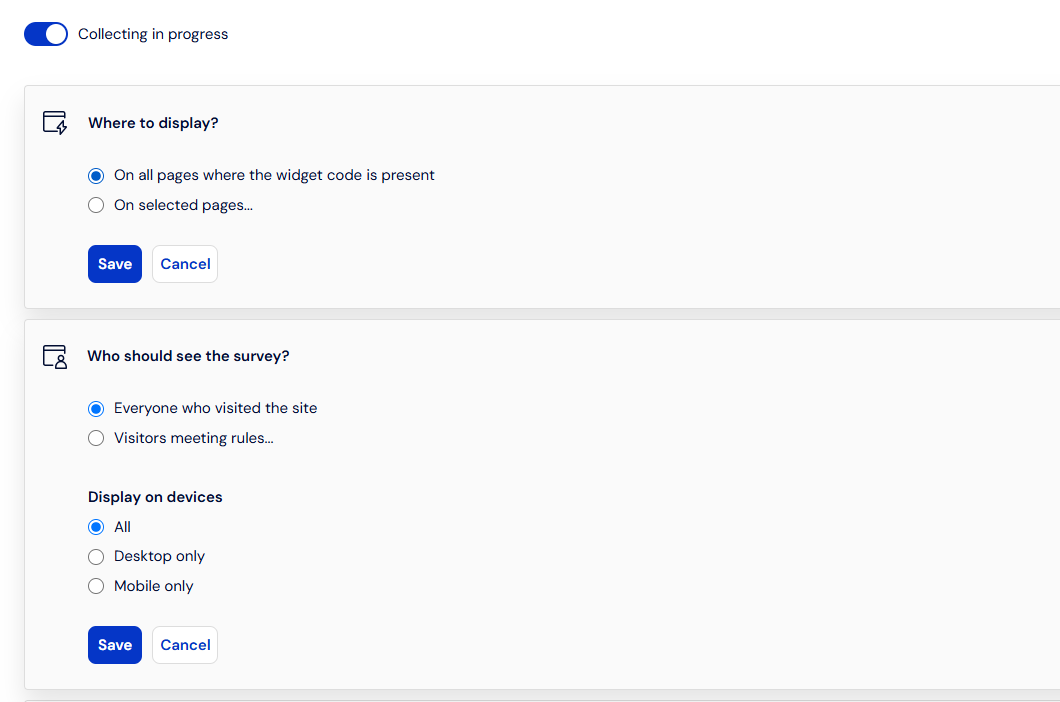
In this example, we want to display the survey everywhere the code has been installed on the website.
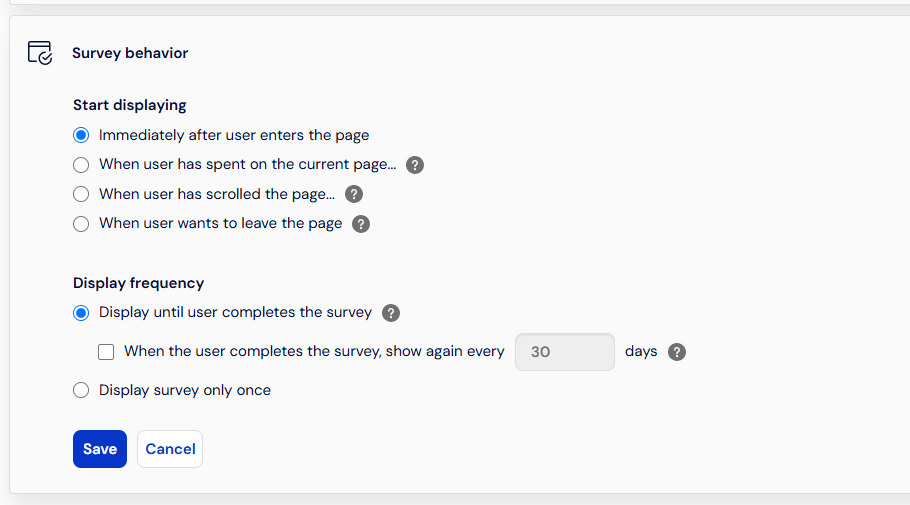
3. You can also decide when the survey should be displayed and whether it should appear once or recur every chosen number of days.