
Code confirming completion of the survey and its verification
Do you want to make sure that your survey has been completed correctly? You can use special confirmation codes for this purpose. Such a code is displayed after the respondent completes the survey. What's more - you can verify such codes later to make sure that a given completion is correct.
How to enable the generation of confirmation codes?
After you finish adding survey questions, select Survey settings in the Creation tab.
Scroll down to the "After completing the survey" section and check the Generate and display a unique code option.
Important: Please note that this feature is available only when the "Display thank you screen" option is selected in the "Action after completion" section.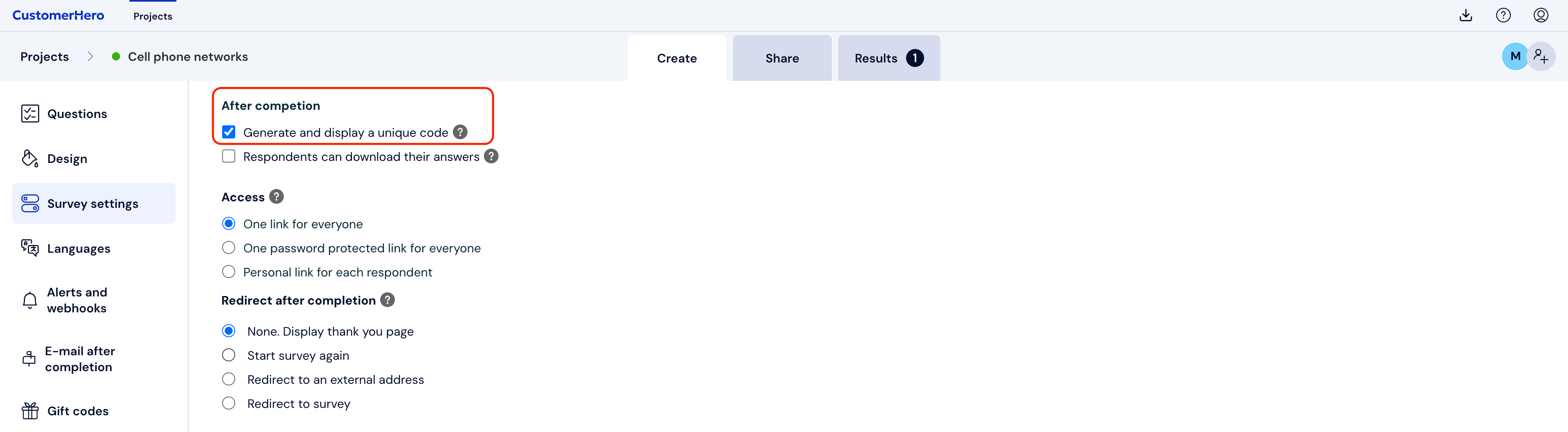
Next, scroll down to the bottom of the page and save the changed survey settings.
Before sending invitations to respondents, modify the thank you page.
Add information on it that after completing the survey, the respondent should send the received code to the e-mail address you provided.Thanks to this, participants will know what actions to take after receiving the code.
How to verify a confirmation code?
After completing the survey, each respondent will receive a unique confirmation code. To verify the codes provided by respondents, go to the Results tab.
Next, select Completion verification.
The "Verification of codes generated after survey completion" page will appear.
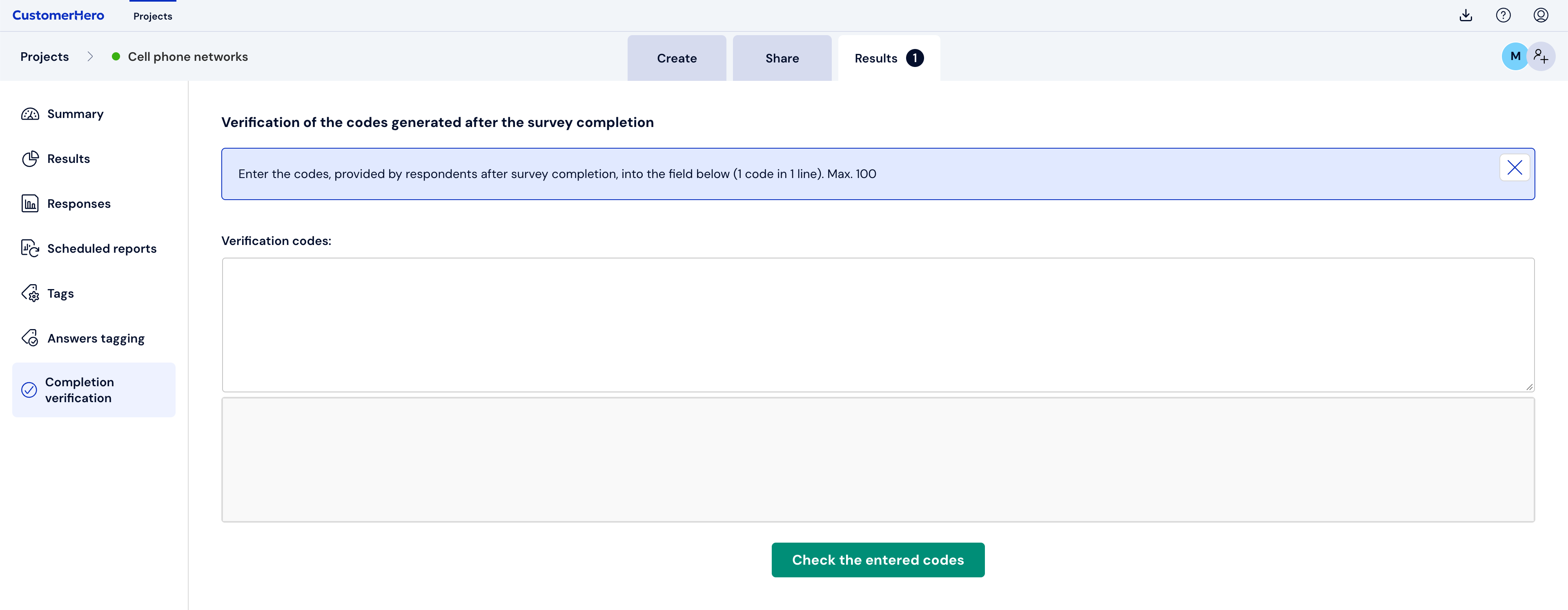
Enter the codes received by respondents in the field marked "Verification codes". Remember that there should be only one code per line. Next, click the "Check entered codes" button.
A table with the verification of the entered codes will appear. If the code is correct, you have the opportunity to view a given sheet by clicking "View this sheet".
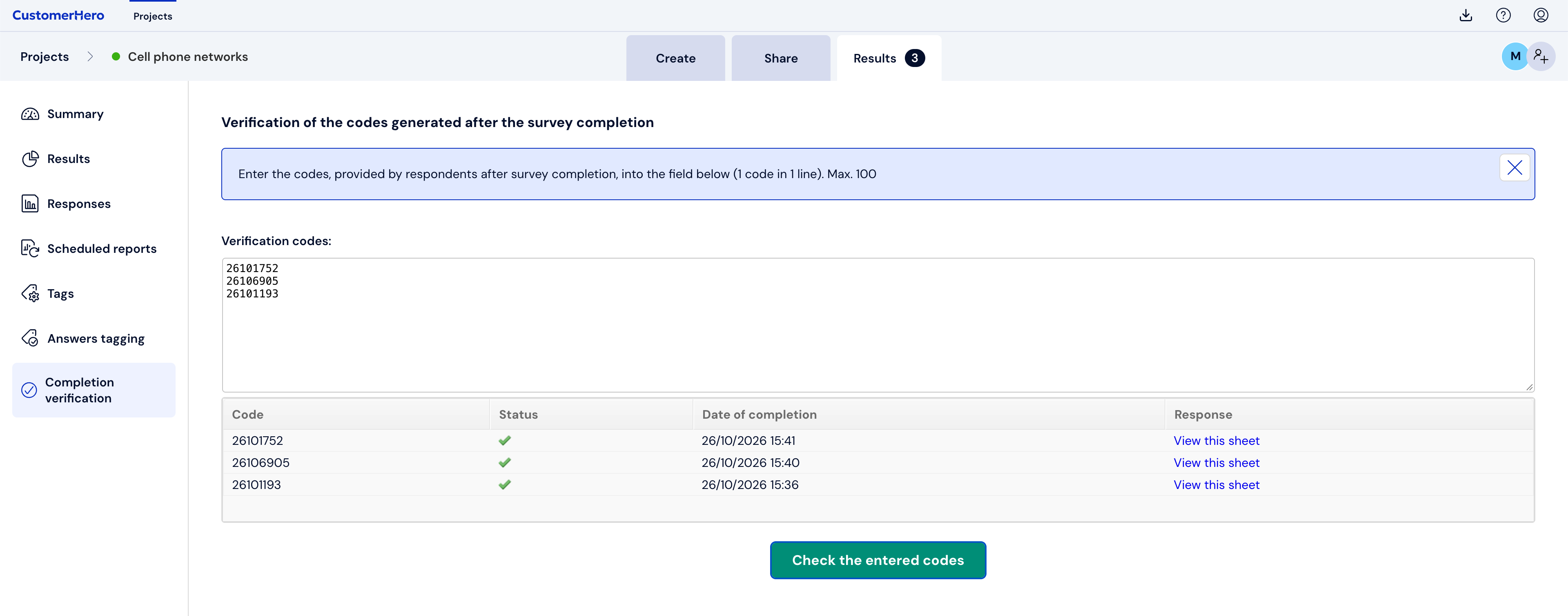
If the code is incorrect, a message appears stating that the given code was not found in the CustomerHero database.
What is worth remembering?
When checking verification codes, there can be only one code per line.
The confirmation code option is available only when the "Display thank you screen" option is enabled.
You can find more about the thank you screen in the topic "Thank you text for completing the survey".