Integration with Power BI
By integrating CustomerHero with Power BI, you can automatically retrieve survey data to populate your reports. This allows you to create dynamic dashboards that update automatically – without the need for manual data exports.
The entire process can be completed in Power BI Desktop using a simple script in the Advanced Editor. Below you will find the complete instructions.
Open Power BI Desktop
Launch Power BI Desktop.
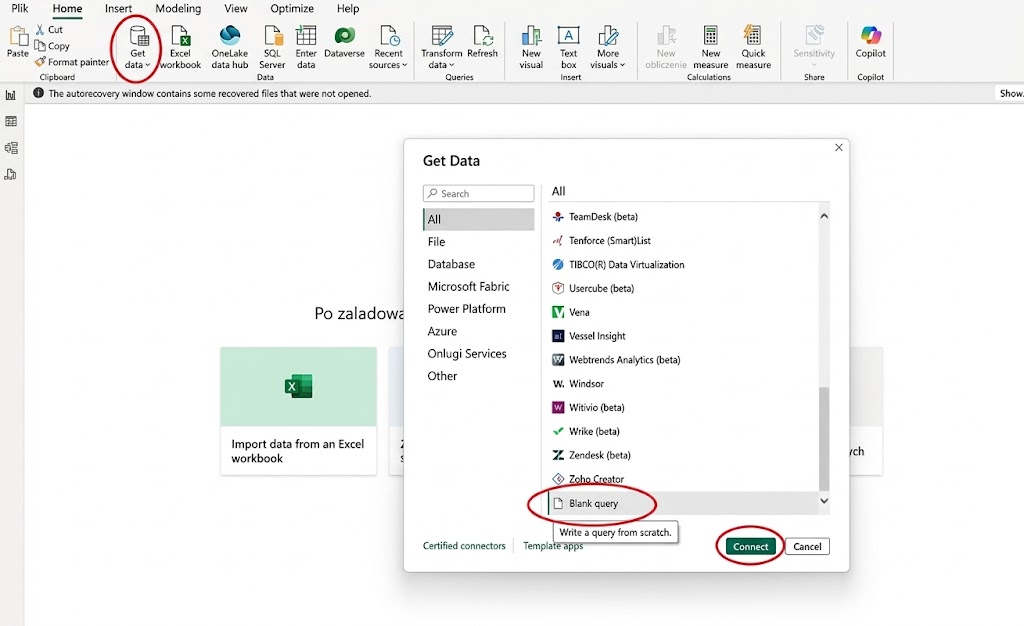
Select Get data → Other → Blank Query → click Connect.
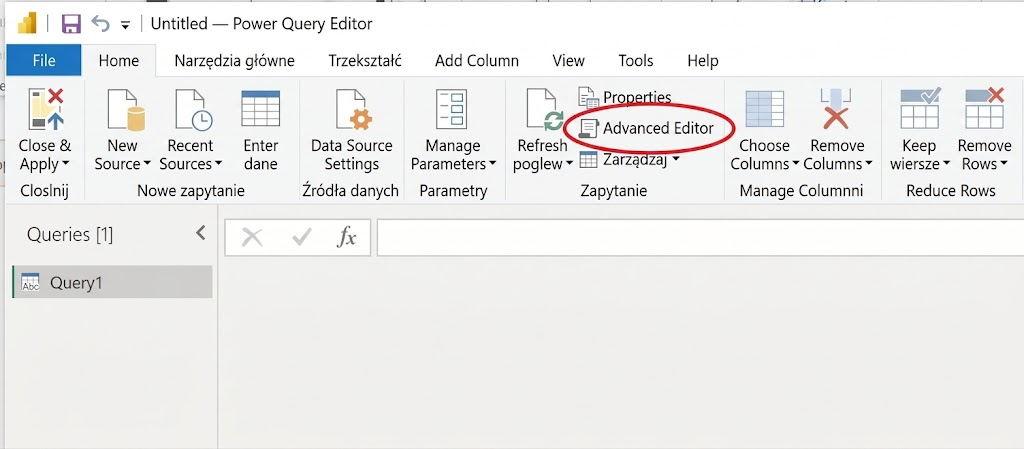
3. In the new window, click Advanced Editor.
4. Paste the code below and insert the corresponding credentials required to connect:
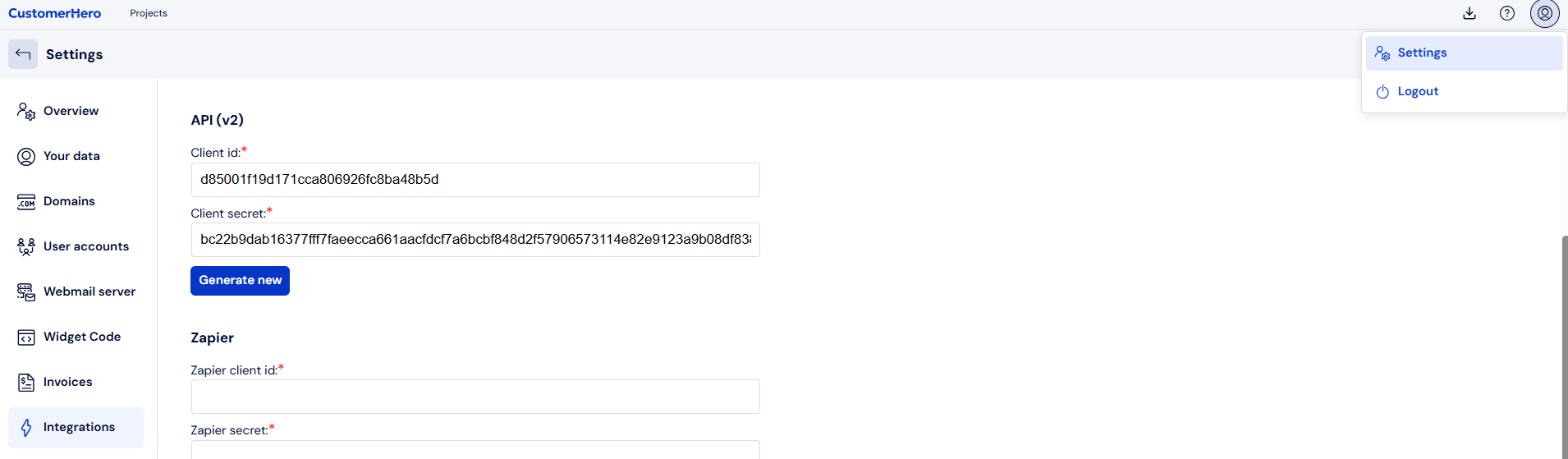
You can find the Client_ID and Client_secret in the Webankieta panel under ACCOUNT --> Settings --> Integrations --> Webankieta API (v2).
You will find the Survey ID in the panel under the Projects tab, directly below the survey title. Alternatively, you can download the entire list of surveys from your account via the API
let
    // Configuration
    client_id = "YOUR_CLIENT_ID",
    client_secret = "YOUR_CLIENT_SECRET",
    token_url = "https://auth.customerhero.com/token",
    api_url = "https://www.webankieta.pl/api/v2/results/single-sheets/SURVEY_ID",

    // Function to obtain a new token
    GetAccessToken = () =>
        let
            TokenBody = "grant_type=client_credentials&client_id=" & client_id & "&client_secret=" & client_secret,
            TokenResponse = Json.Document(Web.Contents(token_url, [
                Headers = [#"Content-Type" = "application/x-www-form-urlencoded"],
                Content = Text.ToBinary(TokenBody)
            ])),
            AccessToken = TokenResponse[access_token]
        in
            AccessToken,

    // Fetch token
    token = GetAccessToken(),

    // Set headers to retrieve data
    headers = [
        #"Authorization" = "Bearer " & token,
        #"Accept" = "application/json"
    ],

    // Fetch data from API
    source = Json.Document(Web.Contents(api_url, [Headers = headers]))
in
    source
5. Click Done, and Power BI will automatically import the data from your survey.
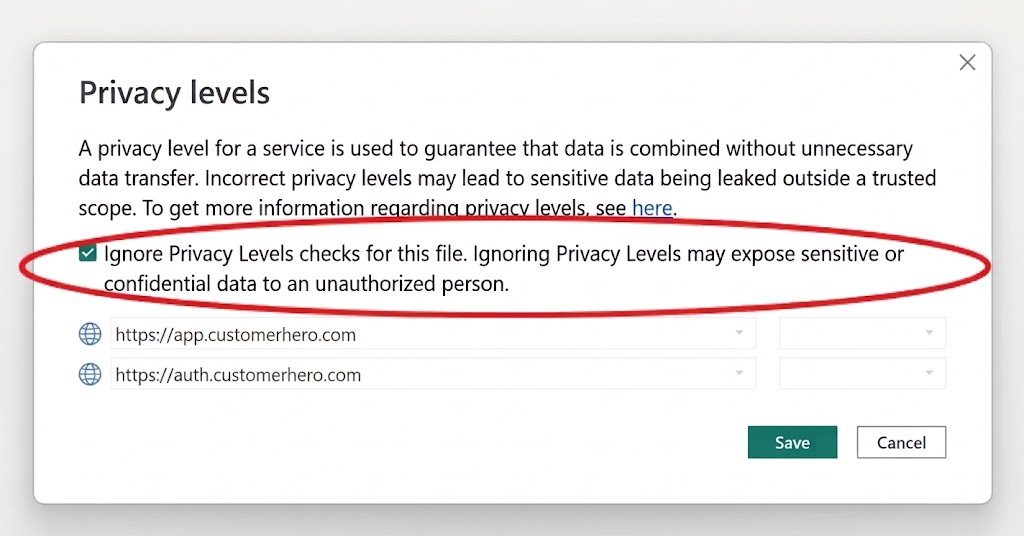
Note: A message like this may appear in Power BI:

To be able to retrieve the data, you must click Continue and check the checkbox: