
Zapier forms – how to collect data from surveys to Google Sheets
Data collected by surveys and forms can be automatically transferred to Google Sheets. This is a special convenience for those who use the Google Suite, e.g., in a company. This way, the data will be easily accessible and ready for further processing and analysis.
To transfer data from a form created on CustomerHero to Google Sheets, we will use a simple tool that will act as a “relay” between CustomerHero and Google — the free tool Zapier.
Step 1 — Select or create the form from which you will transfer data to Google
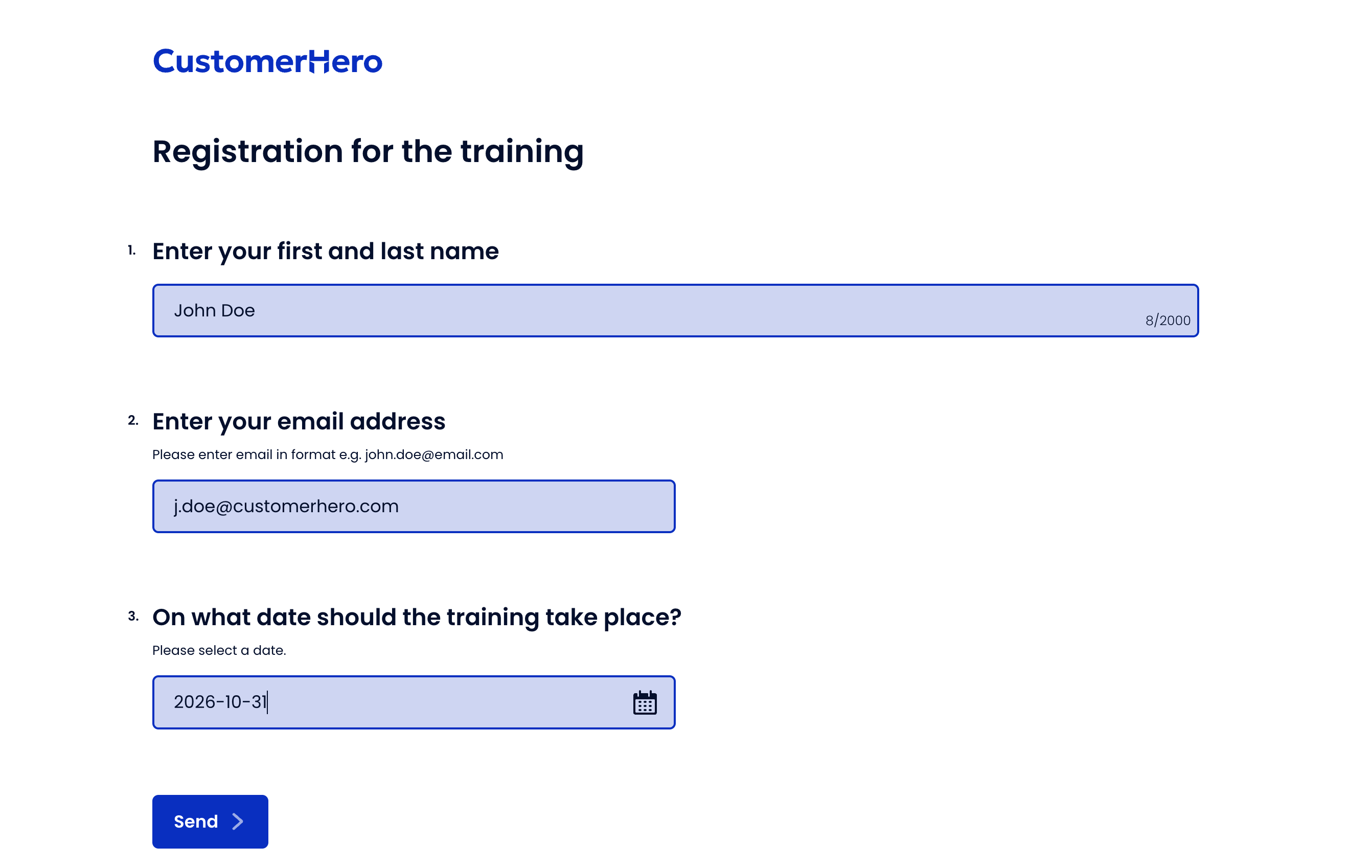
We will use a simple training registration form as an example:
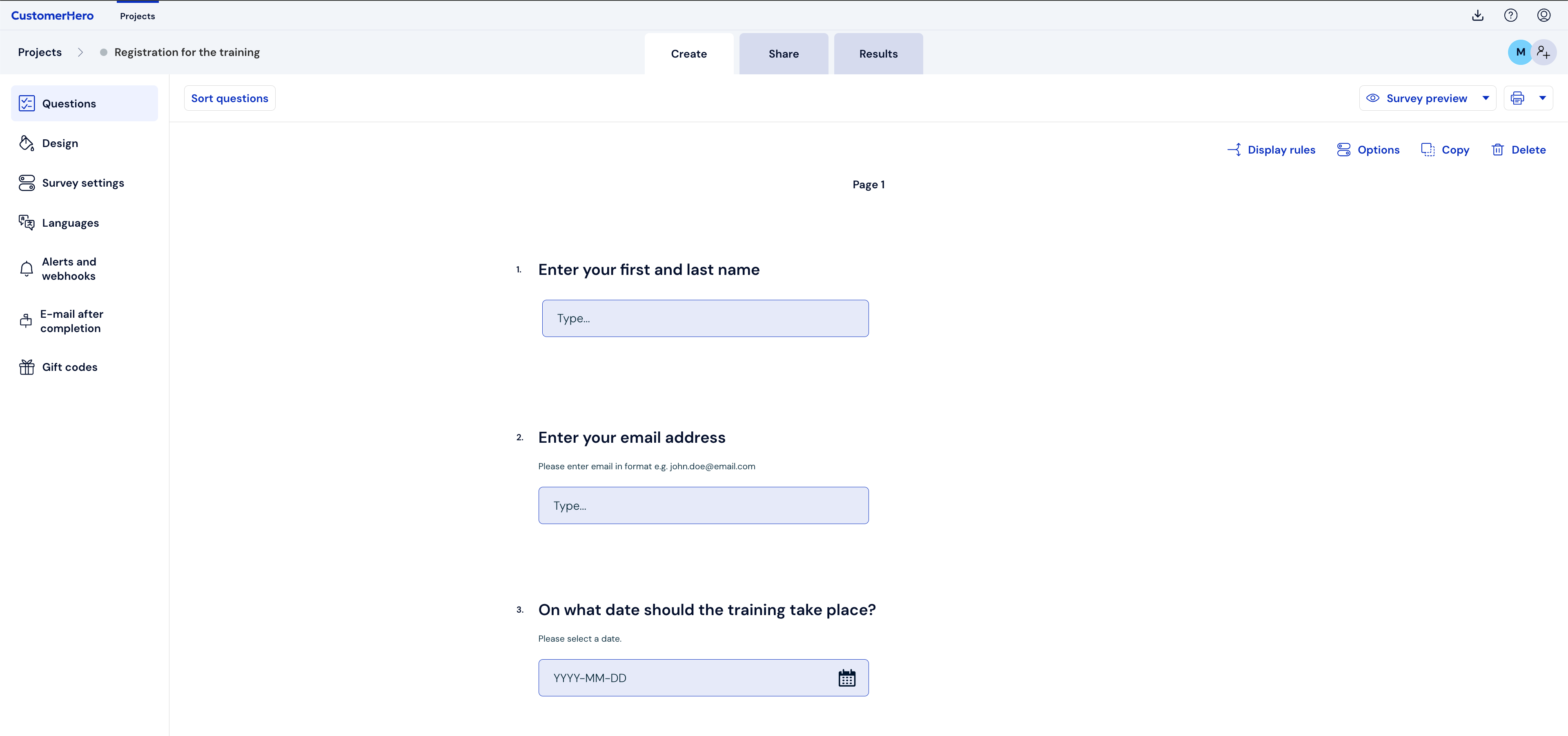
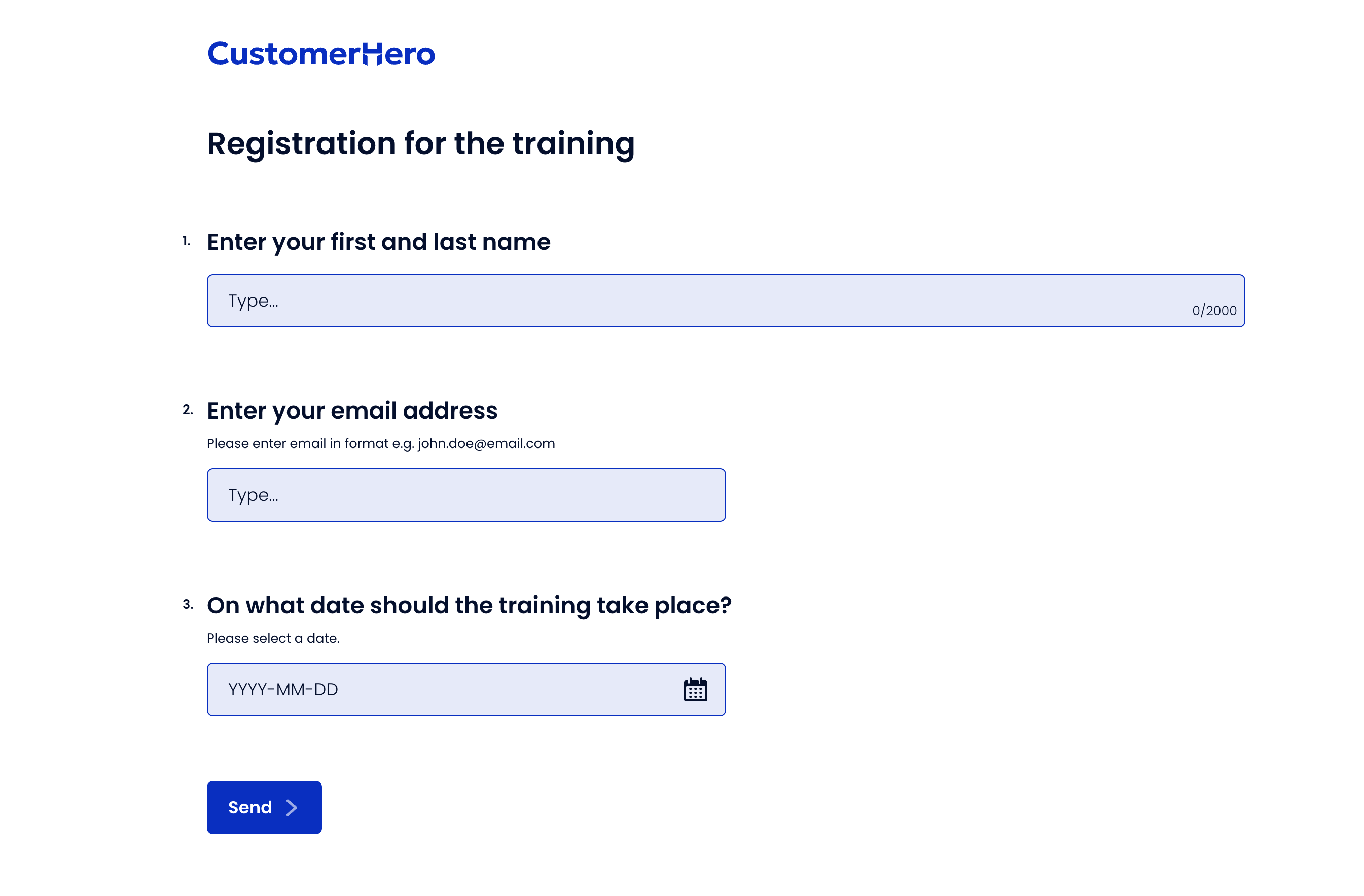
We want to transfer the answers from these three form fields to Google Sheets. The form that the person filling it out will see looks like this:
Step 2 — Select or create the Google Sheets document to which you will transfer data from the form
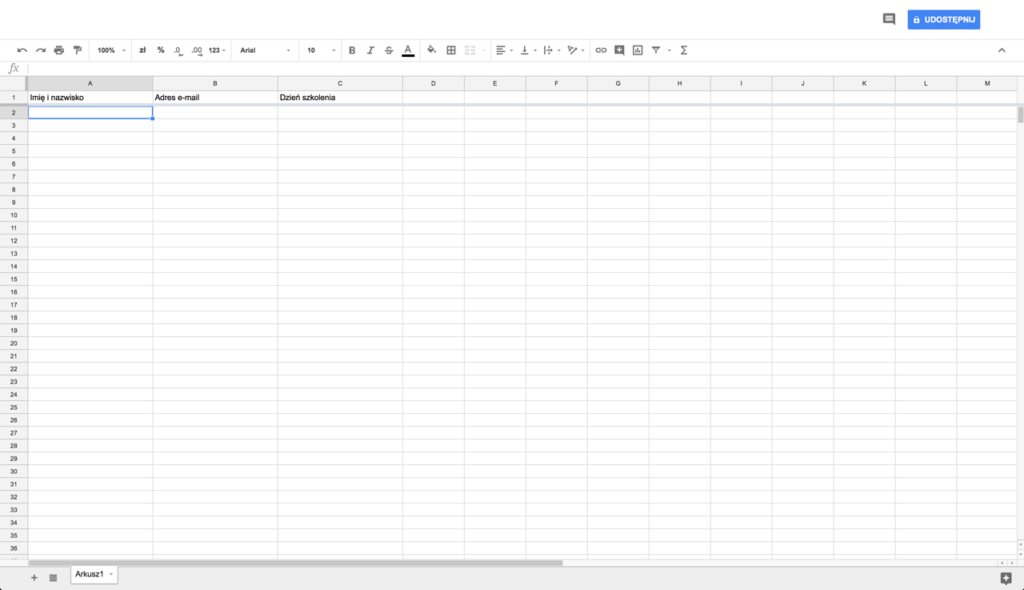
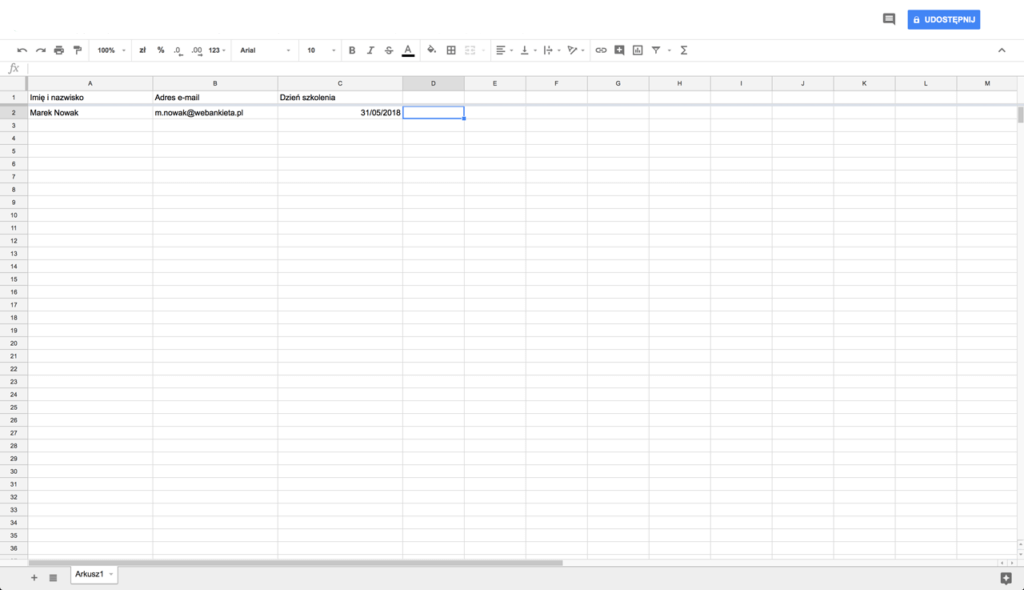
We will use a simple document named “Data from CustomerHero” as an example, in which we have defined three column headers: First and last name (A1), E-mail address (B1) and Training day (C1):
Step 3 — We connect CustomerHero with Google Sheets using the Zapier tool
Go to the page https://zapier.com/sign-up/?next=/app/editor/template/1035 and start registering a new account. It is important to register through this link so that we automatically proceed to the configuration of the form -> Google Sheets connection. After registration, the initial screen will appear:

We move to the next steps — click “Create this Zap”. This screen will appear:

We select the “Catch Hook” option and click “Continue”. This screen will appear:

In this step, we do not define the “Pick off…” fields and move forward - we click “Continue”. This screen will appear:

In this step, we also move forward — we click “Continue”. This screen will appear:

At this point, we have received a unique link, a so-called webhook, which listens for new data coming from CustomerHero to this link. We click “Copy to clipboard”. In a separate browser tab, we go to our panel to the Creation -> Alerts and webhooks tab
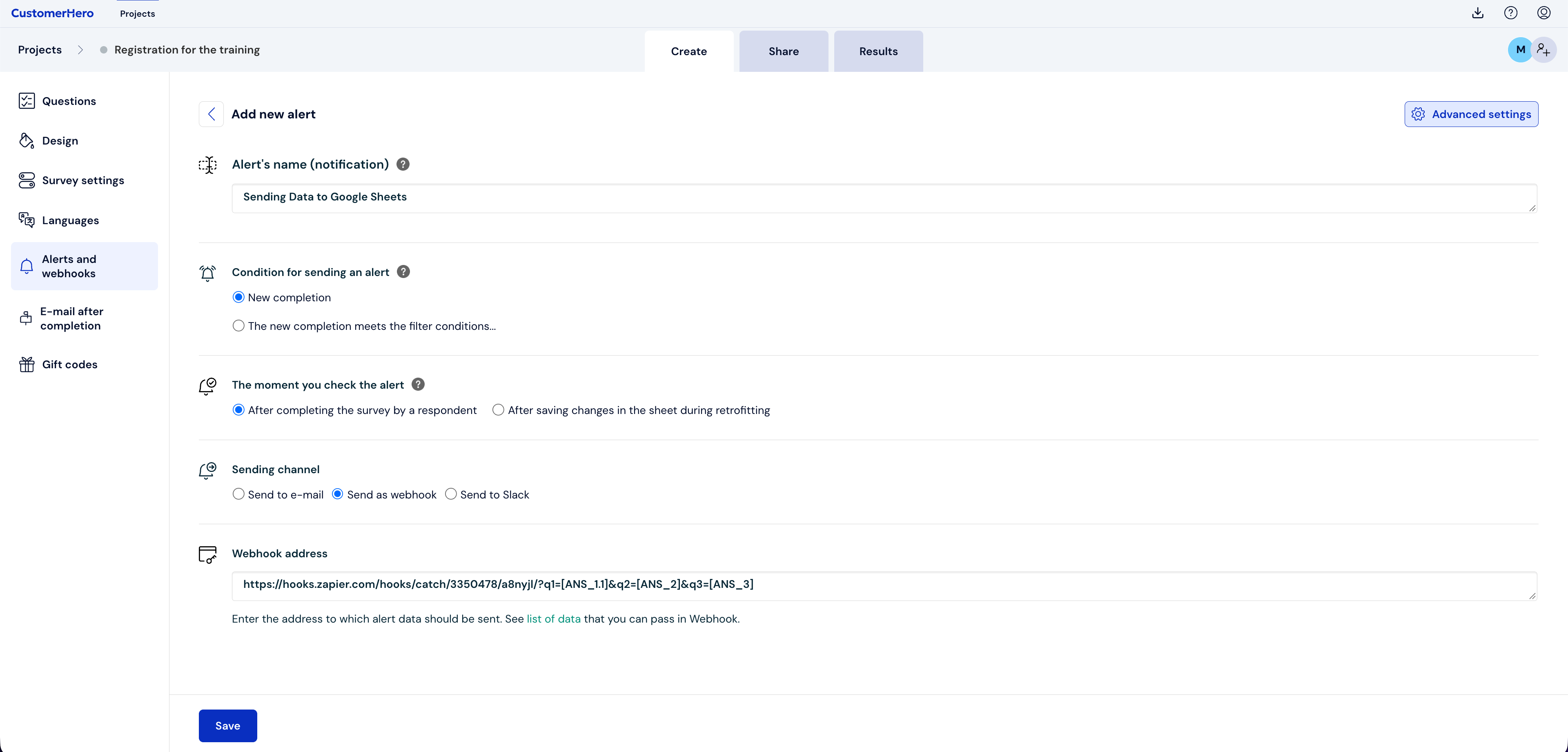
We define the name of the alert, e.g., “Data transfer to Google Sheets” and select “Send as Webhook” as the sending channel.
Next, in the “Webhook URL” field, we paste the link received in Zapier.
At the end of the address we add ?q1=[ANS_1]&q2=[ANS_2]&q3=[ANS_3]. This entry allows you to transfer the answers to our three asked questions (ANS_1, ANS_2, ANS_3) to Google Sheets.
You can transfer much more additional data — you will find their full list under the green “data list” link located below the field where we enter these values.
We click “Save” to create a new alert and start transferring form data to Google Sheets.
Step 4 — We fill out the survey / form as a test
We go to our survey and fill it out with sample data to activate the alert. In our case, we fill it out with the data “John Doe”:
Step 5 — We start configuring Google Sheets
We return to the Zapier configuration tab. We finished on this screen:

Next, we click on “OK, I did this”. If the alert has been configured correctly, a confirmation screen will appear before our eyes:

We click “Continue”. We will see the screen:

We click “Continue”. We will see the screen:

We click “Connect an Account”. At this point, we will be asked to select the Google account where the Google Sheets document we created is located. We select the account and allow application access:

We click “Allow”. After allowing, the screen will appear:

We click “Save + Continue”. We will see the screen:

In this place, we indicate our Spreadsheet: Data from CustomerHero. Worksheet is the sheet to which we will send data from the form (Sheet1). The previously defined columns should load in the next fields: First and last name, E-mail address and Training day.
We click “Continue”. We will see the screen:

If we did everything correctly, a new completion should jump into our document. We click “Finish” to end the configuration:

Step 6 — we check if the filled-out form was saved in Google Sheets
We go to our document “Data from CustomerHero”. The first completion should appear before our eyes:
From now on, every respondent who fills out the form will be automatically transferred to Google Sheets.
In the entire process above, we used Webhook technology. This is a very flexible model of transferring information from one online tool to another. Using a webhook, you can transfer form data not only to Google Sheets — e.g., also to Gmail, calendar, Trello, Asana, JIRA, etc. You can find the full list here: https://zapier.com/apps/webhook/integrations
If you need help or any of the configuration points are unclear to you, contact us on the chat — we will be happy to help!