
Integration with SALESmanago – description of the process
User convenience and adapting the tool to their individual needs are among CustomerHero's priorities. Therefore, one of the features is the possibility of integration with other platforms, including SALESmanago - a marketing automation platform, thanks to which companies can increase their revenues by providing customers with personalized offers.
The goal of the integration is to enable CustomerHero users to transfer data from survey completions (questions and answers) to SALESmanago - specifically to the contact list on the SALESmanago platform. In other words: integrating both platforms can result in automatic uploading and updating of account information (e.g., respondents' e-mail addresses).
How to start the integration?
First of all, in the tab Account settings in the user account, you must find the Sales manago section.
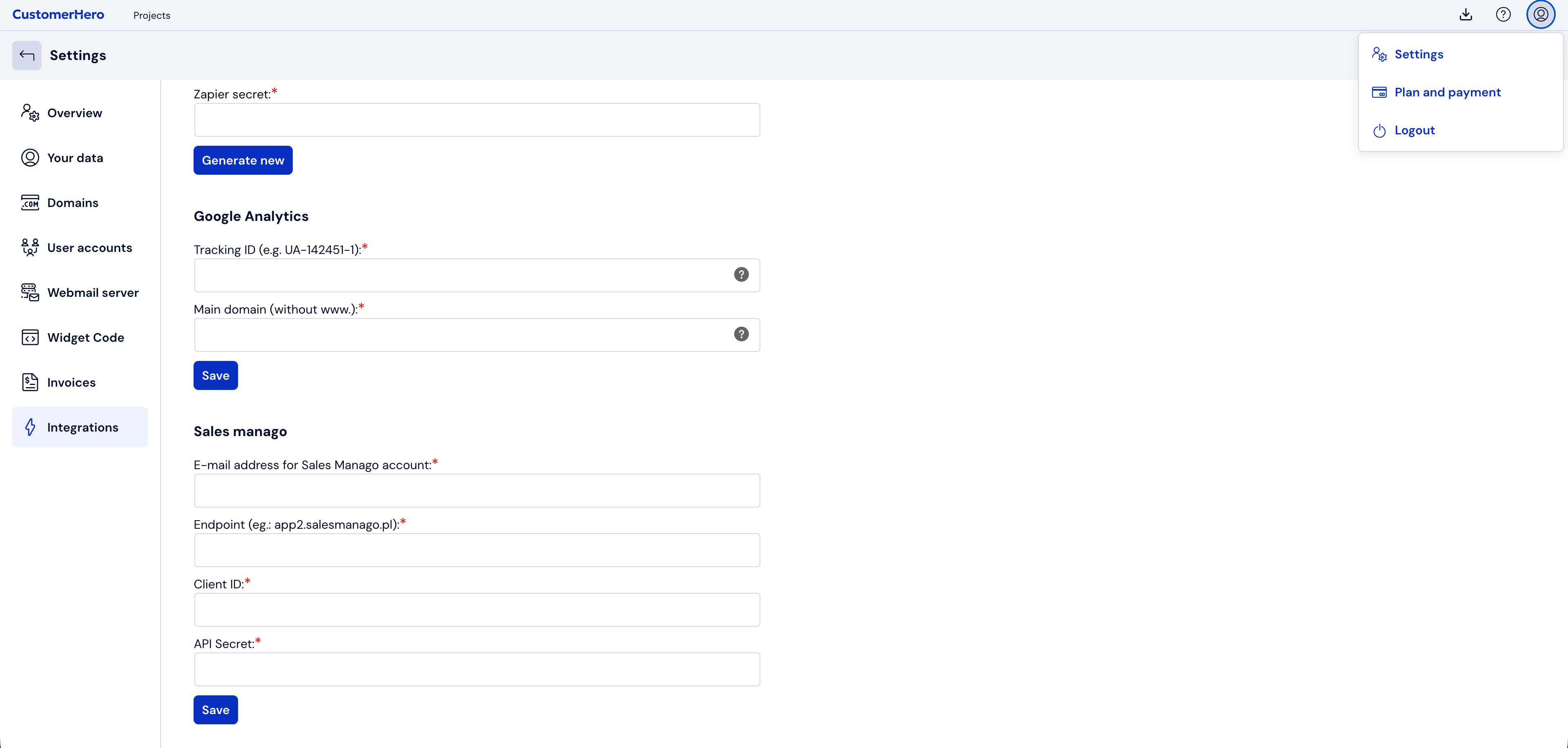
The information we need to copy to the Account settings in CustomerHero are: endpoint, client ID, and API secret:
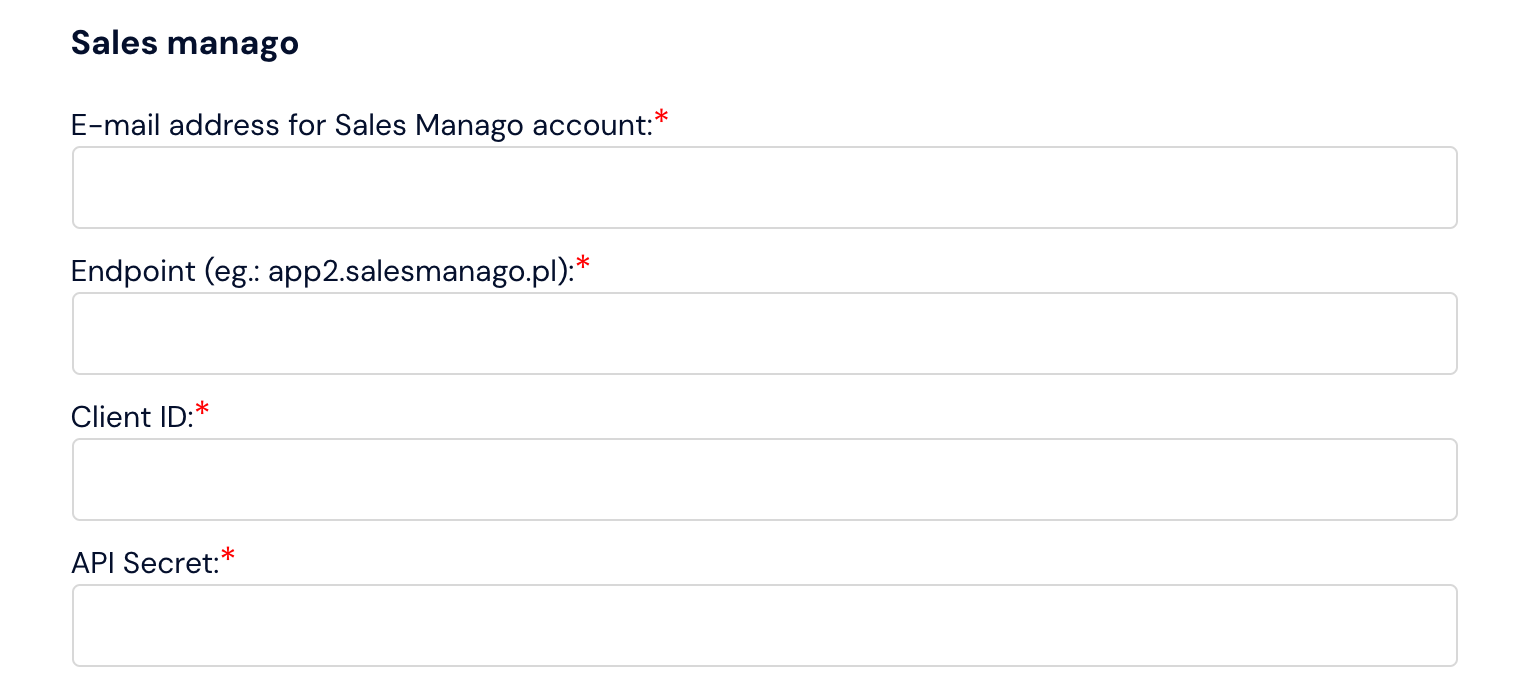
API keys and data to SALESmanago are configured only once - at the entire account level, not for a single survey. The keys can be obtained from the SALESmanago panel. Just go to Settings (account), select the tab: Integrations, then Settings and the sub-tab: API Access.
In order for a given survey to send data to SALESmanago, go to Survey settings (in the Creation tab in the panel at the top of the page) and check the option: Send survey results to the user profile in SALESmanago (at the very bottom of the page).
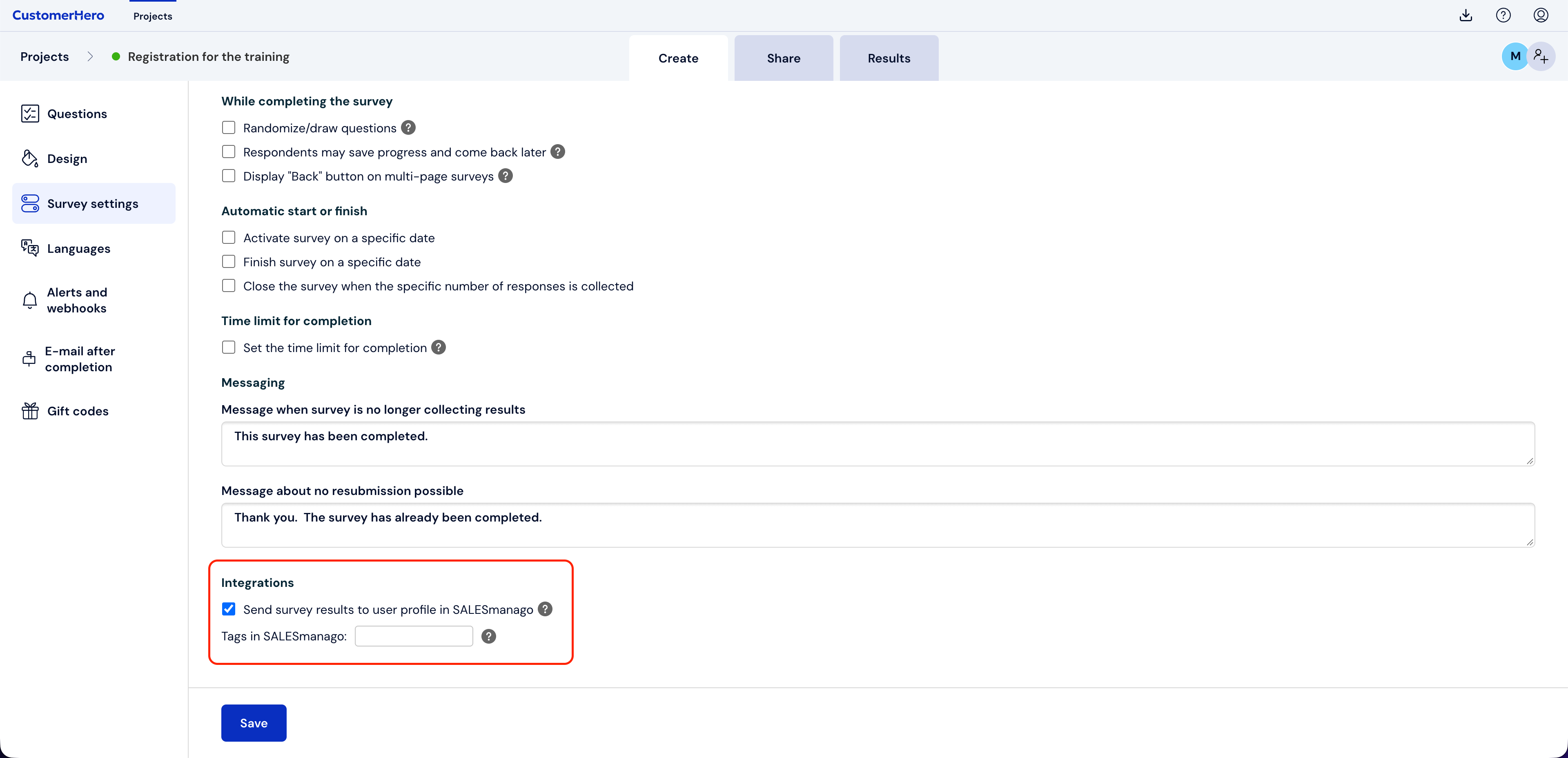
By turning on this option in the survey settings, we simultaneously define the tag that will be used to mark the contacts that will be added or updated by this specific survey.
After clicking: Save, the integration starts working in the selected survey. This means that after completing it, the data will be sent to the user account in SALESManago.
The integration can work in two modes:
1. In case the survey created by the user contains an e-mail question.
Then, based on the answer in the first e-mail question from the survey, the integration searches the contact database on the SALESMango account for a contact with a specific e-mail address. If:
the contact is found, the current data is updated with new fields,
the contact is not found - the system will create a new contact along with fields in SALESmanago.
2. In case the respondents are sent a link to the survey with the applied smclientid parameter - GET (?smclientid=...):
If you send an invitation to complete a survey to a contact/customer from the SALESmanago database and you want the survey results to be saved in their profile in the SALESmanago database. All you have to do is attach the value of this identifier to your survey URL. Pass the identifier value in a variable named smclientid.
Exactly the same parameter is added by the SALESmanago mailing system to each link in the email content.
It is possible to fill out the survey with this parameter multiple times.
The parameter can be used in all survey security levels.
The contact ID from the salesManago system can be obtained via the Generate URL button available in the contact details (CRM -> Contacts List).
Sample URLs
https://www.customerhero.com/survey/123456/badanie-satysfakcji.html?smclientid=f6c5487b-369d-4107-958c-2912c1bc3f80 http://ankieta.mojafirma.pl?smclientid=f6c5487b-369d-4107-958c-2912c1bc3f80

http://ankieta.mojafirma.pl?smclientid=f6c5487b-369d-4107-958c-2912c1bc3f80
It's worth knowing that:
The integration uses the upsert and update methods in the SalesManago API. Data is sent immediately after the respondent completes the survey, meaning that all answers and questions from the survey are automatically sent to SALESManago - the data is added or updated there.
To see new or updated contacts, go to the CRM tab and then Contacts List in your SALESmanago account.
Survey data is visible in the details of a given contact in the Custom details sub-tab. The fields contain the word: "survey." + the content of the question (spaces are replaced by hyphens, and Polish characters are removed from the content), the field values are the answers from the questions.
Please note that the length of the field value cannot be longer than 255 characters. This means that in cases of longer values, the data in SALESManago may be incomplete.
A tag (segment) is added to the contact - as previously defined in the survey settings.
Decide to integrate with SALESmanago if:
you are interested in profiling, i.e. the ability to categorize and transfer data from surveys to subsequent sales funnels - the integration will allow you to automatically collect and update contact data (which already exists in the SalesManago system)
you want to create a sales landing page that collects leads - the survey can be perfectly used here as a tool to gather contacts.