
Customer Satisfaction Survey Following Contact with Customer Service [Integration of Thulium and CustomerHero]
Are you sure your customers are satisfied with the service? Where do you get knowledge about how much effort a customer put into a given process? The answer is simple: from an online survey. A Customer Effort Score study will allow you to get a lot of practical information about the customer's experience in contact with the company. The CES indicator has been recognized for several years, alongside the Net Promoter Score, as a key element of research by customer service departments and Customer Experience experts.
Being a Thulium customer, you can conduct such a study instantly. Integration with our platform allows you to use a ready-made survey template and an invitation template, sent to customers after contacting the customer service office. But first things first. In this manual, we will explain to you step by step what you need to do so that the satisfaction survey reaches your customers.
1. Create a survey using a ready-made template
Below we have prepared a ready-made template for a customer satisfaction survey after contacting the CSO. This is a template for the most basic study, thanks to which you will quickly find out how much effort the customer had to put into contacting the CSO, whether they are satisfied with this contact, and if not – what is the reason for it. The survey can look like this: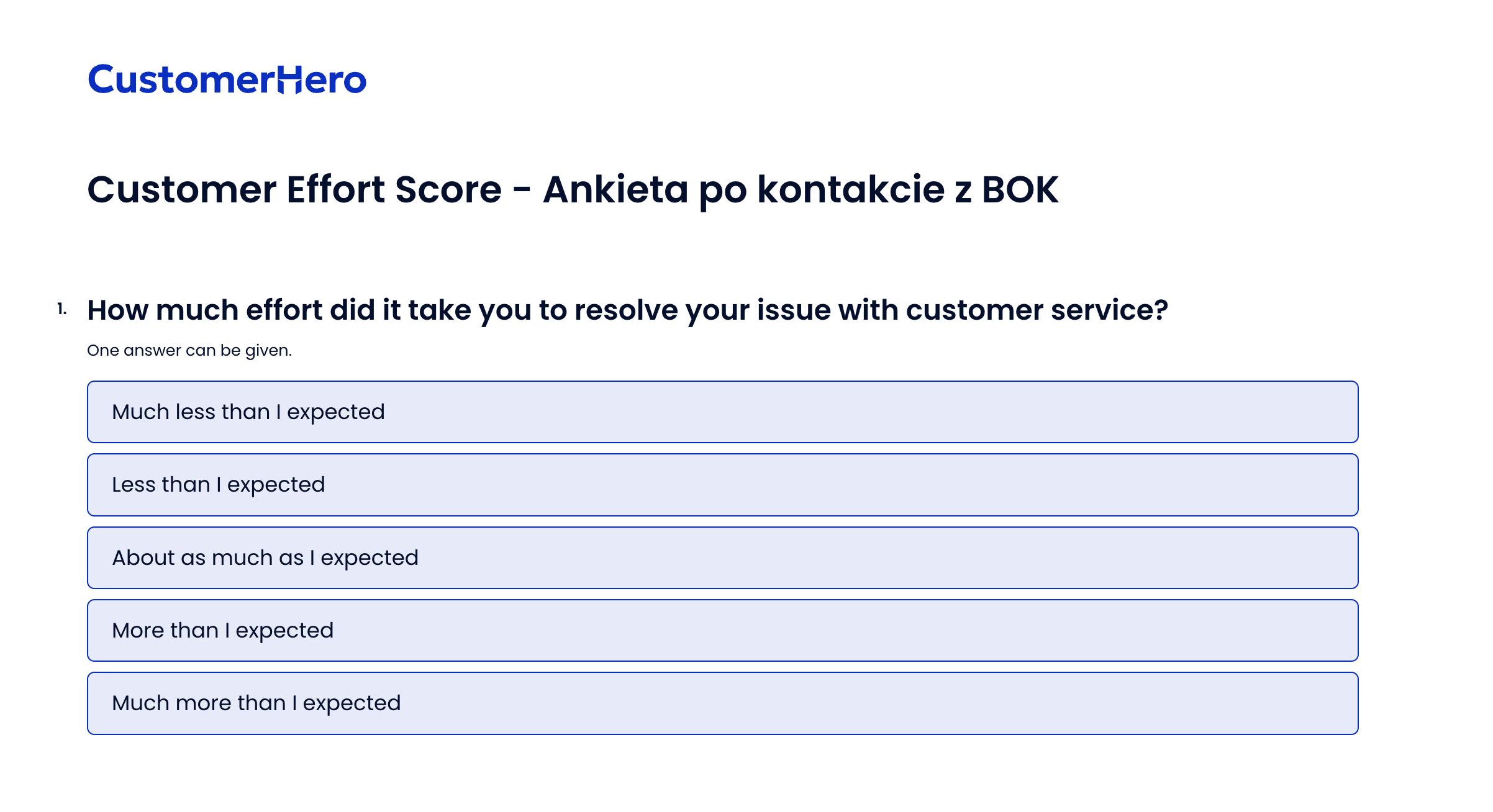
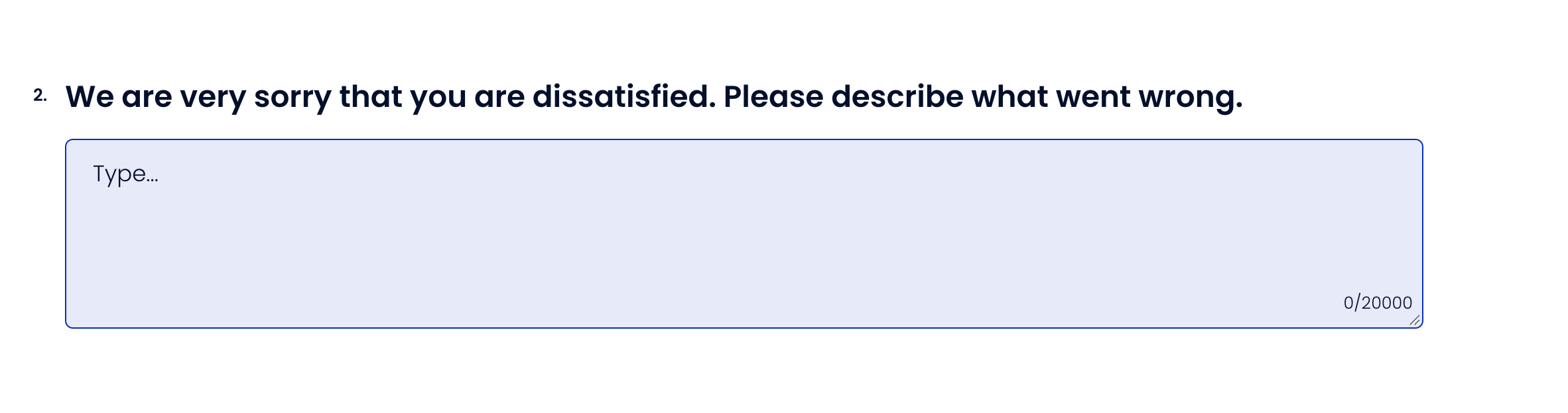
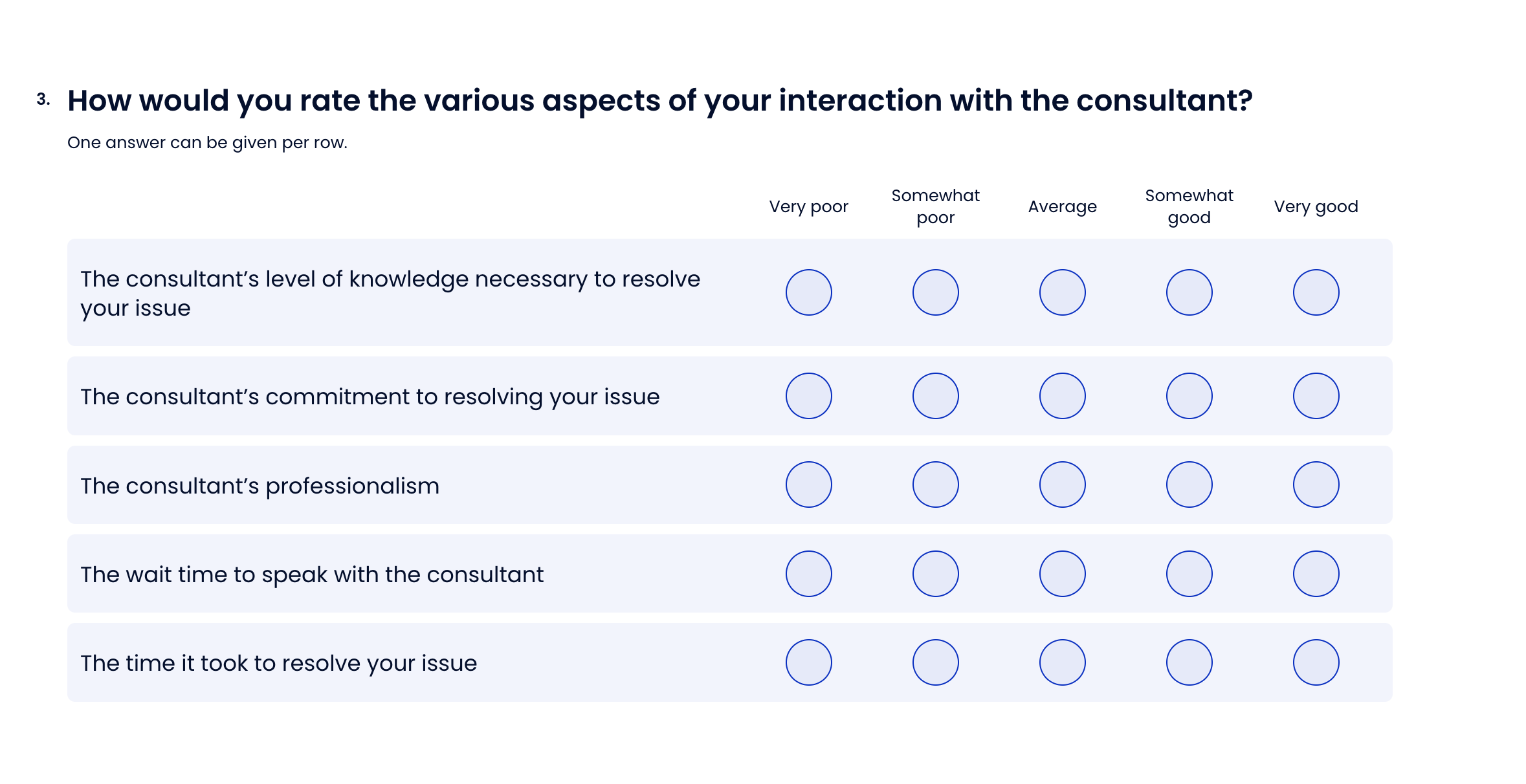
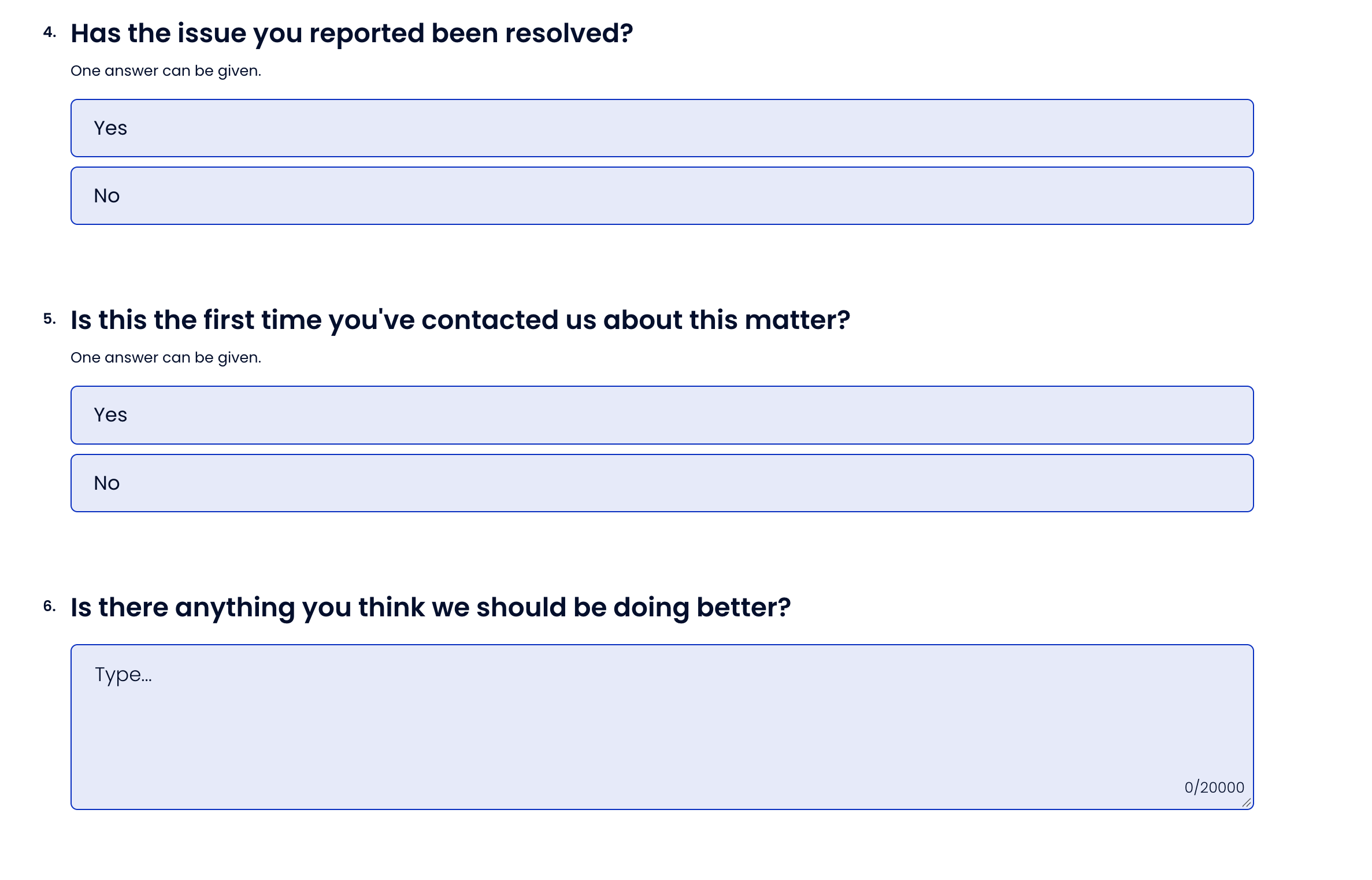
A good survey = a short survey, which is why it is worth ensuring that the effort of your customers is as low as possible, also when completing the survey. Therefore, when asking a question about the reason for a low rating, it is worth using the conditional page display option. Thanks to it, the question about the justification will be displayed only to people who considered the effort to be high or very high, and the remaining respondents will be able to automatically proceed to the next question.
When creating a survey (type and number of questions, its length or appearance), adapt it to the specifics of your company's operations. When creating a questionnaire, you can use the knowledge gathered in our guide – there you will find ready-made instructions on how to create various types of questions, change the survey language, or decide on page numbering.
2. Send a survey invitation using a ready-made template
A lot really depends on how you invite respondents to the study. A well-constructed invitation can encourage completing the survey and vice versa – an incomprehensible or unesthetic message will result in no one wanting to answer it.
To make it easier for you to create a good invitation for a satisfaction survey after contacting the CSO, we have prepared a ready-made template.
Good morning,
We believe in the principle that you have to ask to know the answers.
And because we are curious how we did, we want to ask:
How much effort did you put into contacting our Customer Service Department:
significantly less than I expected
less than I expected
as much as I expected
more than I expected
significantly more than I expected
Thank you, and in case of additional questions, feel free to contact us.
Best regards
An invitation that will be displayed in an e-mail addressed to customers can look like this:
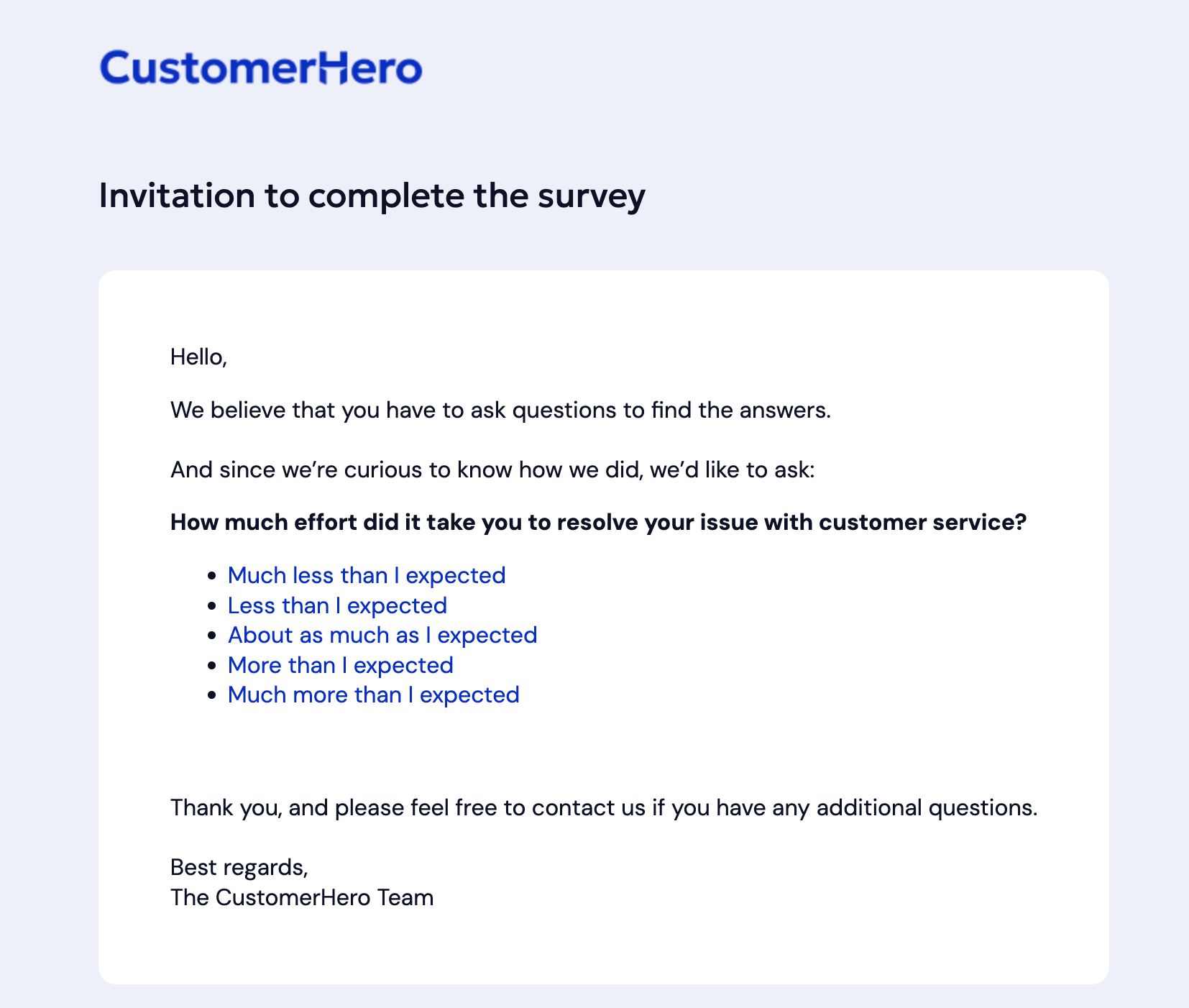
When conducting a study on the CustomerHero platform, it is enough to create an invitation template for a given study once. With each subsequent sending, you will be able to use the previously prepared template, which will save your time and effort to the maximum.
A detailed instruction on how to create a study invitation template sent to respondents' e-mail addresses can be found in our guide. Here we will just explain step by step what creating a study invitation in our system looks like:
In the top menu, select Collection, and then Send to e-mail:

After adding customers' e-mail addresses manually or importing a file with addresses, click: Configure sending
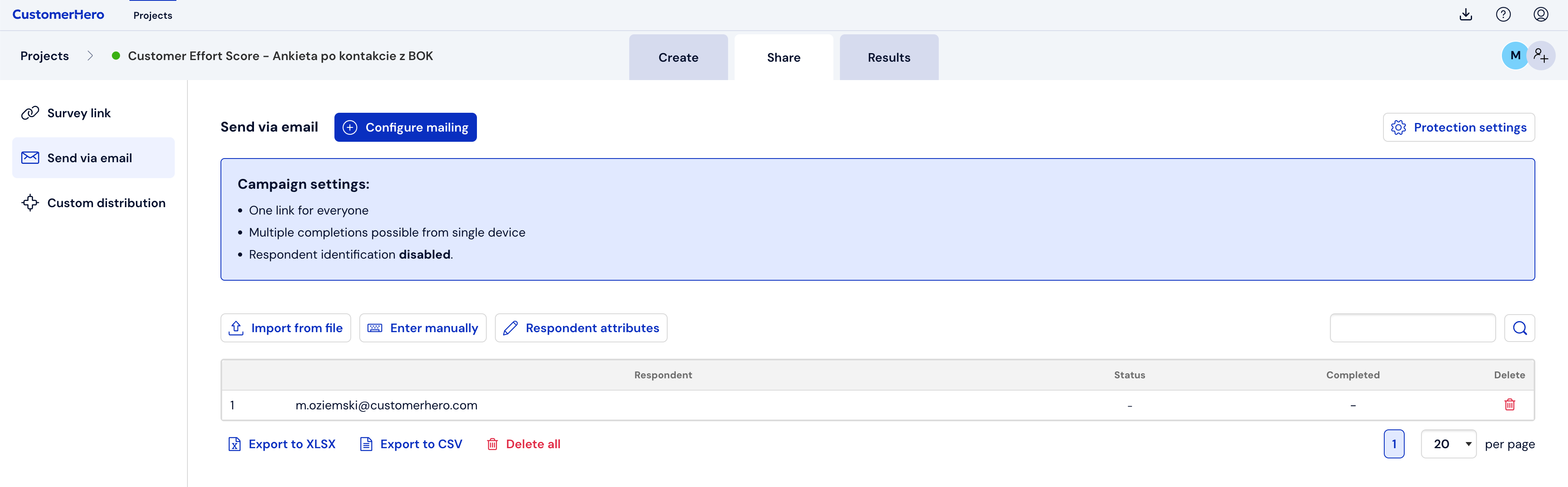
Here begins the stage where you decide what your invitation will look like. In the case of a CSO satisfaction survey, we recommend that the first question, measuring customer effort, be asked already in the e-mail content. This will definitely increase the customer response rate and make the invitation more attractive.
You can create the invitation content yourself or use dynamic content, thanks to which you will paste ready-made elements into the message content, e.g., the customer's name, the content of the first question, etc.
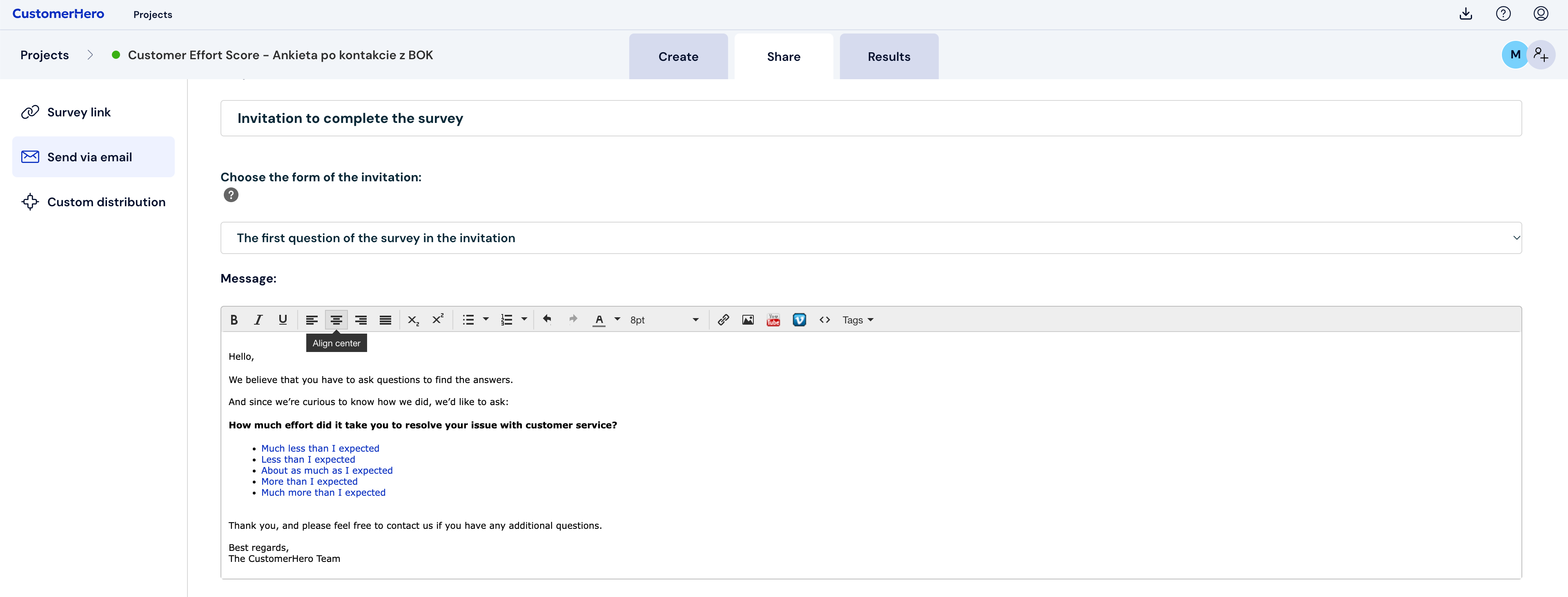
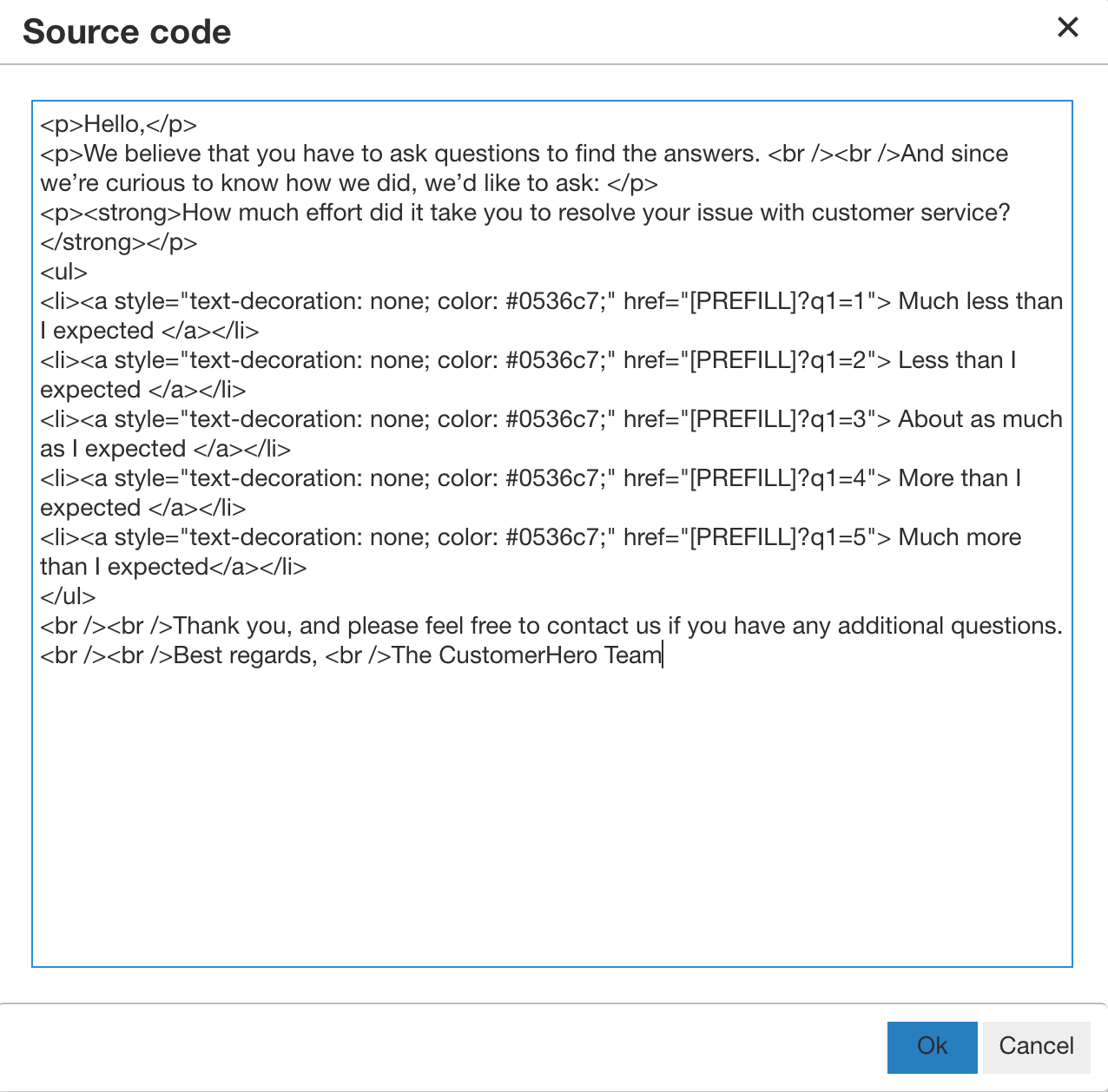
If you would like the respondent to be able to answer the question directly from the e-mail level, you need to add a prefill to the message content (links directing to a specific answer visible in the image above). To do this, use the source code option, which will open the HTML editing screen:

Click on the symbol (< >) and enter the appropriate source code in the editor. Under each href macro, there is a link to the survey. You set prefills depending on the question number and the answer in a given question (in the example below you can see that q1=1 means answer number 1 in the first question of your survey). Instructions on how to create and more information about passing answers in the URL (prefill) can be found in this article.
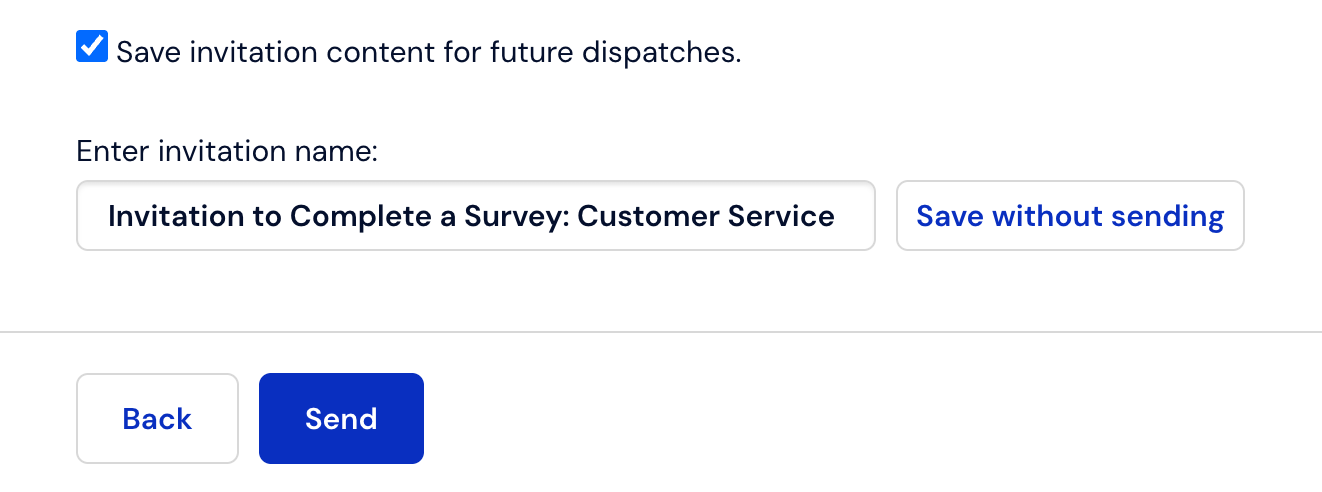
To save the invitation template and use it for further mailings, scroll to the very bottom of the screen and check the checkbox: I want to save the invitation content for future mailings. Here you can give the invitation template a title and from now on use it for further mailings.
In the case of planning a future reminder dispatch to respondents who have not yet completed the survey, the mailing will be sent to those who have not completed the survey at the time of sending.
3. Let's get started!
More information on configuring the CustomerHero integration with Thulium can be found on this website.
Important:
Data from Thulium is transferred to CustomerHero along with the respondent in the form of attributes. This data is visible in the Send to email tab - in the case of email tickets, and in the Own distribution tab - in the case of phone calls.
Attributes 1 to 5 contain the following data:
Ticket ID
Agent ID
Agent data
Conversation start date
Conversation end date